
Configure Custom Taxes
Applies to: Advanced Billing
Last updated on Oct 16, 2026
Custom taxes let you define your own tax rules for specific countries or regions without relying on Avalara. You can build tax rules, designate taxable regions, and mark Plans and Products as taxable to ensure proper tax handling.
Advanced Billing provides the ability to define custom taxes that are collected when a user subscribes to your Plan.
Taxes are defined on the site level and are available to all Product Families of the site. To apply a tax to a Plan or Product, you first create the tax and then mark the Plan or Product as taxable.
Creating a Tax
To create a new tax, click on the Plans tab at the top, and then click on the ‘Taxes’ button. From there, click the ‘Create New Tax’ button. There are 2 types of taxes, which we discuss below, general tax and European taxes.
General Tax
Example of general tax: Canadian GST/PST/HST, Australian GST, etc.
The general tax allows you to apply a percentage rate tax on a specific geographic region. The region may be as broad as an entire country or as specific as a state/province.
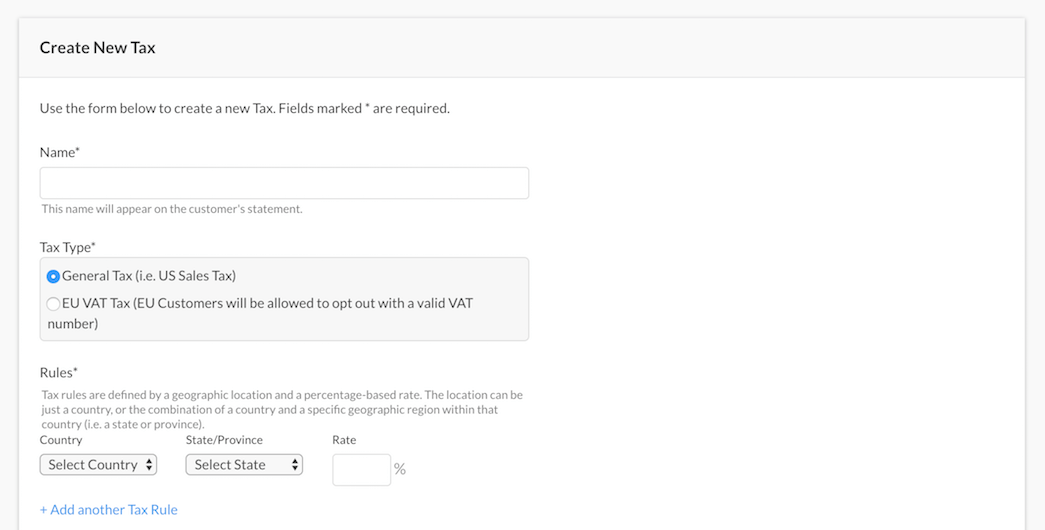
Create a new tax and select general tax
European Union value added tax
The EU VAT type works just like the general tax, with a few distinctions:
Tax rules can only be defined on the country level, not state/province EU customers are given the ability to opt out of the tax on the Public Pages if they provide a valid VAT number (Note: only customers outside of your own country are allowed to opt out.)
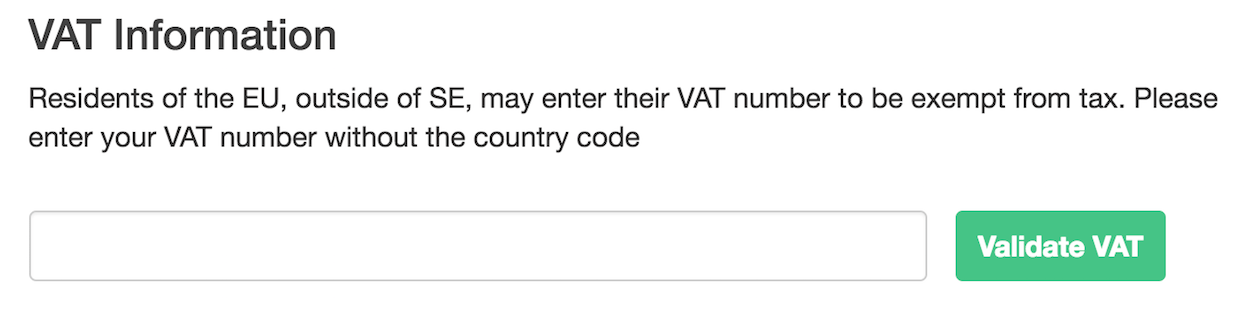
Option for adding VAT number in Public Signup Page
Tax Rules
In order to be as flexible as possible, Advanced Billing provides the ability to define your own tax scenarios. Taxes are comprised of one or more ‘Tax Rules’. A Tax Rule specifies a geographic region and a percentage rate to be applied to that region. The geographic region can be either an entire country, or a specific state/province within that country.
Zero-rated tax rules
A Tax Rule's rate can be set to 0%. This lets you show customers in a zero-rated region an explicit tax line, rather than leaving the region untaxed with no tax line at all.
When a 0% Tax Rule matches a charge, each of these shows a native tax line for it, for example Sales Tax: 0.0% $0.00:
- Invoices
- Proformas
- Ad-hoc invoices
This differs from a non-zero Tax Rule whose tax happens to compute to $0.00, such as a 10% rate applied after a 100% discount. That case still shows no tax line, since there is no explicit zero-rated rule behind it.
Marking Plans and Products as Taxable
Unless otherwise specified, all Plans and Products are NOT eligible for taxes. Once a tax is defined, you will need to update your existing Plans and Products so that they can be taxed. To do this, edit the Plan or Product and check the This Plan is subject to taxes checkbox.
For more information on applying taxes to Plans, please refer to our Product documentation.
You will also want to ensure that you collect a Billing or Shipping address, depending on how you have defined the taxes to be calculated. To do this, edit the Plan and check “Require Billing Address” and/or “Require Shipping Address”.
Creating Taxable Subscriptions
In order for a subscription to be considered taxable, the subscription must have a valid shipping or billing address. The address information must be complete, and be formatted properly in order to correctly determine the tax locale of the charge.
Required Country Format for Taxable Subscriptions
Advanced Billing requires that you use the ISO standard country codes when designating the subscriber's taxable location.
Countries should be formatted as 2 characters. For more information, please see the following wikipedia article on ISO_3166-1.
For example, the official country code for Germany is DE, and the official country code for the United Kindom is GB.
Required State Format for Taxable Subscriptions
Advanced Billing requires that you use the ISO standard state codes when designating the subscriber's taxable location.
- US States (2 characters): ISO_3166-2
- States outside the US (2-3 characters): To find the correct state codes outside of the US, please go to ISO_3166-1 and click on the link in the “ISO 3166-2 codes” column next to country you wish to populate.
Coupons and Taxes
When applied in conjunction, taxes are applied to the total cost of the subscription AFTER the coupon adjustment has been accounted for.
Tax History
You can view and export a history of all tax charges by clicking the ‘View Tax History’ button at the top of the Taxes page.
Here is a sample of what information the tax history page displays:
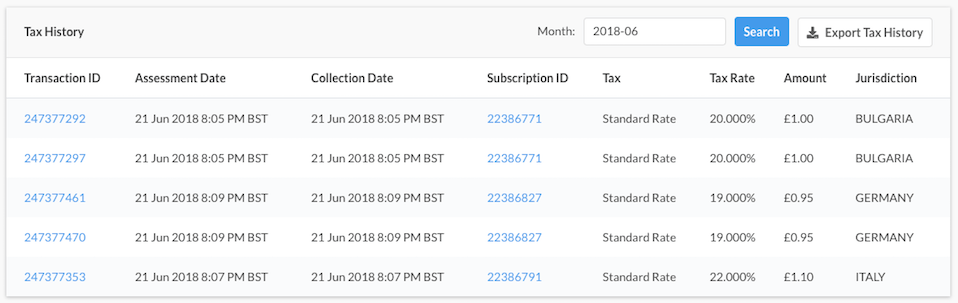
Table view of the site's current tax history
Select the transaction ID to inspect a particular tax application:
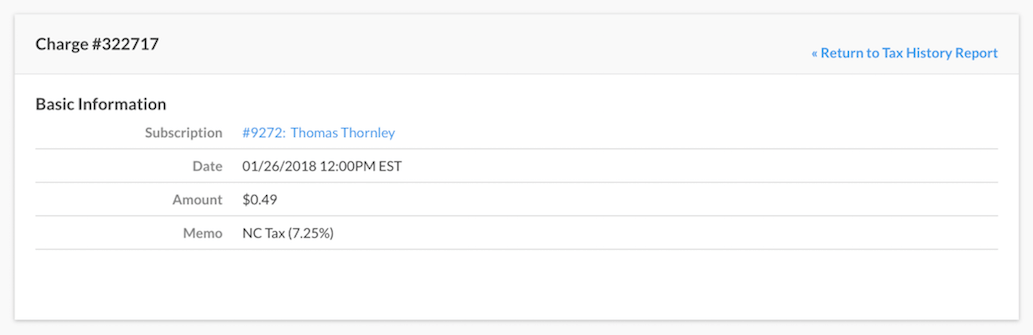
Individual tax transaction detail
Still need help?
Reach out and our support team will take it from here.