---
title: Manage Users
url: https://docs.maxio.com/configuration/maxio-core/account-user-settings/manage-users
applies_to: "Advanced Billing, Maxio Core"
updated: 2026-09-19
---
# Manage Users
Create the people who sign in to Maxio, set what each of them can reach, reset a password, or deactivate someone who has left. You do all of it from **Admin** > **Settings** > **Users**.
## How the user list works
The Users page lists everyone in your system, filtered to active users by default. Remove the filter to see deactivated users alongside them.
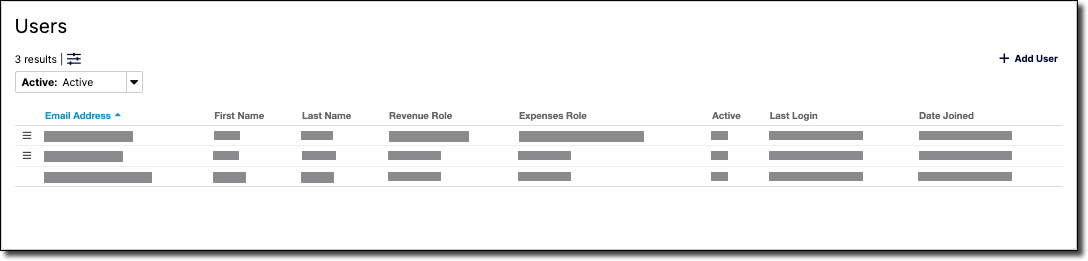
*The user list, with each user's roles and state*
Click an email address to open that user's profile. Creating and editing other users requires an Admin Role.
## Create a User
Adding a user creates their login and sets which roles they hold from the outset.
**To create a user**
1. Click **Add User** in the top-right section of the screen above the User List. This opens the Create New Maxio User screen.
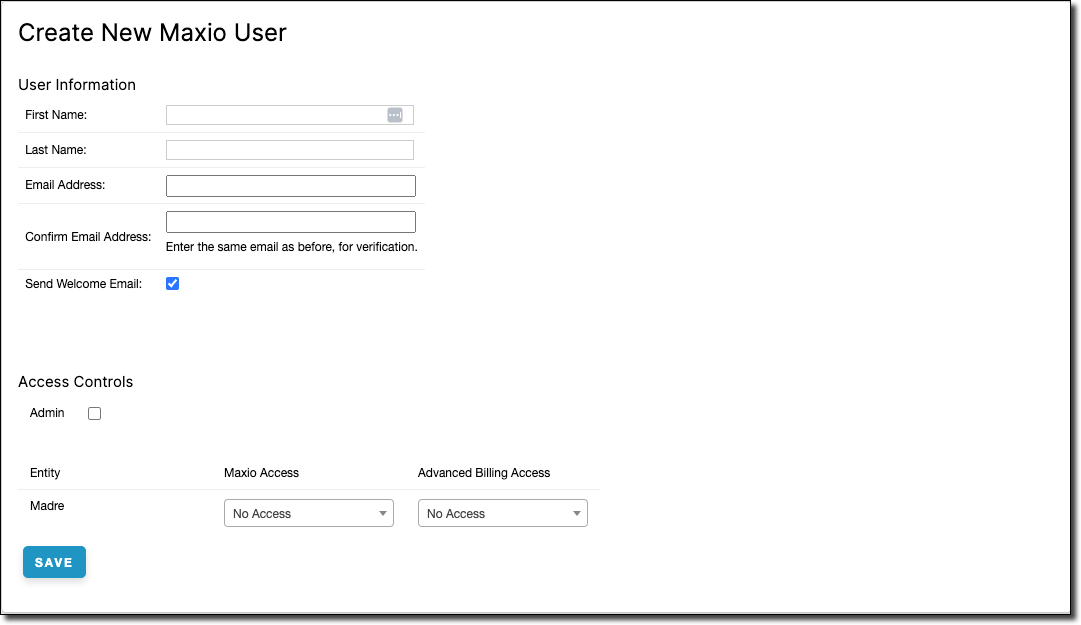
2. Enter the following information about the new user:
- **First Name** and **Last Name**
- **Email Address** and **Confirm Email Address**: Enter the same email in both fields, for verification. The email address also becomes the user's login.
- **Enable 2FA**: Check this box to prompt the user to set up two-factor authentication at their first log in.
- **Access Controls**: Give the user Admin access across the account, or set a specific role per application. See Understand User Roles and Access Controls for what each role can do.
3. Click **Save**. Maxio sends the new user a welcome email containing a link to set their password and authenticate into their account, and confirms on screen that the email was sent.
> **Important:** If your account has **Require Two-Factor Authentication** turned on, *Enable 2FA* is checked and cannot be changed. Under Enterprise SSO the checkbox stays editable, but two-factor authentication is handled by your identity provider rather than by Maxio.
## Edit a User
Editing covers a user's profile and their roles. Their password is handled separately, in the section that follows.
**To edit a user**
1. Locate the user you want to edit.
2. Click the menu icon at the start of that user's row and select **Edit**.
3. Make any needed changes to the user's profile. Changing their password is covered in the next section.
4. Once you have made your needed changes, be sure to click the **Save** button.
The edit screen also carries an **Active** checkbox, which enables or disables login privileges for the user. To cut off a user's access immediately, use [Deactivate a User](https://docs.maxio.com/configuration/maxio-core/account-user-settings/manage-users#deactivate-a-user) instead.
## Reset a User's Password
What happens depends on how the user signs in. For a user with a linked Maxio identity, Maxio sends them a password reset email rather than letting you set one. For an Enterprise SSO user, Maxio refuses and directs you to your identity provider. Only a legacy user without a linked identity gets a password you set yourself.
**To reset a user's password**
1. Locate the user whose password you want to reset.
2. Click the menu icon at the start of that user's row and select **Change Password**.
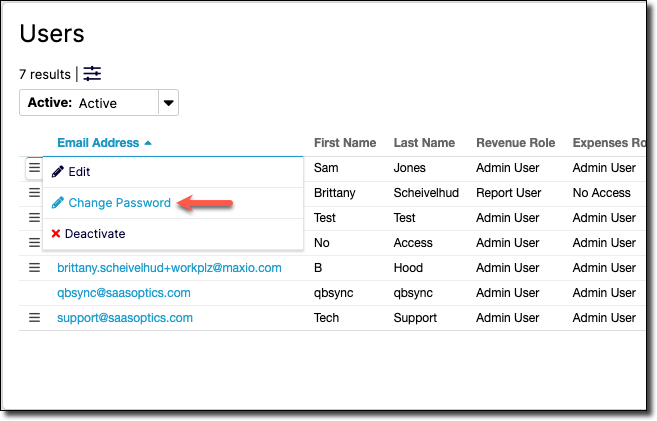
3. Enter and confirm the new password. Because this password is temporary, it is not held to your account's password policy.
4. Leave **Generate Notification** checked to see a confirmation screen containing the new password and your login URL, so you can pass both to the user. Clear it to return straight to the user list.
5. Click **Save**.
For what the user receives, and what to do when a reset email does not arrive, see Reset a User's Password.
The user is prompted to change this password the next time they log in.
> **Important:** *Generate Notification* appears only when you change another user's password. Changing your *own* password follows your account's password policy in full, and no notification screen is shown.
## Deactivate a User
Maxio does not delete user accounts. Instead, you can *deactivate* them. Deactivation prevents login access and preserves audit trail data and report ownership.
1. Locate the user you want to deactivate.
2. Click the menu icon at the start of that user's row and select **Deactivate**.
3. Confirm the deactivation by clicking **Deactivate**.
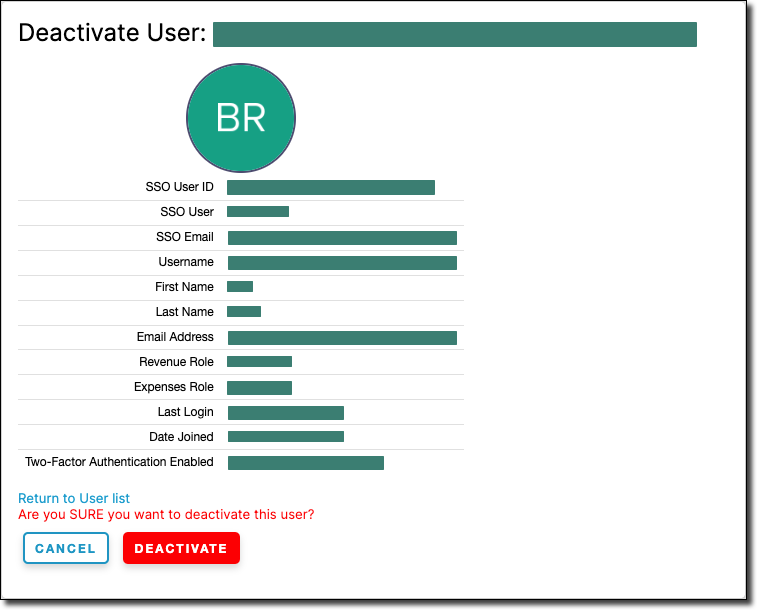
*Confirming a deactivation*
The user is now deactivated and cannot log in.
If Activity Logs is enabled for your account, you can still filter it by that user's username to review what they did before deactivation.
You cannot deactivate your own account, so **Deactivate** does not appear on your own row.
To reactivate a user, select the **Re-activate** option from the same menu.
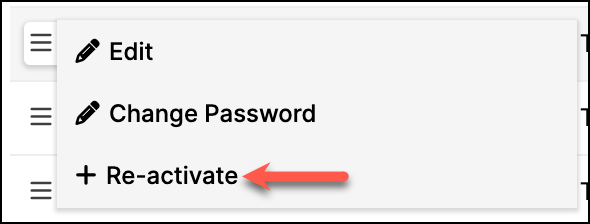
*Re-activating a deactivated user from the row menu*