
Reset a User's Password
Applies to: All Maxio modules
Last updated on Sep 19, 2026
If you cannot sign in to Maxio, contact an administrator on your account. The Maxio Support team cannot reset passwords for you.
How each sign-in type resets a password
An administrator starts every reset the same way, from the Users list, but the outcome depends on how the user signs in to Maxio.
Open a user's detail page to see which reset applies to them. The action reads Send Password Reset Email for a user who signs in with a Maxio account, and Change Password for a user who signs in with a Maxio Core username and password.
| Sign-in type | What an administrator's reset does |
|---|---|
| Enterprise Single Sign-On (SSO) | Nothing changes in Maxio. Reset the password in your identity provider instead, or contact your identity provider administrator. |
| A Maxio account, through Universal Login | Maxio emails a password reset link to the user. The administrator never sets a password. |
| A Maxio Core username and password | The administrator sets a temporary password directly, using the steps below. |
Set a temporary password
Setting a temporary password applies only to a user who signs in with a Maxio Core username and password. The password an administrator enters here is temporary by design, so your account's password complexity rules do not apply to it and Maxio prompts the user to replace it at their next sign-in. Setting a password also clears a login lockout, which makes this the way to restore access for someone locked out by failed sign-in attempts.
Important: Saving the new password does not email it to the user. Maxio displays the message on screen for you to copy into your own email program and send.
To set a temporary password for a user
-
Go to Admin > Settings > Users.
-
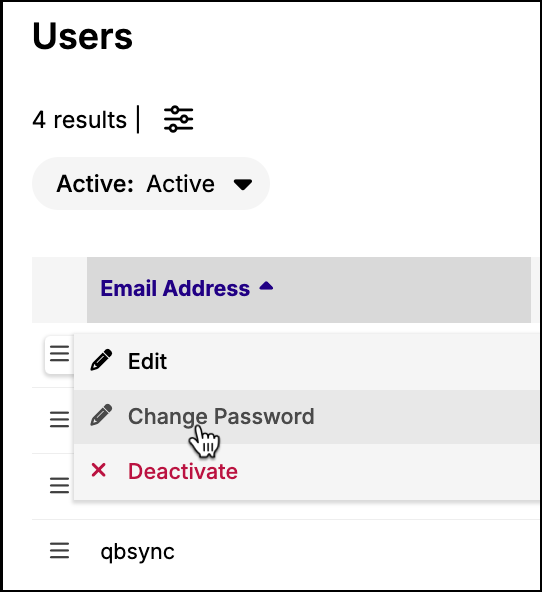
Hover over the hamburger menu next to the user's email address and select Change Password.
-
Enter a New Password, then enter it again in New Password Confirmation.
-
Leave Generate Notification selected to have Maxio compose the message for the user. Clear it to skip that step.
-
Select Save.
Maxio displays the notification text, including the user's username and the new password, for you to copy into an email and send.
Related information
To learn how Enterprise SSO changes where passwords are managed, see the Understand Enterprise Single Sign-On (SSO) help article.
Still need help?
Reach out and our support team will take it from here.