
View and Filter Activity Logs
Applies to: Maxio Core
Last updated on Oct 20, 2026
Activity Logs record the requests made to your account: who made each one, when, from what IP address, which page or endpoint it hit, and whether it succeeded. Use it to answer questions like "who changed this record" or "did this user's request actually go through."
Before you start
Activity Logs is not enabled by default. Contact support@maxio.com to have it turned on for your account. Once enabled, any Admin user can view the log from Admin > Utilities > Activity Logs.
Important: Maxio keeps Activity Logs entries for 90 days. Older entries are deleted automatically each night, so plan any audit or investigation around that window and copy anything you need to keep out of the list before it ages out.
View the log
Selecting Activity Logs from the Admin menu opens a list of every recorded request, newest first, 100 rows per page.
Each row shows:
| Column | Description |
|---|---|
| Username | The user who made the request. |
| IP Address | The IP address the request came from. |
| Timestamp | When the request was made. |
| Path | The URL path the request hit. |
| Method | The HTTP method of the request, such as GET, POST, HEAD, or OPTIONS. |
| Success | Whether the request succeeded. |
| Response Code | The HTTP status code returned. |
Click any column header to sort the list by that column; click it again to reverse the direction. The list opens sorted by Timestamp, newest first.
Filter the log
Click Filters to narrow the list. You can filter on any combination of:
- Username
- IP Address
- Path
- Method
- Response Code
- Success
- Timestamp, as a date range
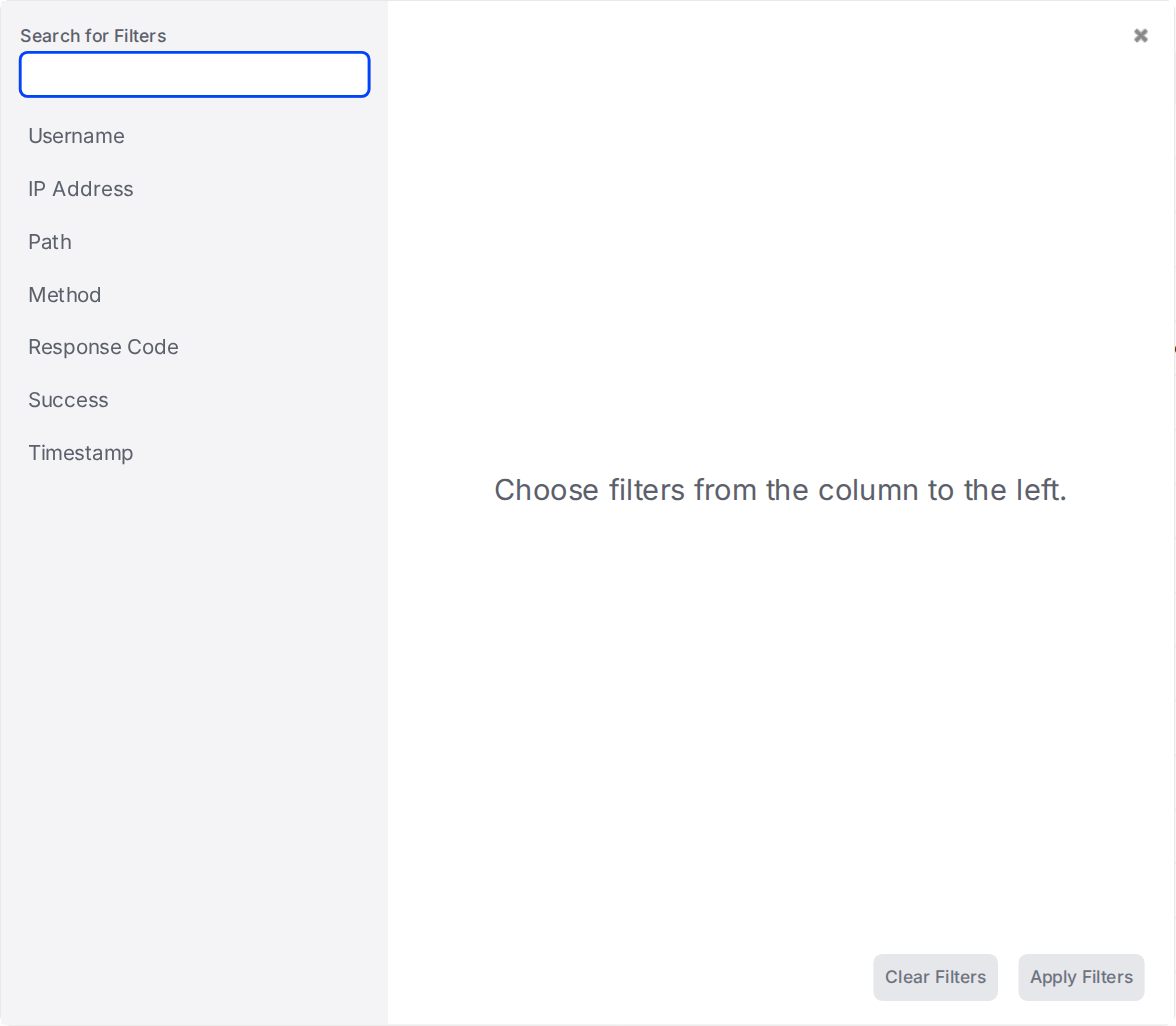
Applying filters replaces the list with only the matching rows, and the pagination count updates to reflect the filtered total. If no rows match your filters, the list says so instead of implying there is no activity on the account at all.
What you cannot do from this list
Activity Logs entries are a read-only record. The list has no export, no bulk actions, and no way to edit or delete an individual entry. To keep a record beyond the 90-day window, copy what you need out of the list before it is pruned.
Still need help?
Reach out and our support team will take it from here.