
Configuring the Advanced Subscription Momentum Report
Applies to: Maxio Core
Last updated on Sep 19, 2026
The Advanced Subscription Momentum Report offers a wide range of configuration options that significantly affect how your data displays in the report's results. Understanding what each setting does, and why you would or wouldn't use it, helps you configure the report to answer the specific questions you have about your subscription business.
Setup
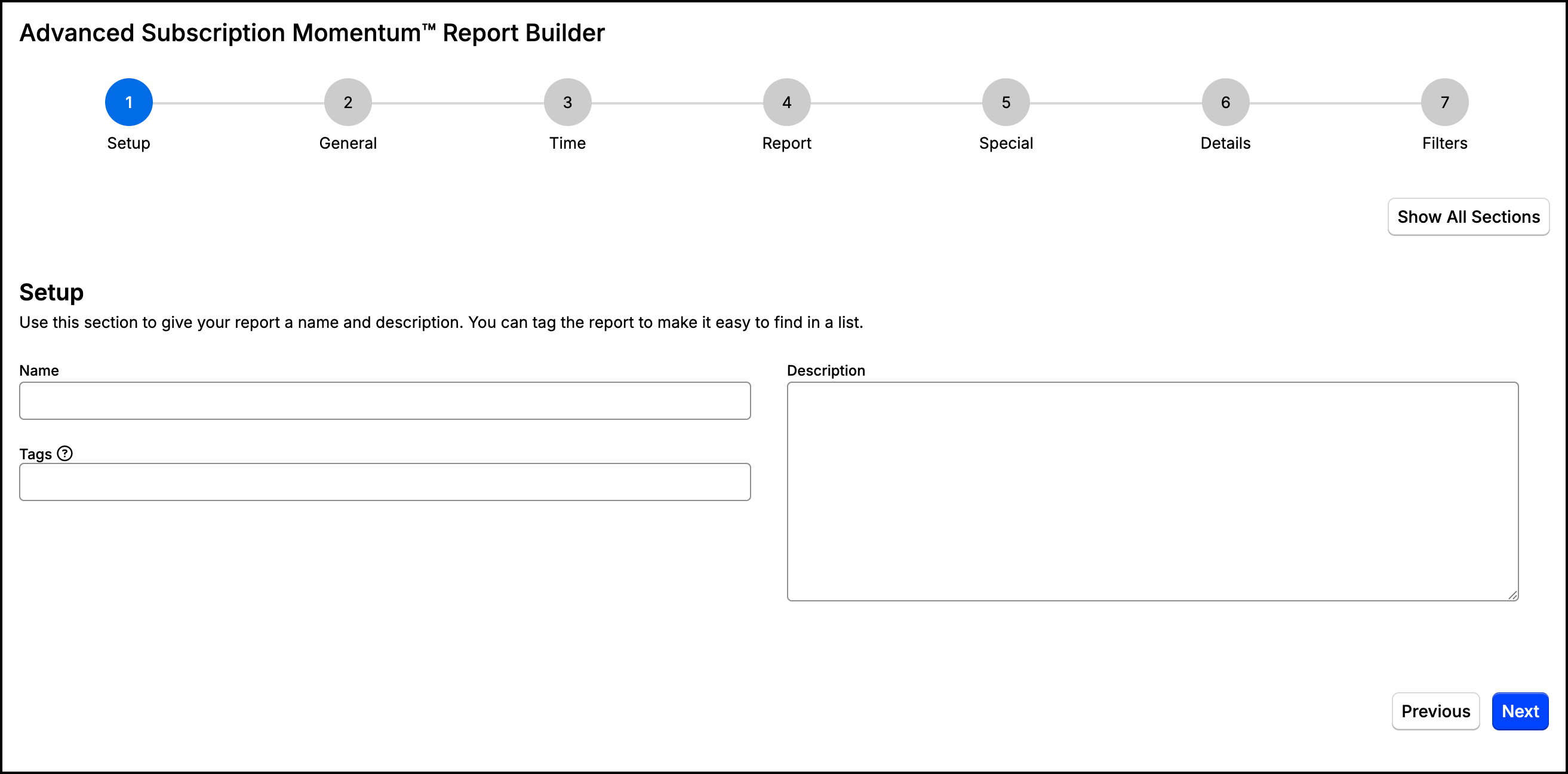
The settings in this section allow you to give your report a name and a description. These two items are very helpful when identifying the report after creating it, so make sure they properly explain the information that the report contains. You can also add tags to the report in this section.
| Field | Description |
|---|---|
| Name | Enter a name for this report that will make it easily identifiable for future reference. |
| Description | A description of the report that appears on the main Reports page. |
| Tags | Tags provide flexibility in how you organize your reports, so feel free to add as many to this report as necessary. |
General settings
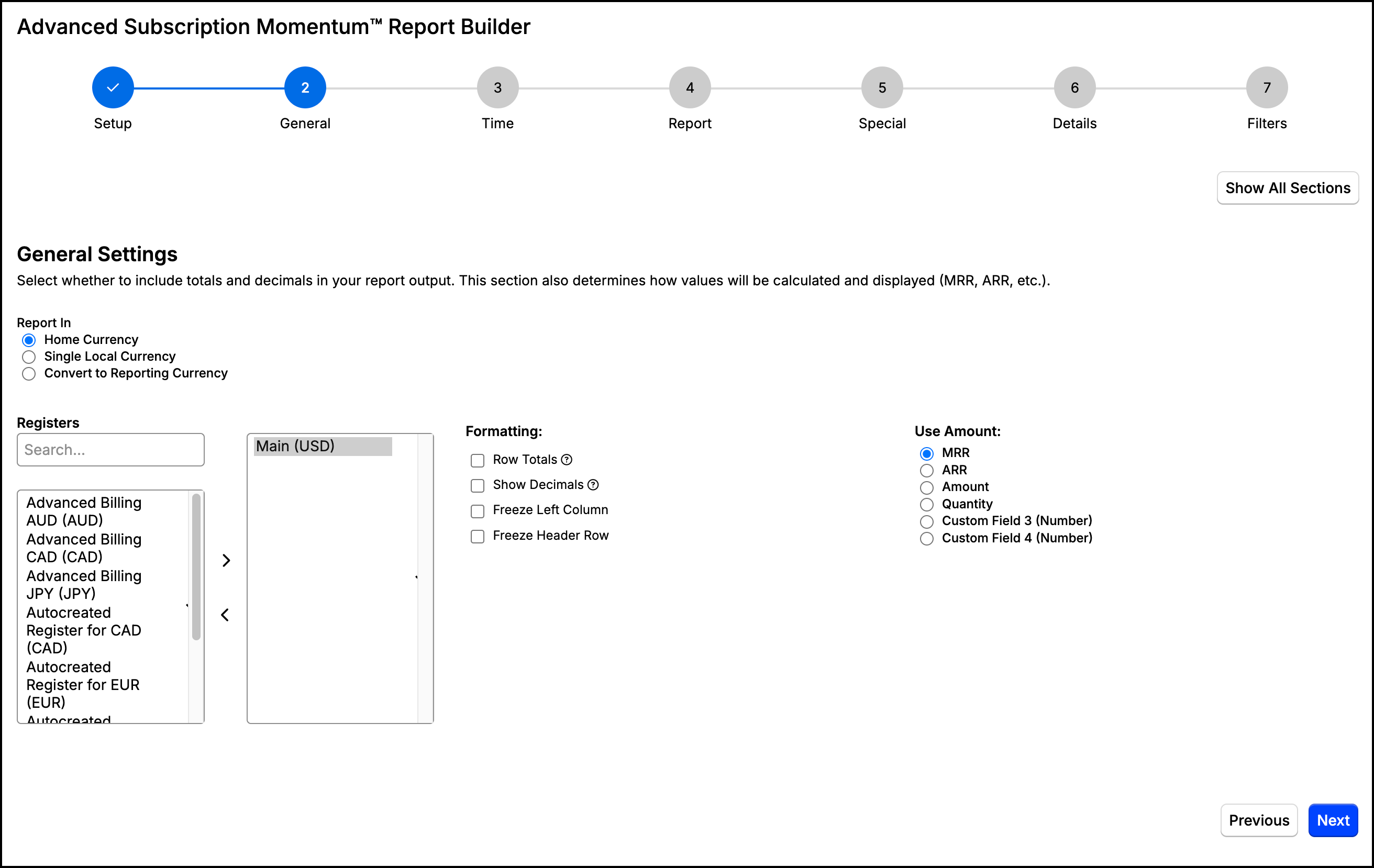
Define high-level aspects of the report's output that determine how values will be calculated and displayed.
| Option | Description |
|---|---|
| Report In | Choose whether to display report results in your home currency, a single local currency, or a converted reporting currency. See Report In below for the full set of options. |
| Registers | Select one or more registers from which Transactions are to be included. If you have only one register, then this option is not applicable. If you have multiple registers and no register is selected, all registers are included. |
| Formatting | Indicate if you would like to include a column for row totals in the report and whether to not to display two decimal points for the values in the Momentum section of the report. |
| Use Amount | Select the metric you would like to use to calculate values in the report. |
Report In
If you have Configure Multi-Currency enabled in your Maxio Core account, you have the option to display your report results in your home or local currency.
If you choose to report in your home currency, you can track metrics across multiple currencies with meaningful results, as each non-home Transaction is shown in its equivalent home currency amount using the Transaction FX rates. If you choose to report in local currency, you will need to be mindful of the effect that FX rate differences can make on your analytics when reporting across multiple different currencies. While the register's currency is listed for reference in the report, you may want to consider only selecting registers of the same currency in any given report if you choose to report in local amounts.
You also have the option to select a reporting currency and convert all of the currencies to it in the report. When you select this option, you will also need to choose the currency you would like to report in as well as the conversion strategy.

You have two options for the conversion strategy:
-
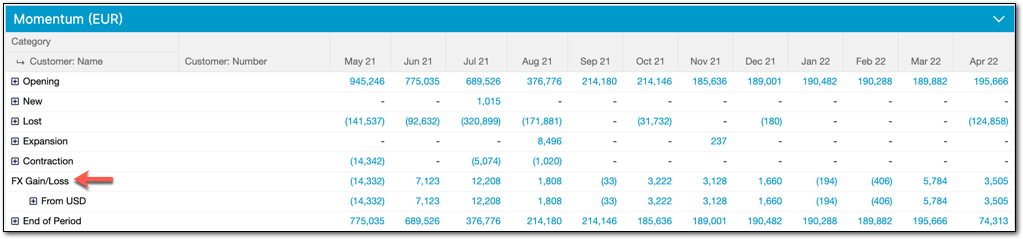
Average Rate for Period: Converts the currencies each month and provides you with the amounts gained or lost depending on the FX rate.
-
Constant Currency: Allows you to select a specific date for the conversion if you'd rather not see the impact of FX gained/lost over periods of time. This option is helpful if you are just wanting to see the status of your sales-negotiated contracts at a given date.
You also have the option to set a constant currency date when Convert to Reporting Currency is selected. This will make sure the converted rate stays the same as the value on a particular day. Select a date for the Constant Currency Date to apply this as well as the checkbox Use Modified Rate. The rate will be displayed in the "Modified FX Rate" column of the FX Rate Schedule report.
Time settings
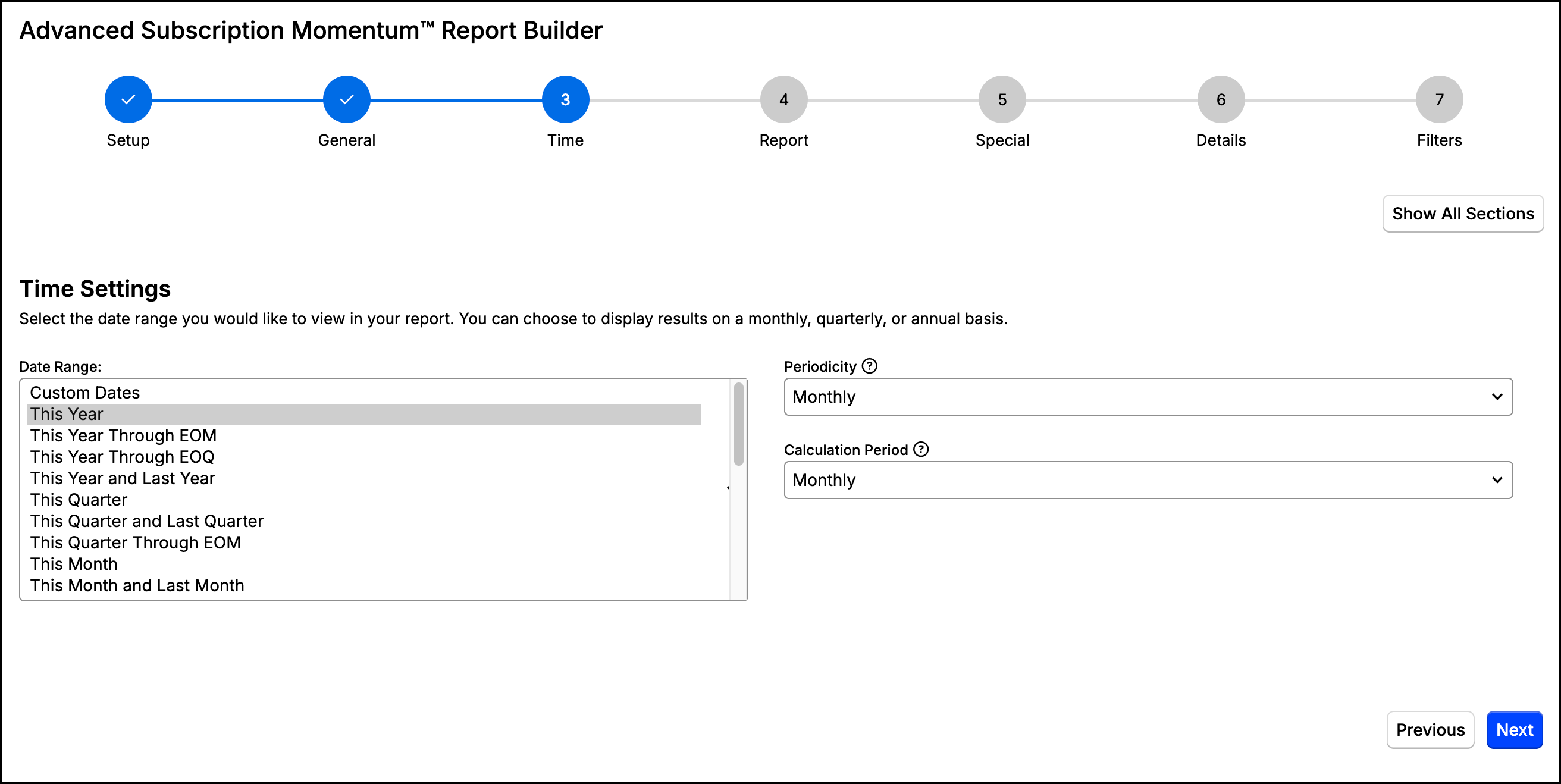
Select which time frame you would like to report on as well as the periods of time displayed in the columns of the report.
| Option | Description |
|---|---|
| Date Range | Select the time frame you would like to report on. Note that if you select the Custom Dates option, you will need to select the start and end date of the range. |
| Periodicity | Determine the length of the reporting periods, which will be represented by the columns of the report. For quarterly and yearly periodicity, only the Momentum, Committed Momentum, Customer Count, Committed Customer Count, Net Dollar Retention, and ARPU Metrics sections can be displayed. Also, the end date of the date range may be adjusted to ensure that there are no partial periods. |
| Calculation Period | Determine the granularity of the momentum calculations (New, Lost, Expansion, Contraction). This option is often set equal to the periodicity but can be set to a smaller value. See Calculation Period below for an example and guidance on when to change it. |
Calculation Period
For example, suppose that the periodicity is set to Quarterly, and you had a new Customer in January for $100 MRR, who purchased additional items in February for $50. If your Calculation Period was set to Monthly, we would show $100 New and $50 Expansion in Q1. With a Quarterly Calculation Period, all $150 would appear as New for Q1.
When selecting the Calculation Period, keep in mind the following:
- If you want to see only the net change for each Customer within each reporting period (at most one of these calculations: New, Lost, Expansion, Contraction), set the Calculation Period to be the same as the Periodicity.
- If you set the Calculation Period to a value smaller than the Periodicity, then the report may show values for more than one calculation (New, Lost, Expansion, Contraction) for a given Customer within the same reporting period.
- If you want to compare two reports with different Periodicities, be sure to use the same Calculation Period for both. For example, when comparing a Monthly report to a Quarterly report, set the Calculation Period to Monthly in both reports.
Report sections
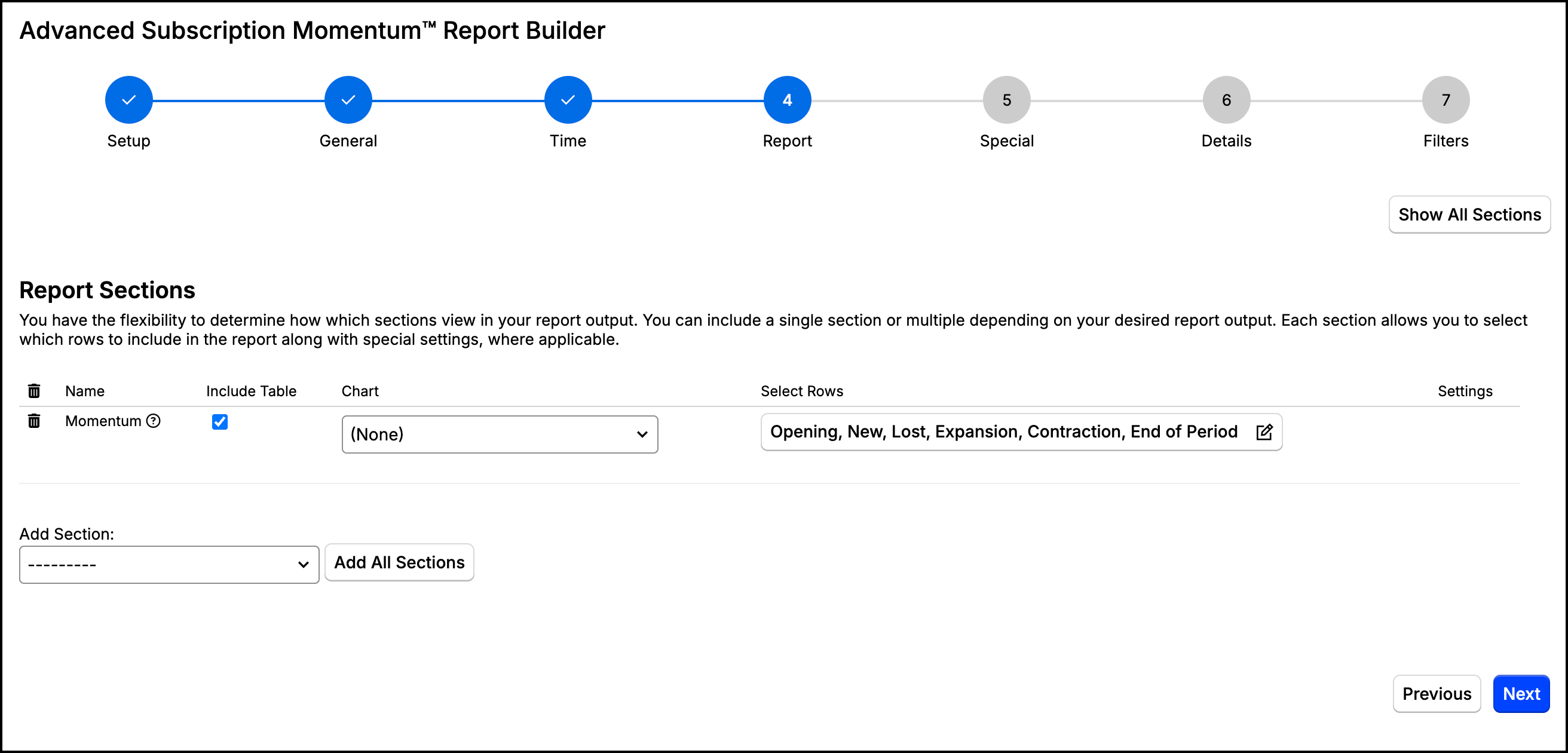
Select the sections of the report you would like to include in the output. Each section also allows you to select which rows to include in the report along with special settings, where applicable.
| Option | Description |
|---|---|
| Momentum | Measures Opening, New, Expansion, Contraction, Lost, and Ending values for Transactions. See Momentum for more information about how these values are calculated. |
| Momentum Moving Average | Provides 12 period moving averages for the values in the Momentum section. |
| Momentum Performance | Provides options to display actual target values and percent of target achievement from the Momentum section against a selected Create Targets for Subscription Momentum you create in Maxio Core, but separately from the report. Targets are created and maintained outside of the report definition so they can be used in multiple reports. |
| Committed Roll Forward | Analyzes Transaction value by Order Date for when the Order Date is in a month preceding the Transaction Start Date, generating Net and Gross Backlog numbers for new and renewal TXs. See Committed Roll Forward below for more information. |
| Committed Momentum | This section must first be enabled by the Maxio Support team before you can use it. Measures Opening, New, Expansion, Contraction, Lost, and Ending values for Transactions using the earliest of the TX Order Date or TX Start Date, whichever is earlier. |
| Customer Count | Measures Opening, New, Expansion, Contraction, Lost, and Ending period Customer counts by analyzing Transactions. The Customer Count for each row is the count of Customers that have a value in the equivalent Momentum row. To view the Customers, select the option Include Groups Collapsed or Show Groups Expanded. |
| Committed Customer Count | Measures Opening, New, Expansion, Contraction, Lost, and Ending Customer counts for Transactions by commitment date (Order Date). |
| Customer Count Moving Average | Provides 12 period moving averages for the Customer counts from the Customer Count section. |
| Customer Count Performance | Provides options to display actual target values and percent of target achievement from the Customer Count section against a Create Targets for Subscription Momentum you create in Maxio Core but separately from the report. Targets are created and maintained outside of the report definition so they can be used in multiple reports. |
| Transaction Renewals | Measures Transaction renewal and cancellation values. This section requires that there are no overlapping Transactions for the selected Group By (Customer or Customer/Contract) in order to determine what is a renewal and what is being renewed. See Transaction Renewals for more information, including how overlapping Transactions are handled. |
| Customer Renewals | Measures Customer renewal and cancellation counts. The Customer Count report counts Customers using data from the Transaction Renewals section. See Customer Renewals for more information. |
| Renewals Performance | Displays renewals performance metrics such as Gross Renewal Rate, Gross Customer Renewal Rate, and Net Renewal Rate. |
| Additional Metrics | Measures Transaction churn and renewal rates, including moving averages, Averages for the Momentum section, and Gross Revenue Retention. See Additional Metrics for more information. |
| Customer Metrics | Choose between Trailing 12 Months and Monthly calculation methods, depending on whether your business is primarily an annual/longer-term or a monthly subscription business. See Customer Metrics below for guidance on which to pick. |
| ARPU Metrics | Measures Average Revenue Per Unit (ARPU), ARPU Performance (ARPU relative to the weighted average list price), and % Discount. This section is only available when Use Amount is set to a monetary value (MRR, ARR, or Amount); it isn't available for Quantity or custom numeric fields. |
| Customer Lifetime Value | Performs various lifetime value calculations to provide values, moving average values, and CLV to CAC ratios. See Customer Lifetime Value for more information. |
| Net Dollar Retention | Calculates the change in existing Customers' total MRR/ARR over the previous one-year period, disregarding Customers added within that year. See Net Dollar Retention for more information, including how this differs from Gross Revenue Retention. |
Committed Roll Forward
Committed calculations use the Transactions Order, Start and End Dates. Like all other calculations in the report, data is Interpreted based on analysis of the timing of the Transaction dates, not any specific tags associated with the Transactions themselves.
When a Transaction Order Date is in the same month as the Transaction Start Date, the Transaction will be both added as "Backlog" and also "Converted from Backlog" in the same month. If a Transaction has no Order Date, the Transaction Start Date is used as the Order Date.
Because the Subscription Momentum report is an interpretive report, meaning it analyzes the TX data and looks at the changes over periods of time to determine net effects vs using TX tags such as the Class, overlapping Transactions for the selected Group By (Customer or Customer/Contract) are likely to be reported as New Backlog. To be considered Renewal, a TX must start in a period where another TX ends.
Customer metrics
Select Trailing 12 Months if your business is primarily an annual or longer-term subscription business. This calculation uses the Total of Customers Lost this month and the previous 11 months divided by the Customer opening from 11 months ago.
Select Monthly if your business is a pure or mostly monthly subscription business.
With a sufficient number of customer records (50 or more), the two calculation methods return values that are typically materially the same. The same underlying principle of statistics (law of large numbers) that makes this true also results in materially accurate results when your subscription periods are always longer than a year. Naturally, the data set has to be large enough for the law of large numbers to hold, which is generally going to be the case for a multi-million dollar revenue subscription company. Early stage businesses should experiment with the report settings to determine the optimal settings. Use of moving averages can be helpful in removing spikes.
Special settings
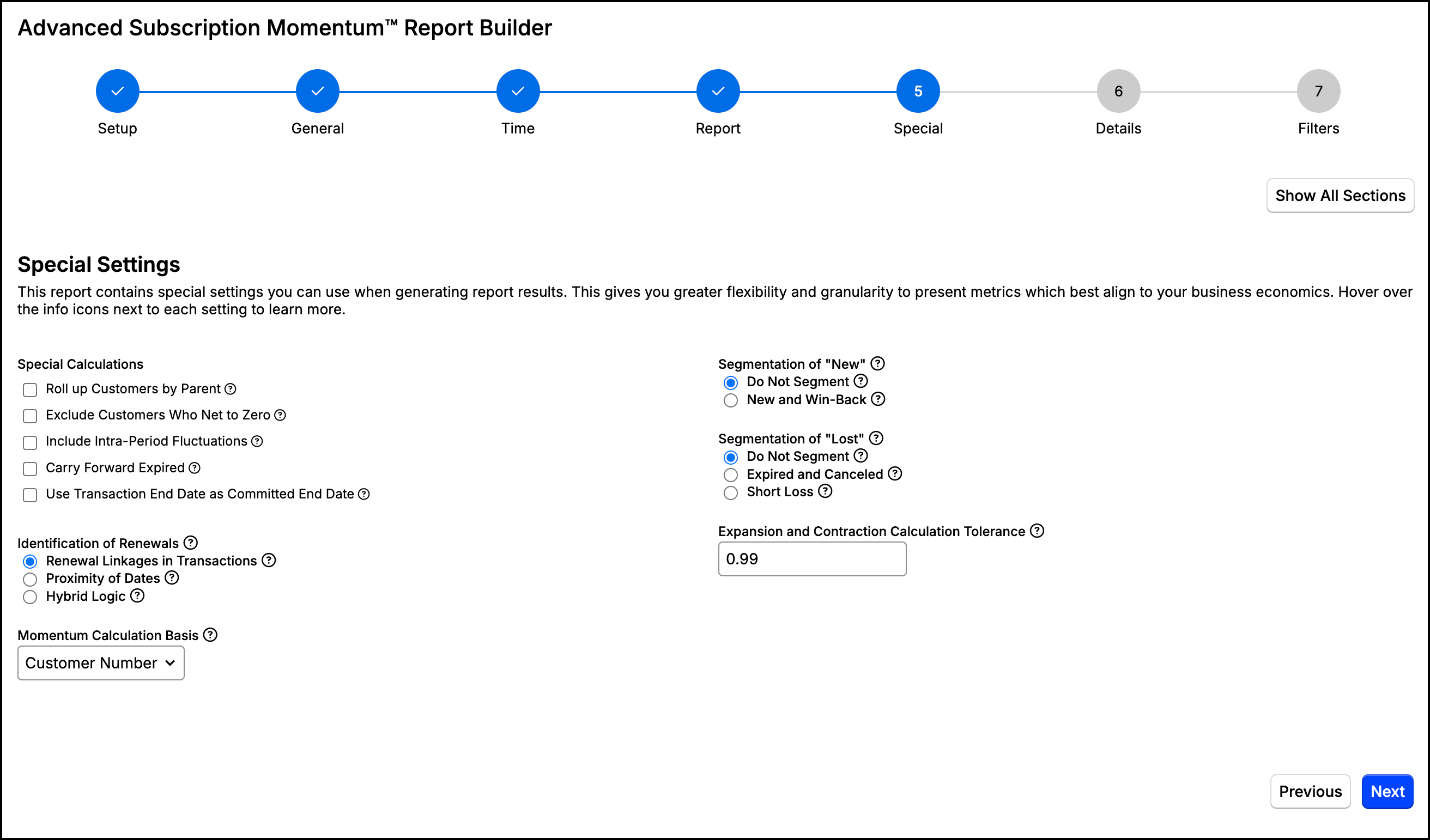
Configure additional settings that provide greater flexibility and granularity to present metrics that best align with your business economics.
| Option | Description |
|---|---|
| Special Calculations | Configures five distinct behaviors that affect how Customers and Transactions are counted. See Special Calculations below. |
| Identification of Renewals | Determines how the report identifies renewals within the data, which can affect the results within many sections of the report. See Identification of Renewals below. |
| Momentum Calculation Basis | Determines whether Customers, Contracts, Subscriptions, or custom fields (if configured) are the basis for New, Lost, Expansion and Contraction calculations. See Momentum Calculation Basis below. |
| Segmentation of "New" | With this setting you can segment your "New" classifications to differentiate between Customers who have never been a Customer before, and those who were former Customers.
|
| Segmentation of "Lost" | This setting lets you show an additional level of detail on "Lost" amounts.
|
| Expansion and Contraction Calculation Tolerance | Expansions or contractions less than this amount will not be counted. For example, given the default tolerance of 0.99, an expansion of 0.01 will be ignored. This is especially useful when not displaying decimal places in results. |
Special calculations
Roll up Customers by Parent: Data from child Customers (those with a parent) is not shown directly on the report, but instead is rolled into the parent Customer's data. This is most noticeable in calculations of "New" and "Lost". For example, the addition of a child Customer to an existing parent results in an "Expansion" of the parent Customer rather than a "New" Customer.
Exclude Customers Who Net to Zero: This setting applies to the Momentum and Customer count sections of the report. Often there are situations where the economic value of a customer is zero (free trials, early terminations). This setting allows you to adjust when a customer is considered "new" or "lost." Instead of using the start and end date of the transactions, you use the earliest and latest dates of when a customer's transactions do not equal zero.
For example, consider a customer that had a 3-month free trial. With the setting enabled, the customer would not be included in the momentum or customer count sections until the 4th month, when their transactions were not equal to 0. With the setting disabled, the customer would be considered a new customer in month 1 with an expansion in ARR/MRR in month 4. The same would apply to a customer who ended their contract early and a negative/offsetting transaction was used to account for the early termination. With the setting enabled, the customer would be considered lost at the time of termination. With the setting disabled, the customer would be considered a contraction to 0, and then after the latest transaction end date, lost.
Include Intra-Period Fluctuations: This setting helps display the impact of Customers that (a) are new and lost within the same calculation period, or (b) expand and contract within the same calculation period. With the option enabled, a Customer's total MRR/ARR will be computed within each calculation period in addition to being computed at the end dates. With this option disabled, the default setting, a Customer's total MRR/ARR is only computed at the end date of each calculation period. Customers that are new and lost within the same calculation period are omitted from the report, and expansions and contractions of a Customer within the same calculation period are not shown.
Carry Forward Expired: Distinguishes Transactions that are Active from those that have simply Expired, and assumes the full value of Expired Transactions in the End of Period calculation used elsewhere in the report, including CLV calculations. See Carry Forward Expired for more information, including which Transactions are and aren't carried forward.
Use Transaction End Date as Committed End Date: When enabled, Committed Momentum is computed by using the Transaction end date as the committed end date. Note that this can overstate the impact of renewals on Committed Momentum. Disable this option to use the day before the renewing transaction's committed start date (the earlier of its order date or start date) as the committed end date of the renewed transaction. This often yields a report that best reflects business performance.
Identification of renewals
Renewal Linkages in Transactions: Identify renewals strictly based on Transaction renewal linkages. If renewal linkages are defined correctly in the underlying data, users may find that this option produces a report that best describes business performance.
Proximity of Dates: Identify renewals based on the start date of one Transaction (the renewal) occurring within the same period as the end date of another Transaction (the renewed Transaction). If renewal linkages are not consistently defined within Transactions, users may find that this option produces a report that best describes business performance. Users might not consider all scenarios with Transaction dates aligned end-to-start as actual renewal scenarios, so this option represents a more subjective approach.
Hybrid Logic: This option is very similar to Proximity of Dates, except that a few calculations make decisions based on renewal linkages. For example, in a Momentum section where a Transaction appears to represent a win-back, a linkage indicating that the Transaction renews another from a prior period will cause the Transaction to be classified as an expansion instead of a win-back. Some users may not prefer this option, given that the other two are more straightforward.
Momentum Calculation Basis
To add a custom field as an option, see Create and Manage Custom Fields and check the Add to Advanced Subscription Momentum box:
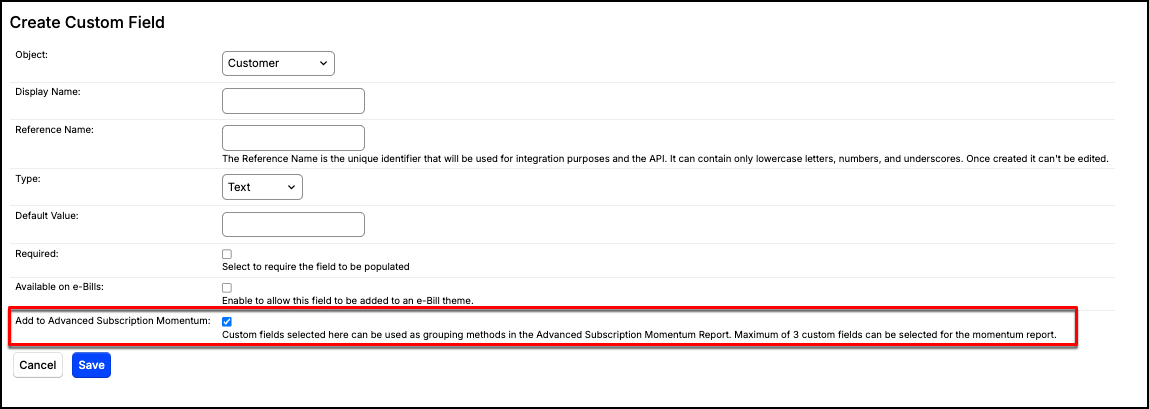
You can select a maximum of 10 custom fields for momentum calculations.
Report details
Elect to report only the summary metrics or you can include additional details. Additional details give you the ability to understand underlying business drivers according to any customer, contract, or transaction field. Use the additional details below to better understand the drivers behind your customer subscriptions.
| Option | Description |
|---|---|
| Level of Detail | Choose between Summary Rows Only and Include Detail Rows. See Level of Detail below. |
Level of Detail
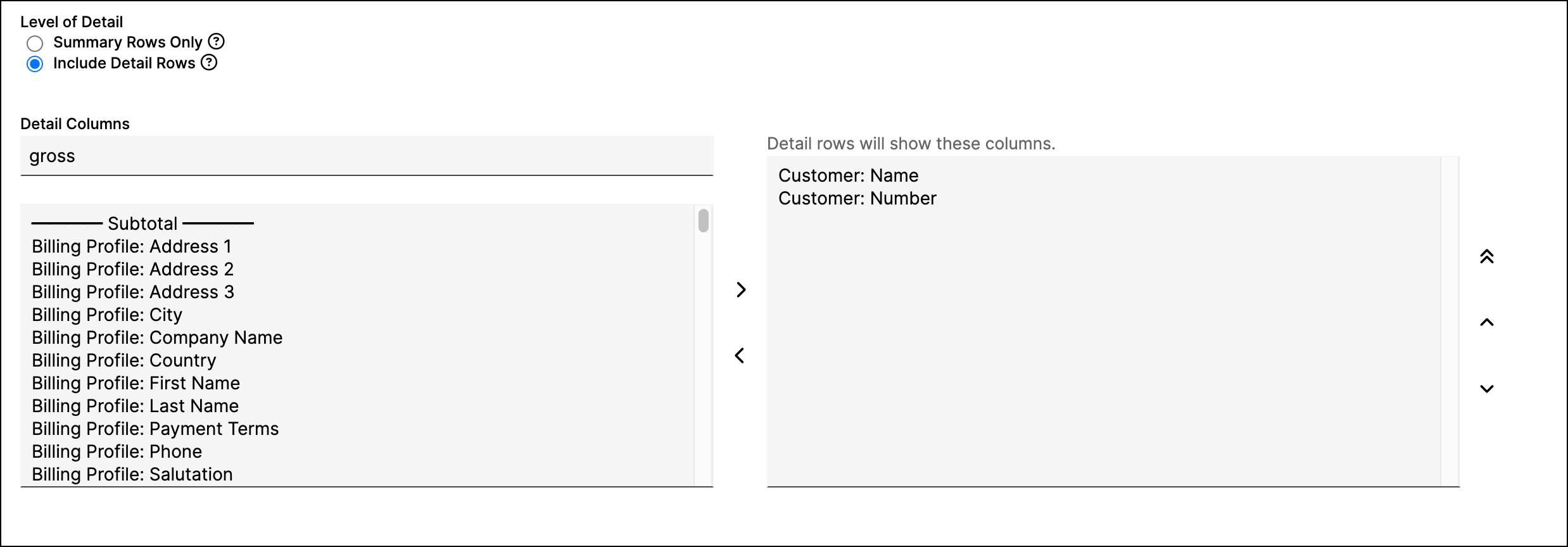
Summary Rows Only: Displays the report results with no details, just the final calculations. This is the fastest setting, and is recommended if you have a large data set.
Include Detail Rows: Displays the report results with additional data segmentation. You can specify up to 10 fields to include in the report. You can also define where subtotals will appear.
Filters
Filter in or out specific data from the report. Add as many or as few filters as needed to answer the questions you have within your business.
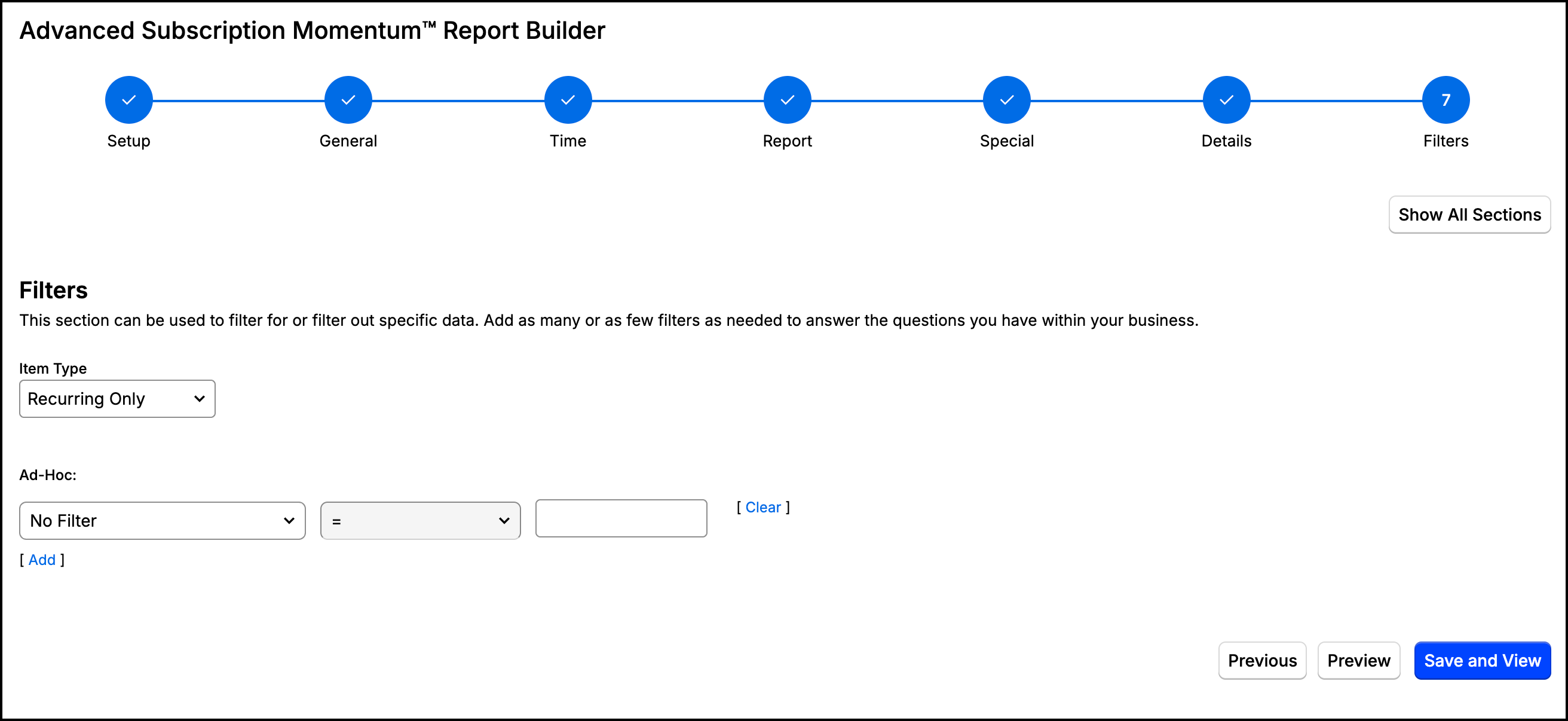
| Option | Description |
|---|---|
| Item Type | Select whether you would like to include recurring items only, non-recurring items only, or both in the report. |
| Ad-Hoc | Configure any necessary filters using a wide variety of fields and operators. See Report Filters for more information. |
Still need help?
Reach out and our support team will take it from here.