
Fix ARR/MRR Mismatch in Transactions
Applies to: Maxio Core
Last updated on Sep 13, 2026
When a Transaction's ARR and MRR don't reconcile, correcting it keeps your ARR/MRR reporting accurate. Use the Transactions With ARR/MRR Mismatch tool to find affected Transactions, then update the underlying values to bring ARR and MRR back into agreement.
What causes a mismatch
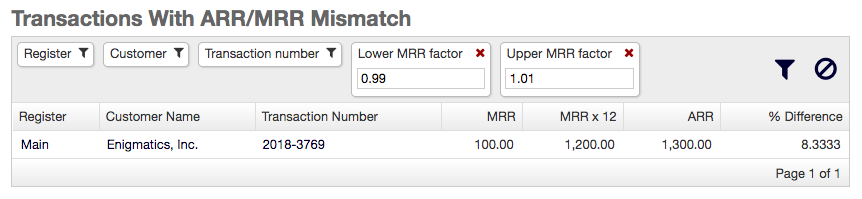
An ARR/MRR mismatch occurs when a Transaction's ARR doesn't equal 12 times its MRR. Left uncorrected, these mismatches skew your ARR/MRR reporting. Common causes include:
- Manual entry, import, or API entry errors
- Incomplete or incorrect ARR/MRR field mappings in the Salesforce integration (see Understand the Salesforce Integration for Maxio Core)
- Contract changes that are not properly updated in Maxio Platform
Find Transactions with an ARR/MRR mismatch
Go to Admin > Identify Issues > Transactions With ARR/MRR Mismatch. This feature requires Admin permissions.
By default, the tool flags a Transaction if its ARR isn't within 1% of 12 times its MRR. Adjust the Lower MRR factor (default 0.99) and Upper MRR factor (default 1.01) to widen or narrow that margin, and use the Register, Customer, and Transaction number filters to narrow the results further.
Fix a mismatched Transaction
Open the Transaction and go to its Analytics Information section. Enter the correct MRR Amount or ARR Amount directly, or update the Normalized Term, amount, or start and end dates so Maxio Platform recalculates both values automatically. Neither field can be changed while the Transaction is in its lock period.
For general steps to edit a Transaction, see Edit Transactions.
Related information
For background on how ARR and MRR are calculated in Maxio, see Understanding ARR, MRR, and GRR in Maxio.
For the other common data condition that distorts Subscription Momentum™ results, see Resolve Renewal Gaps in Subscription Data.
Still need help?
Reach out and our support team will take it from here.