
Understand Level 2 Enhanced Data and Level 3 Line Item Data Transaction Processing
Applies to: Maxio Payments
Last updated on Sep 1, 2026
Maxio Payments supports Enhanced Scheme Data (ESD) processing, which can lower your credit card processing rates when you meet the Level 2 or Level 3 requirements outlined below.
What is Enhanced Scheme Data (ESD)?
Enhanced Scheme Data (ESD), commonly referred to as Level 2 and Level 3 payment processing, is a specialized Transaction classification that creates lower processing rates for merchants who meet the requirements. These requirements relate to both the processed Transaction and the amount of data the merchant provides to help give more information and reduce risk. The extra information allows the card issuer to better calculate and assess the risk of the Transaction, and helps reduce the chance of chargebacks and disputes. This, in turn, saves the card processor money and lowers your processing rates. Level 1 requirements are mandatory; Level 2 and Level 3 are optional requirements for lower processing rates, not mandatory for every Transaction.
Eligibility for Level 2 and Level 3 processing
Some Level 2 and Level 3 processing requirements rely on Customer-provided information rather than merchant configuration. As a result, not every Transaction qualifies. Review the requirements below for additional details.
Visa's Commercial Enhanced Data Program (CEDP)
Visa's Commercial Enhanced Data Program (CEDP) is a U.S. interchange framework launched in April 2025 that modernizes and replaces legacy Level 2 and Level 3 commercial card programs by requiring merchants to submit complete, accurate, and detailed transaction data, often at the line-item or invoice level, for business, corporate, and government card payments.
Get help setting up ESD
A Maxio Payments Specialist collaborates with you to configure the requirements outlined below and provides guidance throughout the setup process.
View ESD status in Maxio Payments
Customers can review Transaction-level Enhanced Scheme Data (ESD) status for credit card Transactions processed after January 28, 2026. This field is available on the Transaction Details page, the Transaction List page, and in the Transaction List export.
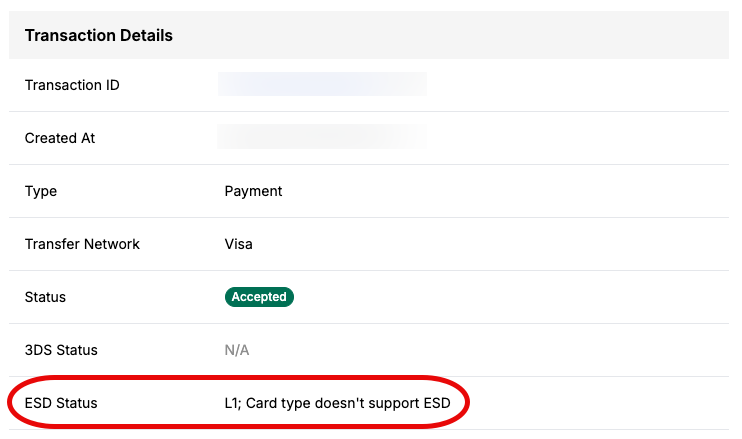
How to read the ESD Status field
There are two parts to the ESD Status field:
- The level of data submitted to complete the Transaction, displayed as L1, L2, or L3.
- L1, standard data, represents the basic fields required to complete a Transaction.
- L2, enhanced data, includes L1 data plus tax amount, Customer code, and merchant ZIP code.
- L3, line item data, includes L1 and L2 data plus line item level details, such as product code, product description, quantity, unit price, total amount, and commodity code.
- The reason, if applicable, for the level of data submission. Use this information to adjust Maxio Platform and Advanced Billing settings to improve eligibility for reduced interchange rates. Common examples include:
- "L1; Card type doesn't support ESD"
No configuration changes are available for unsupported card types. - "L1; Length more than 12 in enhancedSchemeData.itemDetailLine1.productCode"
Consider reducing the Product Code or Accounting Code to 12 characters or fewer. - "L2; L3 downgraded to L2 due to L2-only card type"
No configuration changes are available for unsupported card types. - "L2; Length more than 26 in enhancedSchemeData.itemDetailLine2.description"
Consider reducing the Billing Description to 26 characters or fewer. - "L3; enhancedSchemeData.itemDetailLine1.description has a maximum length of 26 characters; excess characters will be truncated"
Consider reducing the Billing Description to 26 characters or fewer.
- "L1; Card type doesn't support ESD"
Base requirements (Level 1)
For Maxio Payments to process Transactions at all, a base level of requirements is needed. This is called Level 1.
Maxio Platform
Maxio Platform meets these Level 1 requirements as follows:
| Requirement | Description | Provided by Maxio |
|---|---|---|
| Required Payment Method | While this requirement doesn't have a dedicated setting, e-Bill and credit card/ACH need to be enabled to use Maxio Payments. To add this to a Customer, go to Customer Home > Add New or Edit existing > e-Bill Preferences and check e-Bill, Enable Credit Card Payments, and Enable ACH Payments. | ✓ |
| Required Billing Address | This is automatically required if the Customer is using e-Bill with credit card and/or ACH payment enabled. | ✓ |
Advanced Billing
Advanced Billing meets these Level 1 requirements as follows:
| Requirement | Description | Provided by AB |
|---|---|---|
| Required Payment Method | This setting ensures a subscription must provide an active payment method upon activation. To enable this on the applicable Products, go to Catalog > Products, select Edit on a specific Product, then Edit Product Details, and enable Require Payment Method. | ✓ |
| Required Billing Address | This setting ensures a subscription must provide a billing address upon activation. To enable this on the applicable Products, go to Catalog > Products, select Edit on a specific Product, then Edit Product Details, enable Require a Shipping or Billing Address, and enable Require Billing Address. | ✓ |
Level 2 - Enhanced data
Level 2 processing is typically used by B2B (business-to-business) Transactions and requires the merchant to provide additional data elements beyond the standard credit card information. Providing this additional data qualifies the merchant for a lower processing rate than a standard Transaction receives. Some of these fields are already collected through Maxio. Visa's Commercial Enhanced Data Program (CEDP) replaces the Level 2 interchange program in April 2026.
Maxio Platform
Maxio Platform meets these Level 2 requirements as follows:
| Requirement | Description | Provided by Maxio |
|---|---|---|
| All Level 1 Processing Requirements | See Base requirements. | |
| Card Type Business/Company | A business or company credit card must be used by the Customer for this Transaction to be eligible. | |
| Tax Amount | Taxes need to be enabled and collected on the Transaction. Maxio Platform collects taxes through Avalara. See Setup the AvaTax Integration to learn how to get this set up and enabled. | ✓ |
Advanced Billing
Advanced Billing meets these Level 2 requirements as follows:
| Requirement | Description | Provided by AB |
|---|---|---|
| All Level 1 Processing Requirements | See Base requirements. | |
| Card Type Business/Company | A business or company credit card must be used by the Customer for this Transaction to be eligible. | |
| Tax Amount | If taxes are not enabled, Maxio sends $0 for the Level 2 data qualification. Taxes can be enabled and collected on the Transaction. To enable taxes for a Product/Component, go to Catalog > Products, select Edit on a specific Product/Component, then Edit Product/Component Details, enable Enable Taxes for this Product/Component, and select a Tax Type. For best practices, Maxio recommends enabling the Avalara integration. If an Avalara account is unobtainable, Advanced Billing calculated taxes work as well as custom taxes, as long as the tax percentage falls within 0.1%-22%. | ✓ |
Level 3 - Line item data
Level 3 processing takes a step further, requiring even more detailed information from the merchant. The additional information required for Level 3 processing helps reduce the risk of fraud and chargebacks, and provides more detailed Transaction data for both the merchant and the card issuer. Visa's Commercial Enhanced Data Program (CEDP) requires approximately the same level of detail as Level 3 to qualify for the best interchange rate possible for the card used.
Maxio Platform
Maxio Platform meets these Level 3 requirements as follows:
| Requirement | Description | Provided by Maxio |
|---|---|---|
| All Level 1 and 2 Processing Requirements | See Base and Level 2 requirements. | |
| Product Code | The specific requirement is listed as Item Code. Maxio passes this information through the Code field on the Invoice line item. To add a product code, go to Admin > Lists > Items, select the desired Item, select Edit, and enter a Code. | ✓ |
| Item Category (Commodity Code) | An Item category is needed for this requirement. One of the following category types needs to be associated with a product:
| ✓ |
| Unit(s) of Measure | A unit of measure is required to qualify for Level 3 data. If one isn't added, Maxio passes "each" as the unit of measure. To add a unit of measure, go to Admin > Lists > Items, select the desired Item, select Edit, and enter Units of Measure. | ✓ |
| Description | A billing description can be created for an Item. If nothing is populated, Maxio auto-creates one based on whether the Item is Recurring or Non-Recurring. To add a description, go to Admin > Lists > Items, select the desired Item, select Edit, and enter a Billing Description. | ✓ |
| Quantity | Invoice line item quantity is defined on the Invoice and is a required field to create an Invoice. To add a quantity, go to the Invoice, select Edit, go to Invoice Line Items, and enter a Quantity. | ✓ |
| Unit Price | Invoice line item unit price is a calculated field, passed to Maxio Payments as Amount / Quantity = Unit Price. | ✓ |
| Total Amount | Invoice line item total amount is the price for the line item on the Invoice and is required to create an Invoice. To add an amount, go to the Invoice, select Edit, go to Invoice Line Items, and enter an Amount. | ✓ |
Advanced Billing
Advanced Billing meets these Level 3 requirements as follows:
| Requirement | Description | Provided by AB |
|---|---|---|
| All Level 1 and 2 Processing Requirements | See Base and Level 2 requirements. | |
| Accounting Code (Product Code) | The specific requirement is listed as Product Code. Advanced Billing passes this information through the Accounting Code field in the Product settings. To add an accounting code to a Product, go to Catalog > Products (or Components), select Edit on a specific Product, then Edit Product Details, and enter an Accounting Code. | ✓ |
| Item Category | An item category is needed for this requirement. One of the following category types needs to be associated with a Product:
| ✓ |
| Unit Name | A unit of measure is required to qualify for Level 3 data. If one isn't added, Maxio passes "each" as the unit of measure. If the product catalog uses Components, the Component may also need a unit name for it to qualify. If applicable, go to Catalog > Products (Components), select Edit on a specific Component, then Edit Component Details, and enter a Unit Name. | ✓ |
| Description | The Product or Component needs a description to qualify for Level 3 processing. To add a description, go to Catalog > Products (or Components), select Edit on a specific Product or Component, then Edit Product/Component Details, and enter a Description. | ✓ |
| Quantity | Invoice line item quantity is defined on the Invoice and is a required field to create an Invoice. To add a quantity, go to Customer > Subscriptions > Product > Invoices, select Create Invoice, go to Invoice Line Items, and enter a Quantity. | ✓ |
| Unit Price | Invoice line item unit price is selected from the line item price points list. To add a unit price, go to Customer > Subscriptions > Product > Invoices, select Create Invoice, go to Invoice Line Items, and select a Unit Price. | ✓ |
| Amount | Invoice line item amount is the price for the line item on the Invoice and is required to create an Invoice. This is a calculated field passed to Maxio Payments as Quantity × Unit Price = Amount. | ✓ |
Related information
To learn about another way to manage your cost of accepting credit cards, see Understand Credit Card Surcharging.
Still need help?
Reach out and our support team will take it from here.