
Manage Your Maxio Payments Settings
Applies to: Maxio Payments
Last updated on Aug 26, 2026
Your Maxio Payments account keeps your merchant profile, fee schedule, and team access together in one place. Review this information periodically to make sure your account details stay current and only the right people have access.
Select Settings from the left navigation menu to get started. Go to Settings > Account to review your merchant details and fees, or Settings > Users to manage who has access. Depending on your account configuration, you may also see additional tabs for Surcharging, API Keys (Owner only), or Apple Pay.
Merchant profile and fees
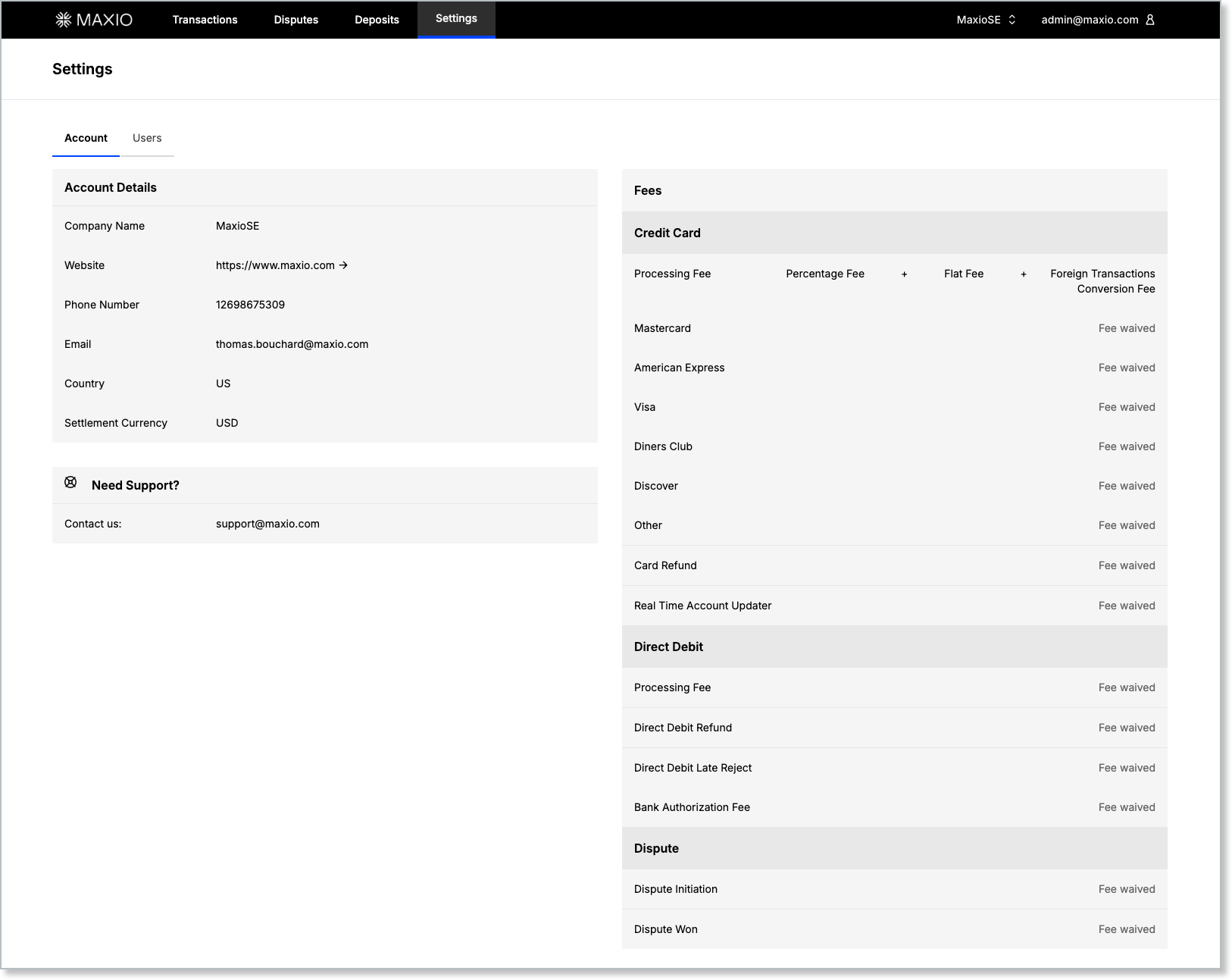
On the Account tab, review your merchant details, fee schedule, and available balance, and contact support if you need to make changes.
Account details
Your legal entity, contact details, and settlement currency appear here.
| Field | Description |
|---|---|
| Company Name | The name of your legal entity or operating brand as registered in Maxio. |
| Website | Your official company website. |
| Phone Number | The primary phone contact is listed for your merchant account. |
| The email address associated with your merchant account owner. | |
| Country | The registered country of your business. |
| Settlement Currency | The currency in which Maxio settles payouts to your bank account (e.g., USD). |
If you need to update any of this information, use the Need Support panel to contact Maxio Support at support@maxio.com.
Fee schedule
Transaction-related costs are grouped into Credit card, Direct debit, and Dispute fees, covering both credit card and ACH (direct debit) processing.
Credit card
| Fee | Description |
|---|---|
| Processing Fee | Charged per card brand (Mastercard, American Express, Visa, Diners Club, Discover, and Other), calculated as a percentage fee plus a flat fee plus a foreign transactions conversion fee. |
| Card Refund | Costs related to reversing a card charge. |
| Apple Pay Refund | Costs related to reversing an Apple Pay charge. |
| Google Pay Refund | Costs related to reversing a Google Pay charge. |
| Real Time Account Updater | Fee for updating expired card credentials automatically. |
Direct debit
| Fee | Description |
|---|---|
| Processing Fee | Cost per ACH debit transaction. |
| Direct Debit Refund | Applied when a direct debit is refunded. |
| Direct Debit Reject | Charged when an ACH is reversed after funds were released. |
| Top Up Reject | Charged when a top-up payment is reversed after funds were released. |
| Bank Authorization Fee | Cost for verifying bank account authorization. |
Dispute
| Fee | Description |
|---|---|
| Dispute Initiation | Applied when a chargeback case is opened by a cardholder. |
| Dispute Won | Charged when a dispute is won in the merchant's favor (if applicable). |
Some accounts may also see additional fees, such as a Monthly Gateway Fee or Monthly Surcharge Fee, depending on your plan.
Manage team access
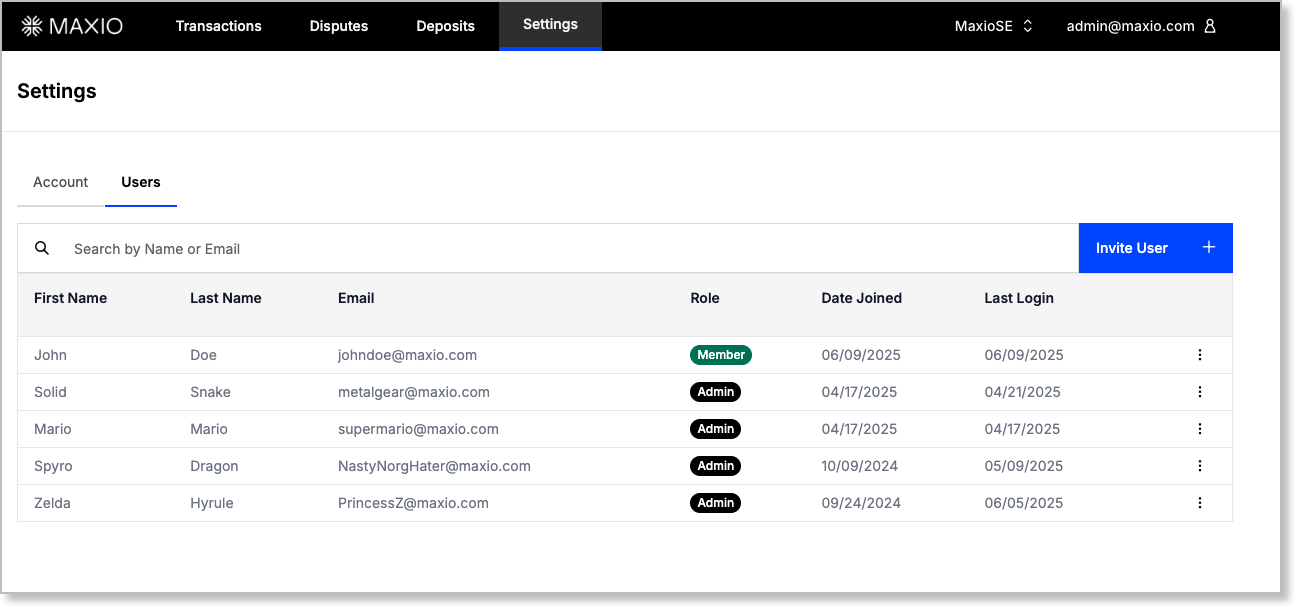
On the Users tab, review everyone with access to your Maxio Payments account, and manage their roles.
| Column | Description |
|---|---|
| First Name | The user's first name. |
| Last Name | The user's last name. |
| The user's login email address. | |
| Role | The assigned role: Owner (the original account holder), Admin, or Member. |
| Date Joined | The date the user was invited and accepted access. |
| Last Login | The most recent date the user logged into Maxio Payments. |
This view is searchable by name or email using the Search field above the table.
Clicking the icon after the user information in the table allows you to do the following:
- Edit User Info - Allows you to edit the information of user, including name, email, and user role.
- Request Password Change - Sends an email to the user for a password reset. This action only appears after the user has accepted their invitation; before that, use Resend Invitation instead.
- Delete User - Deletes the user's access to Maxio Payments.
Roles and permissions
Each user is assigned one of three roles:
Owner
The original account holder, with all Admin capabilities plus exclusive access to API Keys settings.
Admin
Can view every area of Maxio Payments and perform any action, including managing users, with one exception: API Keys settings are limited to the account Owner.
Member
Can view every area of Maxio Payments, including Transactions, Deposits, and account settings, but can't make changes. One exception: Members can accept or submit evidence for a dispute despite this general read-only restriction.
Adding users
New team members need an invitation before they can access Maxio Payments.
To invite a new team member
- Click Invite User in the top-right corner.
- Enter the user's first name, last name, and email address (entered twice to confirm).
- Choose the appropriate role: Admin or Member.
- Click Send Invitation.
The recipient receives an email with a link to set up their password. Once they accept, their name appears in the user table with the current date listed under Date Joined.
Related information
For an overview of the Maxio Payments portal and its other views, see Using Maxio Payments.
Still need help?
Reach out and our support team will take it from here.