
Processing Sales Orders
Applies to: Maxio Core
Last updated on Aug 28, 2026
Maxio Platform's CRM integrations can import order information and process it into Customers, Contracts, Transactions, revenue, and Invoices. While Sales Orders themselves are not financial records, they contain all of the information necessary to create these records. Maxio Platform uses this order information to automate the financial record creation process, increasing productivity.
Process Sales Orders into financial records
This workflow is the same across the Salesforce, HubSpot, and Pipedrive integrations, though your queue may show different columns depending on which CRM you use.
If a CRM integration's Auto-Process After Sync setting is enabled, Sales Orders with a resolvable Customer, Contract, and Item match are processed into financial records automatically after each sync, skipping the steps below. Any Sales Order that Auto-Process can't resolve remains in the queue for you to process manually using the steps below.
To process a Sales Order into financial records
-
Open the CRM's corresponding tab in Maxio Platform.
-
Click the Sync Now button in the top-right corner of the screen.

-
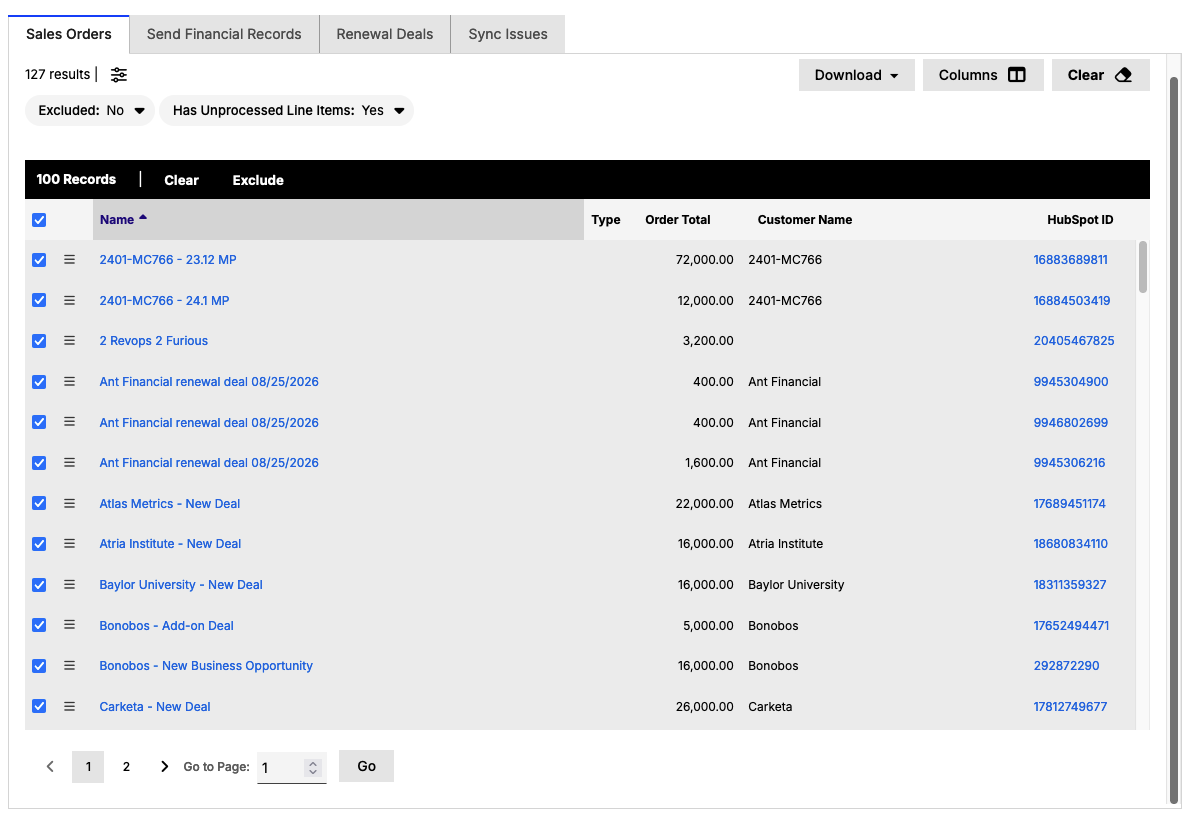
The system then syncs orders from the CRM based on the configured status. For example, many Salesforce users sync orders based on "Closed: Won" opportunities. The results appear at the top of the screen and any Sales Orders appear in the queue.

-
To process an order, hover your mouse over the action menu and click the Process option.
-
Select a Customer and a Contract for the order. You can create a new Customer/Contract, or select an existing one.
-
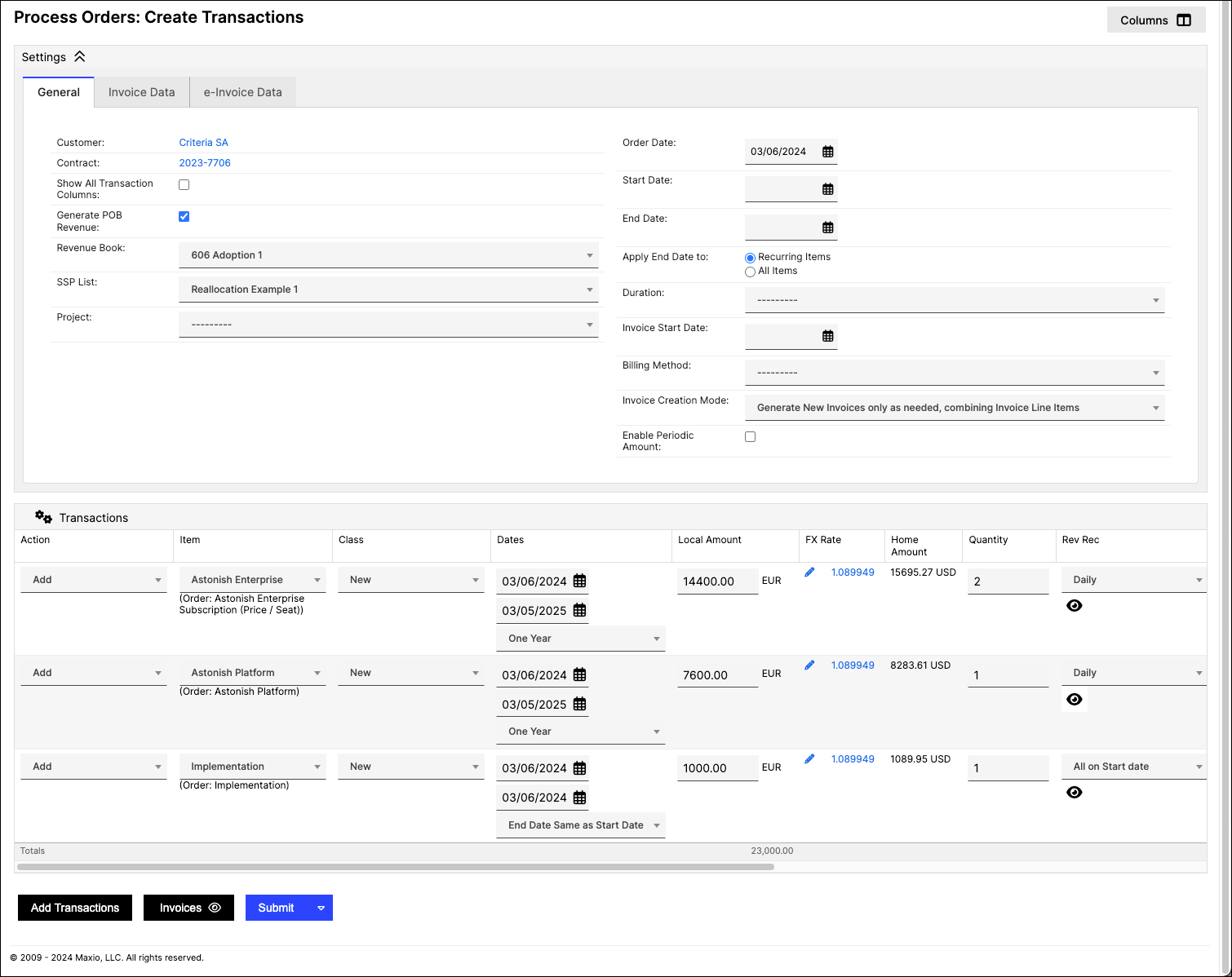
The system then prompts you to create Transactions. Each product in the order/opportunity receives a corresponding Transaction and is also matched to the proper Items. When syncing orders, Maxio Platform attempts to match by the Item's code and then by the Item's name.
-
Configure the Transactions as needed and then click the Submit button at the bottom of the screen.
-
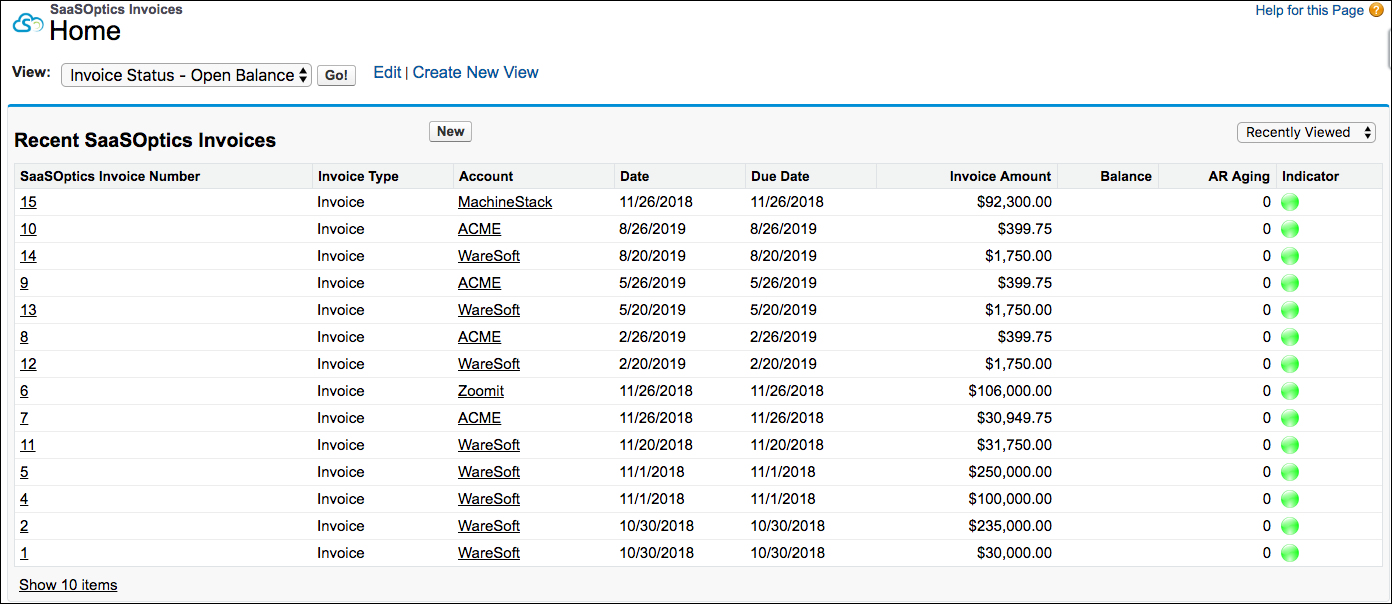
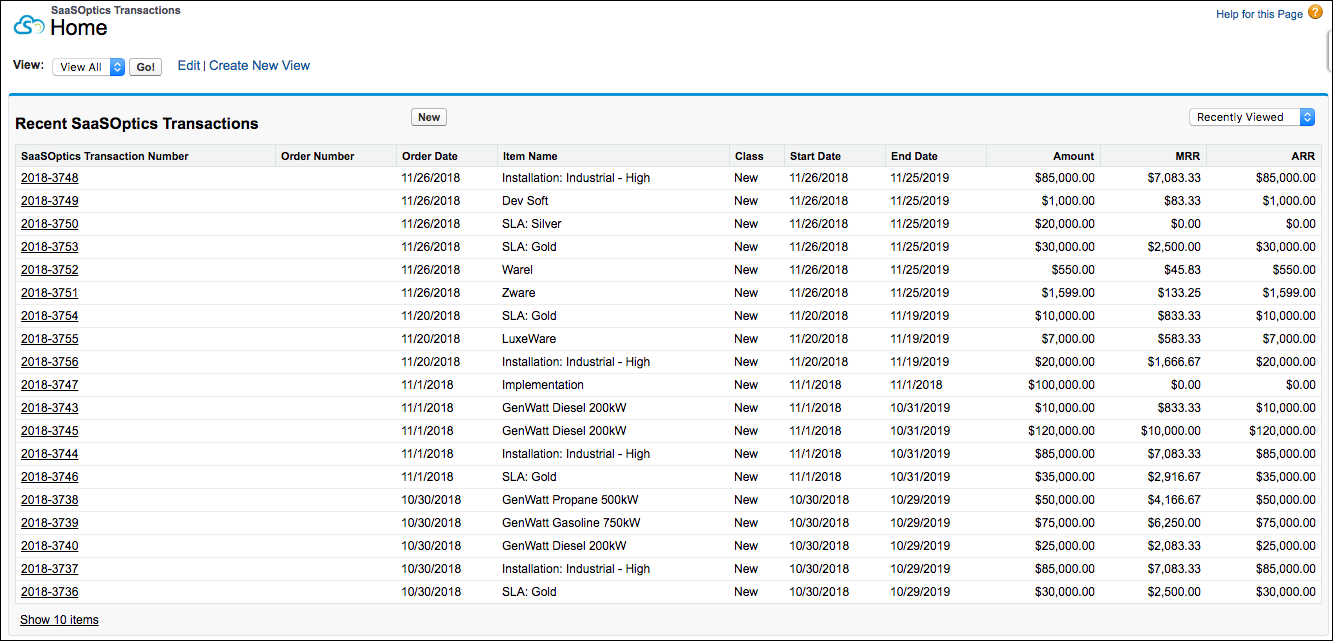
If you are using Salesforce, you can then send the newly created financial records by performing another sync. The Contracts, Invoices, and Transactions that you created now appear in Salesforce.
Clear and exclude Sales Orders
Certain Sales Orders may come into the queue that you do not wish to process in Maxio Platform. These orders may require changes in the CRM, or they may be legacy orders that managed to slip past the filtering. When this happens, there are two options available to address this issue:
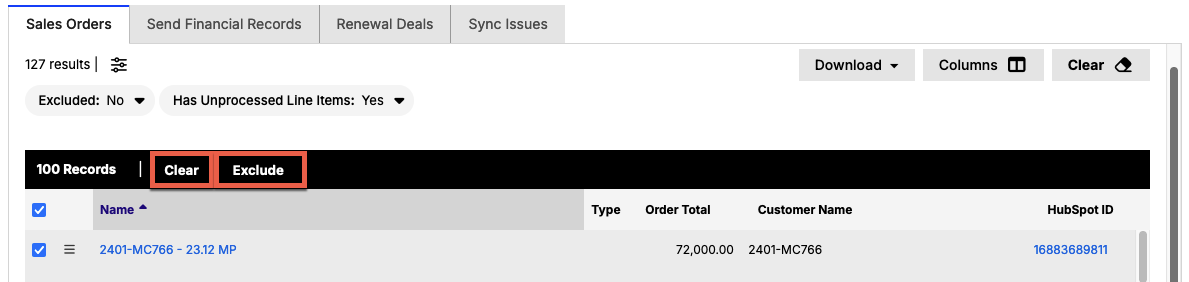
- Clear: Removes the Sales Order from the queue and sends it back to the CRM. The order comes back into Maxio Platform the next time it's edited in the CRM.
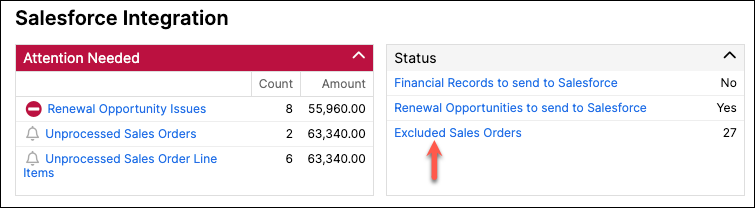
- Exclude: Removes the Sales Order from the queue and prevents it from reappearing in the future, even if it's changed in the CRM. You can click Excluded Sales Orders in the Status panel on the CRM integration's home page to view any previously excluded orders. If you need to move an excluded order back into the queue, hover the mouse over the order's action menu and click the Unexclude option.
The option you select depends on what you intend to do with the Sales Order. Select the orders you'd like to edit by clicking the check box next to their name, then select Clear if you plan to process the Sales Order but need changes in the CRM first, or select Exclude if you don't plan to process the Sales Order at all.
Related information
To set up sales order syncing, see the CRM-specific setup article: Understand the Salesforce Integration for Maxio Core for Salesforce, Set Up HubSpot Integration for HubSpot, or Pipedrive Integration Setup and Use for Pipedrive.
Still need help?
Reach out and our support team will take it from here.