
Manage Advanced Billing Subscriptions in Salesforce
Applies to: Advanced Billing
Last updated on Aug 29, 2026
Manage a Subscription's state, Product, coupons, and renewal settings directly from Salesforce, and add new Subscriptions from an Opportunity when a deal closes.
Control a Subscription's state
Open the Subscription in Salesforce to control its state in Advanced Billing.
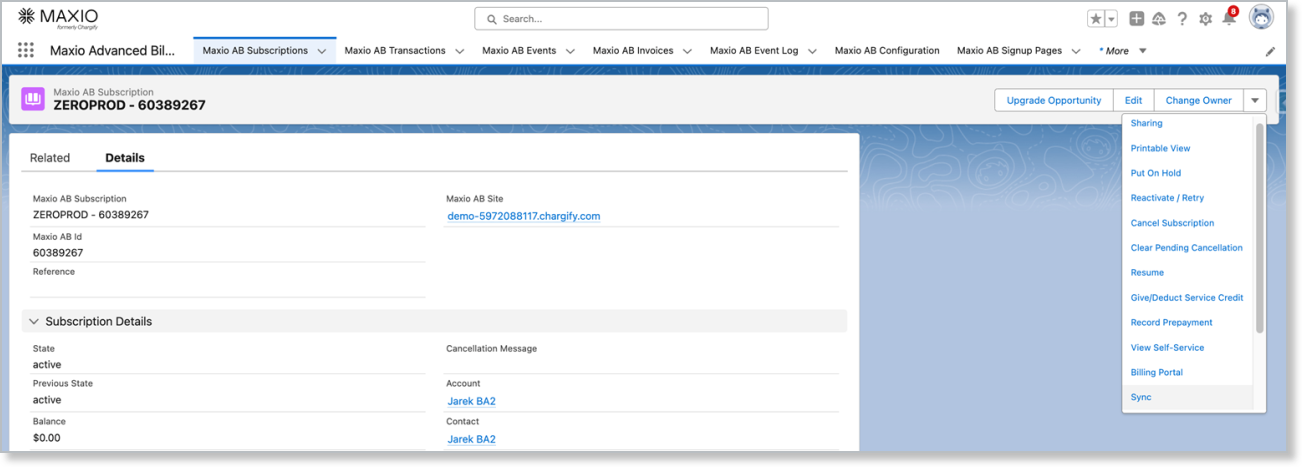
This menu includes:
-
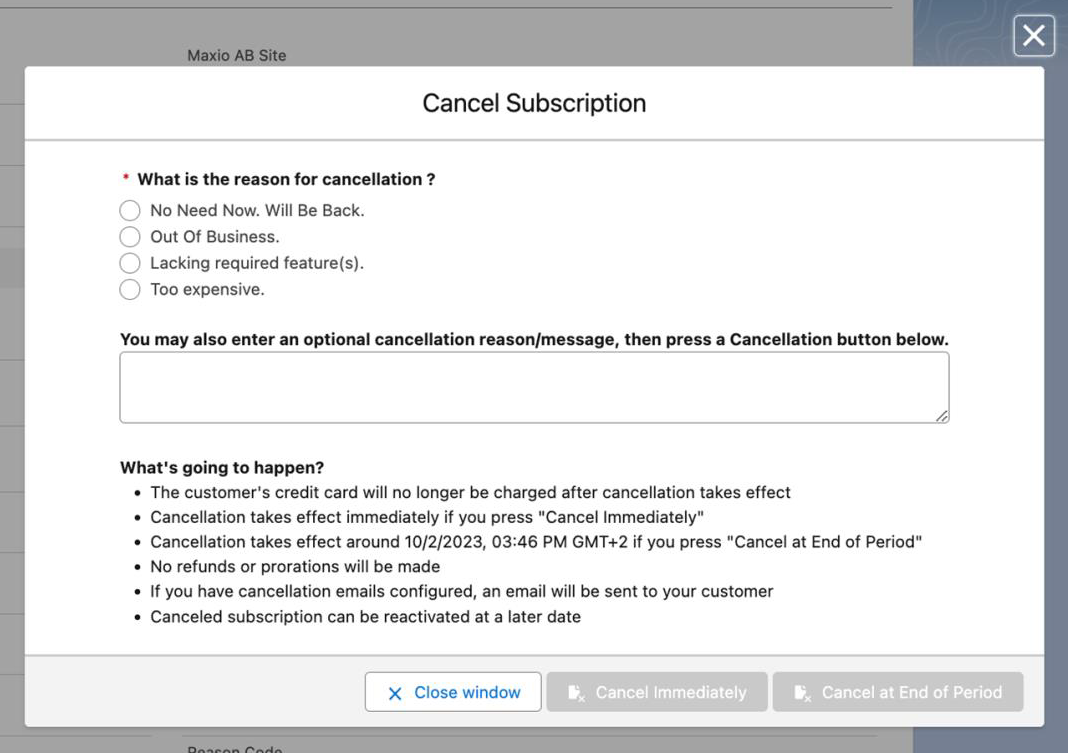
Cancel Subscription - Cancels the Subscription in Advanced Billing, either immediately or at the end of the period. You can add a churn code and notes.
-
Reactivate / Retry - Moves a canceled Subscription back to active.
Any amount due is expected immediately on reactivation. If payment fails, the Subscription stays canceled.
-
Clear Pending Cancellation - Removes an upcoming cancellation already placed on the Subscription.
-
Give/Deduct Service Credit - Gives or deducts a service credit from the Subscription.
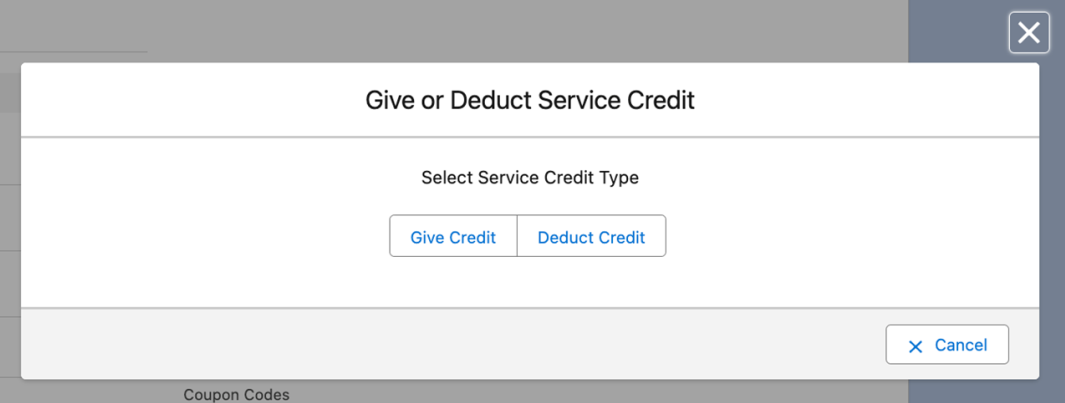
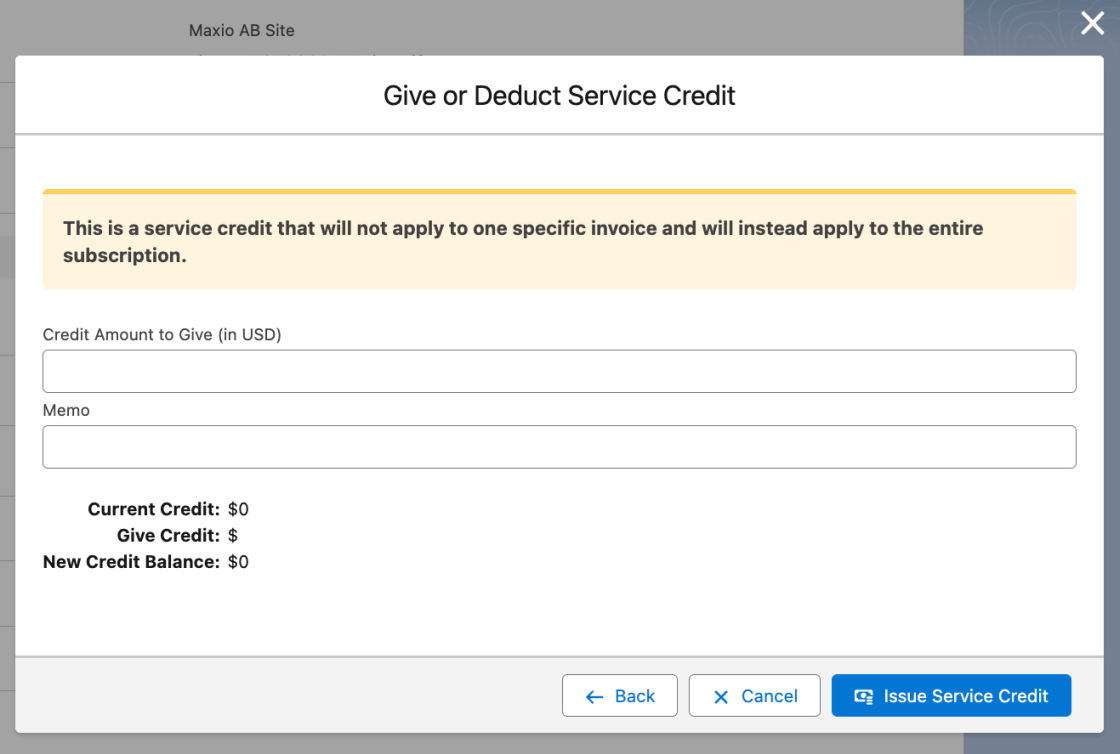
Choosing Give or Deduct takes you to a screen where you enter the amount.
-
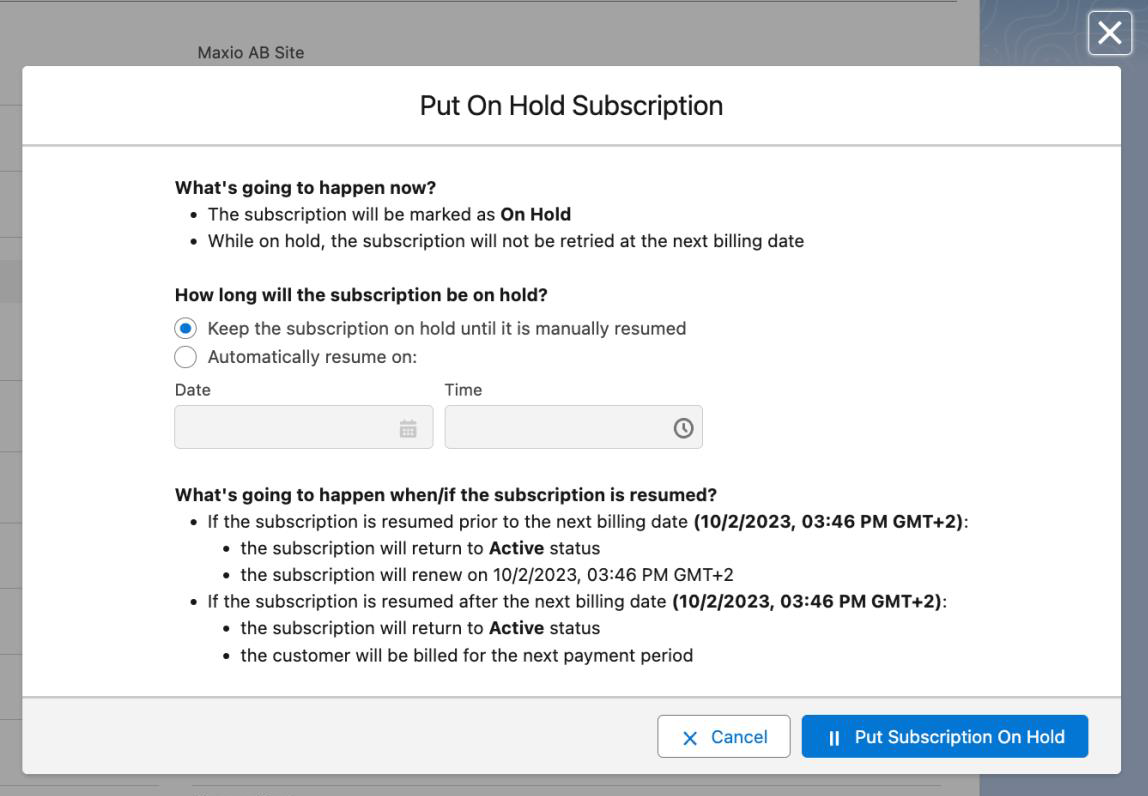
Put On Hold - Moves the Subscription to an On Hold state, with options for how long to hold it. See Put a Subscription on Hold for more.
-
Resume - Removes the Subscription's On Hold state.
-
Edit Term - Available for active Subscriptions on sites with Multi-Frequency enabled. Opens a dialog where you can select a new end date or mark the Subscription as evergreen, which clears its end date.
The same menu also includes Record Prepayment, View Self-Service, Billing Portal, and Sync, for recording a prepayment, viewing the customer's self-service view, opening the Billing Portal, and manually triggering a sync.
View billing intervals
Reference each Subscription's billing intervals directly in Salesforce, for both Product and Component billing.
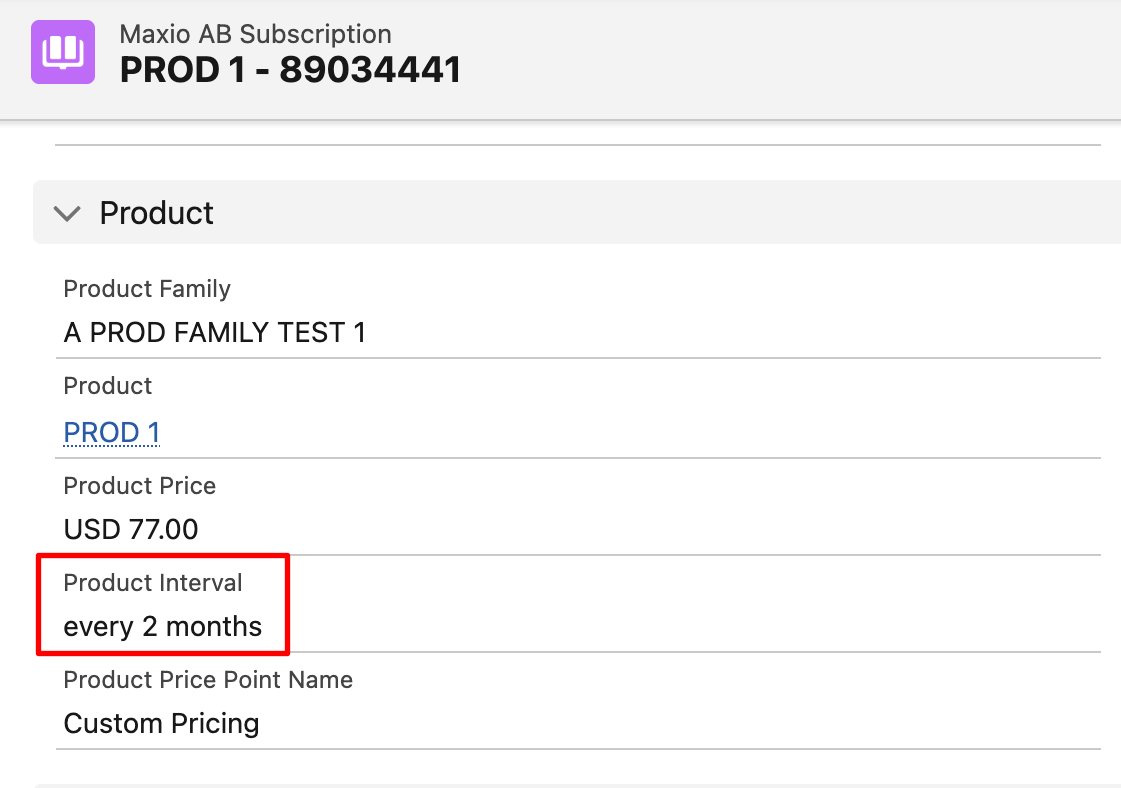
For the Product interval, go to the Maxio AB Subscriptions object. The Product Interval field is located within the Product group.
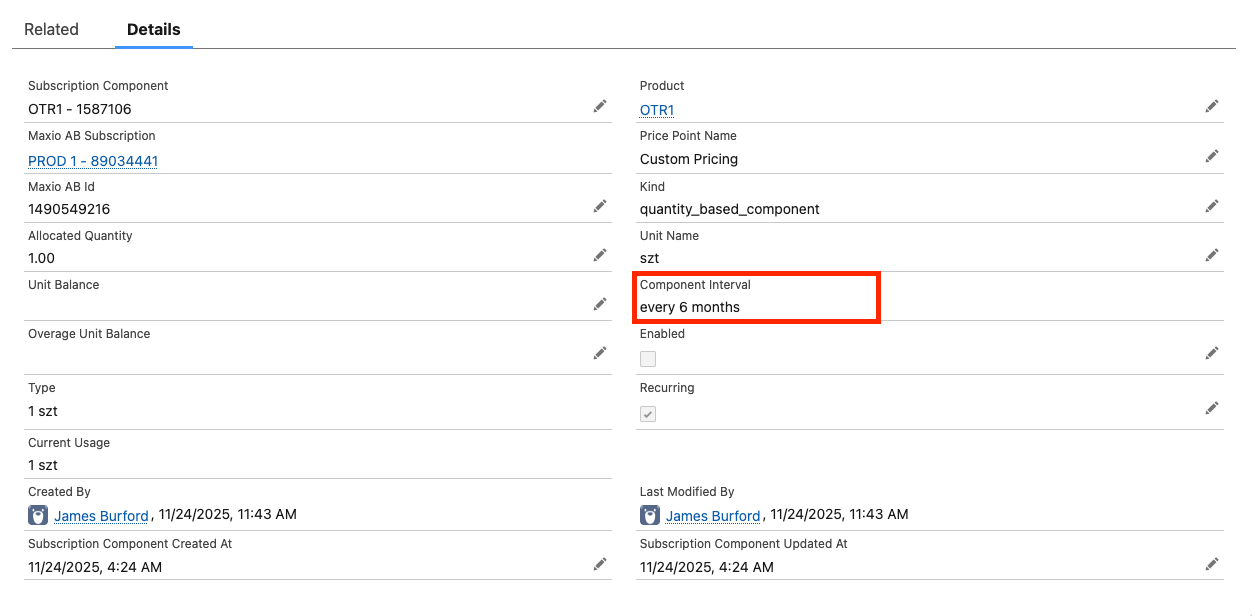
For the Component interval, go to the Maxio AB Subscriptions Component object. From the Details tab, locate the Component Interval field.
Update an existing Subscription
Navigate to the Subscription in Salesforce and click Upgrade Opportunity.
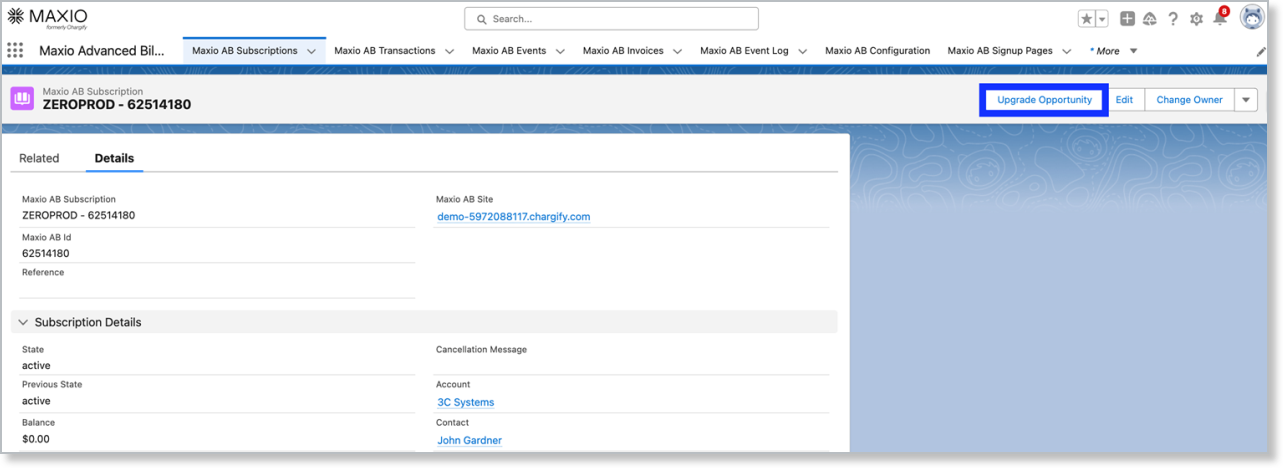
This wizard lets you change the payment profile, and adjust the Subscription's Product, components, and coupons.
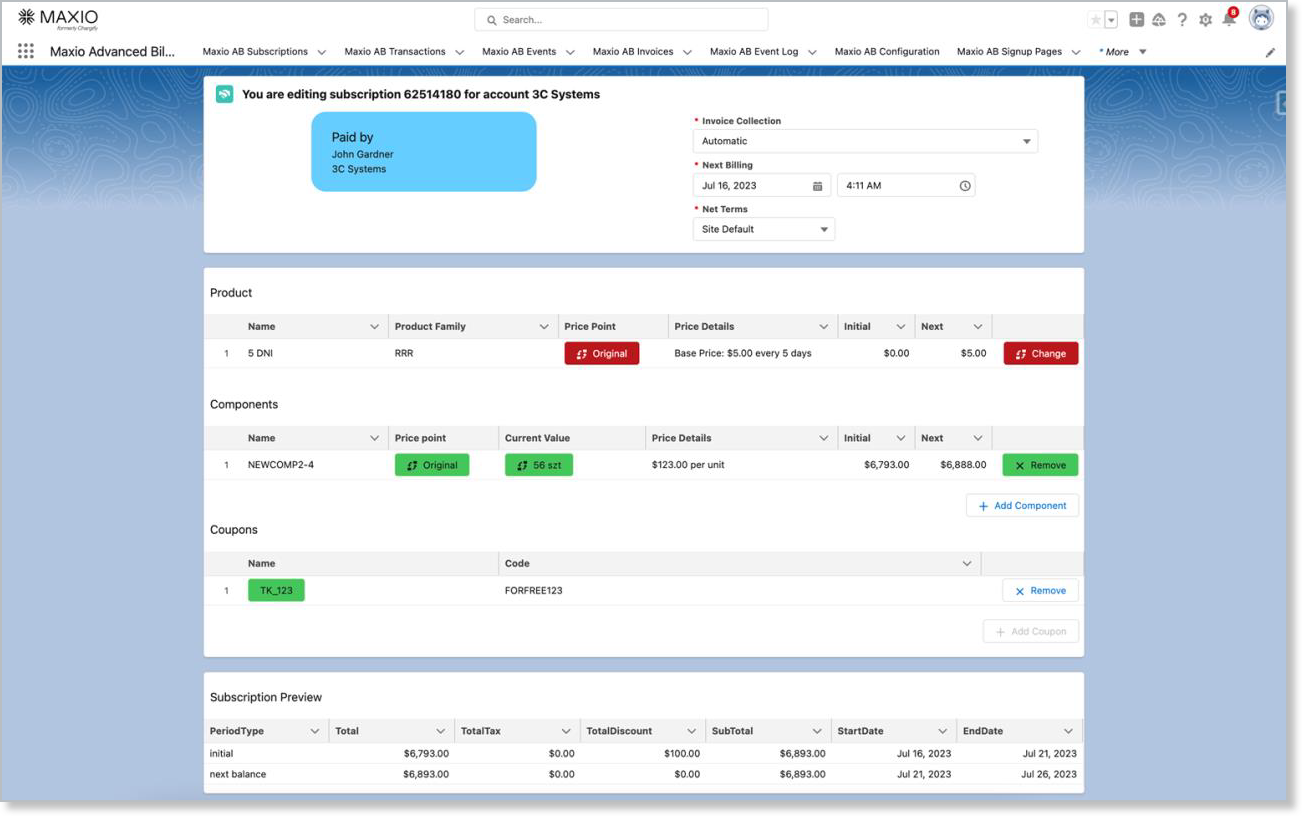
Change or upgrade the Product
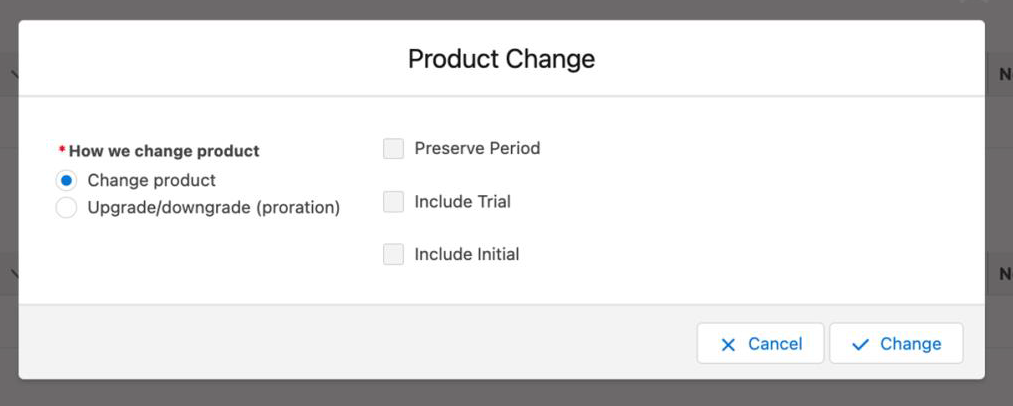
When you change the Product in the Upgrade Opportunity wizard, the Product Change dialog gives you two options:
-
Change product - Changes only the Product, with no proration.
-
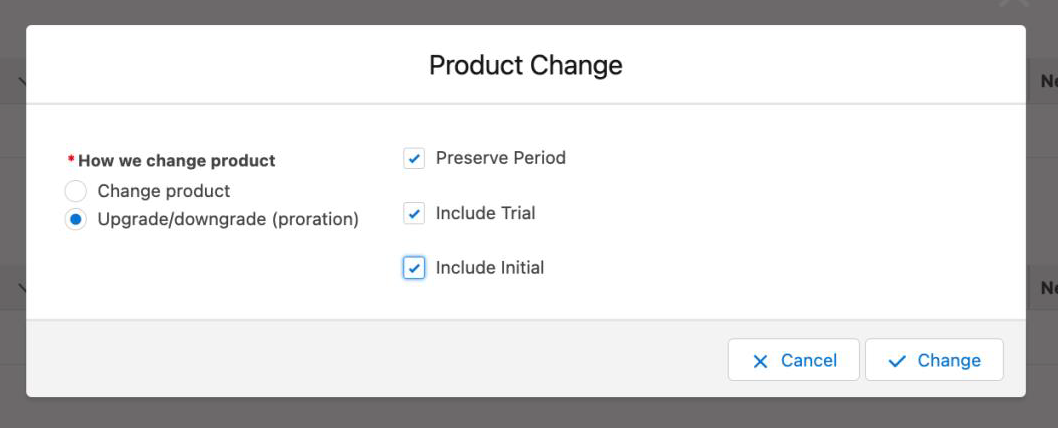
Upgrade/downgrade (proration) - Changes the Product and adds a proration for the difference between the old and new Product. Three checkboxes refine how the proration is calculated:
- Preserve Period - Keeps the existing next billing date.
- Include Trial - Includes the new Product's trial period on the Subscription.
- Include Initial - Includes the new Product's setup fee at the time of the change.
Add or remove a coupon
Add a coupon in the Create Subscription Wizard at the time of Subscription creation, or later when updating a Subscription in the Upgrade Opportunity wizard.
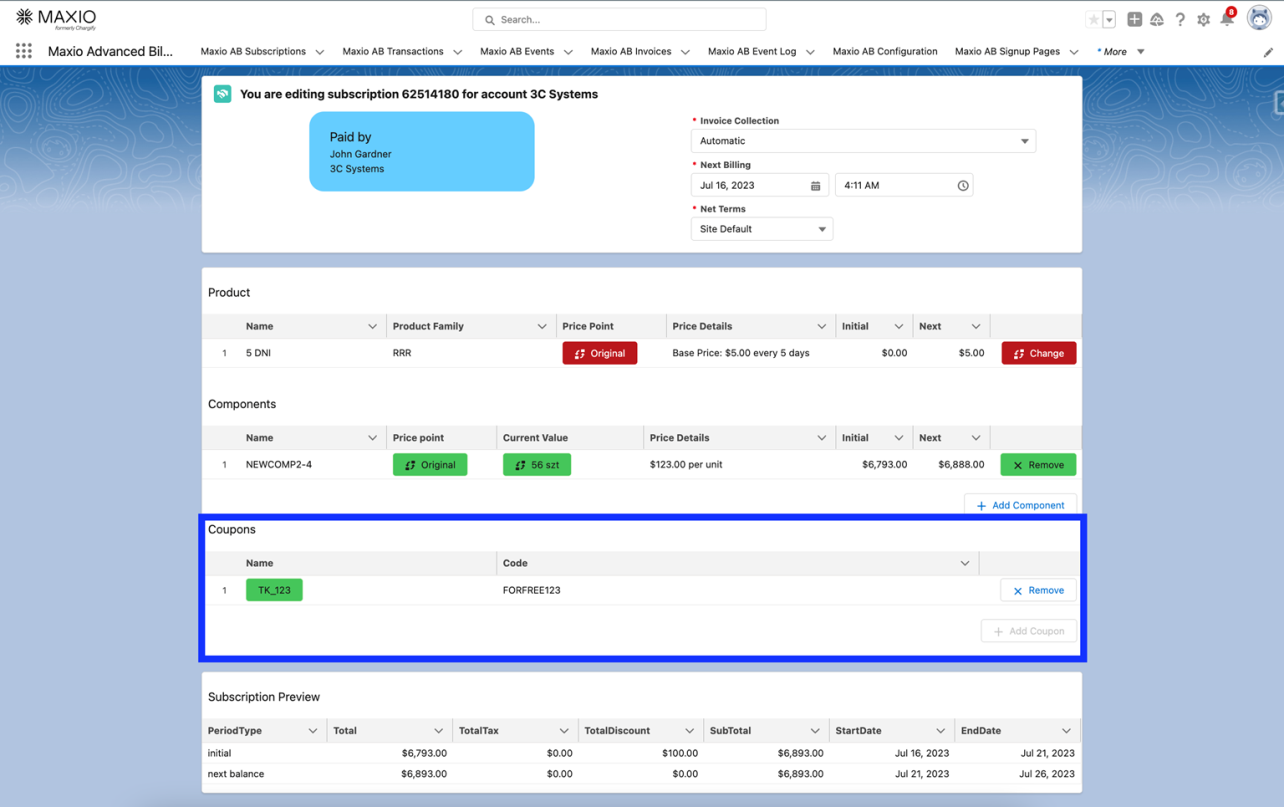
To remove a coupon, click Remove next to it in the Subscription Wizard.
Configure auto-renewal settings
When auto-renewal is enabled for both your Advanced Billing site and the Salesforce Managed Package, you can view, configure, and report on Subscription auto-renewal settings directly from the Subscription Preview, without switching to Advanced Billing.
To configure auto-renewal settings from Salesforce
- Open the Subscription Preview in Salesforce.
- Locate the Auto-Renewal Configurator section.
- Configure the renewal type, factor, and term settings.
- Click Save.
Updates sync to Advanced Billing once the Subscription is activated.
Add a Subscription Preview to an Opportunity
At the Opportunity level, add a Subscription Preview to model pricing before the deal closes. On the Opportunity's Maxio AB Subscription Preview related list, open the action dropdown and click New Subscription.
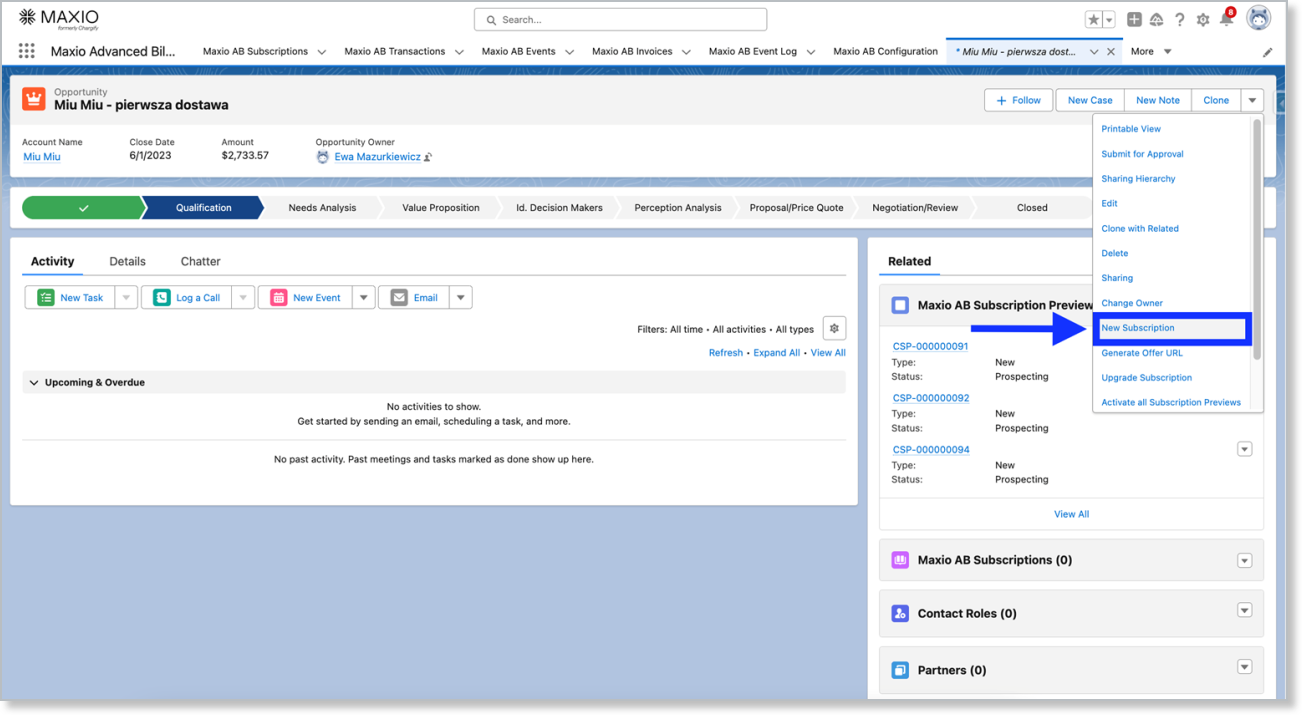
The same dropdown also has Upgrade Subscription and Activate all Subscription Previews, for upgrading an existing preview and activating every preview on the Opportunity at once.
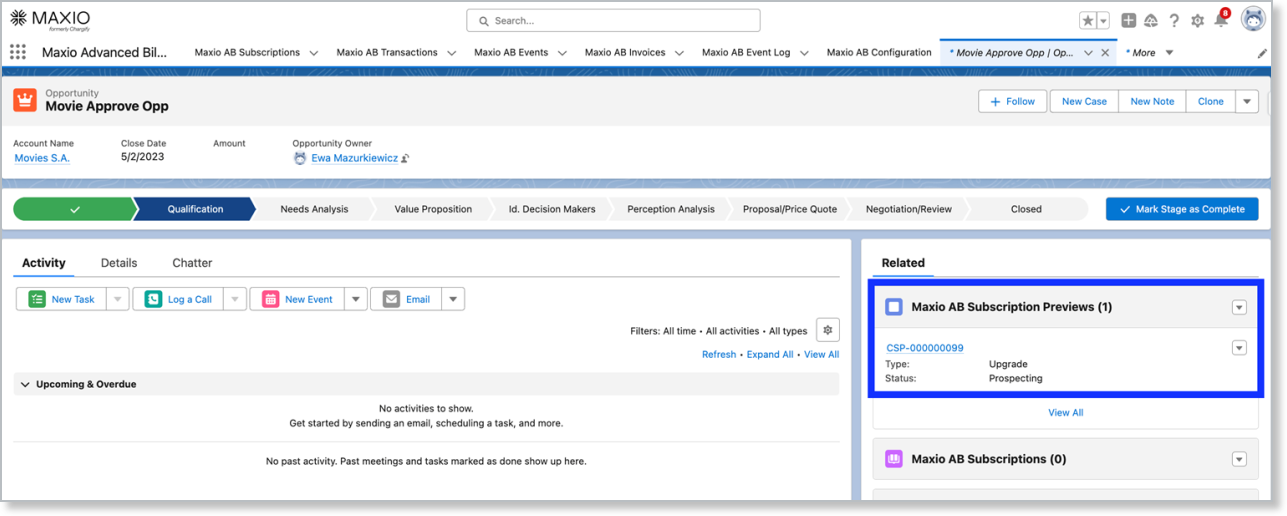
Open the preview to activate it into a live Subscription.
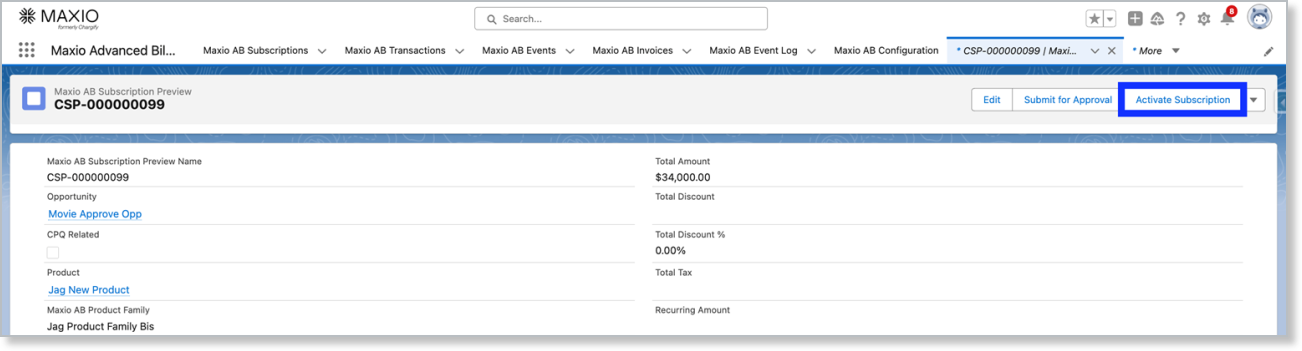
If your sync settings allow it, a Subscription can also be created automatically when the Opportunity is Closed/Won.
Generate a PDF quote
To generate a PDF of the Subscription Preview, navigate to it and click Generate PDF, in the top right, to download it. This is a helpful tool early in a deal, before the customer has committed to pricing.
Create a Subscription Group
If you set Invoice type to Consolidated in the Subscription Wizard, a Subscription Group is created for that Subscription.
A new subscription group will be created. The group allows you to consolidate invoices and issue them in the same billing cycles.
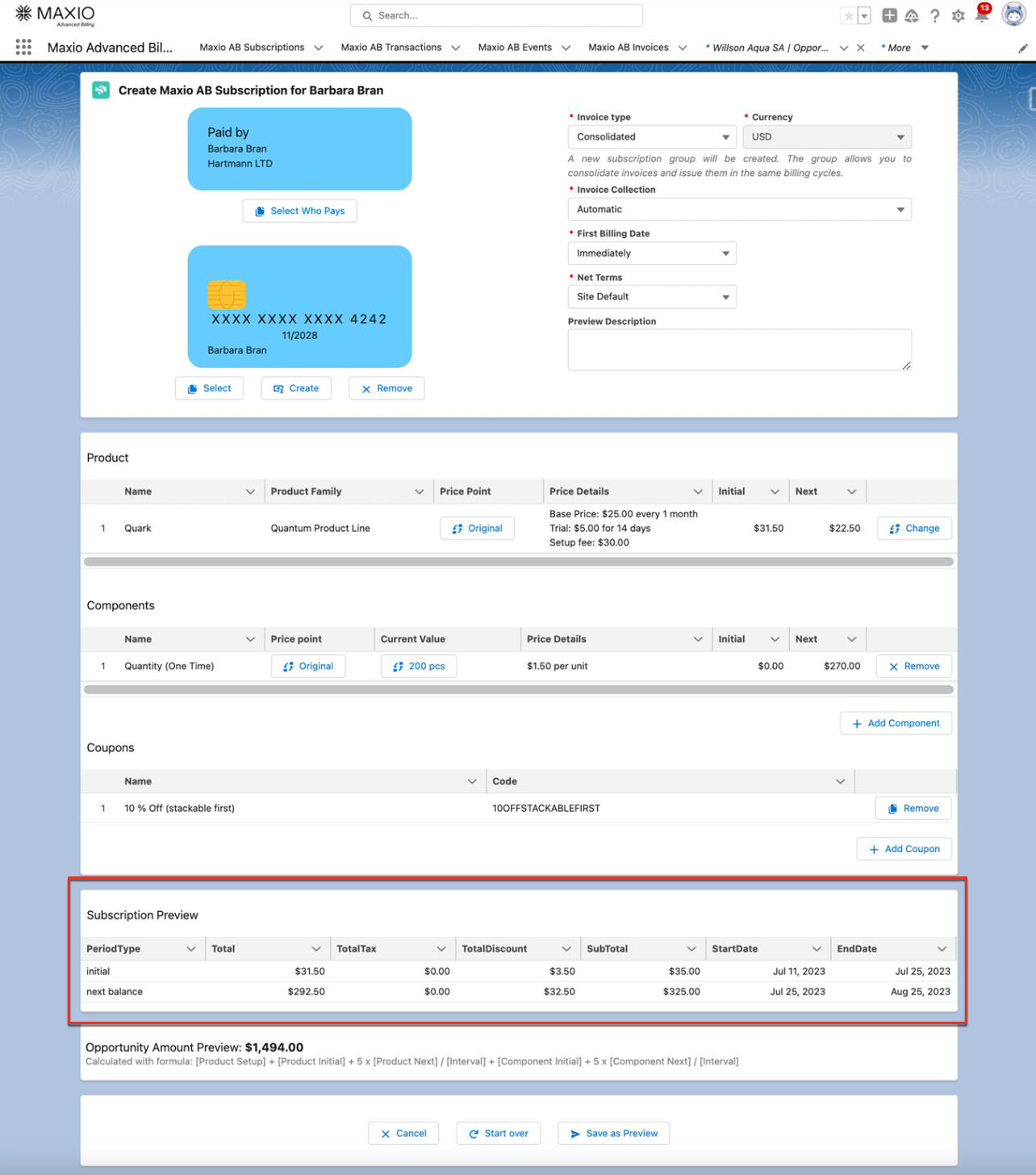
See Understand Subscription Groups for more.
Collect payment profile information
Collect payment profile information as part of the Subscription Creation Wizard.
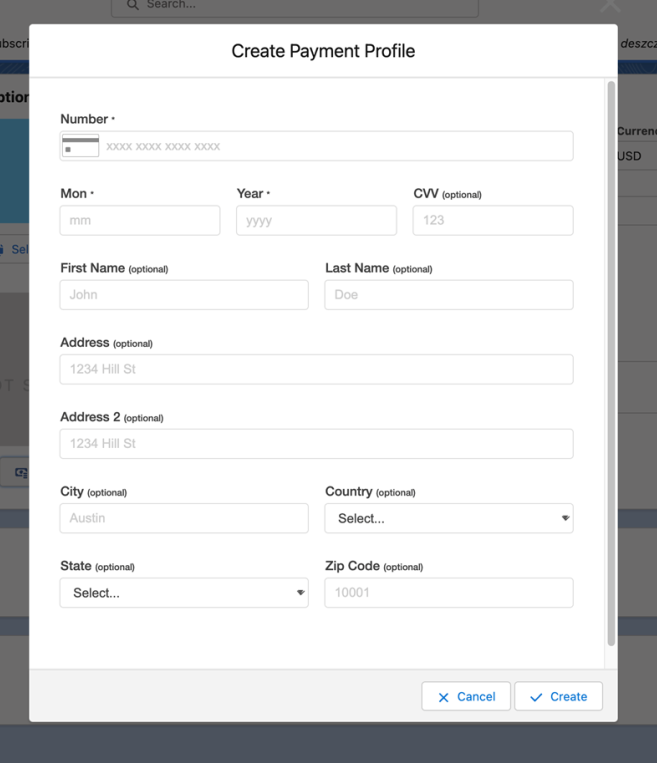
To update a payment profile later, navigate to the Subscription in Salesforce and click Upgrade Opportunity.
Create a coupon
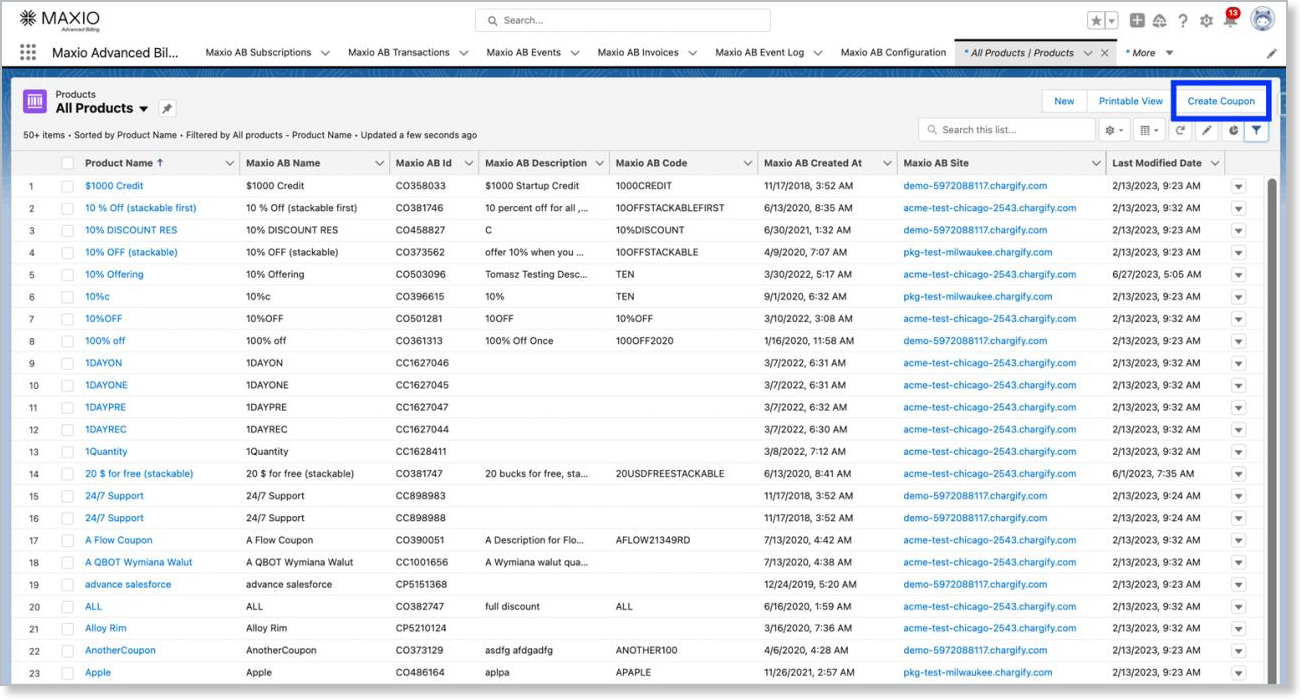
Create a coupon from the Products tab.
To create a coupon
-
Go to the Products tab and click Create Coupon.
-
Fill in the coupon options in the wizard. This creates the coupon in Advanced Billing, where it can be applied to a Subscription at creation.
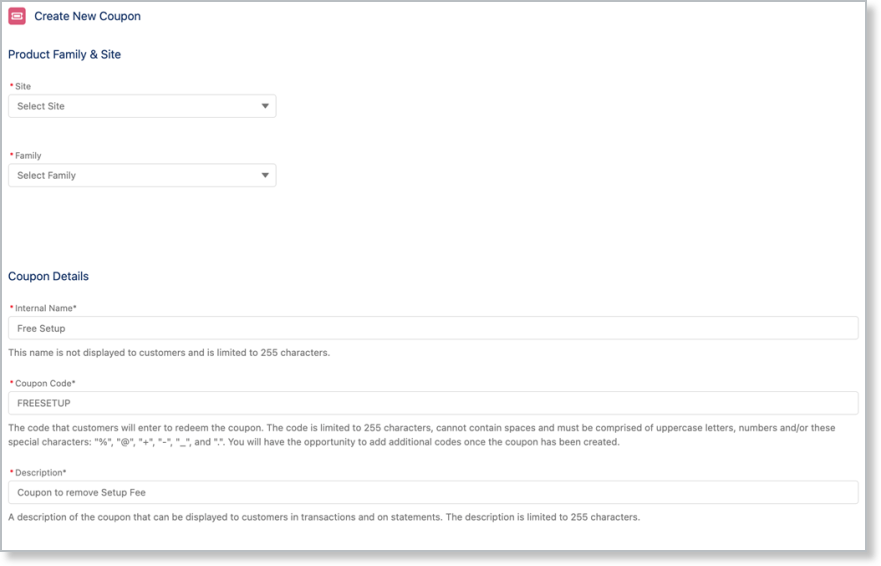
For more on coupon options and restrictions, see Understand Coupons.
Related information
To manage a Customer's Account and Contact records, see Manage Salesforce Accounts and Contacts for Advanced Billing.
To manage a Subscription's Invoices, see Manage Advanced Billing Invoices in Salesforce.
Still need help?
Reach out and our support team will take it from here.