
Use Salesforce Quoting for Advanced Billing
Applies to: Advanced Billing
Last updated on Aug 24, 2026
When an Opportunity has a Subscription Preview attached, use that preview as a quote-versioning system to negotiate pricing before the deal closes. Once the Opportunity is Closed/Won, the newest generated quote is used to create the Subscription.
Generate a quote
Open the Subscription Preview on the Opportunity.
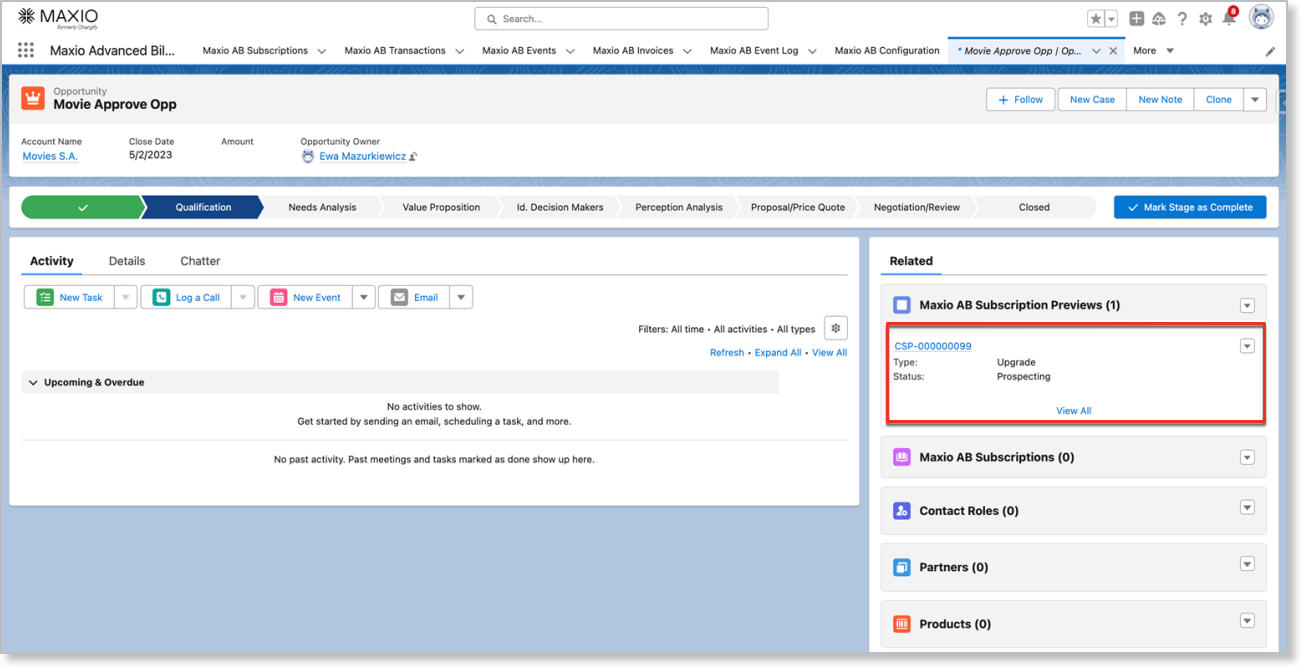
From the dropdown, click Generate Quote to create a quote you can share with your Customer.
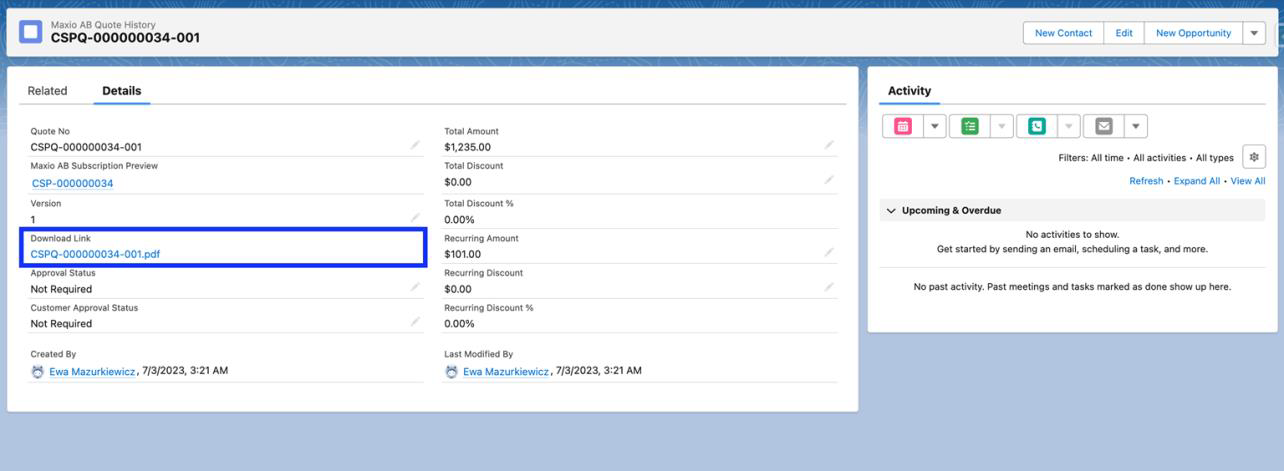
Click into the quote to see its details and a downloadable PDF you can share with the Customer for approval.
Revise a quote
If the price needs to change during negotiation, click the edit button on the Subscription Preview to reopen the Subscription Wizard and reconfigure it. Once you save your changes, click Generate Quote again to create a new version of the quote on the same Subscription Preview.
Example: If you remove 50 components from the Subscription and generate a new quote, that new version reflects the updated component count.
You can customize and brand the quote PDF's design in the Salesforce Visualforce pages.
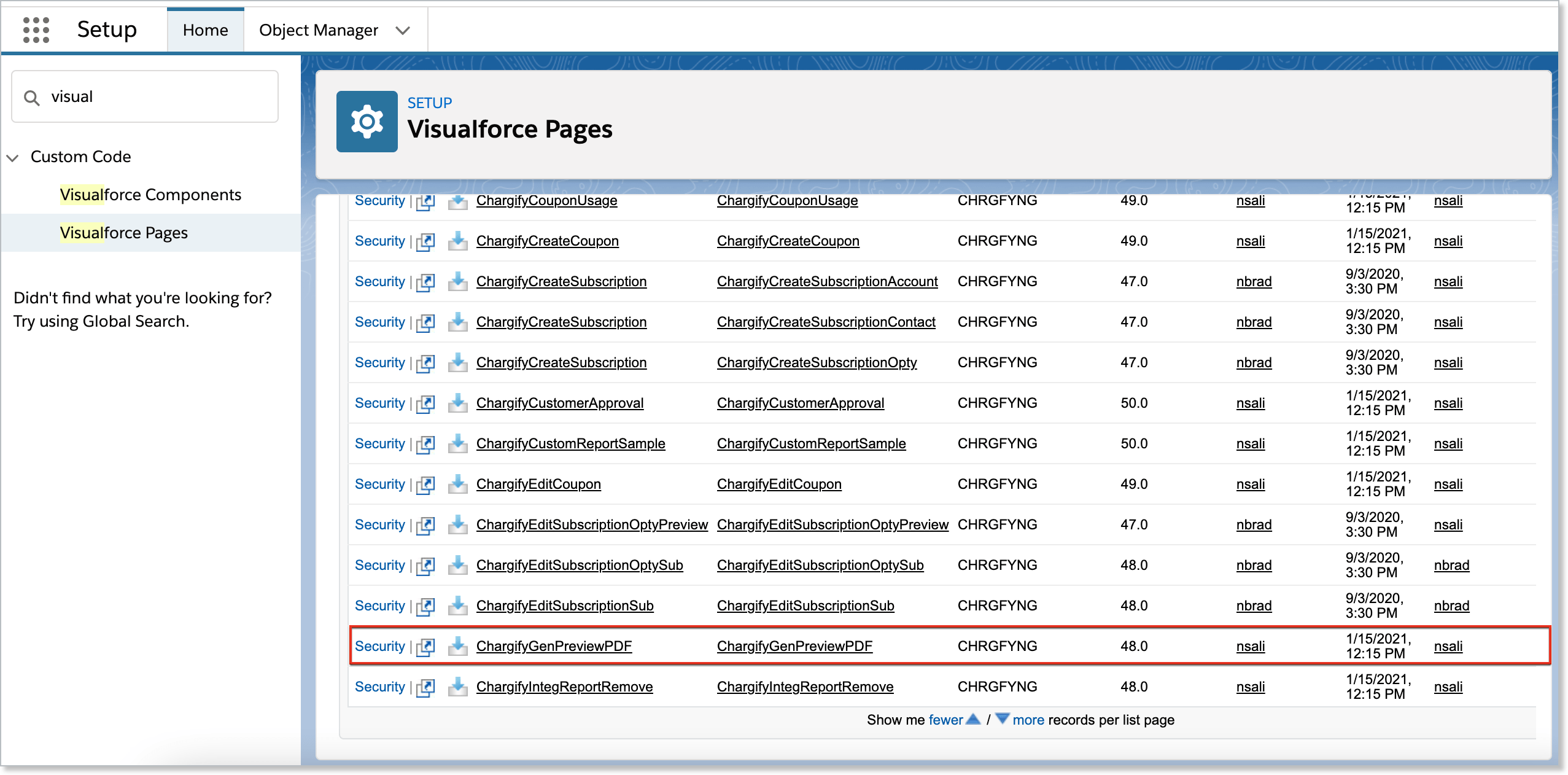
Get approval before a Subscription activates
Depending on your Opportunity Configuration settings, a Subscription Preview may need Manager approval, Customer approval, or both before it can activate into a Subscription. If Manager approval is required, it's needed before Customer approval can be given.
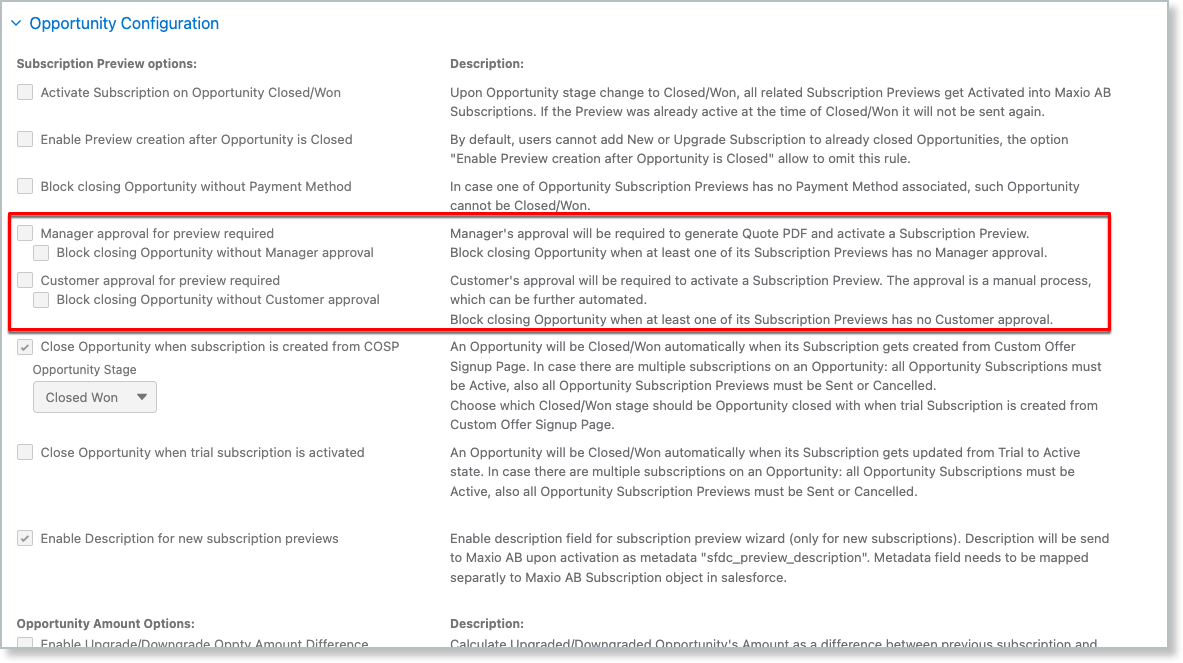
The Customer Approval button isn't on the Subscription Preview page layout by default, so add it from the layout edit page. Manager approval uses a standard Salesforce approval process, which also needs to be set up separately.
Related information
To review or change your Opportunity Configuration settings, see Configure the Salesforce Integration Sync Settings.
Still need help?
Reach out and our support team will take it from here.