
Sync Stripe 1Way Payments and Deposits to QuickBooks
Applies to: Maxio Core
Last updated on Aug 28, 2026
With Stripe 1Way and QuickBooks both enabled, Payments and Deposits made in Stripe sync to Maxio Platform and on to QuickBooks. Instead of keying in individual payments and credit card fees yourself, you match each Deposit record to a bank transaction in QuickBooks, saving significant reconciliation time.
Mixed-currency Deposits don't sync to QuickBooks
If you invoice in Stripe in multiple currencies but receive Transfers in a single currency, a Transfer that includes a Payment or Refund in a different currency than the Transfer itself won't sync to QuickBooks as a Deposit. QuickBooks doesn't allow an invoice in one currency and a payment in another, so it rejects a Deposit whose payment currency doesn't match the Invoice it applies to.
Sync Payments and Deposits to QuickBooks
Once you've confirmed the mixed-currency limitation above doesn't apply to you, back up your account, configure your QuickBooks deposit settings, and enable the relevant Stripe sync steps to start syncing.
To sync Stripe 1Way Payments and Deposits to QuickBooks
-
Perform a backup of your account (Admin > Backup).
-
Navigate to your Configure QuickBooks Integration Settings (QuickBooks landing page, then click the wrench icon) and click Update Settings.
-
Set the Payment/Deposit Sync Settings:
- Sync Test Data to QuickBooks - Check only if you are testing the payment and deposit sync.
- Only Sync Payments in Confirmed Batches - Check to send Payment data to QuickBooks only after the funds have been transferred to you.
- Default Payment Method for Send Payments/Refunds - The Payment Method sent with payments and refunds. Required to send refunds.
- Refund Source Account - The QuickBooks account credited for payment refunds until a bank deposit settles the refund. Normally "Undeposited Funds".
- Bank Deposit Account - The bank account into which your Stripe Transfers are made.
- Credit Card and ACH Fee Account - The QuickBooks account that receives debits for payment processing fees.
- Unassociated Payments Account - The asset account credited for Stripe payments that cannot be associated with an Invoice. Applies if you sync Stripe Deposits.
See Configure QuickBooks Integration Settings Fields for what each setting does.
-
From your Stripe Integration Settings (Admin > Integrations > Stripe), click Sync, then click Edit for Get Payments, Get Refunds, and Get Deposits in turn, and check Enable for each.
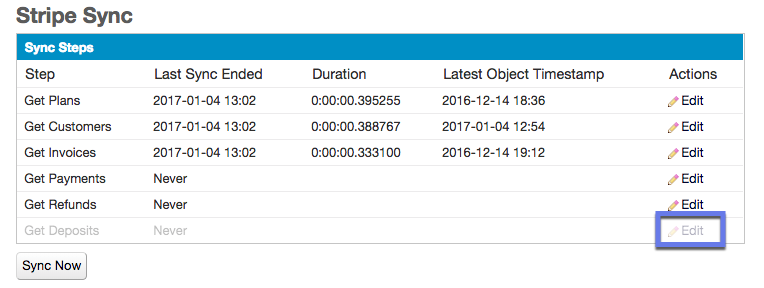
(Optional) To limit how far back Stripe Deposits sync, set the Latest Synced Date field on any of these steps to the point in time you want to start fetching from. It must include the time, in this exact format: yyyy-mm-dd hh:mm:ss (for example, 2017-02-23 00:19:11).
Important: Leaving off the time portion is not allowed.
-
From your Stripe Integration Settings, click Sync, then click Sync Now to sync in your Payments and Deposits.
-
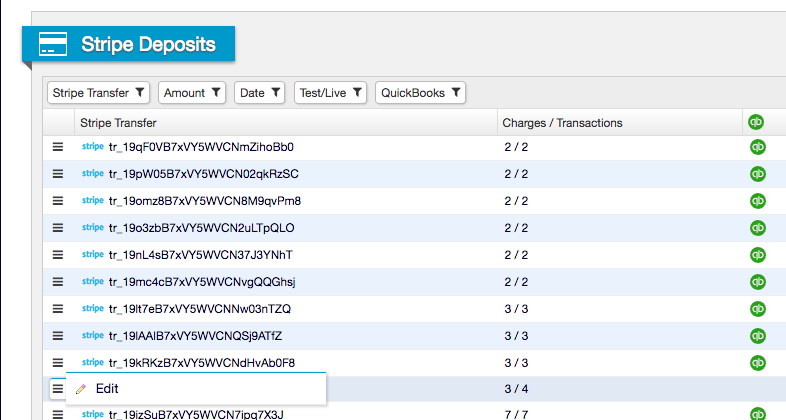
(Optional) To keep a specific Deposit from syncing to QuickBooks, go to Invoicing > Stripe Deposits, then click Edit on that Deposit's hamburger menu, uncheck Sync, and click Save. This can't be done in bulk.
-
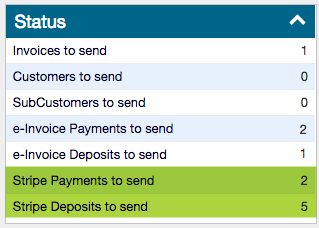
On your QuickBooks landing page, click the sync icon to send your Payments and Deposits to QuickBooks Online, or sync through your QuickBooks Web Connector if you use QuickBooks Desktop. As long as your Deposit accounts are configured and you haven't excluded any Deposits, this happens automatically on your next sync with no further action from you.
Still need help?
Reach out and our support team will take it from here.