
Understand and Resolve Invoice Alerts
Applies to: Maxio Core
Last updated on Oct 12, 2026
Learn how to identify and respond to key Invoice and Transaction alerts in Maxio, so you can maintain accurate financial records and avoid out-of-balance conditions.
Select the alert you want to resolve:
- Invoice Synced
- Invoice Will Not Sync
- Invoice Line Items without Transactions
- Invoice Line Item Synced
- Mismatched Items
- Missing Email Address
- Invoices Deleted in the General Ledger
Understand the Invoice synced alert
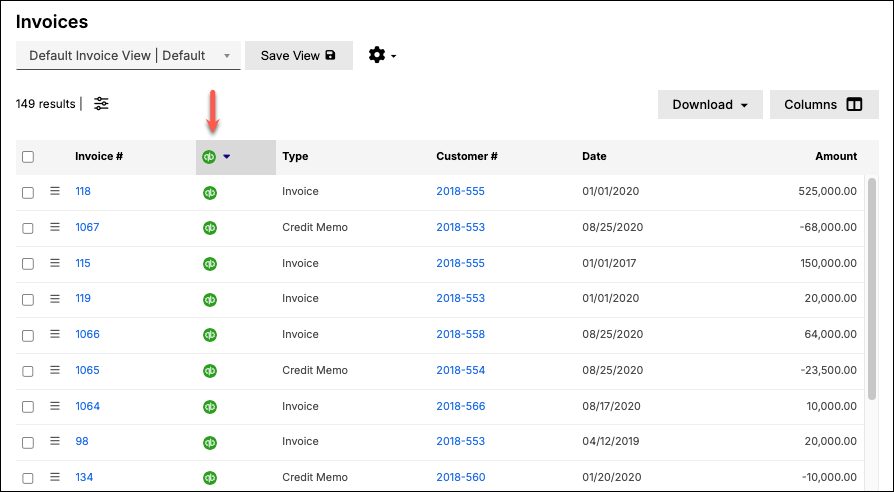
Once an Invoice or Credit Memo is synced with your general ledger (GL) and receives a unique GL ID, you can no longer edit it in Maxio. Any changes must be made in the GL. After you make GL changes, sync again to reflect the updates in Maxio.
On the Invoice page, an issues button next to the Invoice title shows how many issues the Invoice has, for example 1 issue. Select it to open the list titled Issues on this Invoice. A synced Invoice lists Synced with followed by your GL name, for example Synced with QuickBooks.
Important:
- Deleting: Deleting an Invoice or Credit Memo in the GL also deletes the associated Line Items in Maxio. However, the associated Transactions remain intact, though they may become out-of-balance.
- Voiding: Voiding an Invoice or Credit Memo in the GL sets the amount of all synced Line Items to zero in Maxio. The Transactions remain unaffected, but they may become out-of-balance.
For details on how Close Dates affect Invoice changes, see Closing Dates.
Fix the Invoice will not sync alert
An Invoice does not sync to your general ledger (GL) when either its own Do Not Sync setting is selected, or its Register is itself set to not sync. The Invoice's GL Details box only reflects the Invoice's own setting, so an Invoice can show "Do Not Sync: No" there and still not sync, if a Register is what is holding it back instead.
When an Invoice does not sync for this reason, the issues button next to the Invoice title turns red and the list shows Invoice set to “Do not sync”. Select Learn how to fix under it for help.
How to set or remove
Important: This option is unavailable once the Invoice has synced.
In Maxio, navigate to the Invoice and select Edit from the Invoice drop-down menu.
A Register set to not sync blocks every Invoice and Payment inside it
A Register can be set to not sync Invoices and Payments to the GL. While that setting is selected, it holds back every Invoice and Payment in the Register from your connected GL, regardless of each Invoice's own Do Not Sync setting, and no entry is written to the sync log for an Invoice skipped this way, since it never reaches the GL to succeed or fail.
The issues button on the Invoice page turns red and the list shows Register set to “Do not sync” when this is what is holding the Invoice back. The entry names the GL and the Register. This entry does not appear when Campfire is the only GL enabled, since Campfire does not yet sync Invoices.
How to correct
If a Register is holding back the Invoice:
-
Edit the Register from the Administration menu.
Important: Only users with the Admin role can edit a Register. For more, see Manage Registers.
-
Clear the Do not sync Invoices and Payments to setting. This setting is named after your GL, so a QuickBooks account sees Do not sync Invoices and Payments to QuickBooks.
Resolve Invoice Line Items without Transactions
In Maxio, Contracts should always end in a balanced state. The most reliable way to ensure a Contract is balanced is for each Transaction to be balanced and for all Invoice Line Items to be associated with a Transaction.
However, Transactions do not need to be balanced as long as the Contract is balanced. Therefore, you can have Transactions without Invoice Line Items and you can have Invoice Line Items without Transactions.
The Invoice Line Items without Transactions alert identifies Invoice Line Items that are not associated with a Transaction. On the Invoice Line Item page, the issues button next to the title turns red and the list shows Not linked to a Transaction.
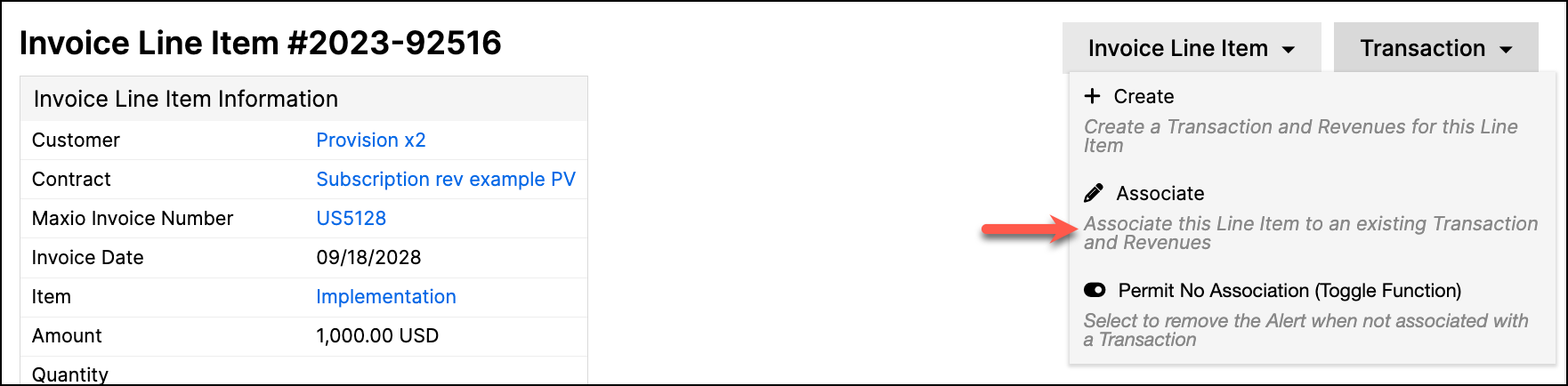
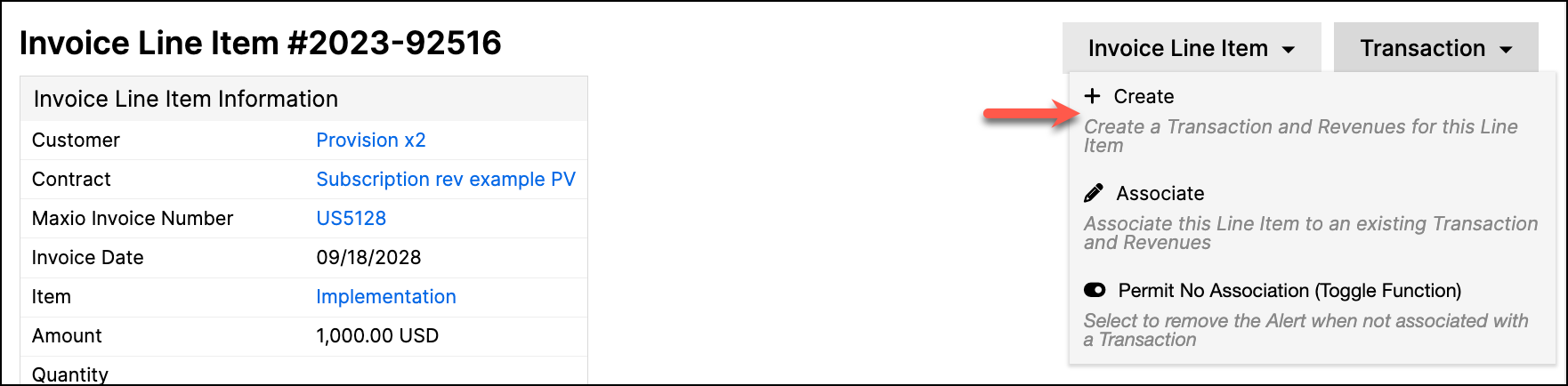
If the Invoice Line Item should be associated with a Transaction, you can either use the Create Transaction menu to create a new Transaction that will link to the Invoice Line Item, or use the Associate menu option to link the Invoice Line Item to an existing Transaction.
Invoice Line Items with a zero (0) value, or with Permit No Association set to Yes, are excluded from this alert. In Maxio, an Invoice Line Item is a line item from either an Invoice or a Credit Memo.
Causes
In Maxio, revenues are associated with Transactions. If an Invoice Line Item is not associated with a Transaction, it is possible the Customer, Contract, or at least one Transaction is out-of-balance.
Actions and conditions that can cause this:
- This condition can occur during your implementation and will persist until you complete your Build Transactions work.
- An Invoice or Credit Memo was created in your GL and synced to Maxio.
- An Invoice or Credit Memo was edited in your GL and synced to Maxio.
- A Transaction was deleted in Maxio.
- An Invoice Line Item was disassociated from a Transaction.
- An import created Invoice Line Item records not linked to Transactions.
Implications
Out-of-balance Customers or Contracts can negatively impact financial reporting.
Even if a Customer and its Contract(s) are balanced, one or more Transactions may remain unbalanced and still cause reporting issues.
During some implementations, historical records may cause imbalance.
How to correct
If you are in an active implementation:
- Use the Build Transactions function.
If you are not in an active implementation:
-
If a Transaction exists, open the Invoice Line Item and use the Associate menu.
-
If a Transaction doesn't exist, open the Invoice Line Item and use the Create menu.
-
You can also use bulk-processing functions.
Understand the Invoice Line Item synced alert
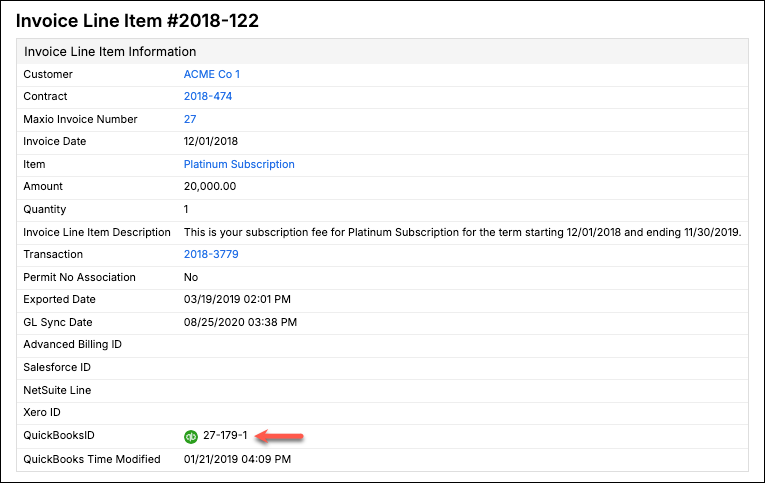
Once an Invoice or Credit Memo is synced with the GL, all Invoice Line Items receive a GL ID and you can no longer edit them in Maxio.
After you make changes in the GL, sync again to reflect them in Maxio.
On the Invoice Line Item page, the issues button next to the title lists Synced with followed by your GL name, for example Synced with QuickBooks.
Important:
- Deleting: Deleting the Invoice or Credit Memo removes the associated Line Items.
- Voiding: Voiding sets the synced Line Items to zero.
Correct mismatched items between Transactions and Invoices
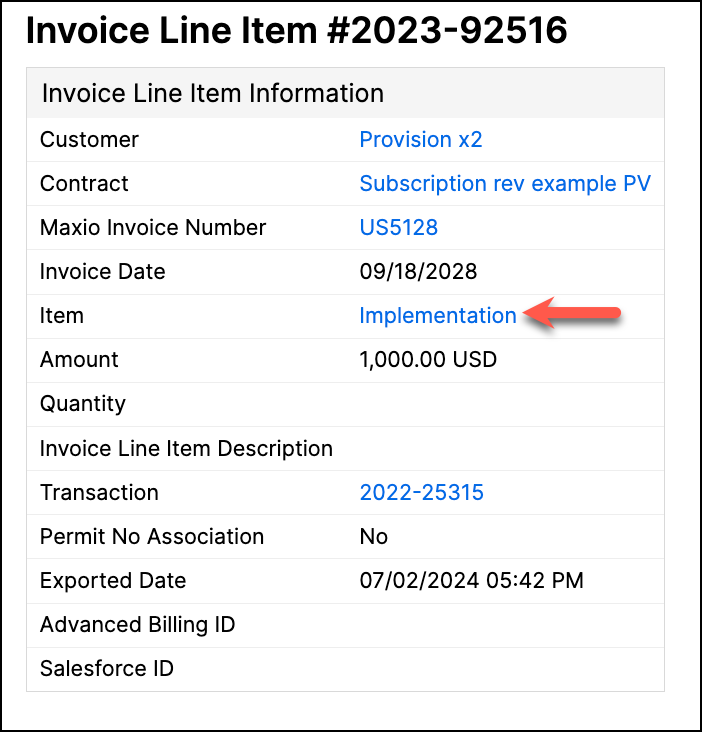
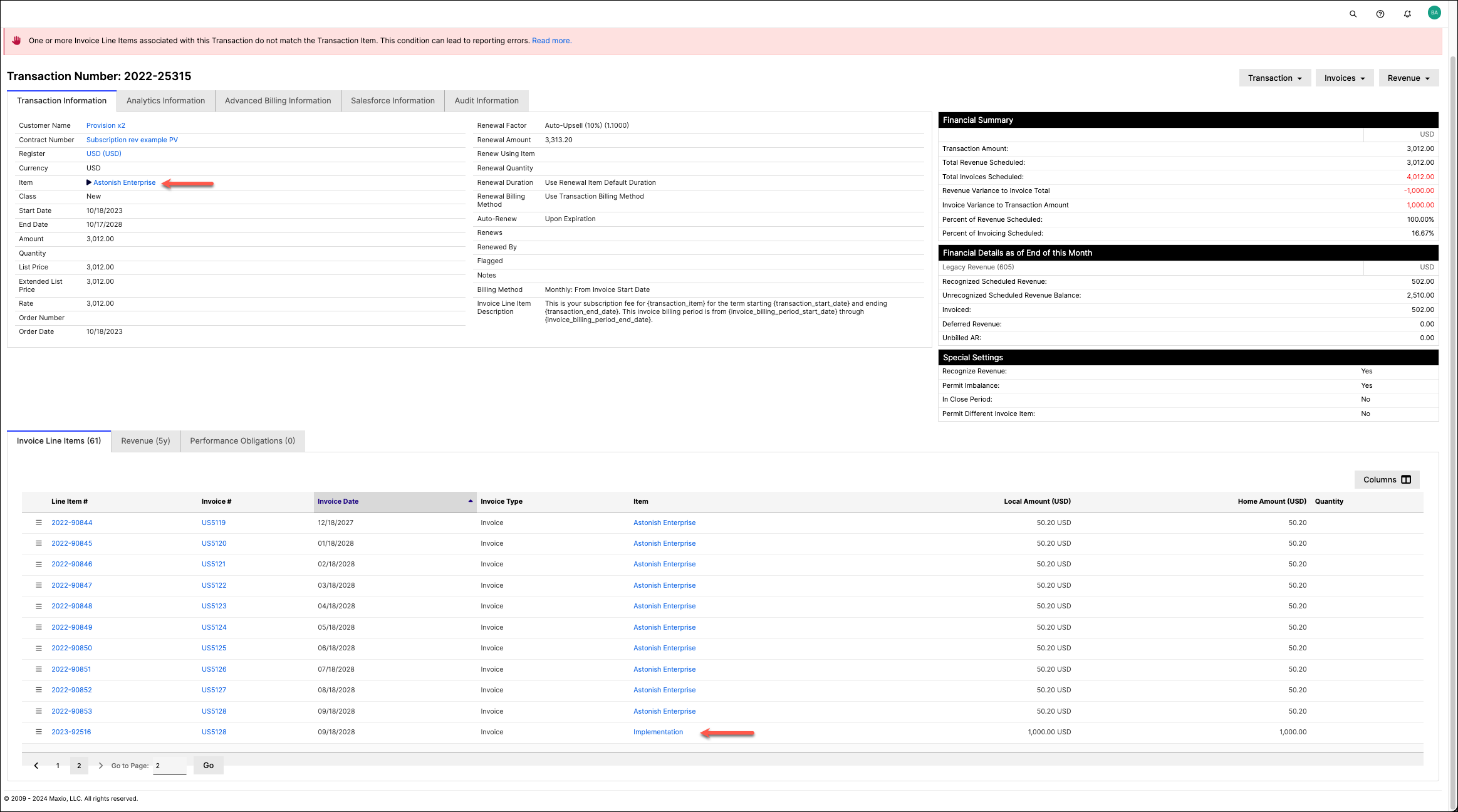
This condition occurs when the Item for a Transaction does not match the Item for its associated Invoice Line Item.
You can see it in two places:
- On the Invoice Line Item page, the issues button next to the title lists Item differs from the Transaction’s.
- On the Transaction page, the issues button next to the title turns red and lists Invoice Line Items use a different Item.
Implications
You should avoid this data condition when possible.
Deferred-revenue calculations require summing both Revenues and Invoices.
- Revenues for Transactions with selected Items/Accounts
- Invoice Line Items with selected Items/Accounts
Revenues are associated with the Transaction Item.
Invoice reporting is based on Invoice Line Items.
The Transaction Item does not affect Invoice reporting, and the Invoice Line Item does not affect Revenue reporting.
Therefore, when filtering by Items or Accounts:
- Include Accounts for both Transaction and Invoice Line Items when running reports by Account.
- Include Items for both when running reports by Item.
How to correct
You can correct this by:
- Updating the Transaction Item to match the Invoice Line Item.
- Editing the Invoice Line Item to match the Transaction Item.
Understand the missing email address alert
This alert only applies to accounts with the QuickBooks integration enabled. It appears on the Customer page. The issues button next to the Customer name lists QuickBooks Invoice email missing or invalid when the Customer's QuickBooks Billing Profile has Invoice Email Preference turned on, but its email address is missing or invalid. Until the email address is fixed or Invoice Email Preference is turned off, Invoices for that Customer that have not synced do not sync to QuickBooks.
Understand Invoices deleted in the general ledger
When an Invoice is deleted in your general ledger (GL), it is also deleted in Maxio.
If you use QuickBooks, this deletion is prevented for Invoices dated within your specified Close Dates: instead of being deleted, the Invoice is marked as deleted in QuickBooks so you can correct it before removal. For NetSuite and Intacct, Close Dates do not currently block this deletion. The Invoice is deleted in Maxio regardless of your Close Dates for those integrations.
How to correct
If your Invoice's deletion was blocked by Close Dates (QuickBooks only), you can:
- Remove the Close Dates to allow the deletion.
- Use Delete or Purge to remove Invoice Line Items before deleting the Invoice.
Still need help?
Reach out and our support team will take it from here.