
Manage Registers
Applies to: Maxio Core
Last updated on Sep 19, 2026
A Register is a container for Contracts, which in turn hold Transactions and Invoices. Once the Register is created, you can add Contracts, Transactions, and Invoices to it by adding records to new and existing Customers. You can have as many Registers as you like in your account, but it is important to understand the implications of maintaining multiple Registers. See Use Multiple Registers.
View the registers list
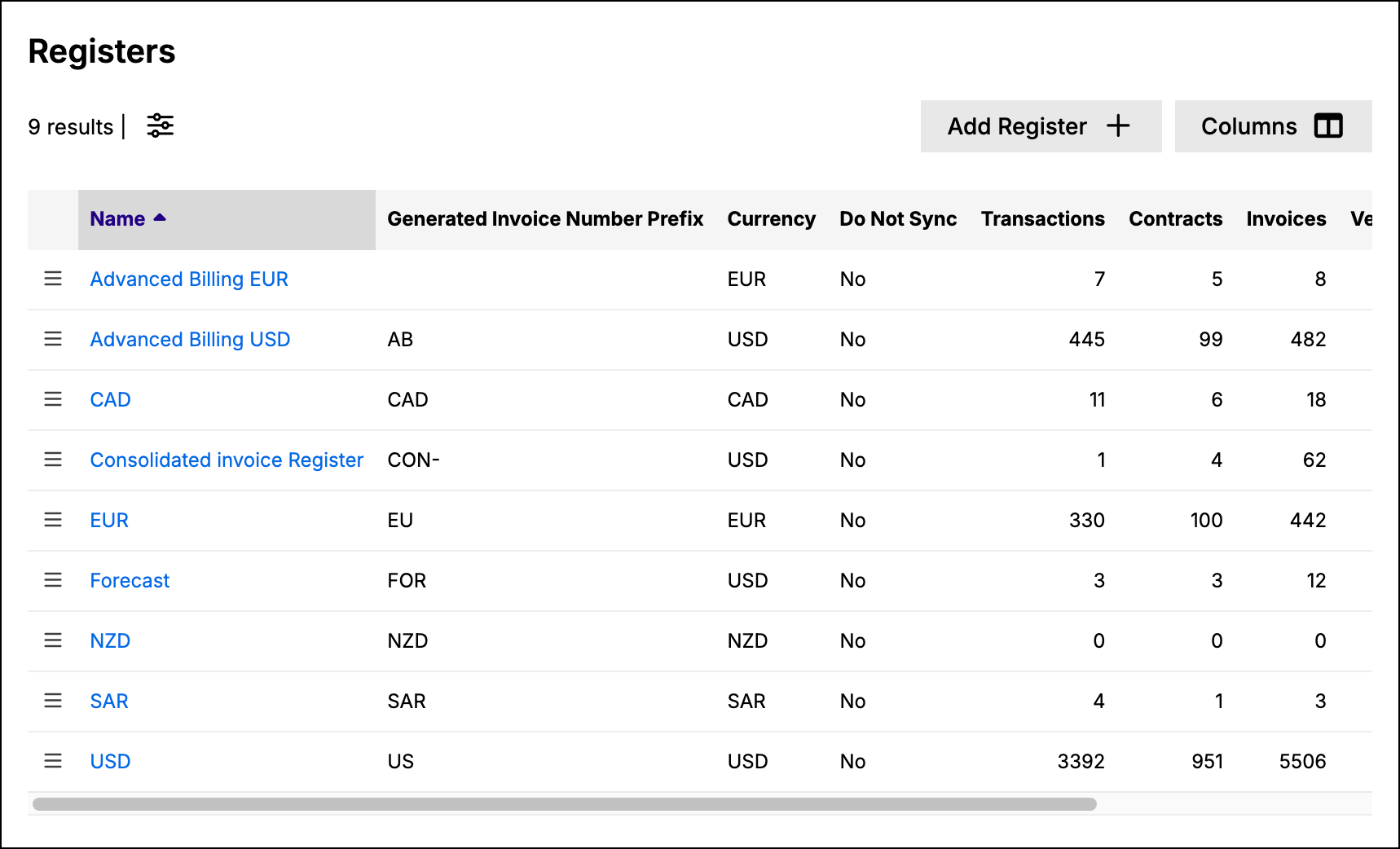
The Register List screen shows all the Registers in your account, along with counts of the Contracts, Transactions, and Invoices each one contains. It also lists each Register's Currency Code, its Accounts receivable account, its Generated and Committed Invoice Number Prefixes (if assigned per-Register), and whether it is set not to sync to your general ledger. If Expenses is enabled, the list also shows the number of Expense Contracts, Expenses, and Bills.
View the Transactions and Contracts in a Register
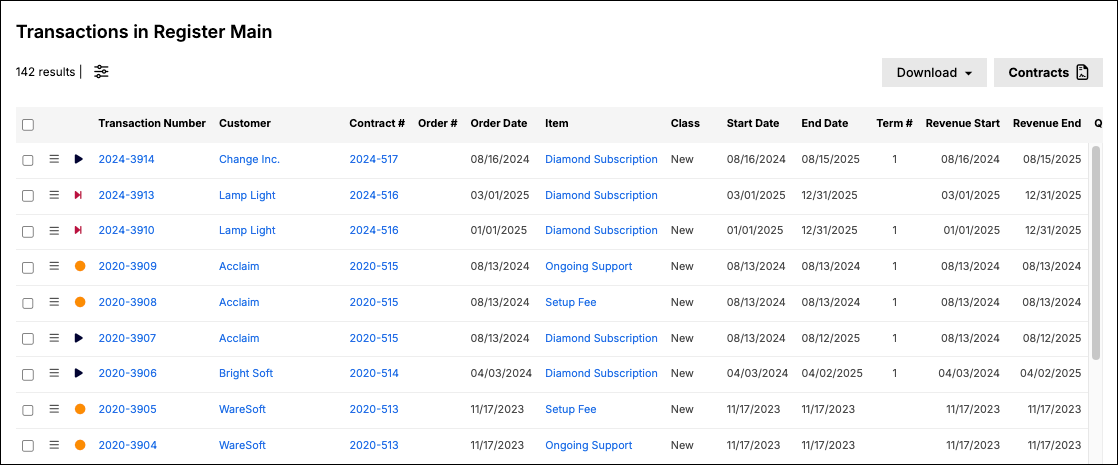
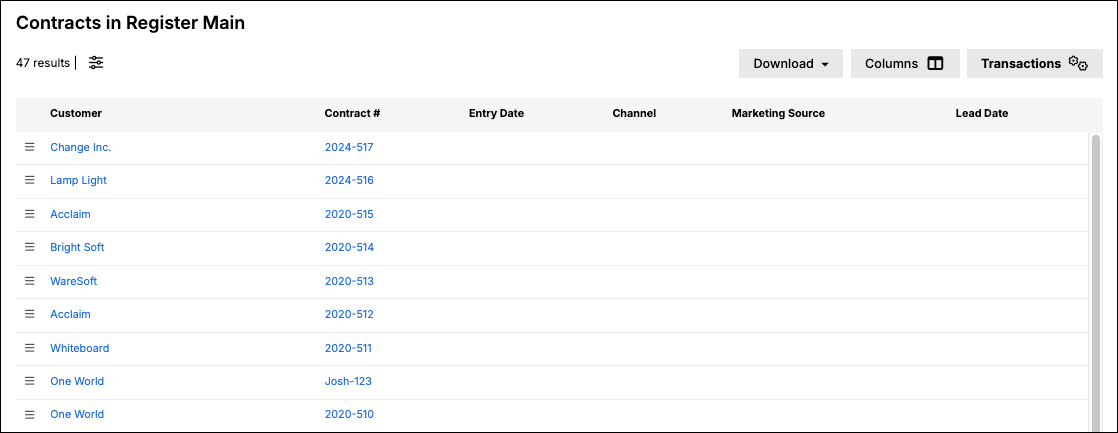
You can view the Transactions or Contracts in a Register by navigating to the Register via the Administration menu. You can toggle between the Transaction and Contracts list views. Both views support list filters and Export.
Add a Register
Add a Register when you need to track Contracts, Transactions, and Invoices under a different currency, invoice numbering sequence, or GL sync setting.
To add a Register
-
Open the Registers window from the Admin menu.
-
Click the plus sign in the top-right corner.
-
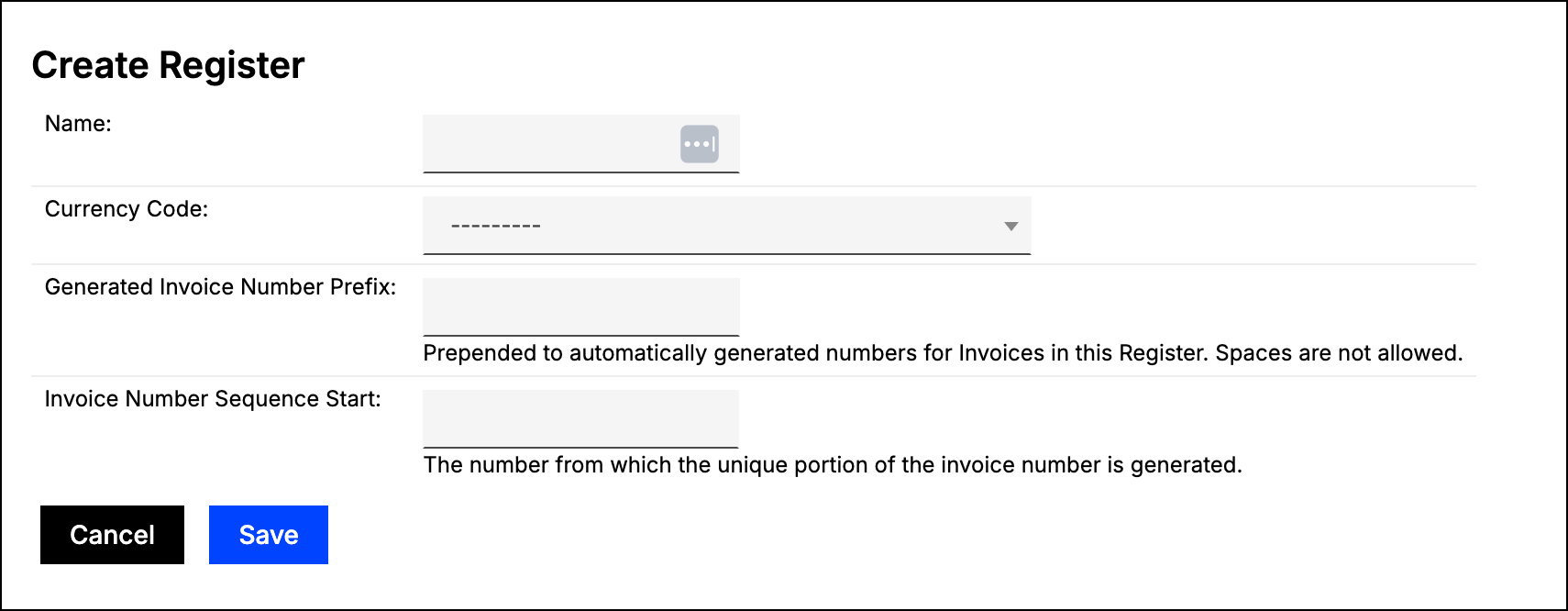
Address the fields according to the information provided in the next section.
-
Click the Save button.
What each new register field sets
A new Register takes three fields, all set at creation.
| Field | Description |
|---|---|
| Name | Enter a name for the Register. The name must be unique, and Maxio rejects a duplicate on save. Choose something easy to identify in a list view: if you have multiple Registers for multiple business segments, you might name them "Stripe" and "Main". |
| Currency Code | A Register has a defined Currency Code, but Maxio does not perform currency conversion or exchange on the basis of the Register's currency assignment. If Multi-Currency is enabled, you need at least one Register for each currency in which you conduct business. |
| Accounts receivable account | The QuickBooks A/R account used when syncing this Register. |
| Generated Invoice Number Prefix | If per-Register Invoice generation settings are enabled, each Register can have its own Invoice Number generation settings, which lets you use a different Invoice Number Prefix for each Register. For example, your Stripe Invoices might generate with numbers of Stripe-1, Stripe-2, Stripe-3. Spaces are not allowed, and each Register's prefix must be unique. You cannot save your new Register without a Prefix when per-Register generation is enabled. |
| Committed Invoice Number Prefix | The prefix prepended to automatically generated numbers for committed Invoices in this Register. Spaces are not allowed, and each Register's prefix must be unique. |
| Invoice Number Sequence Start | The number from which the unique portion of the invoice number is generated. If per-Register Invoice generation settings are enabled, each Register can have its own sequence start. For example, suppose you keep a legacy and a new business segment in separate Registers, RedLaser and BlueLaser. You might set the sequence start to 1 for the new business, so its first Invoices are Blue-1, Blue-2, Blue-3. For the legacy business you might start the sequence at the most recent Invoice number already issued, so its next Invoices are Red-232, Red-233, Red-234. |
| Do not sync Invoices and Payments to the GL | Invoices and Payments in this Register are not sent to your connected general ledger. This field is replaced with your GL's name once one is connected, so a QuickBooks account sees Do not sync Invoices and Payments to QuickBooks. It does not appear at all if no GL is enabled. |
| Do not sync Customers to the GL | Customers associated with this Register are not sent to your connected general ledger. Named after your GL and hidden when none is enabled, the same as the field above. |
Edit a Register
The Edit function enables you to change information about the Register itself, but not the financial records it contains. The Name field can be changed at any time. The Currency Code is locked as soon as the Register holds any Contracts at all, whatever currency those Contracts are in, and the field is removed from the form rather than shown as read-only.
The Generated Invoice Number Prefix and Invoice Number Sequence Start are only visible when per-Register Invoice Number generation is enabled in your account. Contact support@maxio.com to enable this feature.
For how prefixes and counters combine to produce a record number, see Configure Unique Number Prefixes.
Delete and clear a Register
Both operations are unavailable when the QuickBooks integration is enabled, and when a Close Date is set. Maxio blocks the action rather than warning you.
WARNING: Both operations permanently delete every financial record in the Register and there is no undo. Perform a backup first, and contact support@maxio.com if you need assistance.
- Delete removes the Register itself along with all of the Contracts, Transactions, Revenue Entries, Invoices, and Payments inside it.
- Clear removes all of the Contracts, Transactions, Revenue Entries, Invoices, and Payments inside the Register, but keeps the Register itself.
Customer records are not deleted by either operation.
Choose between delete and clear
The significant difference between the two is that Clear preserves the Register. Any Reports linked to that Register continue to reference it, and they automatically pull in new information if you later repopulate the Register with Transactions.
In contrast, if you Delete a Register and then recreate it, even using the same Register name, it is treated as a brand-new Register. Reports previously linked to the deleted Register do not recognize the new one, and you need to reconfigure those Reports to point to the recreated Register.
Related information
For when a second Register is worth creating, see the Use Multiple Registers help article.
Still need help?
Reach out and our support team will take it from here.