
Manage a Customer's e-Bill Billing Profile
Applies to: Maxio Core
Last updated on Sep 19, 2026
From a customer's e-Bill Billing Profile, you can add ACH or credit card details, enroll the customer in autopay, or remove a saved payment method when switching payment types. Access the profile from the Customer menu on the record screen; it controls eligibility for automatic payments. Two behaviours catch people out: an invoice sent while AutoPay was off will not charge retroactively, so it has to be resent — see How do I resend an Invoice so it autopays? — and a payment already applied in QuickBooks does not stop AutoPay from charging, covered in Does AutoPay charge the Customer if a payment was applied in QuickBooks?.

You can enter the customer's ACH and/or credit card information from here. You can then enroll them in autopay.
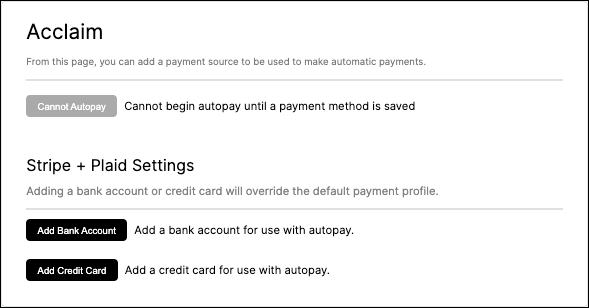
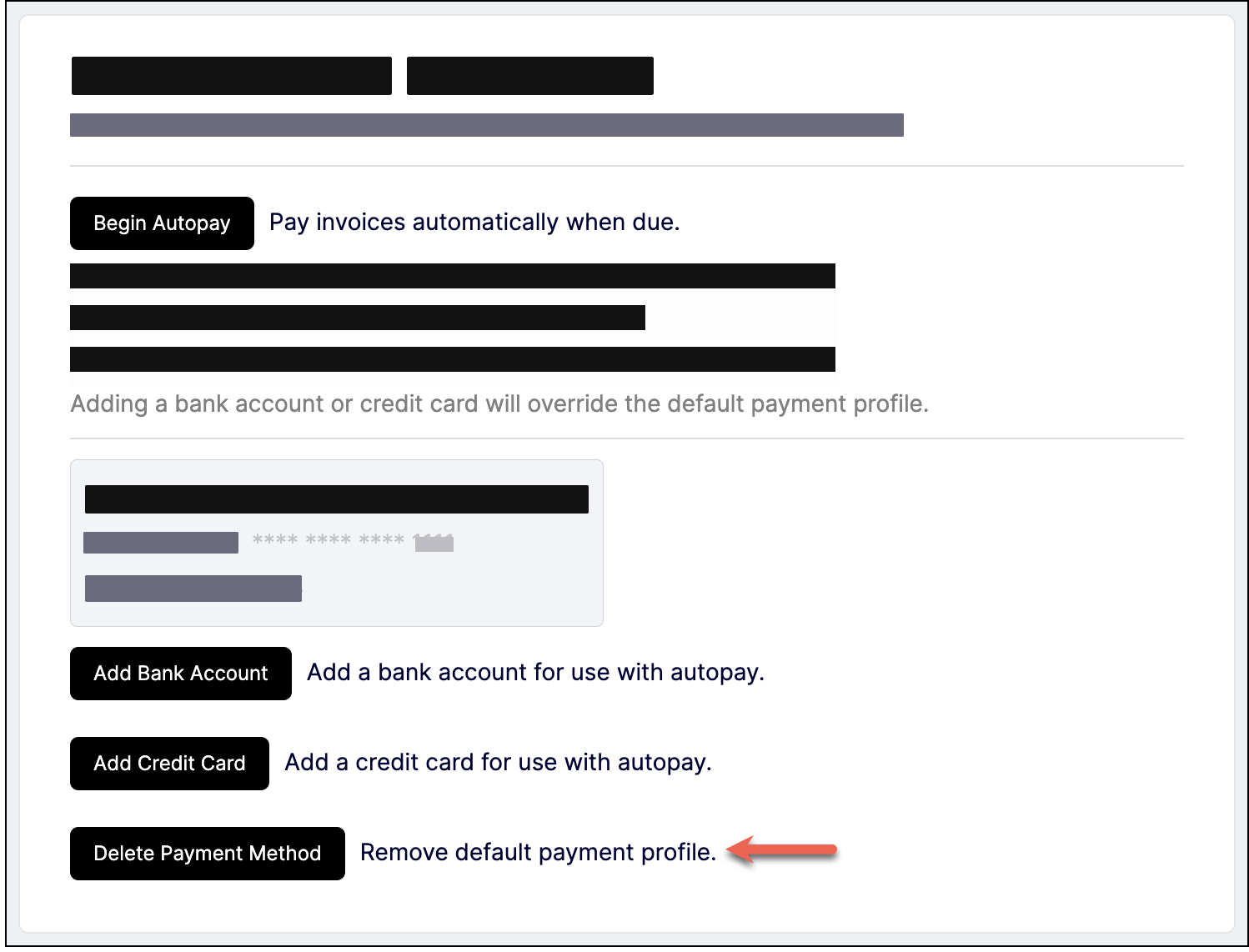
If it is necessary to remove a customer's payment information (they wish you to remove their credit card number and switch to ACH, for example), you can also do this from the billing profile.
Related information
You must have a payment provider connected to your account to add ACH or credit card details from this screen.
A customer's Enable Autopay, Enable Credit Card Payments, and Enable ACH Payment settings also affect what's available here, and are documented in the Customer Fields Reference.
Still need help?
Reach out and our support team will take it from here.