
Monitor Customer Alerts and Errors
Applies to: Maxio Core
Last updated on Sep 19, 2026
Use the Customers Attention Needed box to verify which customer records are queued to sync with your general ledger (GL) and which need manual attention, confirm a customer has synced (look for its GL ID field), and see what to check if records remain unsynced.
Customers ready to send to your GL
Each connected GL gets its own alert for customers waiting to sync: To Send to QuickBooks, To Send to Xero, or To Send to Advanced Billing. Click the alert in the Attention Needed box to view the full list.
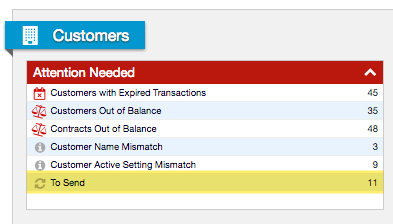
This list includes customers added to (or updated in) Maxio that will sync to your connected GL during the next sync action. A customer's name appears if:
- The customer record was created in Maxio since the last sync.
- The customer record was modified in Maxio since the last sync (for example, billing information was updated).
- There is a problem syncing the customer, so it remains unsynced.
If a customer in this list does not appear in your GL after syncing and continues to display in this list, your sync process did not complete. This can point to sync issues, or to another problem such as Items/Products synced from your GL that require a Maxio Profile.
If you believe a customer record should be in this list but is not, confirm the customer's Do Not Sync to GL setting is unchecked. If a customer is in this list and you don't want it to sync, set Do Not Sync to GL by editing the customer.
Verify a new customer has synced
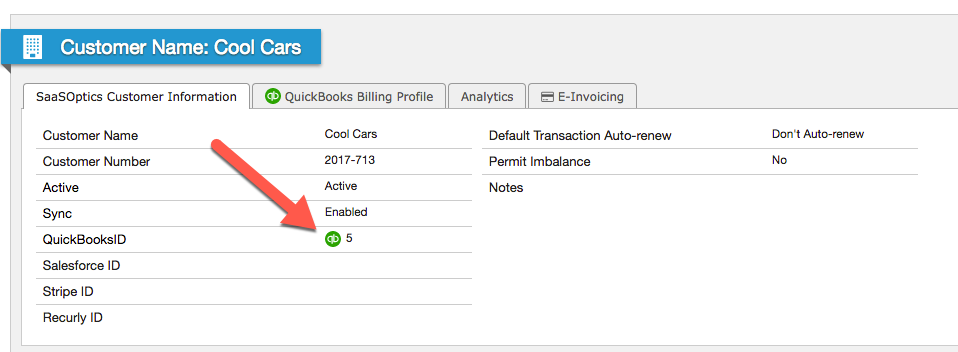
Once a customer record is successfully synced, it has a GL ID field, such as QuickBooksID for a customer synced to QuickBooks.
View Customer screen
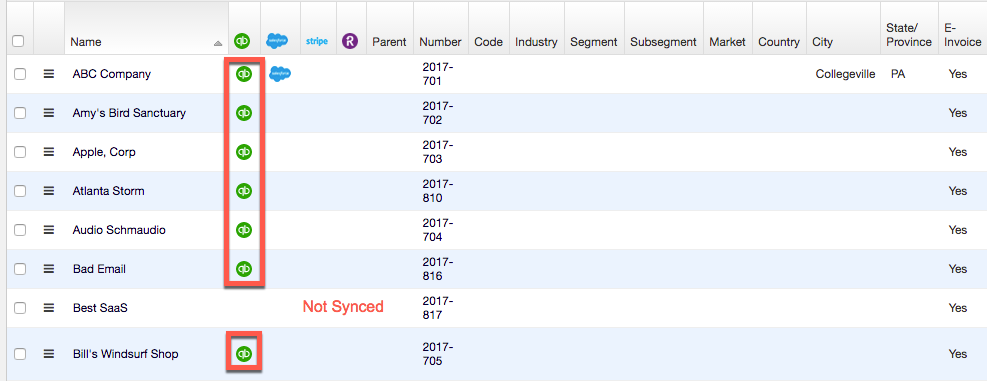
Verify an existing customer has synced
Once a customer record is successfully synced, it updates in your GL and no longer appears in the To Send list.
Jobs and SubCustomers ready to send to QuickBooks
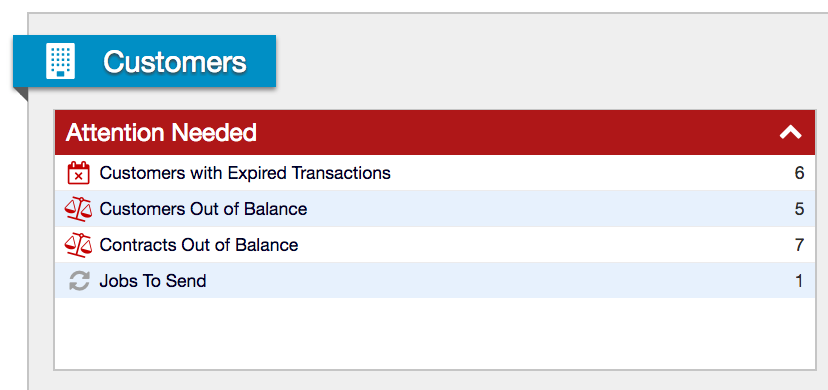
If you connect to QuickBooks Desktop and configure your integration to send Contracts to QuickBooks as Jobs, this alert shows Jobs To Send: the number of Customer Jobs created or changed in Maxio that will sync to QuickBooks. If you connect to QuickBooks Online instead, the same alert shows as SubCustomers To Send. Click the alert to view the full list.
Still need help?
Reach out and our support team will take it from here.