
Manage Customers for Contract Workflows
Applies to: Maxio Core
Last updated on Aug 28, 2026
You can add, edit, activate, deactivate, and delete customer records directly. See Understand Customers for Contract Management for how a customer relates to its contracts, invoices, and revenue.
Add customers
Typically, customers are added to your account by processing sales orders or by syncing in customer data from other integrated applications, such as a general ledger or payment provider. To manually add a customer, you can either:
-
Click Add Customer from the Customers submenu
-
Click the + icon on the Customers landing page
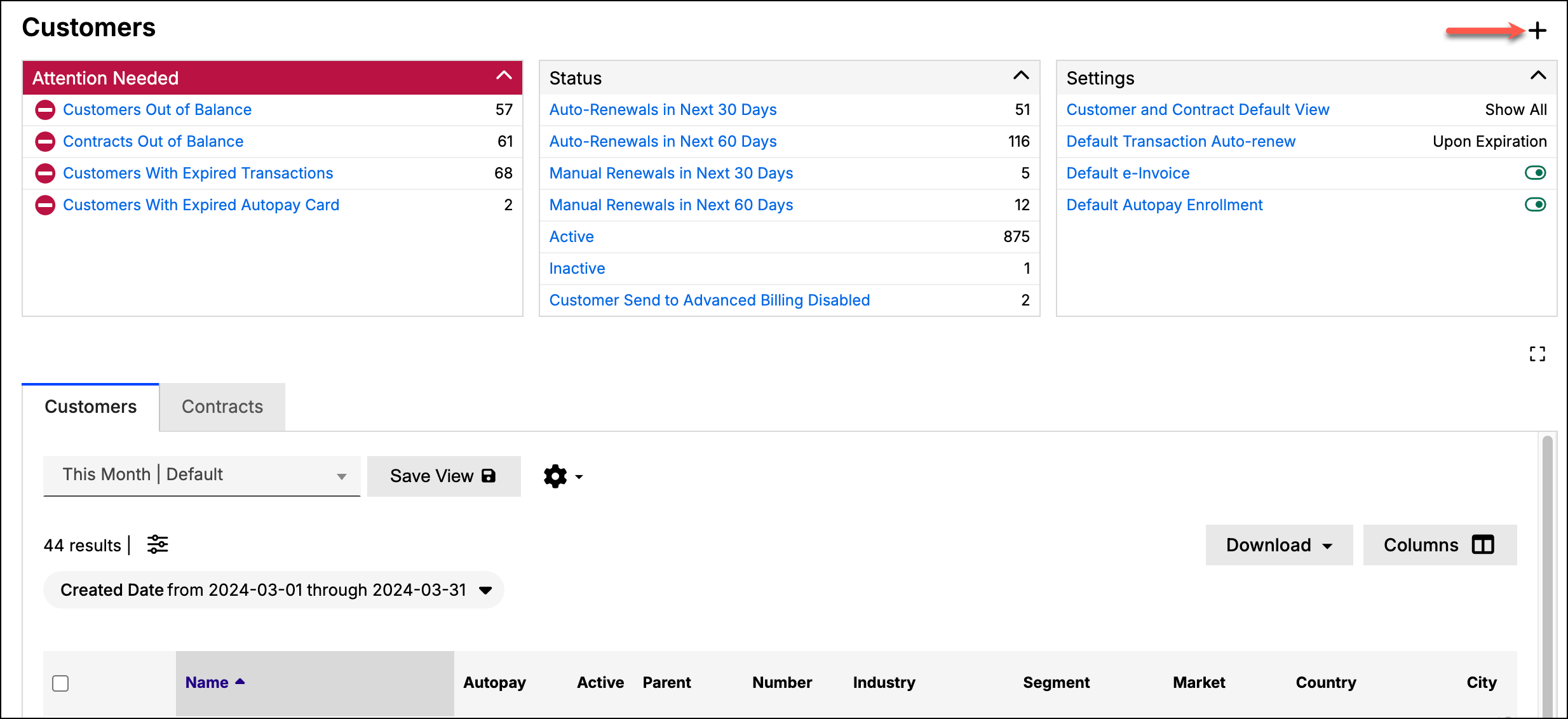
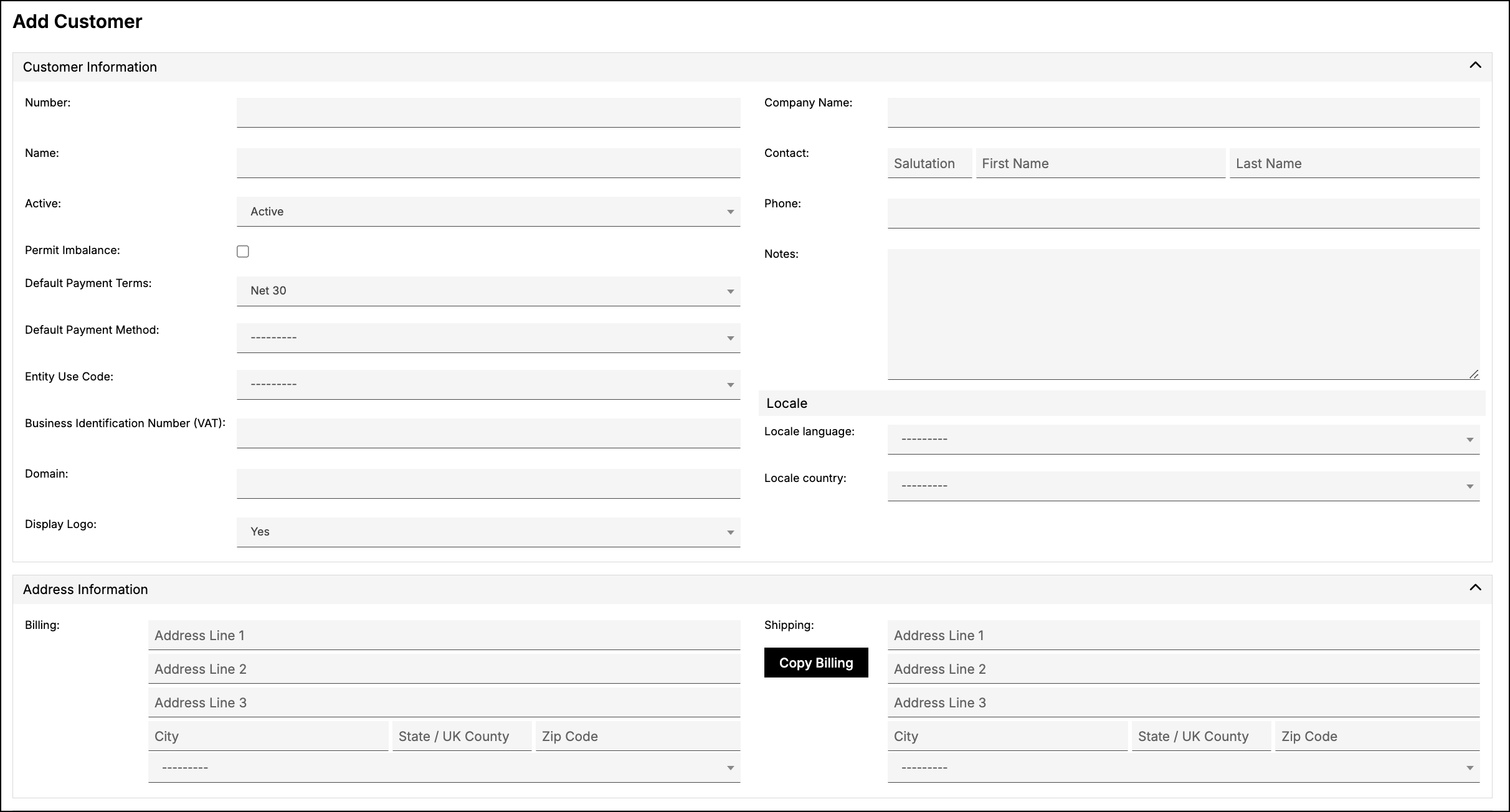
Refer to the Customer Fields Reference for more information on the fields found on the Add Customer screen.
In certain special circumstances, you may need to mass import customer information. The Maxio Customer Support team typically handles this, and it generally requires a paid professional services engagement.
Edit customers
You can edit an existing customer in order to add to or update its information. Navigate to the intended customer and then select the Edit option under the Customer drop-down.

Edit multiple customers
You can also edit multiple customers at the same time. Check the customers you wish to edit on the Customer List, then use one of two toolbar buttons depending on what you need:
- Edit - opens all selected customers together on one page, as a row of editable fields per customer, so you can review and update each one individually before saving them all at once.
- Bulk Edit - applies the same field value to every selected customer in a single action.
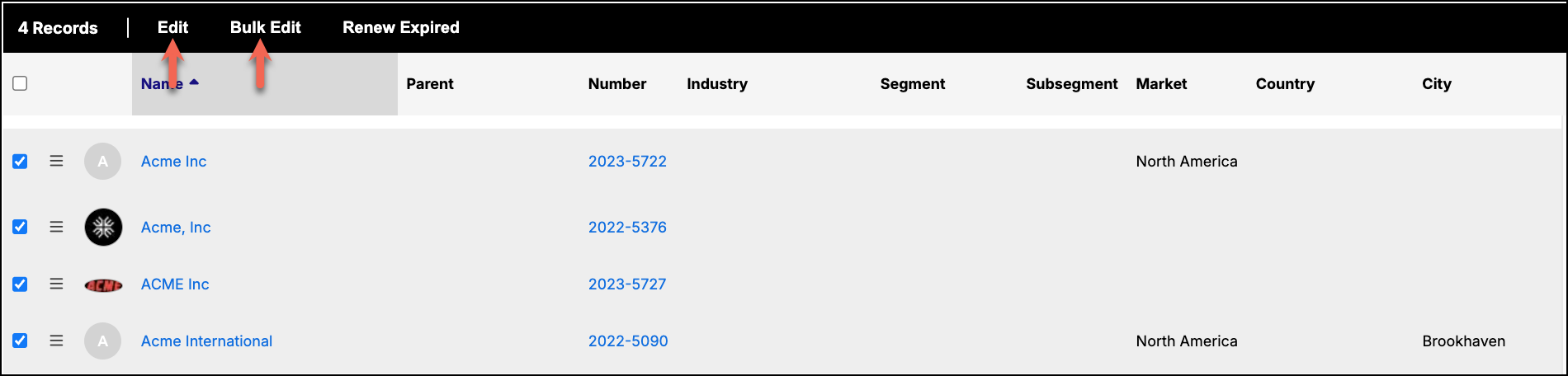
See Use Bulk Edit to Update Multiple Records for more on the Bulk Edit workflow.
Activate, deactivate, and delete customers
When you no longer do business with a customer, you can either deactivate them in Maxio or delete their records entirely. In most cases, we recommend deactivating the customer to preserve their data for future reference.
Activate or deactivate a customer
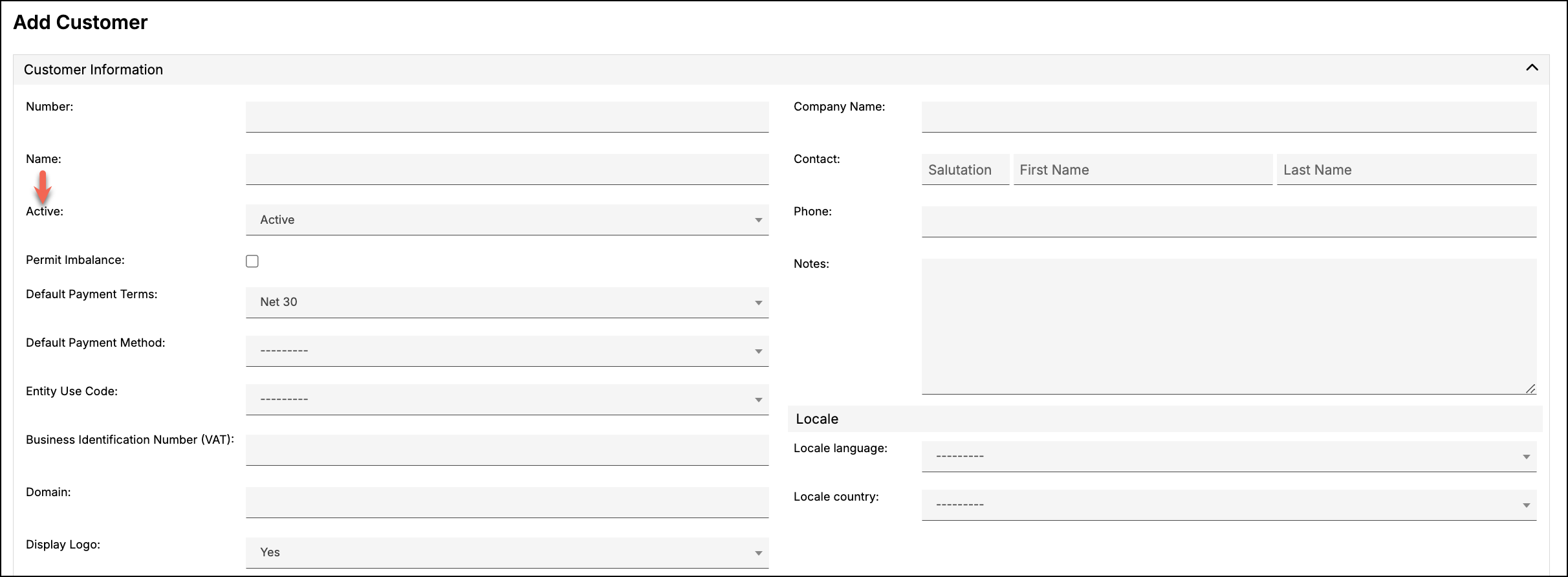
Active is a binary (true/false) property of the customer. Since the search and Customer List filter out inactive customers, they do not appear in the search results nor in the Customer List unless you change the filter to include inactive customers. Newly created customers are set to Active by default.
Change a customer's status by editing it and setting the Active drop-down to Active or Inactive. You can also use Bulk Edit Customers to update the status for multiple customers at once.
Delete a customer
WARNING: There is no undo for a customer deletion. Use caution when deleting customers.
Deletion is disabled if any of the following applies to the customer:
- The customer, or any of its invoices, is synced to a GL.
- The customer has any active Advanced Billing subscriptions.
- The customer has a transaction dated before the account's transaction lock date, or revenue or an invoice dated before the account's closing date (or, if QuickBooks is connected, before the QuickBooks closing date).
See Manage Closing and Transaction Lock Dates for more on lock and closing dates.
All contracts, transactions, revenues, invoices and invoice line items associated with the customer will also be deleted.
To delete a customer
-
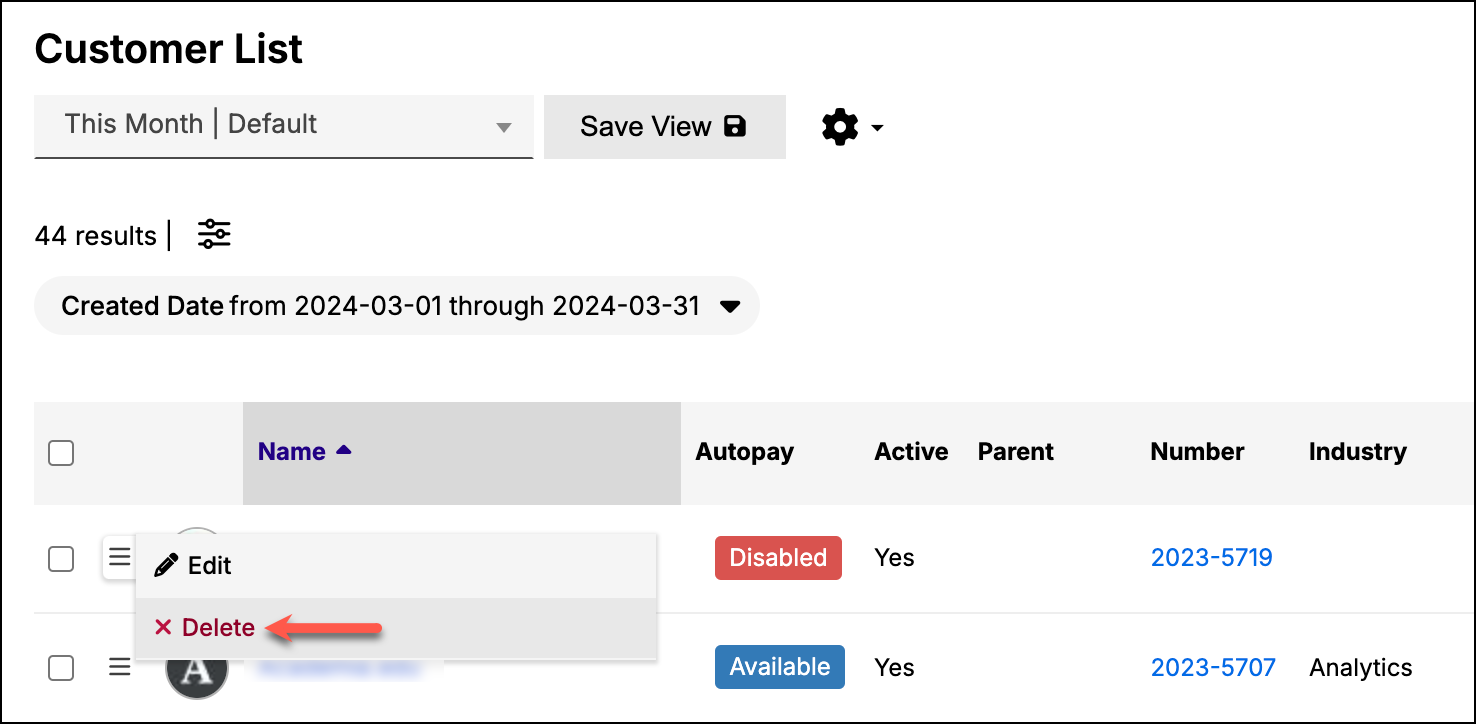
Click the menu icon next to a customer on the Customer List, then select Delete
-
Navigate to the customer and then select Delete under the Customer drop-down

Related information
When the same customer exists twice, combine the records rather than deleting one; see Merging Customers.
Still need help?
Reach out and our support team will take it from here.