
Renew or Cancel Transactions
Applies to: Maxio Core
Last updated on Aug 28, 2026
Recurring Transactions must be renewed or canceled, or they'll eventually expire at the end of their term. Whether a Transaction is recurring at all comes from the recurrence property on its Items — see Set Up Recurring and Non-recurring Items for which type to use and how to change it safely on existing Transactions. Expiration itself has no impact on revenue recognition, but it does affect a number of analytics reports, and it's worth acting on: an unrenewed, uncanceled Transaction can mean you haven't invoiced or recognized revenue for that Contract yet. If you'd rather not track renewals manually, you can use Auto-renew to have Transactions renew automatically unless you specifically cancel them.
This article is related to Maxio Platform's Transactions object and associated functionality. The Transaction is a specific type of financial record that represents a Contract element in Maxio Platform.
Renew Transactions
Renewing a Transaction indicates that the Customer renewed their subscription to the product or service, and creates a new Transaction linked to the previous one. A single Transaction can renew one or more Transactions, and multiple Transactions can renew a single Transaction. A Transaction with a non-recurring Item can renew a Transaction with a recurring Item, though Maxio flags this combination for your attention. A Transaction can renew a Transaction in a different Contract, but only for the same Customer.
Bulk Renew/Cancel and the Process Renewals screen described below both let you renew or cancel multiple Transactions at once.
Renew a single Transaction
To renew a single Transaction
-
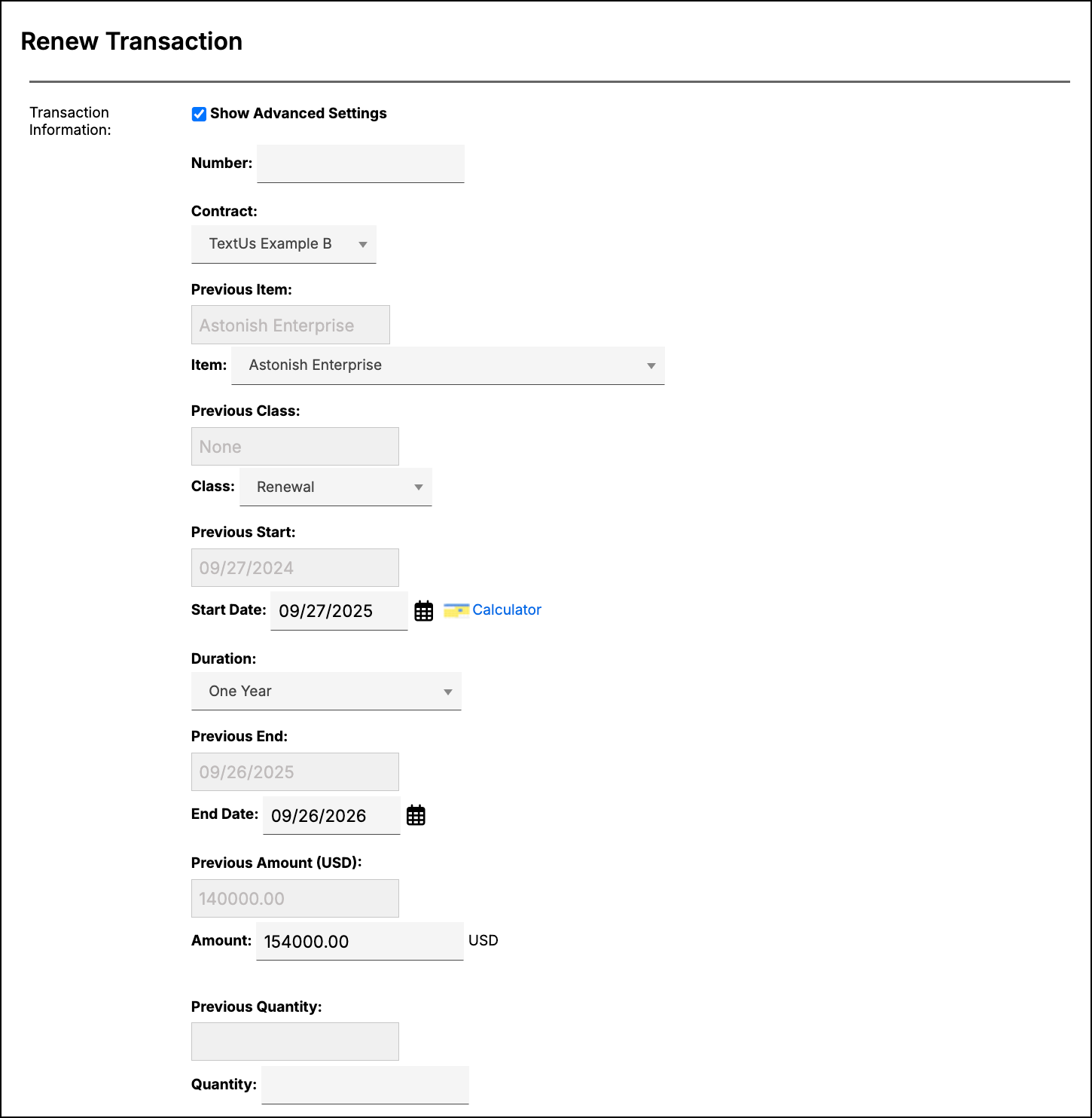
Navigate to the Transaction you want to renew, then select Renew from the Transaction drop-down menu.
-
Review the options on the next screen and make any changes needed. Each field shows the previous Transaction's value for reference.
-
Click Submit.
Renew multiple Transactions
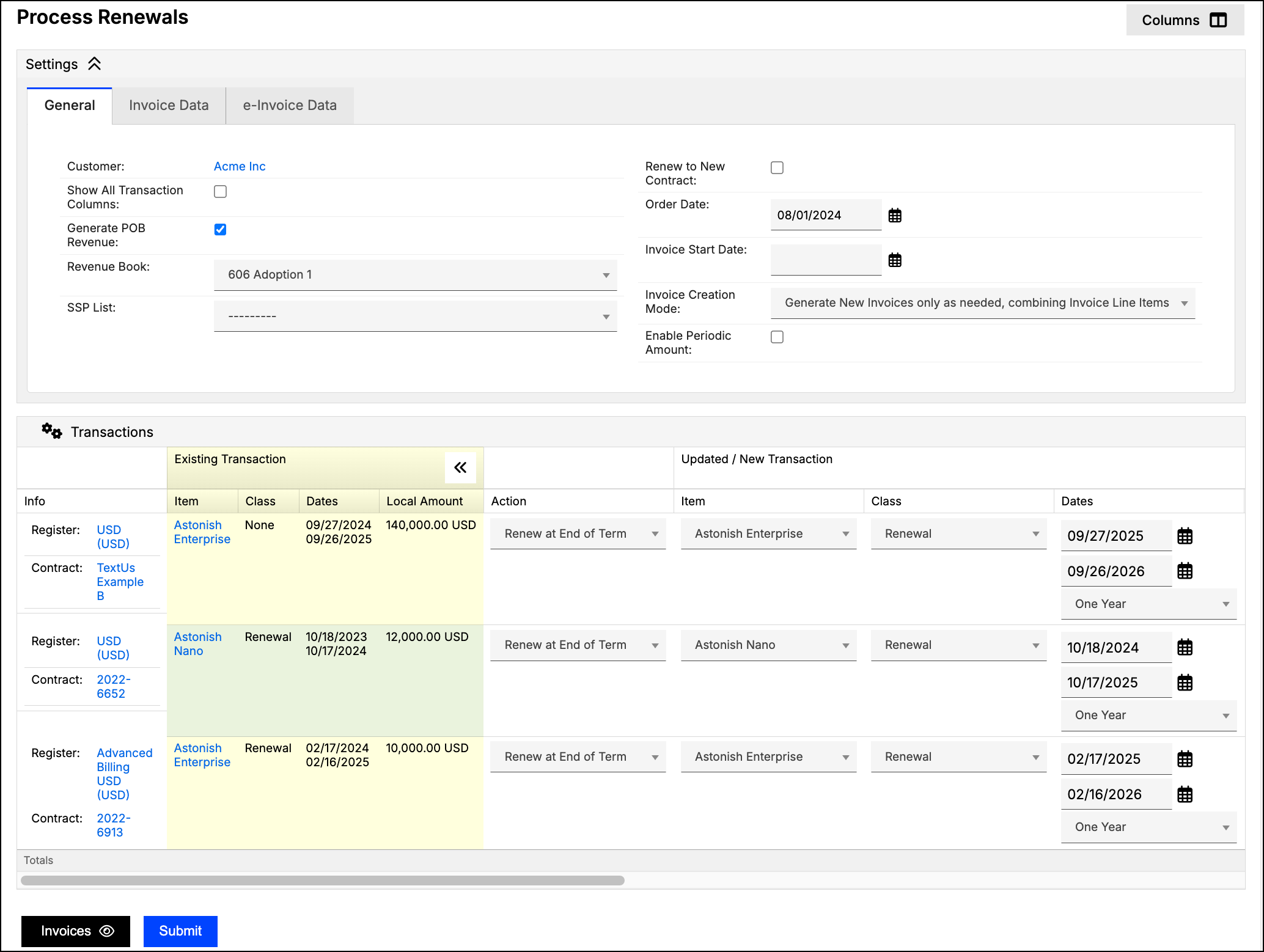
You can renew multiple Transactions at the same time by selecting Transactions > Renew from any Customer or Contract screen. The Transactions home page also provides an Expired alert that automatically lists all expired Transactions in your account. From either starting point, select the Transactions you want to renew, then click Continue/Renew. This opens the Process Renewals screen, where you can compare the previous Transactions with the new ones, make any changes needed, and click Submit to process the renewals.
Cancel Transactions
Canceling a Transaction indicates that the Customer didn't renew their subscription to the product or service. Canceling doesn't produce revenue or invoice adjustments, and has no effect on revenue, invoicing, or financial reports. Canceled is simply a flag you set on a Transaction so it doesn't show as expired. Canceling does affect analytics reporting, especially certain calculations in the Subscription Momentum report.
Canceling only works for Transactions with a recurring Item. If you need to early terminate a Transaction with a non-recurring Item, or take another action that affects invoices or revenue, use the contract change functions instead.
To cancel a Transaction
-
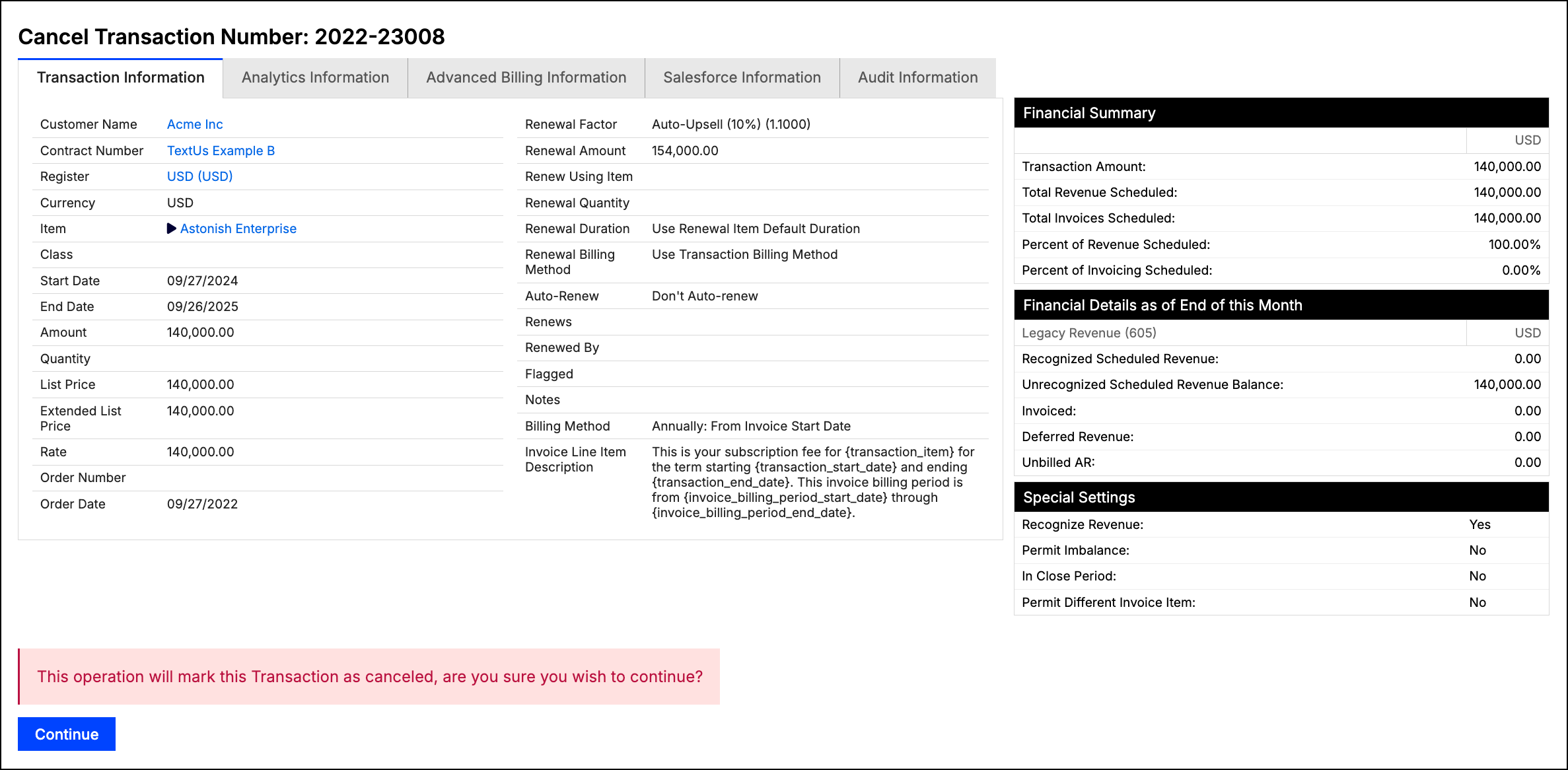
Navigate to the Transaction you want to cancel, then select Cancel from the Transaction drop-down menu.
-
Confirm that you want to cancel the Transaction by clicking Continue.
Related information
For a broader look at how Transactions work, see Understanding Transactions.
Still need help?
Reach out and our support team will take it from here.