
Understanding Transactions
Applies to: Maxio Core
Last updated on Aug 26, 2026
A Transaction is a specific type of financial record that represents a Contract element in Maxio. You add and manage Transactions to record subscriptions and non-recurring purchases, producing revenue and Invoices as a byproduct. Transactions are different from Invoices, Payments, deposits, and Contracts, each of which is a separate concept in Maxio.
The Transaction record
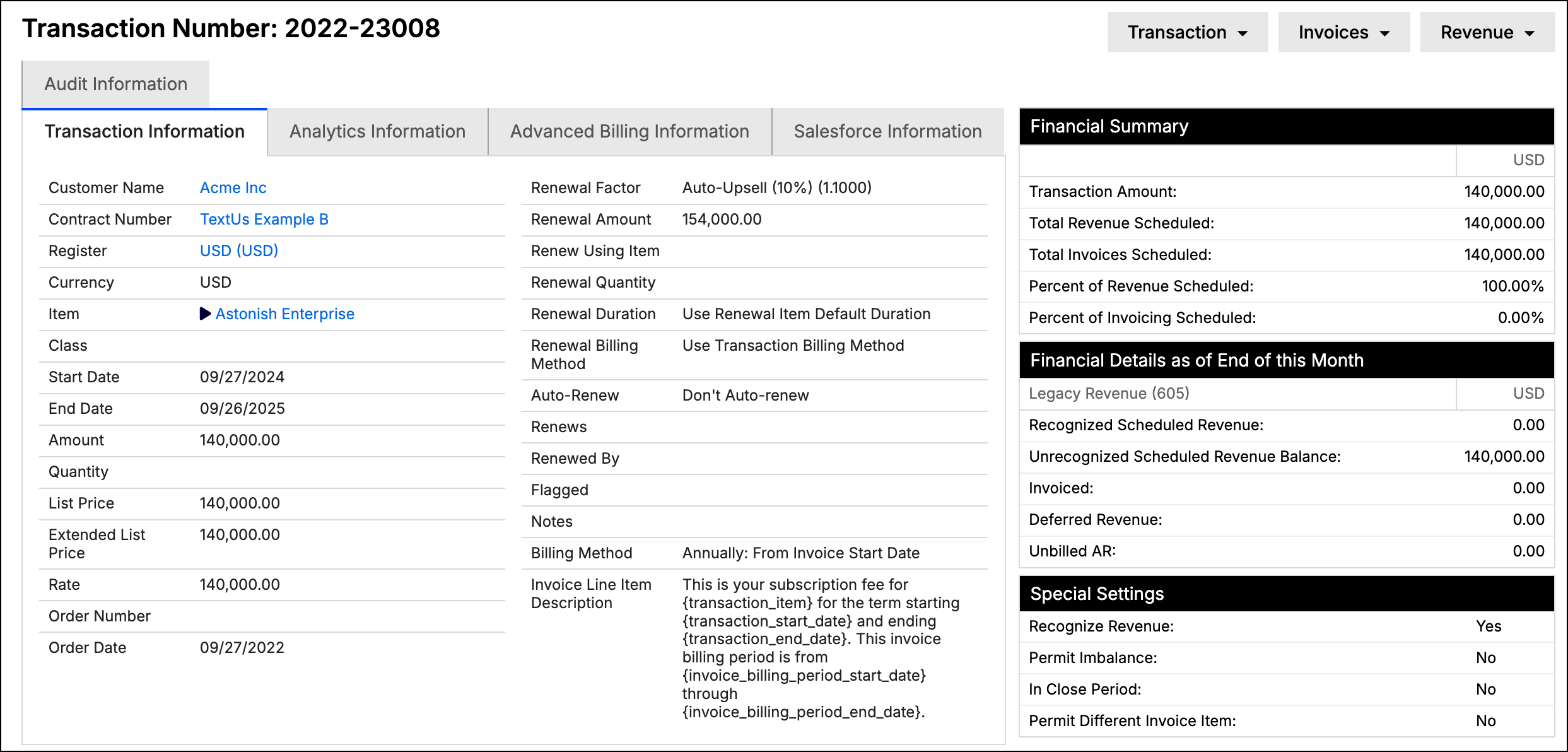
It's important to understand how Transactions work in Maxio, since they affect several other areas of the application.
Transaction basics
A Transaction is a Contract element that can only be added to a Contract in Maxio. Its amount represents the contracted value of that element, and each Transaction is assigned an Item that corresponds to a product, service, or SKU that your organization licenses or sells.
You can use the Periodic Amount feature to automatically calculate a Transaction's total from a monthly or annual rate, including prorated partial periods. See Use Periodic Amount to Auto-Calculate Totals for more information. Requires signing in to view.
Subscription management and renewals
Every Transaction is either recurring (it can be renewed) or non-recurring, based on its associated Item. Recurrence reflects the intent of renewal: if you intend for your customer to renew that element of the Contract (like a subscription), use a recurring Item. For one-time Transactions like professional services, use a non-recurring Item.
Transactions also have a start date and an end date. For recurring Transactions, these dates reflect the subscription or term period. For non-recurring Transactions, the dates can span whatever period you need, such as the start and end dates of a project. Since revenue schedules often follow a Transaction's start and end dates, it's common to choose the dates for a non-recurring Transaction to match the revenue schedule you want for that element of the Contract.
Recurring Transactions must be renewed or canceled, or they expire once they pass their end date. If the renewal amount isn't known when the original Transaction is created, such as a rate tied to a future index, you can apply a Renewal Factor to adjust it automatically at renewal. See Applying Renewal Factors for more information. Requires signing in to view.
Revenue recognition and financial reporting
Transactions contain revenue schedules, which track the recognition of deferred revenue. The start and end dates of a revenue schedule don't have to match the Transaction's own dates, though they typically do. The dates of the Invoices containing the Transaction's Invoice Line Items don't have to match the Transaction's or revenue schedule's dates either.
If a Transaction's amount, revenue, and Invoice Line Items aren't all equal, the Transaction is out-of-balance, which highlights records that need adjustment.
Analytics reporting
Transactions are the core data object for analytics reporting. They contain MRR and ARR fields, which are distinct from revenue. MRR and ARR values, along with a Transaction's start and end dates and amount, drive many of the analytics reports in Maxio. You can further slice and filter analytics reports by other Transaction fields, such as Sales Rep. See Calculate MRR ARR with Tolerances to learn how Maxio calculates these values. Requires signing in to view.
Accounting and bookkeeping
Contract changes, such as upgrades, downgrades, and early terminations, are common. To make a change after a Transaction's initial creation, use the contract change functions, which may create additional Transactions with positive or negative amounts.
If you add a Transaction within the close period, the resulting revenue and Invoice Line Items are placed on the day after the latest closing date. Closing dates also prevent you from adding or editing revenue and Invoice Line Items within the close period.
The Transaction Lock Date setting is stricter: it prevents users from adding or editing a Transaction at all if its start date is on or before the lock date.
Managing Transactions
Topics for the day-to-day management of your Transactions
| Article | Description |
|---|---|
| Create Transactions Manually | Typically, Transactions are added to your Maxio account by processing sales orders from a connected CRM, but you can also add them manually. |
| Build Transactions from Recurring Invoice Line Items | Configure and create Transactions from recurring Invoice Line Items that need billing and revenue setup, for both initial data loads and ongoing subscription workflows. |
| Create a Transaction from QuickBooks Invoice Line Items | Group QuickBooks-synced Invoice Line Items that don't yet have a Transaction into a single new Transaction, useful for cleanup or one-off corrections. |
| Create Invoice Line Item Replacement Rules | Define rules that automatically substitute generic synced Invoice Line Items with more specific Items during sync, for accurate Transaction creation and revenue reporting. |
| Generate Transactions from Unassociated Invoice Line Items | Generate Transactions and revenue in bulk for Invoice Line Items that were never associated with a Transaction. |
| Verify Non-Recurring Transactions | Find, verify, and update system-generated non-recurring Transactions, such as those created by the QuickBooks onboarding wizard. |
| Edit or Delete Transactions | Editing a Transaction lets you correct mistakes and add or update information. Deleting a Transaction also deletes its associated Invoice Line Items and revenue. |
| Link Invoice Line Items and Transactions in Bulk | Associate all of a Contract's Invoice Line Items and Transactions at once, useful for an initial data migration or troubleshooting existing linkages. |
| Edit and Regenerate Transaction Revenue Schedules | A revenue schedule is the list of revenue records for a Transaction. |
| Renew or Cancel Transactions | Recurring Transactions must be renewed or canceled, or they eventually expire at the end of their term. |
| Configure Automatic Transaction Renewals | Use Auto-Renewal Profiles to determine when and how recurring Transactions are renewed automatically. Requires signing in to view. |
| Process Renewals or Cancellations in Bulk | Renew or cancel large groups of expired Transactions at once, without reviewing each record individually. Requires signing in to view. |
| Transaction Field Reference | Find definitions for each Transaction field in this help article. |
Clone a Transaction
The Clone function opens the create-Transaction screen pre-filled with the original Transaction's field values, so you don't have to re-enter them. Change the Item, amount, dates, or any other field you need. You can also assign the clone to a different Contract for the same Customer, as long as that Contract uses the same currency as the original. Click Create to save the cloned Transaction.
Balance a Transaction
The Balance Transaction screen shows the Transaction's current amount alongside the total of its associated Invoice Line Items (the new amount). Choose a revenue recognition method and a start and end date for the resulting revenue schedule, and Maxio previews the schedule as you make selections. Saving sets the Transaction's amount and revenue equal to the Invoice Line Item total. This function respects the close date you've set and has no impact on revenue within the close period. See How to Identify and Correct Out-of-Balance Conditions for more information about correcting out-of-balance conditions.
Additional actions
A few other actions are available for managing Transactions:
- Contract Changes: Contract changes handle Transaction changes such as upgrades, downgrades, extensions, and contractions. See How Advanced Contract Changes Affect Billing and Revenue for more information.
- Clone: Copies the Transaction into a new one. See Clone a Transaction above.
- Balance Transaction: Sets the Transaction's amount and revenue to match its Invoice Line Items. See Balance a Transaction above.
- Update Item to Match: Use this function as an alternative to editing a Transaction, to reset the Transaction's Item to match its Invoice Line Item. Neither the Transaction's amount nor its revenue is affected. This function isn't available if the Transaction has multiple Invoice Line Items unless they all have the same Item.
- Move Transactions: Moving a Transaction transfers its revenue and Invoice Line Items between Customers or Contracts. You might need to do this if a Transaction was created for the wrong Customer or Contract. See Move Transactions Between Contracts for more information.
Related information
For a rundown of Transaction-level alerts, see Understand Transaction Alerts. Requires signing in to view.
For the steps to resolve them, see Troubleshoot Transaction Alerts. Requires signing in to view.
Still need help?
Reach out and our support team will take it from here.