
Edit and Regenerate Transaction Revenue Schedules
Applies to: Maxio Core
Last updated on Aug 24, 2026
Every Transaction has a revenue schedule, the list of revenue records tied to it. Revenue can only exist on a Transaction; Invoices don't have their own revenue schedules. A revenue schedule's dates are stored independently of the Transaction's Start and End Dates and its Invoice dates.
This article is related to Maxio Platform's Transactions object and associated functionality. The Transaction is a specific type of financial record that represents a Contract element in Maxio Platform.
The revenue schedule feeds:
- All finance reports
- The revenue computation option in analytics reports
- The revenue section on the Customer, Contract, and Transaction view screens
You can view a Transaction's revenue schedule from its detail screen. The schedule is typically created automatically when you create the Transaction, based on the revenue recognition method inherited from the Transaction's Item.
The total of the revenue schedule entries should equal the Transaction's Amount and the total of all associated Invoice Line Items. When they're different, they're out of balance and highlighted in red.
Edit the Revenue Schedule
You can edit a Transaction's revenue schedule from the Edit Transaction screen (see Edit or Delete Transactions for the general steps) or with the Revenue drop-down's Edit option. Regenerating the revenue schedule instead of editing it directly is often more efficient. See Generate or Regenerate the Revenue Schedule below.
To edit a revenue schedule from the Edit Transaction screen
-
Select Edit from the Transaction drop-down menu when viewing a Transaction.
-
Make sure Show Advanced Settings is checked.
-
Locate the Revenue section.
-
Select the Edit Revenue checkbox.
-
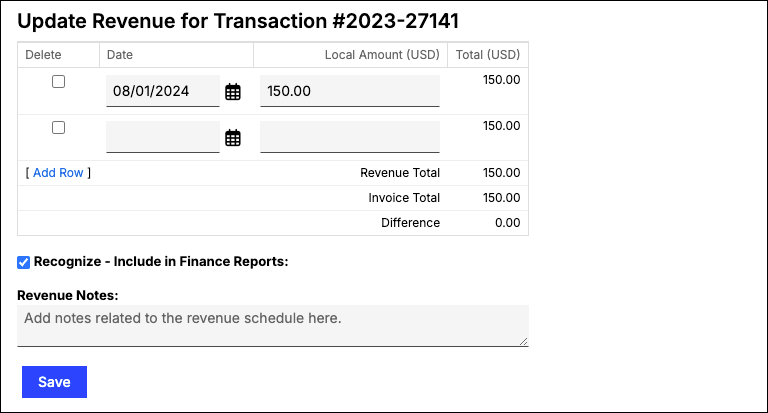
Use the Revenue Editor to change dates and amounts, or delete and add revenue records. Maxio sums multiple revenue records that fall in the same month for reporting purposes.
To edit a revenue schedule with the Revenue drop-down's Edit option
-
Select Edit from the Revenue drop-down menu when viewing a Transaction.
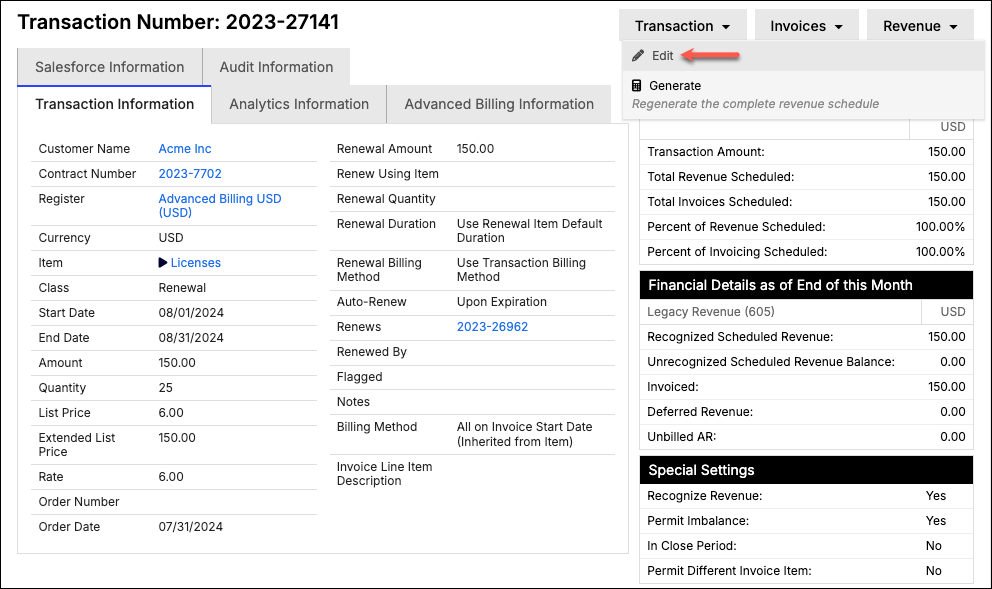
-
Use the Revenue Editor to change dates and amounts, or delete and add revenue records. Maxio sums multiple revenue records that fall in the same month for reporting purposes.
Generate or Regenerate the Revenue Schedule
If you need to change a Transaction's revenue schedule, regenerating it is often more efficient than editing it directly. Regenerating recalculates revenue using the Transaction's current Start Date, End Date, Item, and Amount, without changing the Transaction itself. You can regenerate revenue from the Edit Transaction screen or with the Revenue drop-down's Generate option.
To regenerate a revenue schedule from the Edit Transaction screen
- Select Edit from the Transaction drop-down menu when viewing a Transaction.
- Make sure Show Advanced Settings is checked.
- Locate the Revenue section.
- Select the Regenerate Revenue checkbox.
- If you need to edit the newly generated schedule further, also select Edit Generated Revenue.
To regenerate a revenue schedule with the Revenue drop-down's Generate option
- Select Generate from the Revenue drop-down menu when viewing a Transaction.
- Review the parameters.
- Click Generate.
Related information
For a broader look at how Transactions work, see Understanding Transactions.
Still need help?
Reach out and our support team will take it from here.