
See the Billing Portal Screens Subscribers Use
Applies to: Advanced Billing
Last updated on Aug 28, 2026
The Billing Portal lets your Customer perform certain actions within their account. See Configuring Billing Portal Options for more on the features described below.
Every screenshot below has all Billing Portal features enabled, so you can see the full interface. Configure the Billing Portal as needed to restrict Subscription actions within the portal.
Subscription overview
When a subscriber enters the portal, they see their current Subscription, along with a message from the merchant. Customize this message under Merchant Info in the Billing Portal settings.
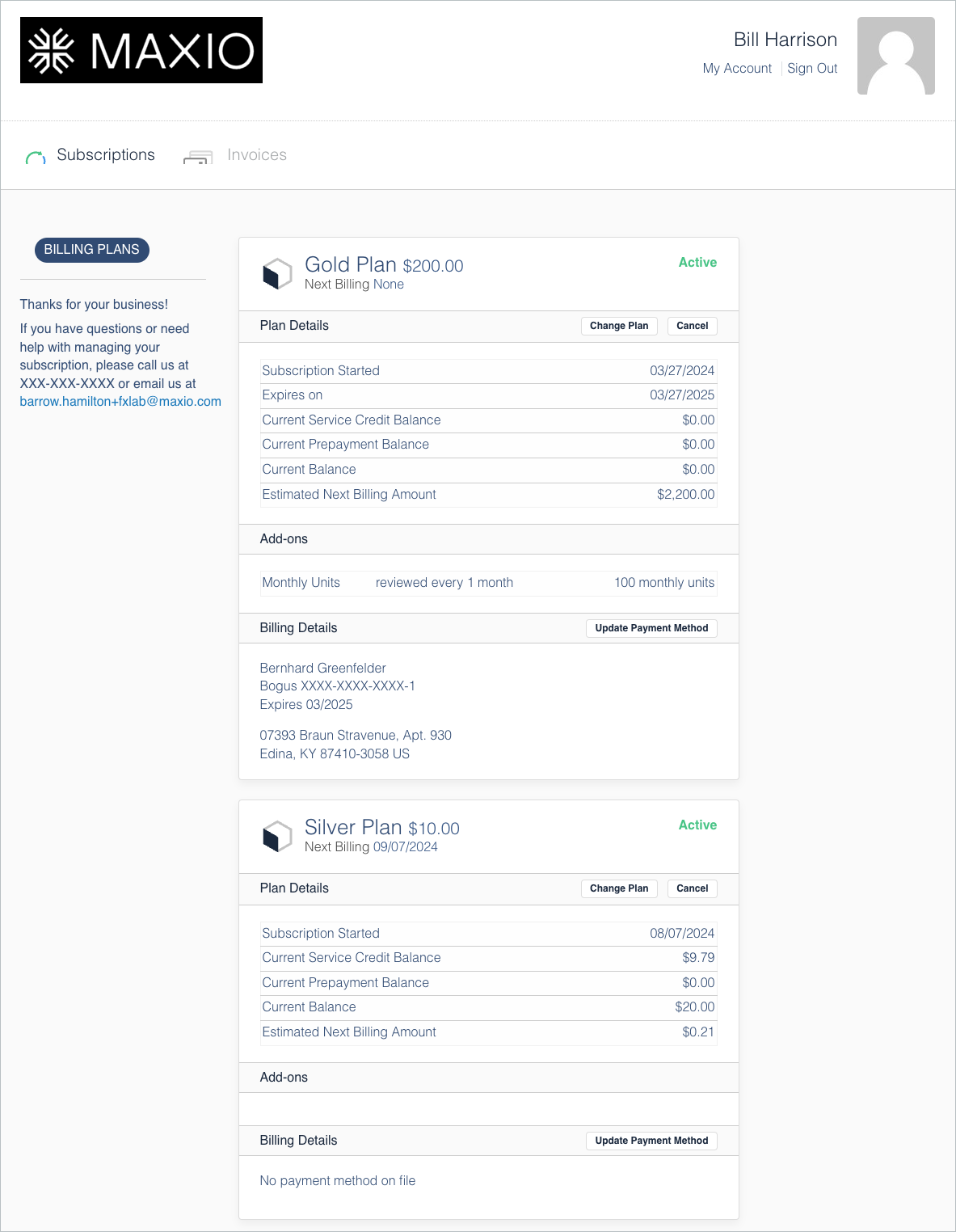
In the example above, Gold Family in the top left refers to the Product Family name, while Gold 100 refers to the actual Plan purchased from within the Product Family. The Subscription's next billing date is displayed beneath the Plan name, and to the right is the current state of the Subscription. This one is marked as active.
The billing details confirm the active payment method on file, along with its billing address and various options to manage the Subscription depending on which features are enabled for the portal. Any shipping address information appears beneath the billing details.
Multiple subscriptions in Advanced Billing
If your subscriber has more than one Subscription within Advanced Billing, the Billing Portal can accommodate them. The following graphic displays:
- How Subscriptions within the same Product Family are displayed
- How Subscriptions from other Product Families are displayed
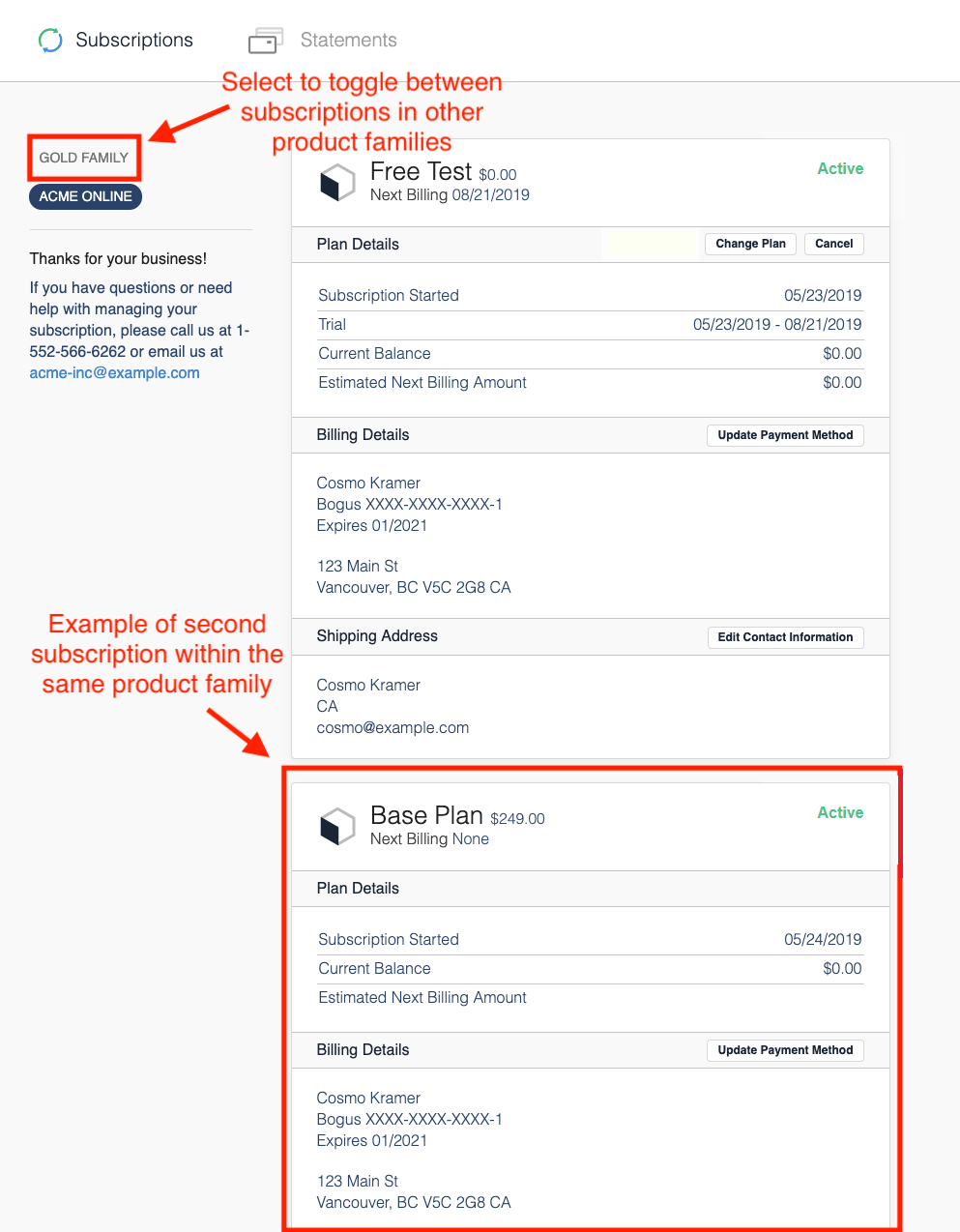
The plan details give the subscriber a glance at the following attributes of their Subscription:
- Subscription Started: The day the Subscription was created within Advanced Billing.
- Current Balance: The current amount due, or credit associated with the Subscription.
- Estimated Next Billing Amount: The projected amount due at the next billing date.
Relationship Invoicing
The Relationship Invoicing functionality removes the idea of statements to work solely with Invoices. Rather than a Subscriptions tab at the top of the page, a Relationship Invoicing site displays an Invoices tab.
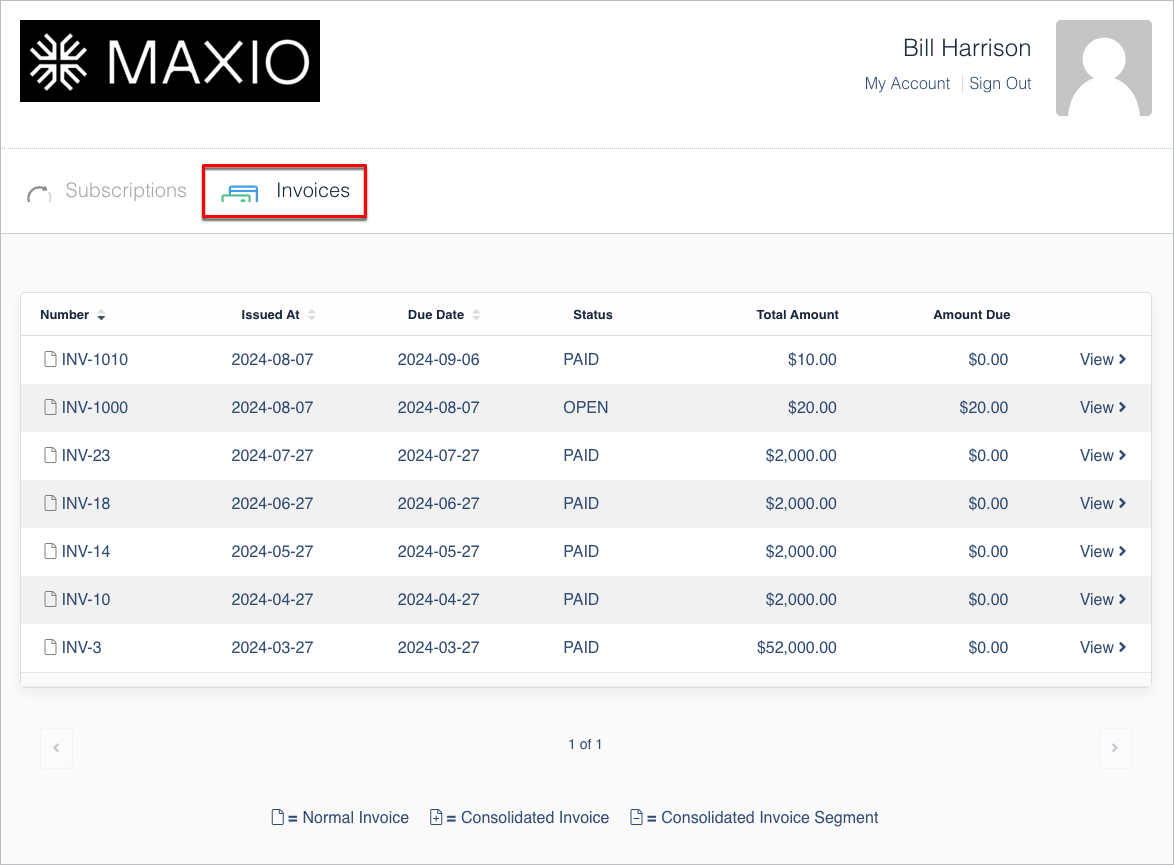
The Billing Portal displays normal, unconsolidated Invoices along with consolidated Invoices and their segments. Consolidated Invoices and segments are generated if the Subscription is part of a group.
Only a payer Subscription can view consolidated Invoices. Member and primary Subscriptions that aren't paying for the group don't see their grouped Invoices. Any Invoice marked Open can also be paid using the green Pay Invoice Online button.
Example invoices
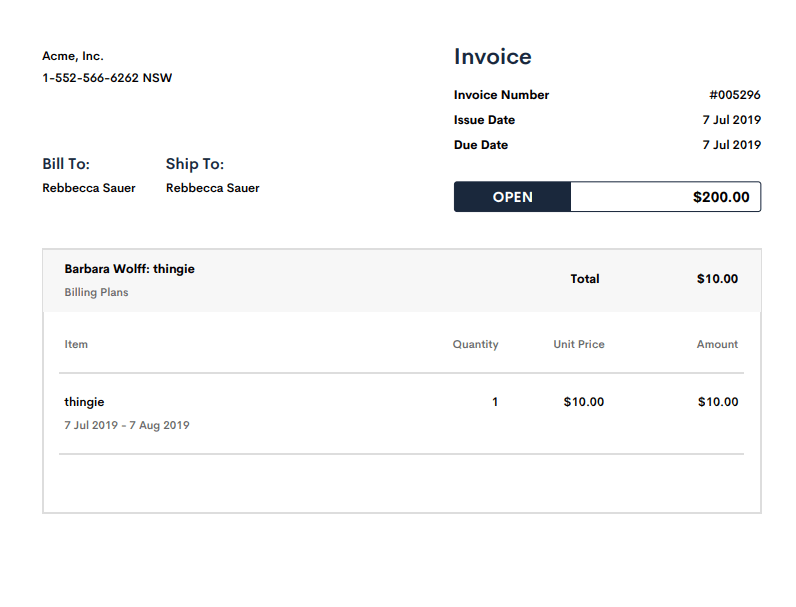
These should all look identical to the views you see within the Advanced Billing application and from the public invoice URL.
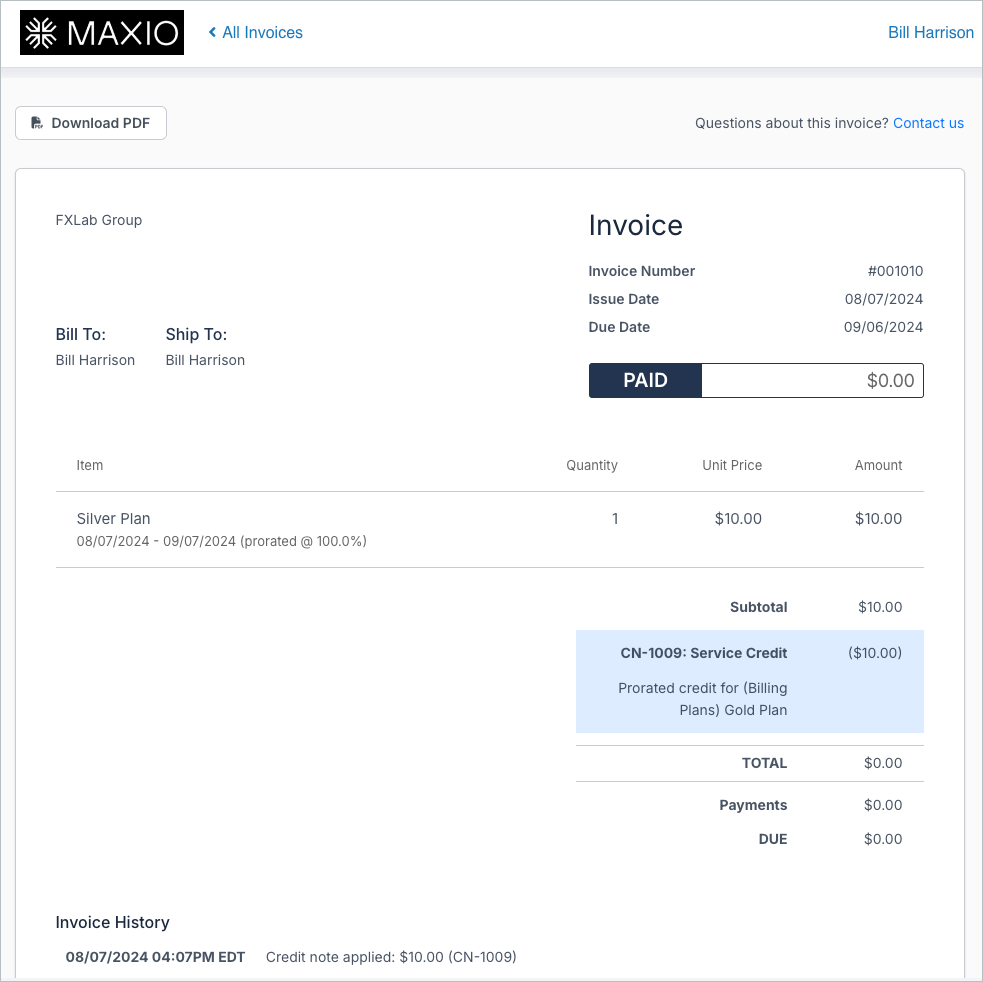
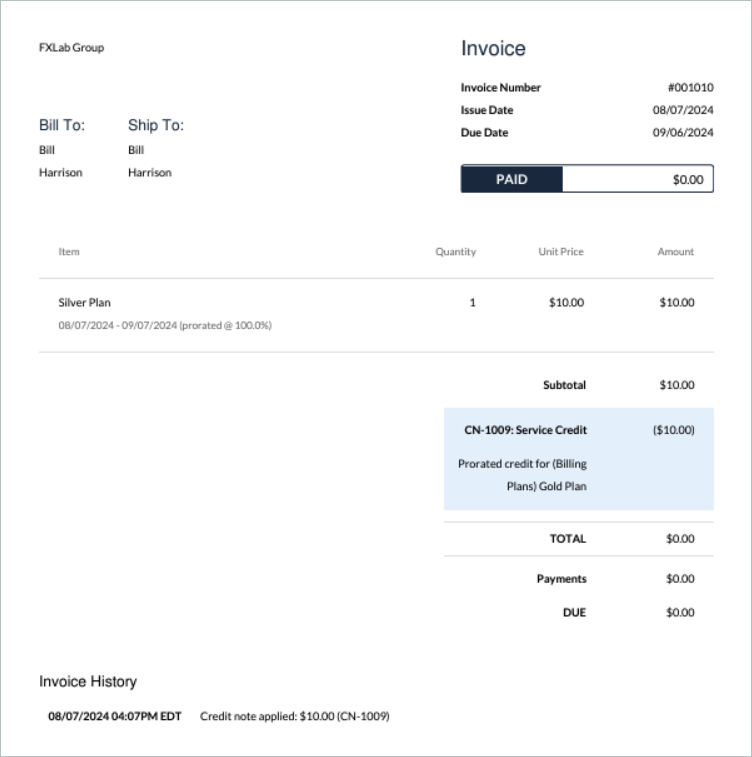
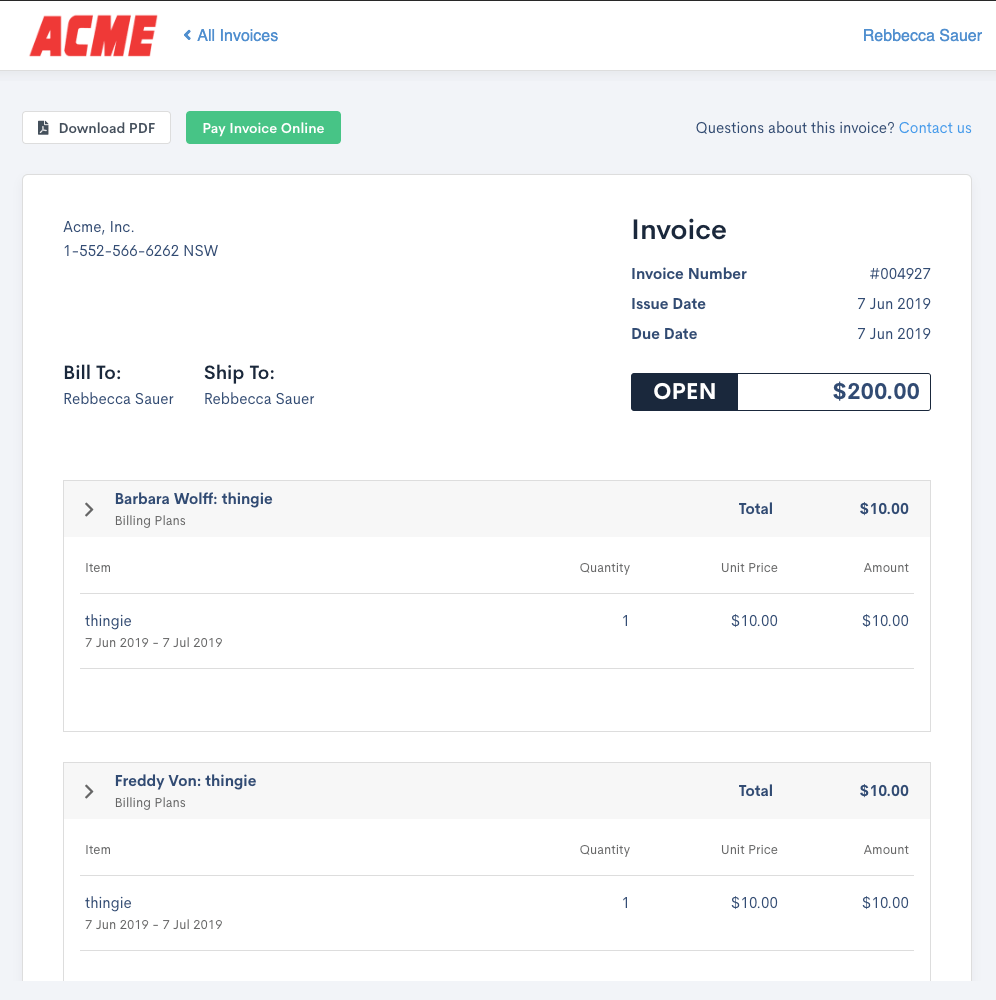
You may need to scroll down to view the entire Invoice for larger groups.
Related information
See Understand the Billing Portal for an overview of what the Billing Portal does and who it's for.
See Explore Billing Portal Topics for the full set of Billing Portal setup, access, and support articles.
Still need help?
Reach out and our support team will take it from here.