
Apply Coupons to Subscriptions
Applies to: Advanced Billing
Last updated on Aug 25, 2026
You can add or remove a coupon on a subscription easily via Advanced Billing. It’s important to take note of the next billing amount both before and after applying the coupon. The next billing amount always reflects the next charge to be applied to the subscription, including the discount.
Coupons can be added to an active or canceled subscription by selecting manage coupons on any subscription. After you select manage coupons, you’re presented with a list of coupons that reside in the same family as the Plan your Subscriber has purchased.
Only coupons within a product family can be applied to a Plan within that same family.
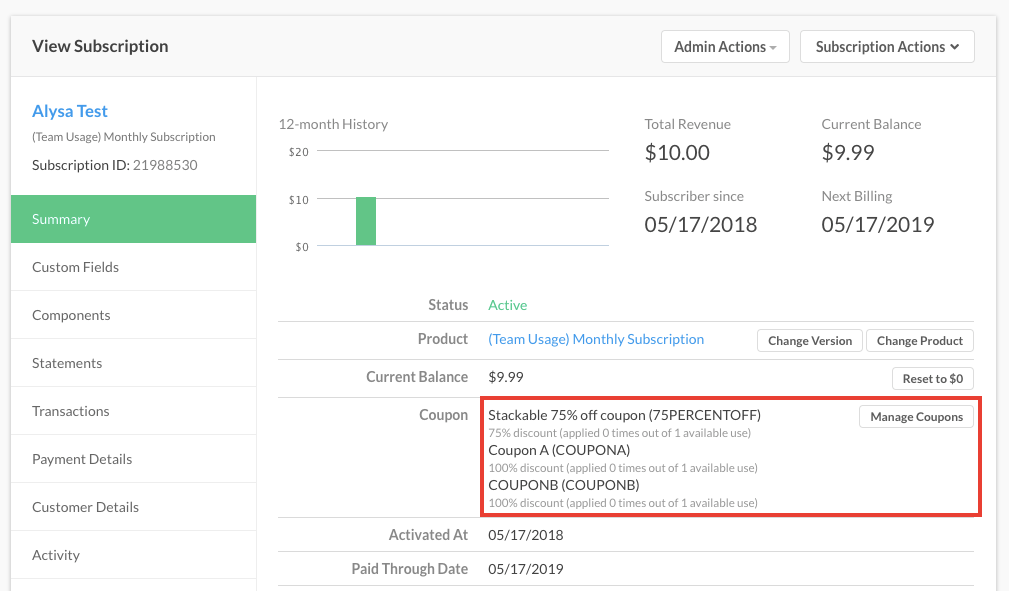
View the coupons applied to a subscription
Coupon restrictions
Coupons can be configured to be applied or restricted to a set of Products or Plans.
If you have applied a coupon to a subscription that is not applicable to the current Plan, you see a message declaring this in the subscription. This is denoted as Coupon restrictions present.
By selecting view next to this warning, you’re redirected to the editing page for the current coupon.
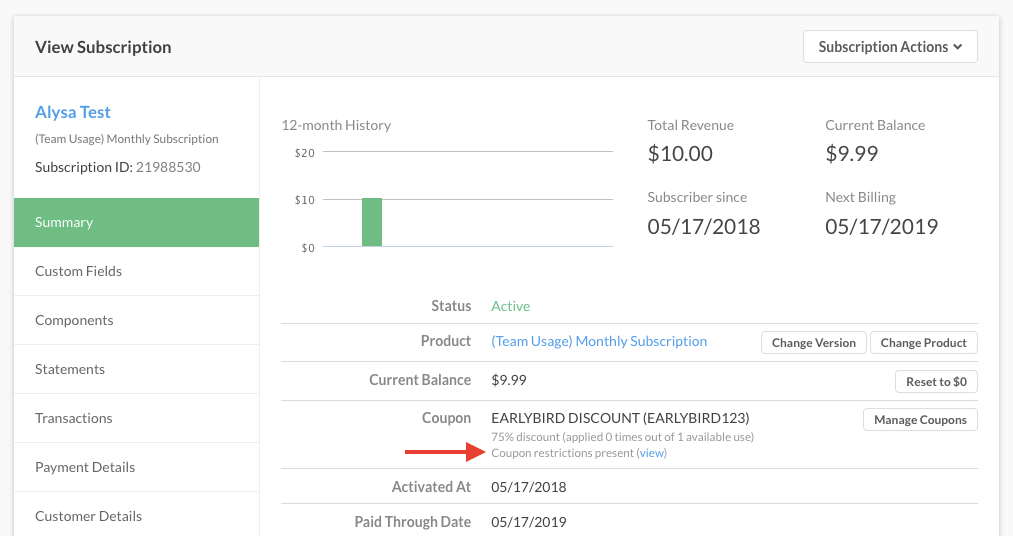
View the "Coupon restrictions present" warning
To learn how restrictions limit which Plans or Products a coupon discounts, see Plan/Product restrictions.
Create a subscription with multiple coupons
After selecting a Plan, you can enter the first two characters of a coupon’s name, code, or subcode to generate a search against the defined coupons for your Plan.
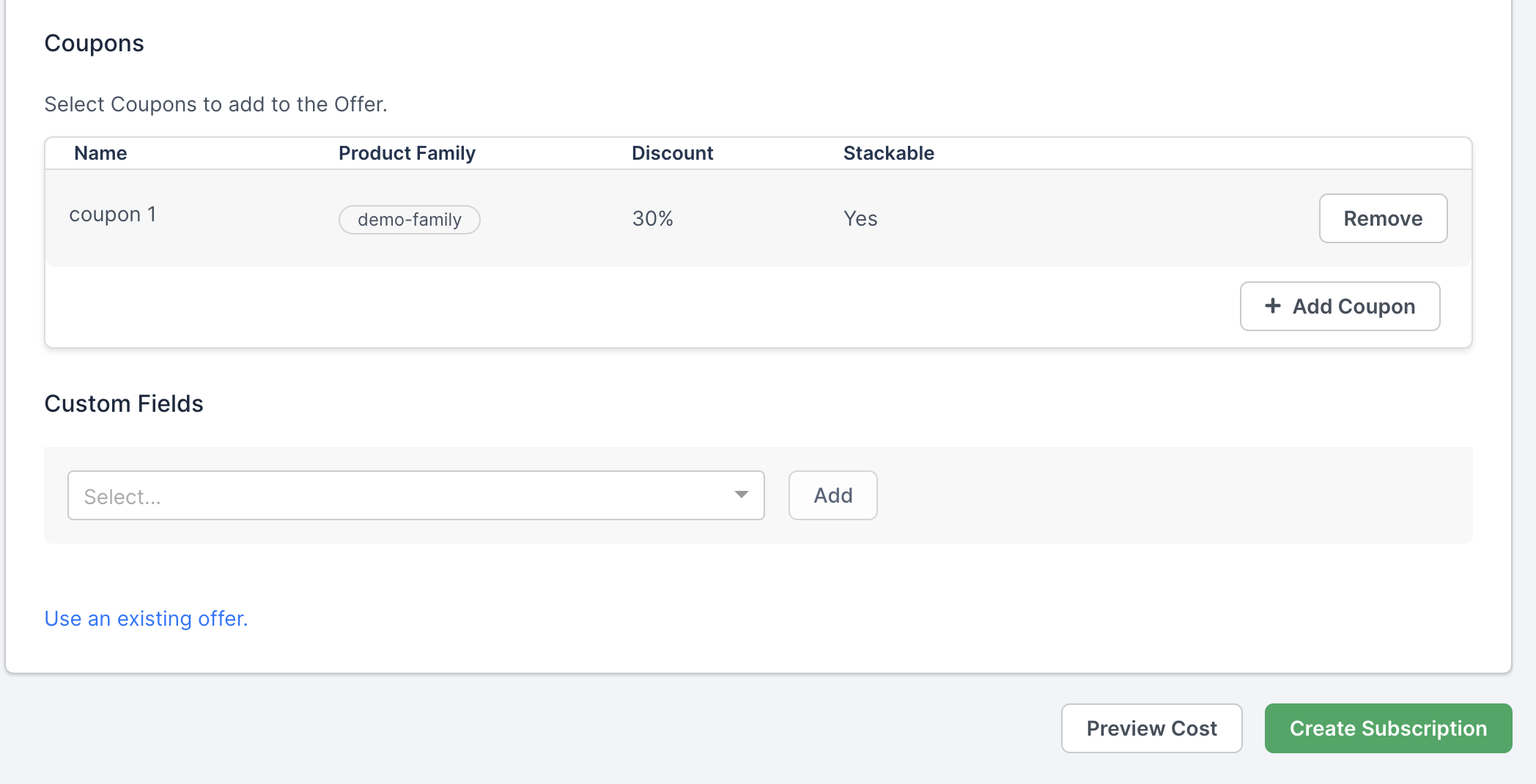
Select which coupons to apply
Once you click on a coupon item in the drop-down, it gets added to the coupon codes list for the subscription you are about to create.
- This process can be repeated multiple times, subject to coupon stacking rules.
- Easily remove items from the coupon codes list by selecting the green X in the rightmost position of each coupon codes row.
- The list of coupons is added to the subscription along with all the other information when you save the subscription.
Manage coupons on an existing subscription
When you navigate to a subscription’s details page, you have the option to manage the coupons on that subscription. This brings up the Manage Coupons option for that subscription.
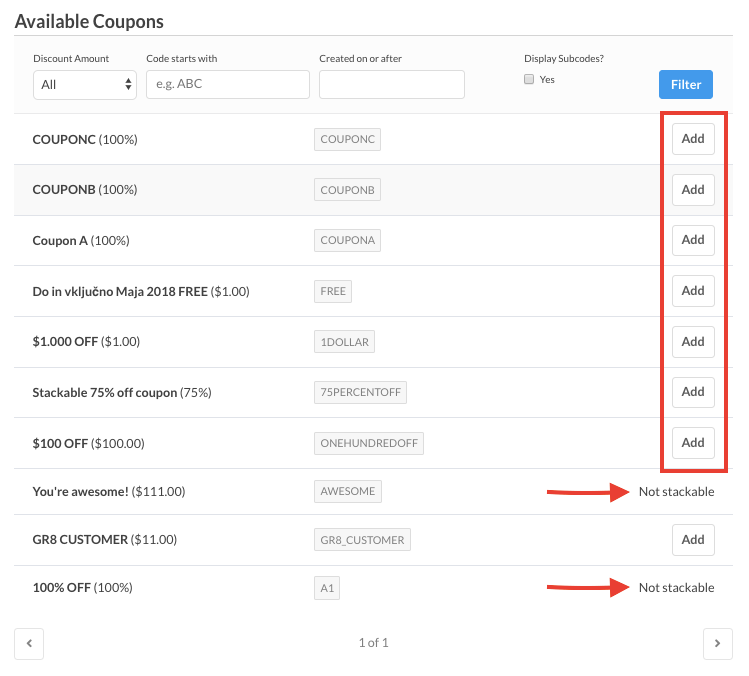
Select which coupons to apply
Notice that in the screen grab above, only certain coupons may be added to the subscription due to the fact that the coupons are stackable, while others are not-stackable.
Add a coupon
Adding a coupon to a subscription works the same way whether it's the first coupon or one of several stacked ones:
- Add a coupon to a subscription by selecting the Add button in the available list of coupons.
- Notice that if no coupons are currently applied, then you are able to pick from any coupon.
A subscription can have a maximum of 10 coupons applied to it at once.
Stackability rules
Once you have at least one coupon applied, stackability rules come into play.
Unstackable coupons
Unstackable coupons cannot exist in a set of coupons applied to a given subscription (i.e. the ‘stack’). Therefore if the first coupon you add is un-stackable, then you cannot add any more coupons to that stack. Stackability rules for a subscription are enforced from the perspective of when the coupon was added.
For example, if you had three coupons stacked on a subscription, and later edit the very first coupon to be un-stackable, then that stack is still eligible to have things added to it. This is because when the first coupon was added, it was stackable. Stackability rules control whether or not the Add button appears in the available coupons grid.
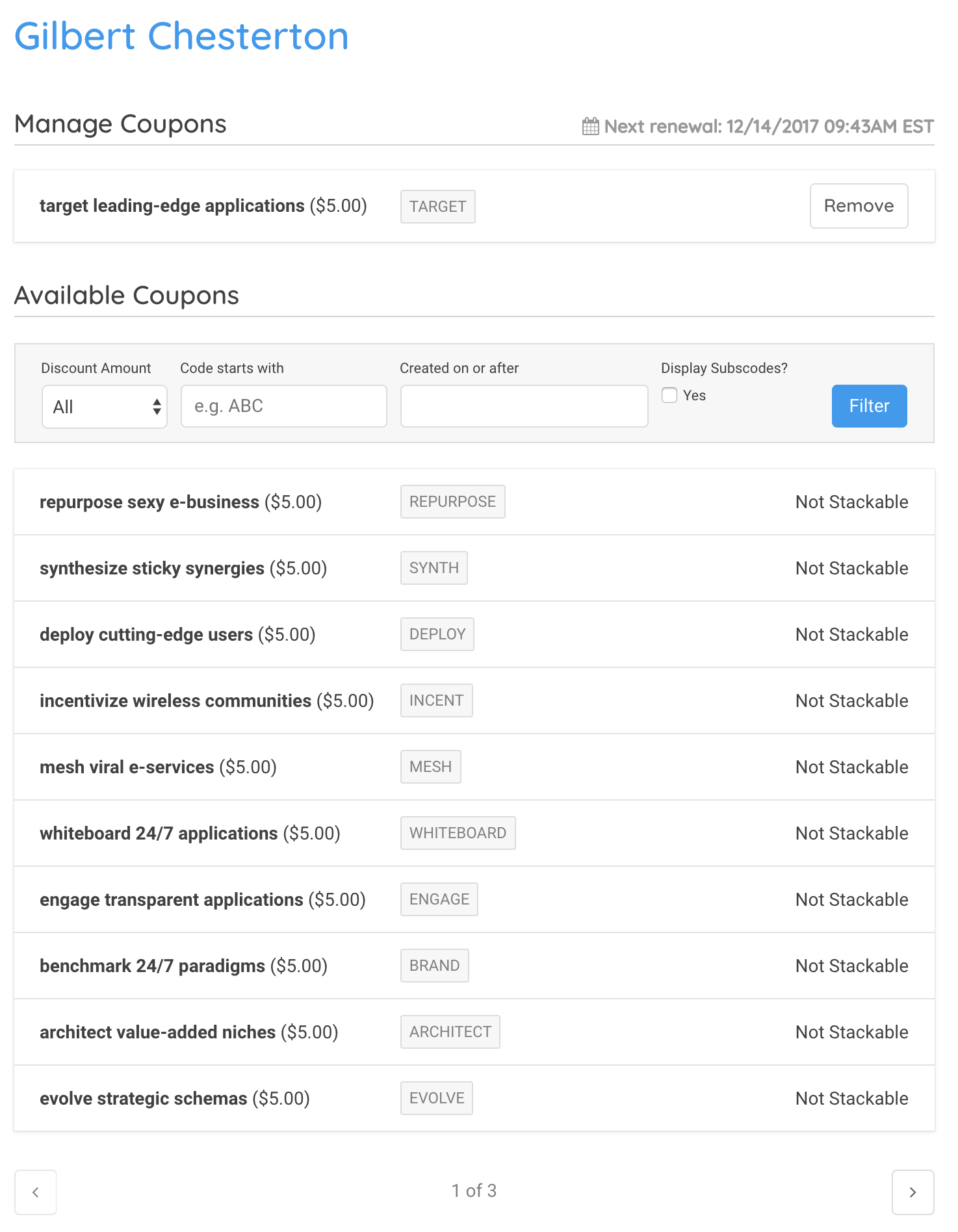
Coupons in this example are not stackable
Removing a coupon
Once a coupon has been added to a subscription, then it appears in the list at the top of the page. You can remove a coupon from a subscription by selecting the Remove button.
Removing a coupon halts any discounts on this coupon that apply to this subscription in the future. Coupon metrics (signups, savings, and revenue) no longer include the data associated with this subscription.
Be aware that if you are in the special case listed above, where the stackability of a coupon has been changed after the fact, and you remove a coupon, then you are unable to add it back.
Coupon application history
Consider that additions and removals occur essentially instantaneously. These operations are not saved for later re-application to the subscription.
Coupon application order
Flat dollar-amount coupons apply discounts to subscription charges in the following order:
- Initial/setup fees
- Plan fees
- Product charges
Adjustment transactions for coupons
Each coupon applied to a subscription creates its own adjustment transaction, following these rules:
- One adjustment is created per coupon applied, for the total amount of discounts that coupon represents across all charges.
- If a coupon is attached to a subscription but does not apply to any charges (a Product-restricted coupon, for example), then no adjustment is created.
Stackable coupon application order
Renewing a subscription that has multiple coupons applies those discounts in the following order:
- Percentage-based coupons with a
full-pricecompounding strategy that do not allow negative balances - Percentage-based coupons with a
full-pricecompounding strategy that allows negative balances - Fixed-amount coupons that do not allow negative balances
- Fixed-amount coupons that do allow negative balances
- Percentage-based coupons with a
compoundcompounding strategy that do not allow negative balances - Percentage-based coupons with a
compoundcompounding strategy that does allow negative balances
Coupons of the same type apply in the order they were added to the subscription.
Stackable coupon examples
Consider the following scenarios (assume all coupons are stackable):
- Acme Plan: $10/month
- Widget Product: $5/month
- Total: $15/month
Example A:
- Coupon “ABC”: $2/off, full-price, unrestricted, no negative balance allowed
- Coupon “XYZ”: 10%, full-price, unrestricted, no negative balance allowed
At renewal:
- Coupon “XYZ” applied to Acme, discount of $-1.00
- Coupon “XYZ” applied to Widget, discount of $-.50
- Coupon “ABC” applied to Acme, discount of $-2.00
- Coupon “ABC” applied to Widget, discount of $-2.00
Charges after Discounts:
- Acme: $7.00 ($-3.00 total discounts)
- Widget: $2.50 ($-2.50 total discounts)
- Total: $9.50
Adjustments:
- “ABC” for $-4.00
- “XYZ” for $-1.50
Example B:
- Coupon “ABC”: $2/off, full-price, unrestricted, no negative balance allowed
- Coupon “XYZ”: 10%, compounding, unrestricted, no negative balance allowed
At renewal:
- Coupon “ABC” applied to Acme, discount of $-2.00
- Coupon “ABC” applied to Widget, discount of $-2.00
- Coupon “XYZ” applied to Acme, discount of $-.80
- Coupon “XYZ” applied to Widget, discount of $-.30
Charges after Discounts:
- Acme: $7.20 ($-2.80 total discounts)
- Widget: $2.70 ($-2.30 total discounts)
- Total: $9.90
Adjustments:
- “ABC” for $-4.00
- “XYZ” for $-1.10
Note that in this case, because “XYZ” has a “compounding” strategy, it only applies to the “remaining” amount on each charge, after other coupons have been applied. “ABC” took $2.00 off the Acme charge, so “XYZ” only applied to $8.00 of the original $10.00. 10% of $8.00 is $.80, hence the discount.
Example C:
- Coupon “ABC”: $9/off, full-price, unrestricted, negative balance allowed
- Coupon “XYZ”: 10%, compounding, unrestricted, no negative balance allowed
At renewal:
- Coupon “ABC” applied to Acme, discount of $-9.00
- Coupon “ABC” applied to Widget, discount of $-9.00
- Coupon “XYZ” applied to Acme, discount of $-.10
- Coupon “XYZ” applied to Widget, discount of $0.0
Charges after Discounts:
- Acme: $0.90 ($-9.10 total discounts)
- Widget: $-4.00 ($-9.00 total discounts)
- Total: $-3.10 (neg. balance)
Adjustments:
- “ABC” for $-18.00 (two $9 discounts)
- “XYZ” for $-0.10 (applied only to the $0.10 remaining on the Acme charge after “ABC” had been applied).
In this case, since “ABC” allows a negative balance, it applied to the entire $5 Widget charge, with $4 as a negative balance.
Related information
To create a coupon or set up a coupon code before applying it to a subscription, see Create and Manage Coupons.
Still need help?
Reach out and our support team will take it from here.