
Manage Project Details and Milestones
Applies to: All Maxio modules
Last updated on Sep 3, 2026
Open a Project to see its financial records and Milestones, review the records linked to it, and manage its Milestones as work progresses.
View Project details
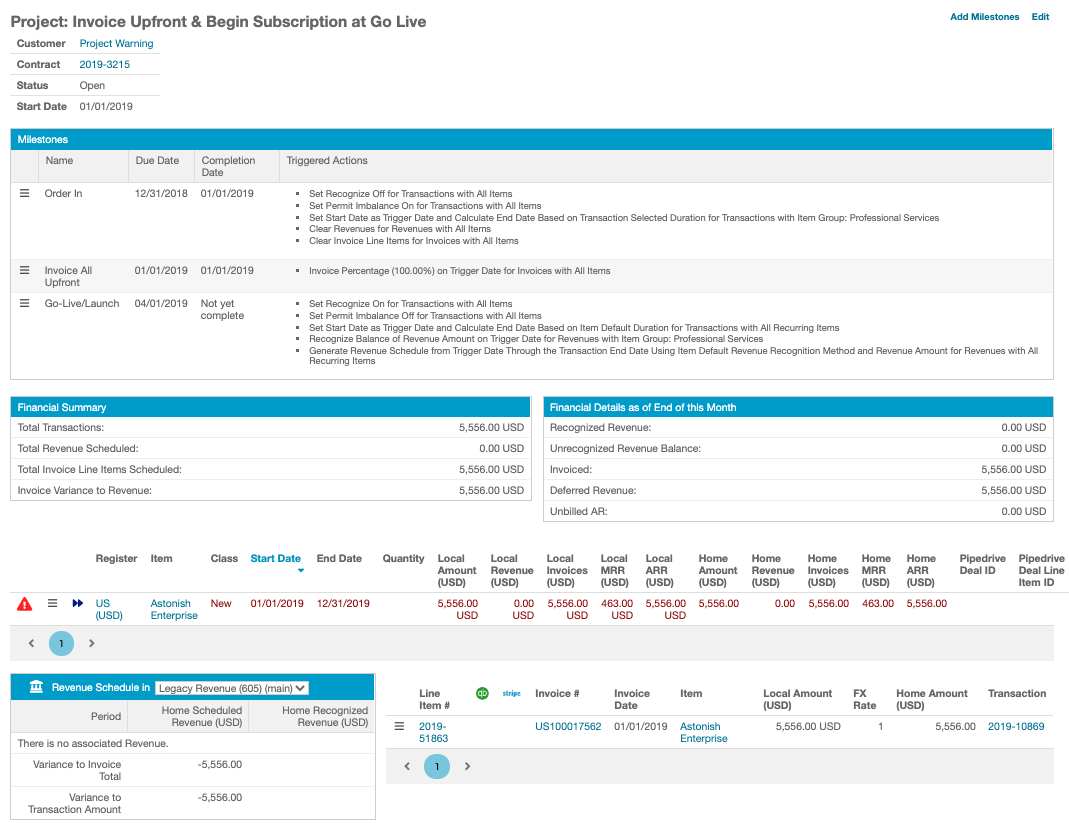
From the Project List, click a Project name to open its Project view. The Project view provides references and links to all the records associated with a Project. It shows the Project's Customer, Contract, Status, and Start Date; a full list of the Project's Milestones and their completion statuses; Financial Summary and Financial Details panels; and the Transactions linked to the Project.
When the Project has a Purchase Order Number set, a Metadata panel next to the Customer summary displays it.
Please be aware that this article is related to Maxio Platform's Projects functionality. Projects in Maxio Platform allow you to gradually build out Contracts for any Sales Orders that have been booked with incomplete or yet-to-be-determined elements.
Edit project details
From the Project view, select Edit in the top-right corner to open the Project edit form, where you can update the Project's Name and Purchase Order Number.
The Purchase Order Number (PO Number) you set here becomes the Project's default: when Maxio generates a new Invoice for a Transaction linked to this Project and that Invoice doesn't already have its own PO Number, it inherits the Project's PO Number automatically. A PO Number entered directly on an Invoice at generation time, or already present on an Invoice being reused, is always kept instead of the Project's default. See Using Purchase Order Numbers for the full set of ways a PO Number can reach an Invoice.
To edit a Project
- From the Project view, select Edit.
- Update the Name and/or Purchase Order Number as needed.
- Click Save.
If you change the Purchase Order Number and click Save, a confirmation dialog asks whether to apply the new PO Number to Invoices already linked to the Project:
- Selecting Yes applies the new PO Number to every linked Invoice that's still eligible to be modified (not synced to an integration, not in a closed accounting period, not otherwise locked), replacing any PO Number those Invoices already had.
- Selecting No still saves the Project's new PO Number, but leaves existing Invoices untouched.
Invoices that are no longer eligible to be modified are always left as-is, regardless of your choice. This dialog appears any time you change the PO Number and click Save, even if the Project has no Invoices yet.
Edit Milestones
Your Project Milestones can be updated as needed from this view:
- To add one or more Milestones to the Project, select Add Milestones; you can select Milestones from any of your Project Templates and add them to the current Project.
- To edit the Name or Due Date of a Milestone, select the menu icon > Edit.
- To mark a Milestone complete and trigger some or all of its Triggered Actions, select the menu icon > Mark Complete.
- To remove a Milestone from the Project without affecting the original Project Template, select the menu icon > Delete.
- To create a copy of a Milestone in an uncompleted (pending) state with a new Due Date, select the menu icon > Clone.
Mark Milestones complete
Use the menu icon next to a Milestone to mark it complete.
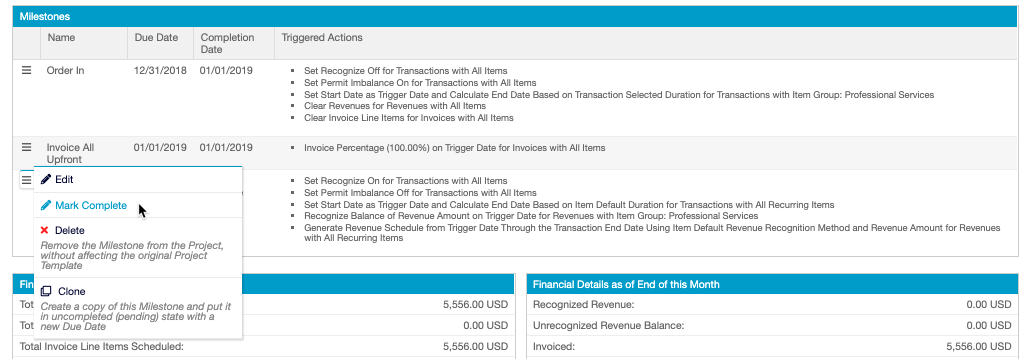
When you mark a Project Milestone complete, you're given the ability to execute any or all of the Triggered Actions within the Milestone. Before the completion of the Milestone is finalized and locked in, you have the ability to edit and reconfigure the elements of the Triggered Actions as needed. This lets you accommodate a variety of complex workflows, such as consumption-based workflows and those with Pro-Services hours purchased in advance.
Once the Milestone has been marked complete, it cannot be edited nor deleted. You cannot un-mark a Milestone complete, nor can you complete a Milestone a second time. You can, however, clone the Milestone to create a copy of the Milestone that has not yet been marked complete.
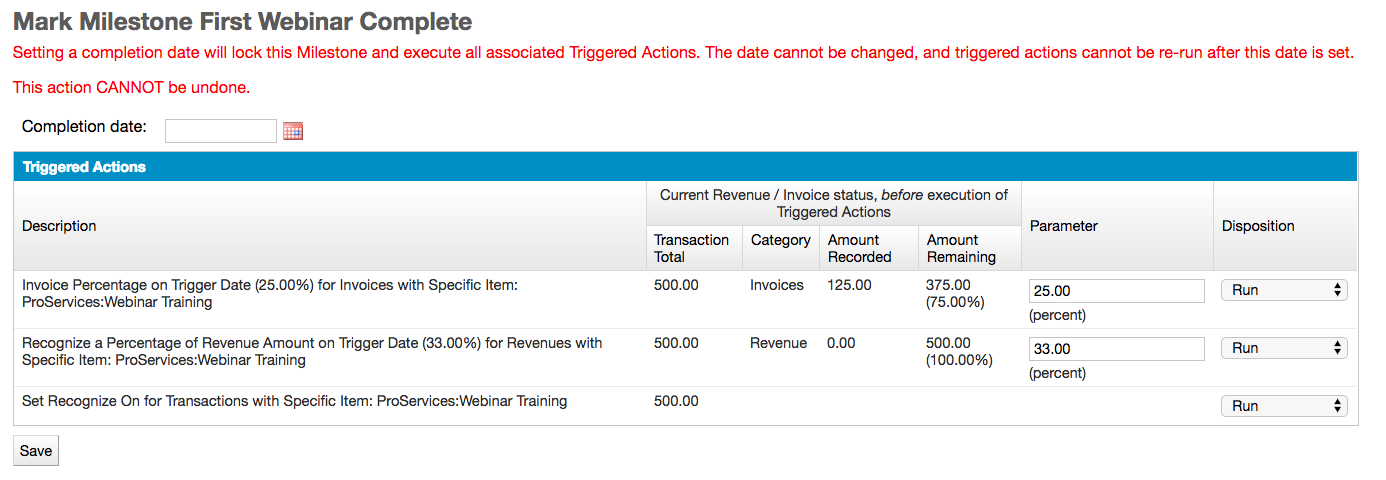
WARNING: Setting a Completion Date locks the Milestone and executes all of its Triggered Actions. The date can't be changed, and Triggered Actions can't be re-run once the date is set. This action cannot be undone.
To mark a Milestone complete
- Select the menu icon, then Mark Complete.
- Enter a Completion Date for the Milestone; you can use the current date or one in the past or future. Typically, use a Completion Date that corresponds with the real-life event: for example, if you had the Milestone "On-Site Visit," you'd select a Completion Date that matches the date the On-Site Visit took place.
- Review each Triggered Action's Description, its current Revenue/Invoice status, and adjust its Parameter if needed.
- For each Triggered Action, select a Disposition to control whether it fires and how.
- Click Save.
You can't automate Triggers by entering future dates. Entering actual completion dates is a manual step, and a normal part of the workflow.
Triggered Actions Fields
| Field | Description |
|---|---|
| Description | The Action that fires on Milestone completion. If the Triggered Action isn't what you want, or shouldn't fire at all, edit its Parameter or use the Disposition column to prevent it from firing. |
| Current Revenue/Invoice status | Shown before the Triggered Action executes: Transaction Total, Category, Amount Recorded, and Amount Remaining. Assuming that by the end of the Project your Transaction, Revenue, and Invoicing totals should all be equal to one another, this gives you a reference to help ensure your Transactions are in balance by Project close. |
| Parameter | Updates dynamically and overrides the parameter entered in the Description. For example, if you built a Project using an estimate that your Customer would use 25% of their Professional Services hours by the 6-month mark, but they actually used 30% by that point, you could enter a new Parameter of 30% to override the 25% estimate. The type of parameter is noted beneath the entry field; if the Parameter is a percentage, use whole numbers to indicate a percentage greater than 1 (enter 25 to indicate 25%, not .25, since the latter indicates a quarter of a percent). |
| Disposition | Controls whether and how each individual Triggered Action fires. See Disposition options below. |
Upon clicking Save, any Triggered Actions with a Disposition of Run (or Run and Clone) fire, and the financial overview sections of the Project view update to reflect those changes. Once all Milestones of a Project have been marked complete, the Project is assigned a Status of Closed.
Disposition options
| Option | Description |
|---|---|
| Run | The default, traditional firing behavior: it performs the action described in the Description, using the Completion Date for reference. |
| Run and Clone | Runs and clones the Triggered Action, creating a new Milestone containing the Triggered Action, for which you're required to assign a new Due Date. This is commonly used for an implementation or set-up fee recognized based on monthly consumption: not knowing how many months the Project will last, you can create a Template with just one Milestone and clone it each month based on your needs. |
| Defer | Does not run the Triggered Action, but defers it to a future (new) Milestone. As with Run and Clone, you need to select a new Due Date for the Milestone. |
| Skip | Does not perform the Triggered Action at all; it skips over the action and does not replace it. |
A Trigger on a Subscription-type Object shows a different set of Disposition options: Run, Defer, and Cancel Subscription. Run and Clone and Skip aren't available for this Object type.
Example: Track partial usage with Run and Clone
Your Customer orders 5 hours of Data Review services at a rate of $100/hr to be used on an as-needed basis. These hours can be consumed at any time, at which point the Customer is invoiced for the hours used. More often than not, Data Review hours are used in 2-3 hour chunks, so you estimate that your Customer will use the 5 hours in two sessions: one two-hour session and one three-hour session.
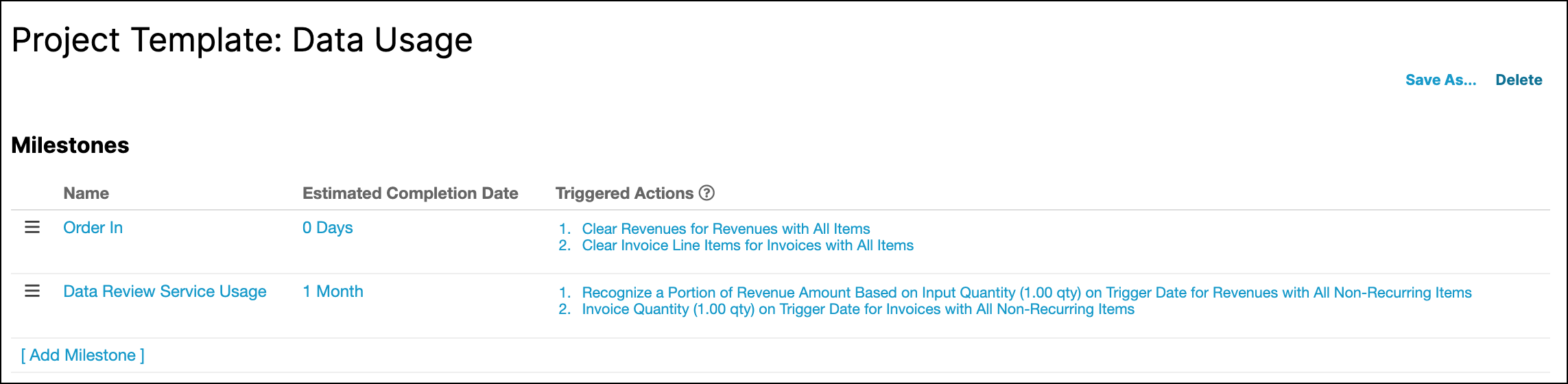
You create a Project Template as follows:
-
Milestone: Order In
- Triggered Action: Clear Revenues for Revenues with All Items
- Triggered Action: Clear Invoice Line Items for Invoices with All Items
-
Milestone: Data Review Service Usage
- Triggered Action: Recognize a Portion of Revenue Amount Based on Input Quantity (1.00 qty) on Trigger Date for Revenues with All Non-Recurring Items
- Triggered Action: Invoice Quantity (1.00 qty) on Trigger Date for Invoices with All Non-Recurring Items
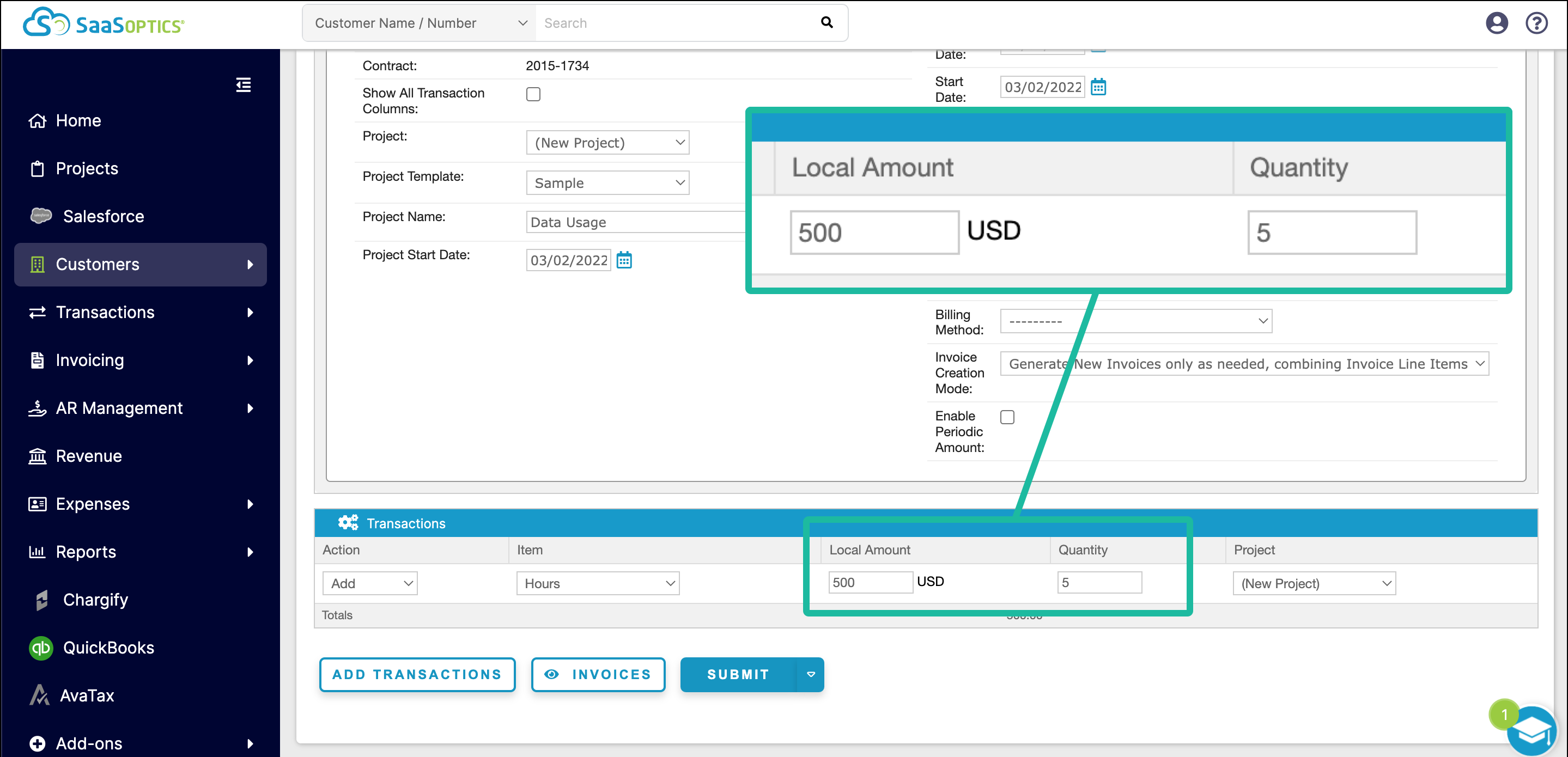
When you create a Transaction that uses this Template, enter the total Local Amount and the Quantity of hours being purchased.
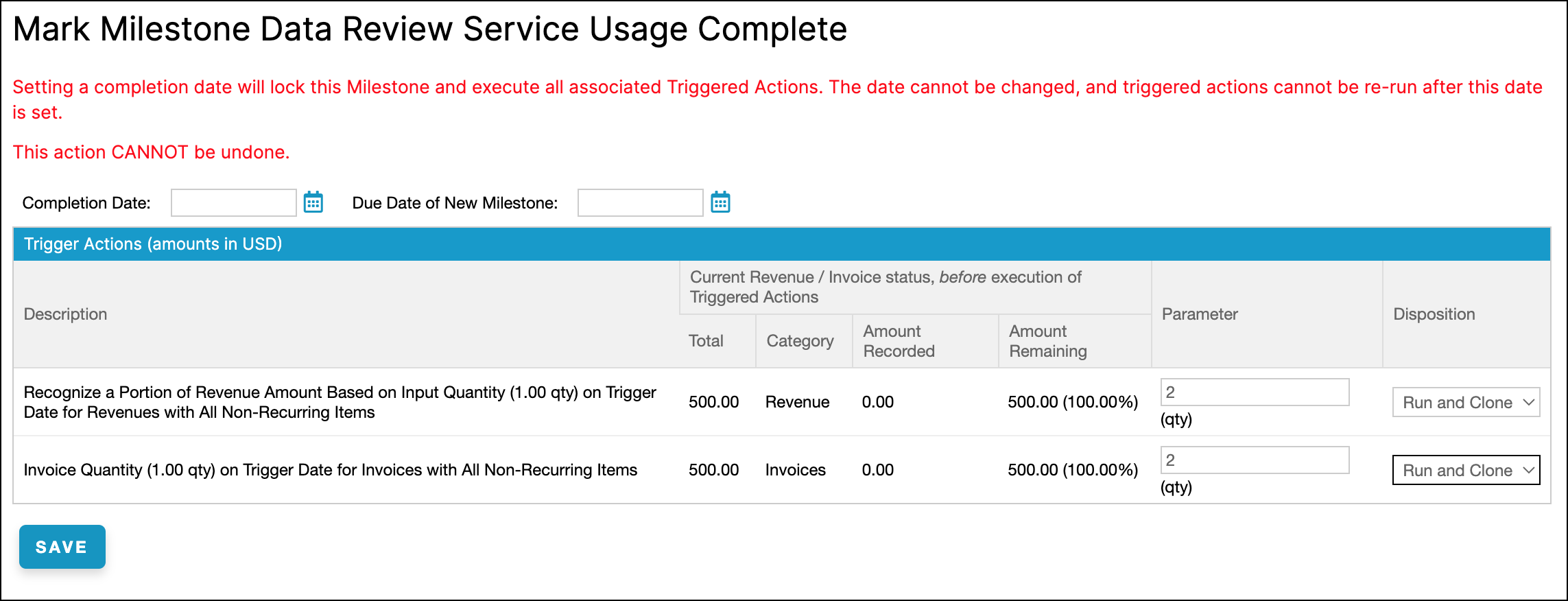
When some hours have been used, navigate to the Milestone, choose Mark Complete, enter the number of hours used next to each Triggered Action, choose a Disposition of Run and Clone, then click Save.
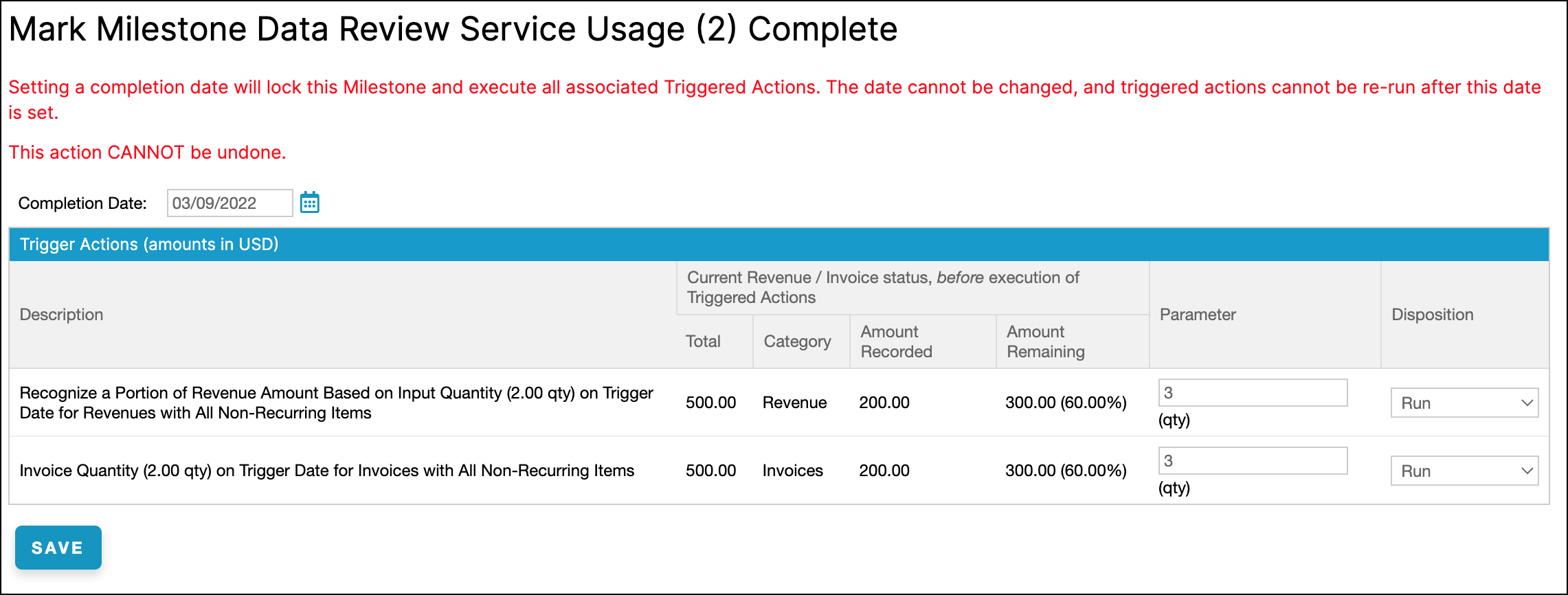
When more hours have been used, navigate to the new (cloned) Milestone and repeat the previous step until all hours have been used. For the final hour(s), choose a Disposition of Run instead of Run and Clone, so no further Milestone is cloned. The Project is then marked as Closed.
Related information
You can learn more about Projects in Understand Projects.
Still need help?
Reach out and our support team will take it from here.