
Track Projects and Transactions from the Landing Page
Applies to: All Maxio modules
Last updated on Sep 15, 2026
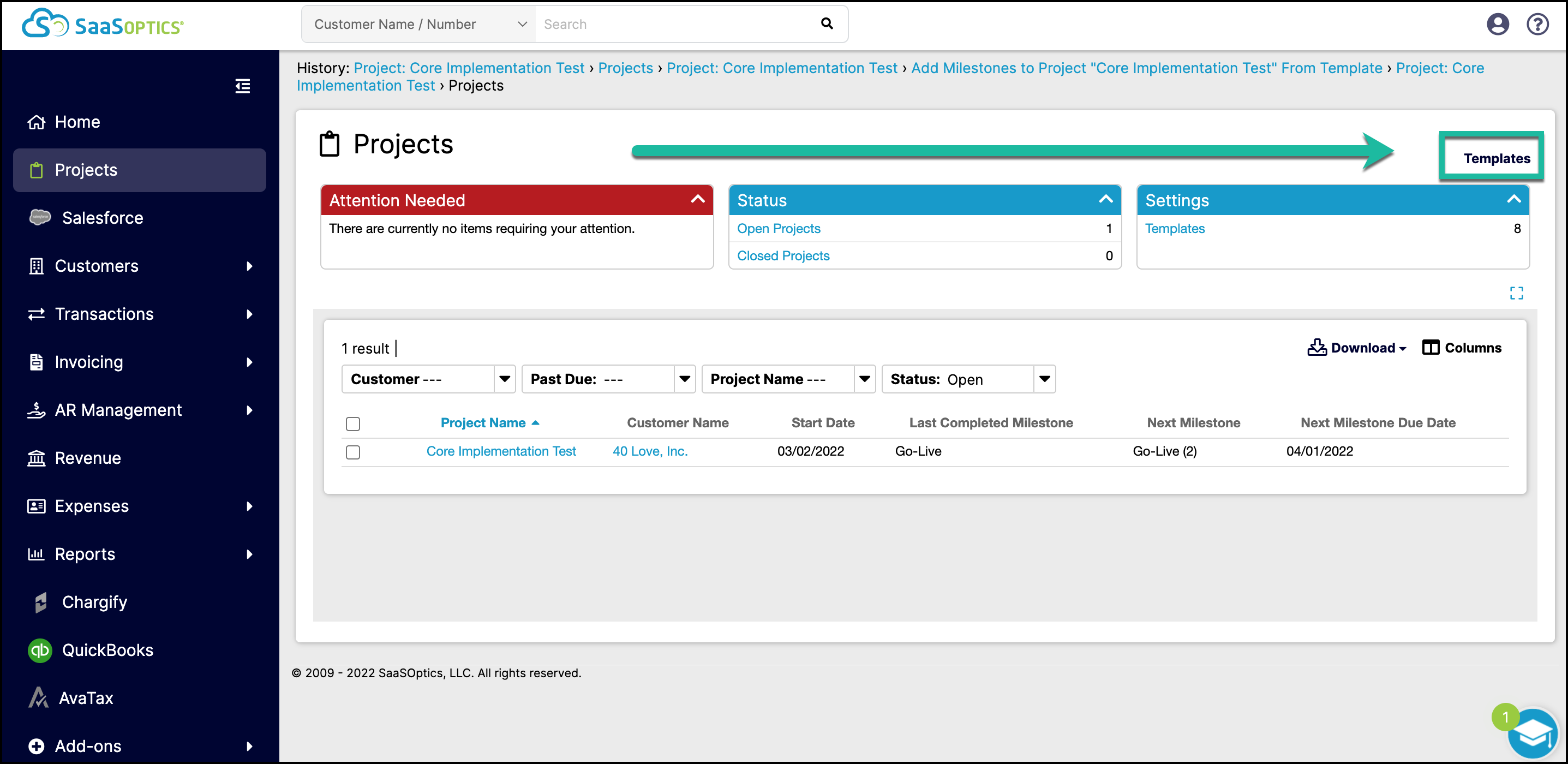
The Projects landing page is your centralized source for keeping track of your Projects and their statuses.
View the Projects landing page
Go to Projects to open the Projects landing page. The Project List contains a filterable list of every Project in your Maxio account; click the name of any Project in the list to navigate to its detailed Project view.
Please be aware that this article is related to Maxio Platform's Projects functionality. Projects in Maxio Platform allow you to gradually build out Contracts for any Sales Orders that have been booked with incomplete or yet-to-be-determined elements.
Find Past Due Milestones and Projects
Within each Milestone is the option to assign a Due Date using an offset number of days, months, or years from the Project Start Date. If a Due Date passes for a Milestone, and that Milestone has not yet been marked complete, that Milestone (and its Project by extension) is considered Past Due. Click the Past Due alert in the Attention Needed box to view a list of all Projects that have Milestones that are Past Due. In the Project List, Past Due Projects appear with a warning icon.
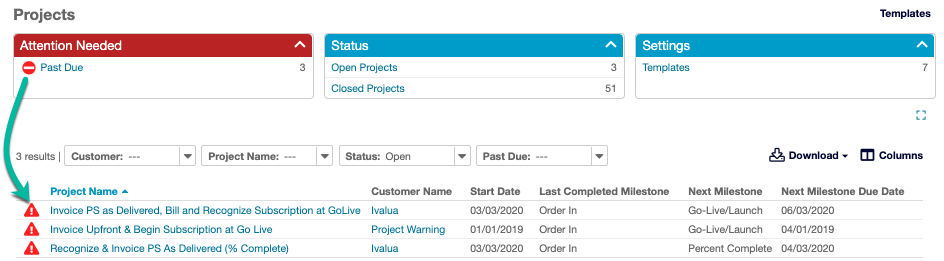
On accounts with Sales Order processing enabled, the Attention Needed box can also show a Subscriptions Awaiting Activation alert, based on the Subscription Activation Threshold set in your Project Settings.
Mark Milestones complete in bulk
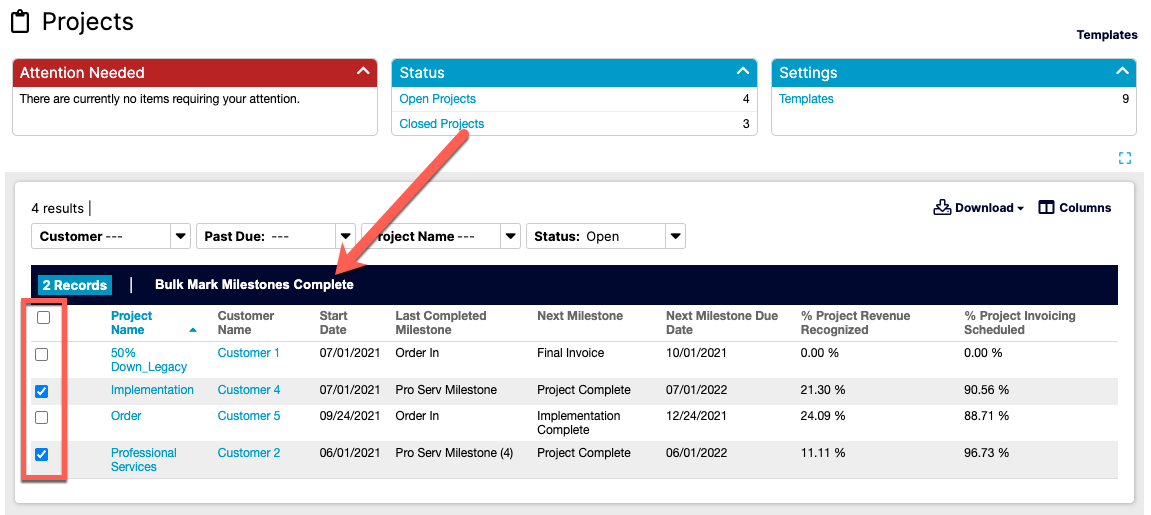
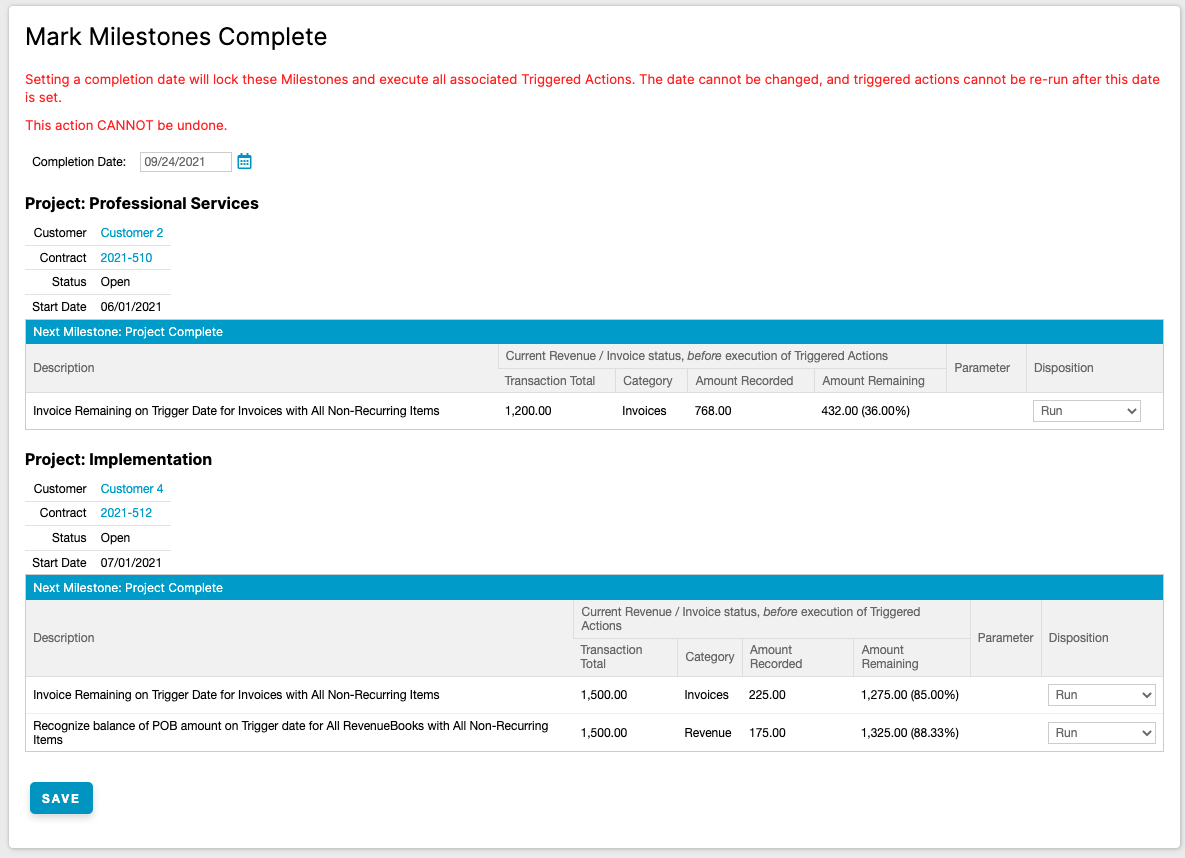
You can mark Milestones complete in bulk across multiple Projects. This saves time when you have multiple Projects with Milestones that share the same Completion Date. Select the Projects you want to mark complete, then select Bulk Mark Milestones Complete; the Completion Date you enter applies across all selected Projects' next Milestone.
WARNING: Setting a Completion Date locks the selected Milestones and executes all of their Triggered Actions. The date can't be changed, and Triggered Actions can't be re-run once the date is set. This action cannot be undone.
Monitor % Revenue Recognized and % Invoicing Scheduled
Easily see how far along you are in recognizing revenue and scheduling invoicing when a Project is in process. This lets you see how your revenue recognition and invoicing are tracking against the total when the Project is complete, at both the Transaction and Project level.
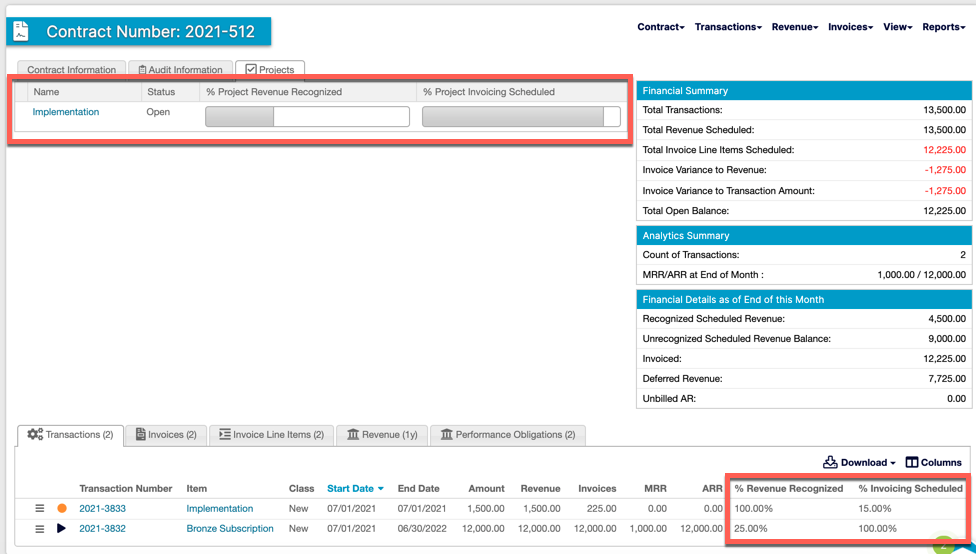
When looking at an individual Transaction, the % Revenue Recognized is calculated based on the amount of revenue recognized through the end of the current month divided by the total revenue to be recognized. The % Invoicing Scheduled is calculated based on the amount of invoicing that has been scheduled, including future invoices, divided by the total amount to be invoiced.
When looking at a Project, the % Project Revenue Scheduled and % Project Invoicing Scheduled are calculated based on the sum of all Transactions included in the Project. These percentages can be seen as a progress bar on the Projects tab on the Customer or Contract level, as well as on the Projects list.
On the Projects list, the % Project Revenue Scheduled and % Project Invoicing Scheduled columns are sortable, just like the other columns in the list. Click either column heading to sort the list ascending or descending by that percentage, which makes it easy to find the Projects with the highest or lowest scheduled revenue or invoicing percentage without scrolling through the whole list.
Track and filter by Project status
When every Milestone of a Project has been marked complete, the Project is assigned a Status of Closed. All Projects with yet-to-be-completed Milestones are assigned a Status of Open. Click the Open Projects or the Closed Projects alert to view the Project list with the corresponding Status filter applied.
It's possible to re-open a Closed Project. If you add a Milestone to a Closed Project, or otherwise make a change that results in an uncompleted Milestone, the Project is automatically re-opened.
In the Transaction List of the Transactions section, you can filter (and export, if desired) Transactions by the Status of their Projects. In the Transaction List filter, Active Project: Yes indicates that the Transaction is part of an Open Project, and Active Project: No indicates that the Transaction is either part of a Closed Project or not part of any Project at all.
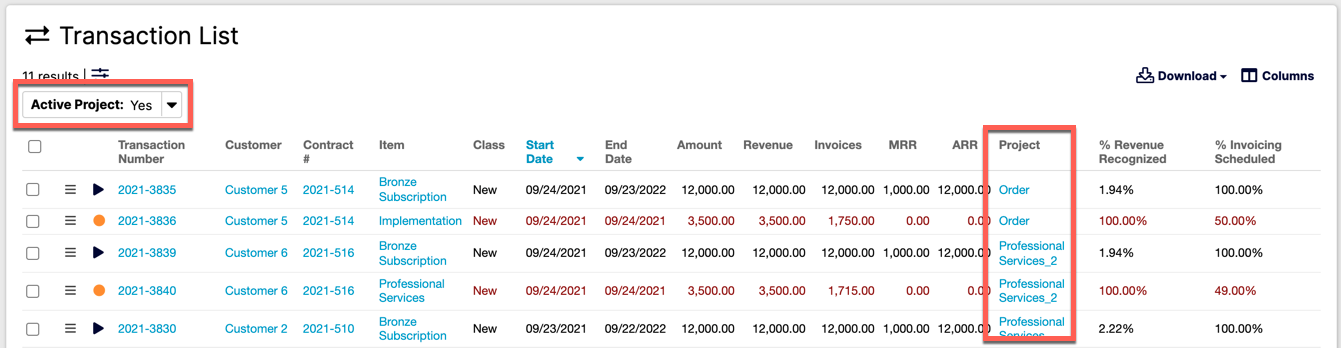
You can also filter Transactions by Project Template, alongside filtering by Project name, so you can group data by standardized workflows like Onboarding or Support. This filter supports multiple selections and applies to exports as well.
Access Project Templates from Settings
In your Projects Settings, there's a clickable link to, and count of, your Templates. To edit, create, or view a Template, click Templates.
Related information
You can learn more about Projects in Understand Projects.
Still need help?
Reach out and our support team will take it from here.