
Set Up AvaTax in Maxio Invoicing Suite
Applies to: Advanced Billing
Last updated on Sep 19, 2026
Connect your own Avalara account to Advanced Billing, choose whether to post documents back to Avalara, and update your connection later if your credentials or company change.
Before you start
Review the prerequisites and limitations in Avalara AvaTax Integration Overview before connecting AvaTax.
- An Avalara account ID and license key.
- The Setup user role in Advanced Billing. Connecting AvaTax doesn't require Maxio Support to enable anything first.
Find your AvaTax credentials
If you receive the error message "Invalid credentials" with a recently generated license key, wait 5 minutes and try again. When generating a license key within Avalara, it may take up to 5 minutes for the key to become available for use.
To connect to Avalara, you need your account ID and license key. Refer to Avalara's own FAQ for finding your account ID and license key.
Connect your Avalara account
Connecting AvaTax is a one-time setup that links your Avalara account, selects the Avalara company to connect, and sets your tax origin address.
To connect your Avalara account
-
Go to Config > Taxes in the navigation panel.
-
Find the Link My Avalara Account panel and click Get Started.
-
Enter your Avalara account ID and license key, then click Validate Avalara Account. This validates your credentials against Avalara before you continue.
-
A modal appears listing your Avalara companies once your credentials are valid. Select the company you want to connect with in Advanced Billing. The top of the modal shows whether your Avalara account is in production or sandbox mode.
-
To commit transactions to Avalara, select the Post documents to Avalara checkbox. You can change this later, in Post documents to Avalara.
WARNING: Avalara charges more once documents start posting, so enabling this may increase your Avalara bill. Advanced Billing shows a confirmation prompt when you check this box for exactly this reason.
-
(Relationship Invoicing only) If you select Post documents to Avalara, also choose an Accounting Method: Cash Basis posts open invoices to Avalara as Uncommitted, and defers the commit call to Avalara until the invoice is paid. Accrual Basis posts them as Committed at the time the invoice is issued.
-
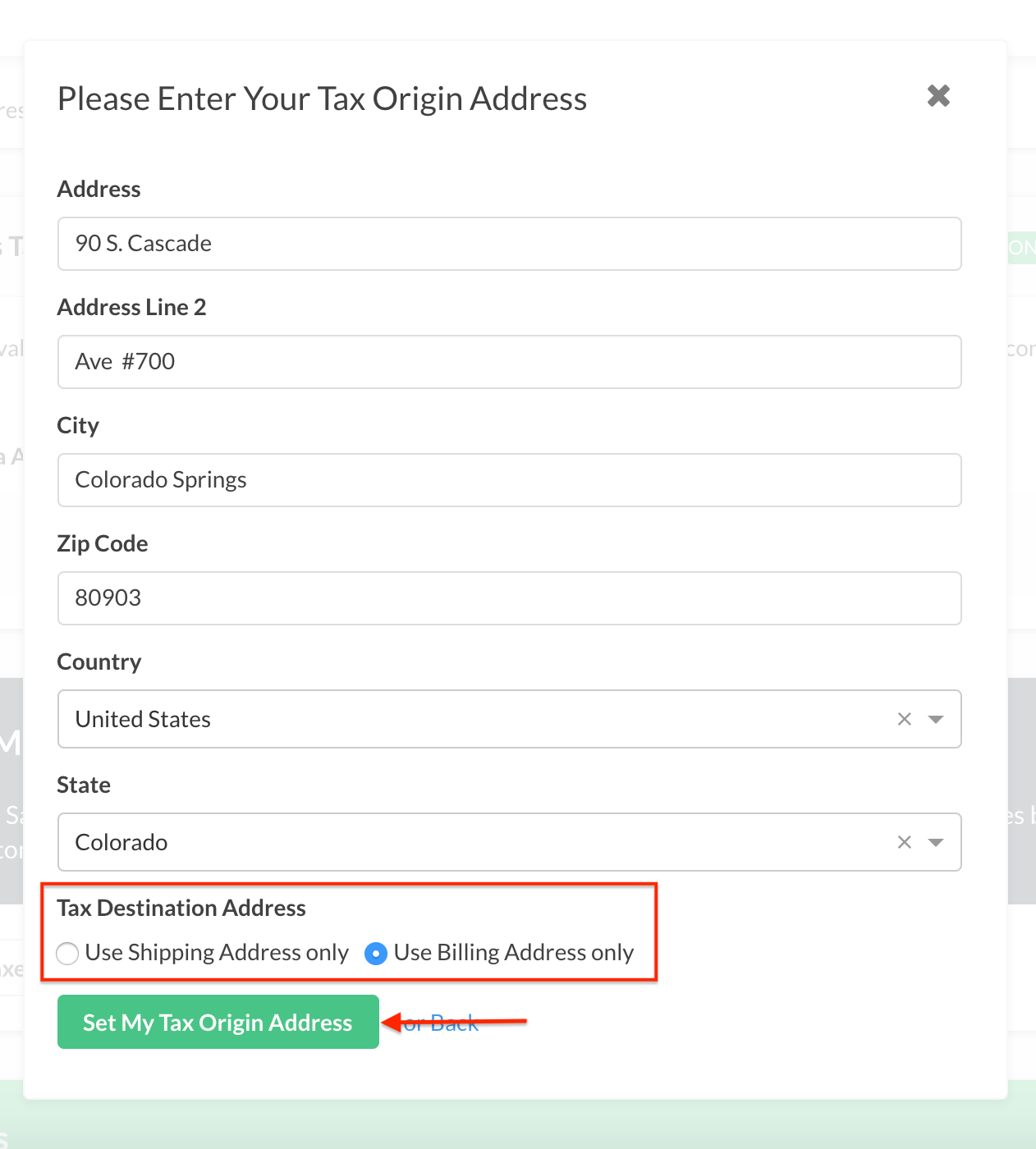
If you haven't set up a Tax Origin Address yet, provide your business's address. If you have, validate it. Avalara needs a full address on file to calculate the correct tax rates.
-
Select a tax destination address preference. To learn more, see Avalara tax settings.
-
After filling out the form, click Set My Tax Origin Address to save your changes.
Post documents to Avalara
-
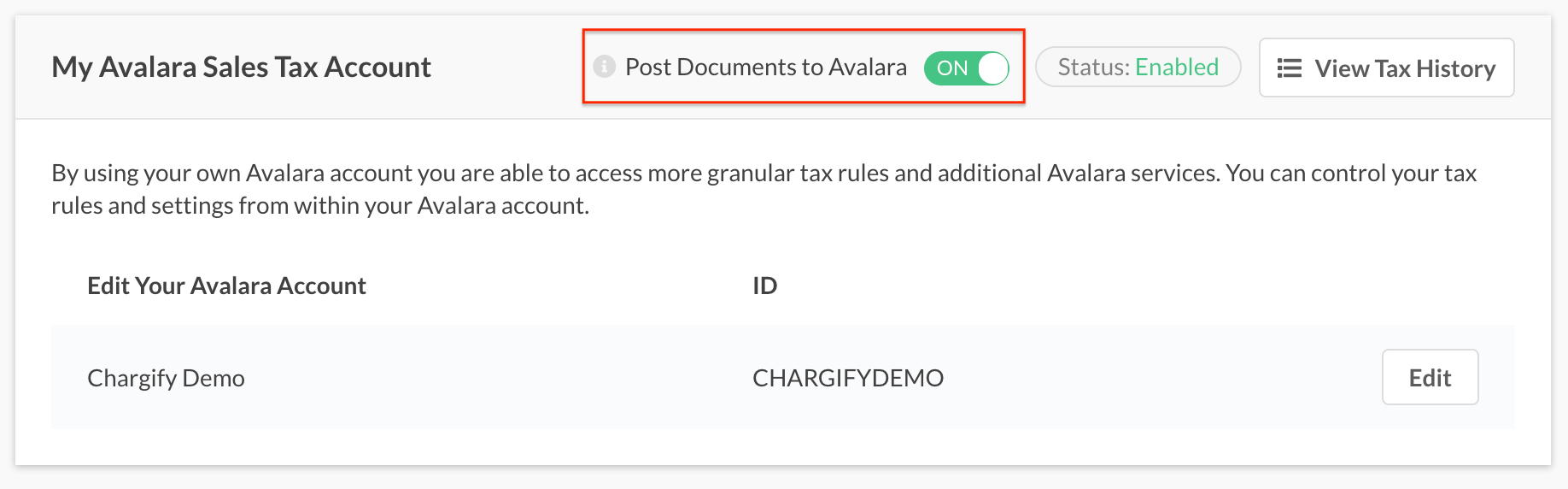
Enabled: enables tax document submission to Avalara's AvaTax service for record keeping. With this setting enabled, transactions are posted and committed to the AvaTax Admin Console, giving you access to reporting, tax filing, and other services from Avalara. Invoices for zero (or fully discounted) amounts are not posted.
The documents that sync to Avalara include open/unpaid and nontaxable invoices, as well as refunds. For subscribers that are in a group, only segment/child invoices sync, not the corresponding consolidated invoice.
-
Disabled: Advanced Billing sends only tax calculations to Avalara. No transactions are saved in Avalara.
Change Avalara credentials or company
To change credentials (for example, from sandbox to production), click the Edit button on the connected Avalara panel. You can change account credentials or select another company.
Connecting a different tax provider (or Custom Taxes) from your Taxes settings replaces your AvaTax connection, since a site can only have one active tax provider at a time. There's no separate disconnect step for AvaTax itself.
Still need help?
Reach out and our support team will take it from here.