
Loading article…
Loading article…
Last updated on Aug 28, 2026
Maxio Core doesn't calculate Sphere tax on its own. A Contract's invoice gets Sphere-calculated tax only when Maxio Core is connected to an Advanced Billing site that has Sphere set up, and the Contract's item and customer are synced to that site. Use a taxed contract to confirm this connection produces the correct tax before you bill it.
Confirm that the connected Advanced Billing site's Sphere setup and required tax calculation data are complete before creating a taxed contract. Missing addresses, taxability settings, sync links, or credentials can prevent tax from calculating correctly.
The item catalog controls which items are taxable. Sphere requires the item to be synced to its Advanced Billing counterpart, so review the catalog before creating the contract so Sphere receives the correct line item details.
The customer record must be synced to Advanced Billing and include the address required by the connected site's Tax Destination Address setting. Sphere uses the synced customer's destination address to calculate applicable sales tax.
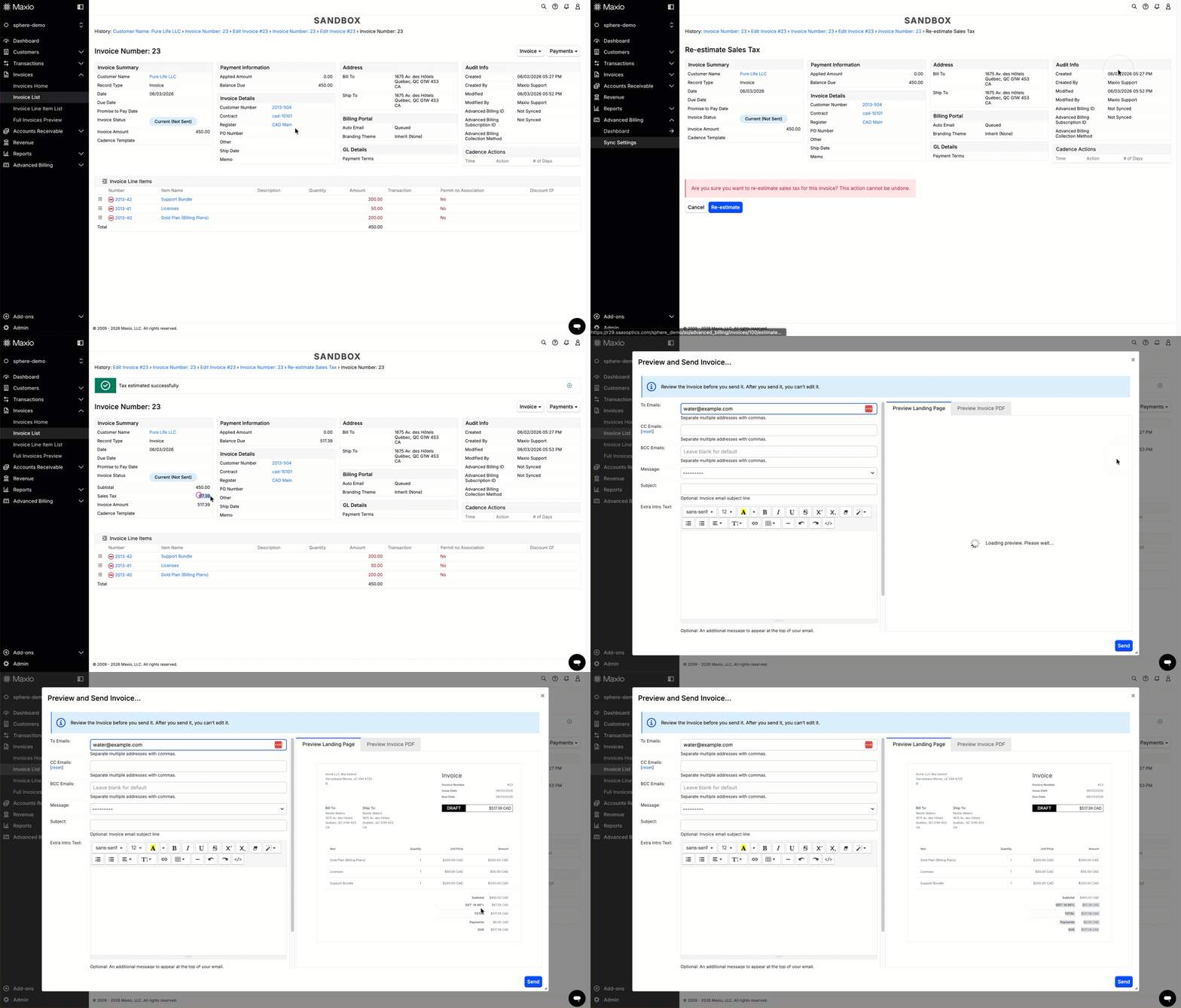
After the item and customer record are ready, add taxable items to the contract invoice. Previewing or issuing the invoice sends it to the connected Advanced Billing site, where Sphere calculates the tax; Maxio Core stores the returned amount on the invoice's line items.
Add taxable items to the contract invoice.
Preview the invoice to confirm tax is calculated before billing.
Complete sending and issuance of the invoice when the tax amount looks correct.
Test the full Sphere workflow in Sandbox before using a Production key. This helps confirm tax amounts, jurisdiction details, exemptions, and Sphere metadata before live invoices are created.
Once validated, switch the connected Advanced Billing site to the Live API key for your production site.
Still need help?
Reach out and our support team will take it from here.