
Configure Taxable Products and Items
Applies to: Advanced Billing
Last updated on Sep 3, 2026
Catalog Terminology
We’re transitioning the terminology used in the Maxio Product Catalog. If you’re using the new experience, you’ll see updated naming in the application—Products are now Plans, and Components are now Products.
Our documentation is still being updated, so you may see previous terminology (especially in screenshots); refer to these definitions for the most accurate interpretation.
When you are configuring taxes on your Products and Components, there are a few key areas to cover. Taxable product settings define how taxes are applied based on billing or shipping address rules, product tax types, and component-level tax settings. Proper configuration ensures accurate tax calculation across digital services, physical goods, and usage components.
Tax settings
Inspect the Tax Destination Address setting. By default, taxes are calculated using the customer's shipping address if available. Clicking Edit exposes a few more options, which define how you configure your Products:
| Option | Description |
|---|---|
| Use Shipping Address if provided, otherwise use Billing Address | If you select this option, you must enable Require Shipping Address or Require Billing Address. |
| Use Billing Address if provided, otherwise use Shipping Address | If you select this option, you must enable Require Billing Address or Require Shipping Address. |
| Use Shipping Address only | If you select this option, you must enable Require Shipping Address. If a shipping address is not provided, no taxes are collected. If only a billing address is provided, no taxes are collected either. |
| Use Billing Address only | If you select this option, you must enable Require Billing Address. If a billing address is not provided, no taxes are collected. If only a shipping address is provided, no taxes are collected either. |
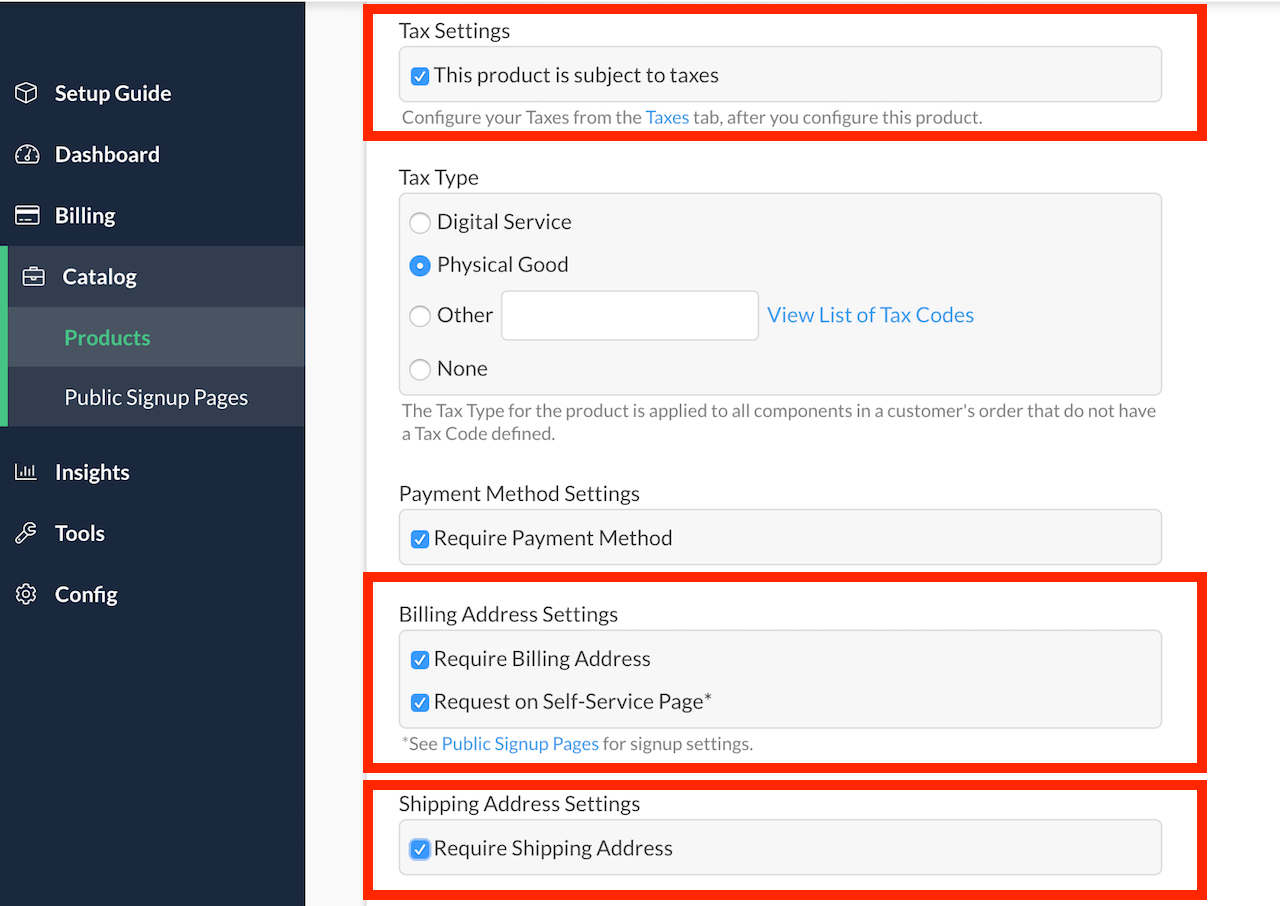
Tax type
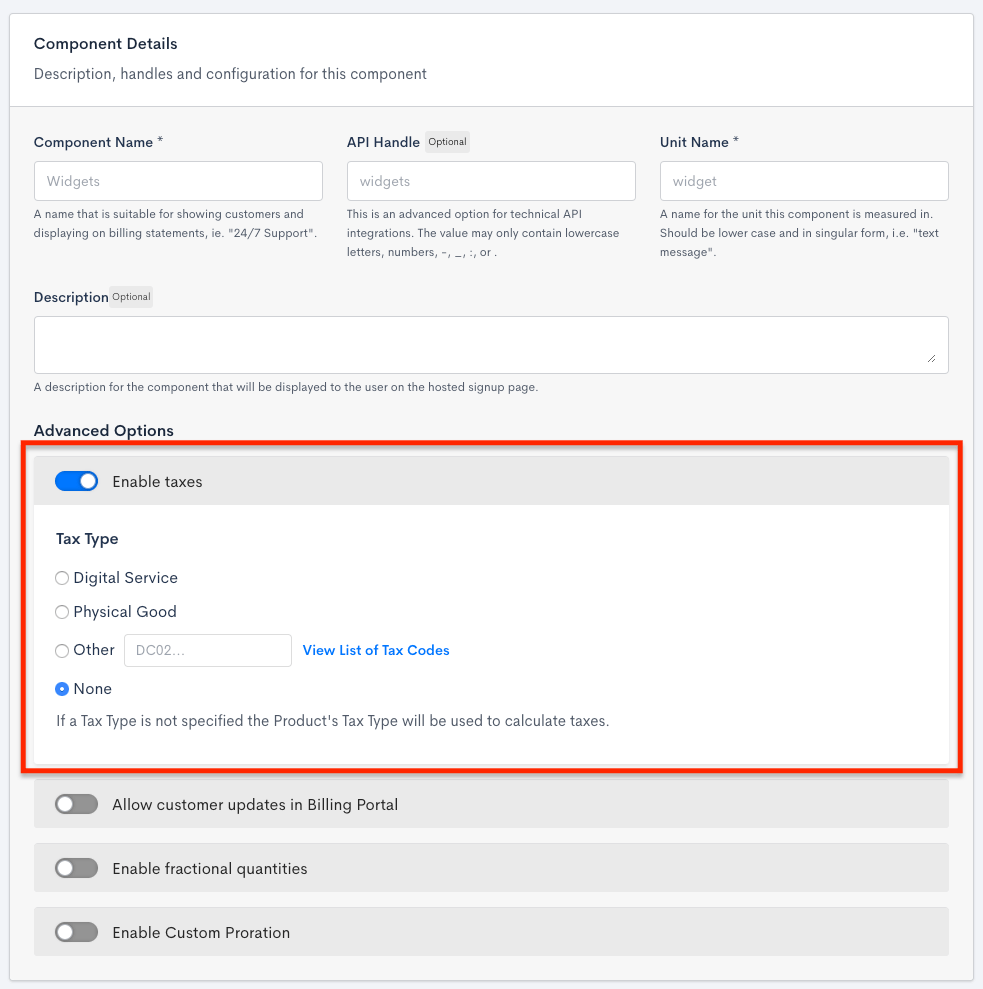
Each Product and Component also has its own Tax Type setting, which several supported tax services use to apply the correct tax treatment. Choose Digital Service, Physical Good, or Other (with a specific tax code), or leave it set to None.
Component example
A Component can set its own Tax Type independently of its parent Product.
Maxio Core
Maxio Core uses Items instead of Products and Components. Go to Admin > Items to create a new Item or open an existing one.
The Taxable setting only appears on the Item form when Invoicing Suite or a QuickBooks integration is connected. Under Integration Settings, set Taxable to Yes so the Item's Invoices calculate tax. If your site also uses the AvaTax integration, this same section is labeled AvaTax instead of Tax Settings, and adds an AvaTax Sales Tax Code field so you can assign a specific tax code to the Item.
If your QuickBooks Online connection has Automated Sales Tax configured, Taxable becomes read-only, since QuickBooks then computes and owns the Item's taxability instead. Taxable stays editable for a QuickBooks Desktop connection, or a QuickBooks Online connection that hasn't configured Automated Sales Tax — QuickBooks isn't managing taxability in either case, and a change you make here is included the next time Items sync to QuickBooks.
Taxable is not the same setting as Is Sales Tax. Is Sales Tax marks an Item as itself representing the sales tax line on an Invoice, and has no effect on whether the Item is taxed.
Related information
To choose which tax calculation method your site uses (custom tax rules, a third-party tax service, or Advanced Billing Managed Sales Tax), see Understand Tax Options.
If you use Custom Taxes, see Configure Custom Taxes to define the tax rules Products and Components with a matching Tax Type use.
For answers to common questions about per-product tax rates and tax code behavior, see Taxes FAQs.
For Maxio Core's own AvaTax integration (address and entity-use-code sync, invoice tax calculation, and validation), see Understand the AvaTax Integration.
Still need help?
Reach out and our support team will take it from here.