
Understand Referrals
Applies to: Advanced Billing
Last updated on Sep 19, 2026
Advanced Billing Referrals let you build a two-way referral program to incentivize your Customers to refer more business. You give the referring Customer a one-time credit, and you give the new Customer a coupon discount. You don't have to offer both.
Important: Referrals are available starting on the Basic plan. On lower plans, the Referrals screen shows an availability notice instead of the settings.
What you configure
Set the referring Customer's credit to an amount greater than $0.00 to issue a credit. To benefit only one party, configure the credit or the discount and leave the other unset. In all, a referral program defines the following:
- The credit for the referring Customer
- The discount for the new Customer
- When to apply the credit, immediately or delayed
- How many times the coupon can be used
- Whether the discount recurs
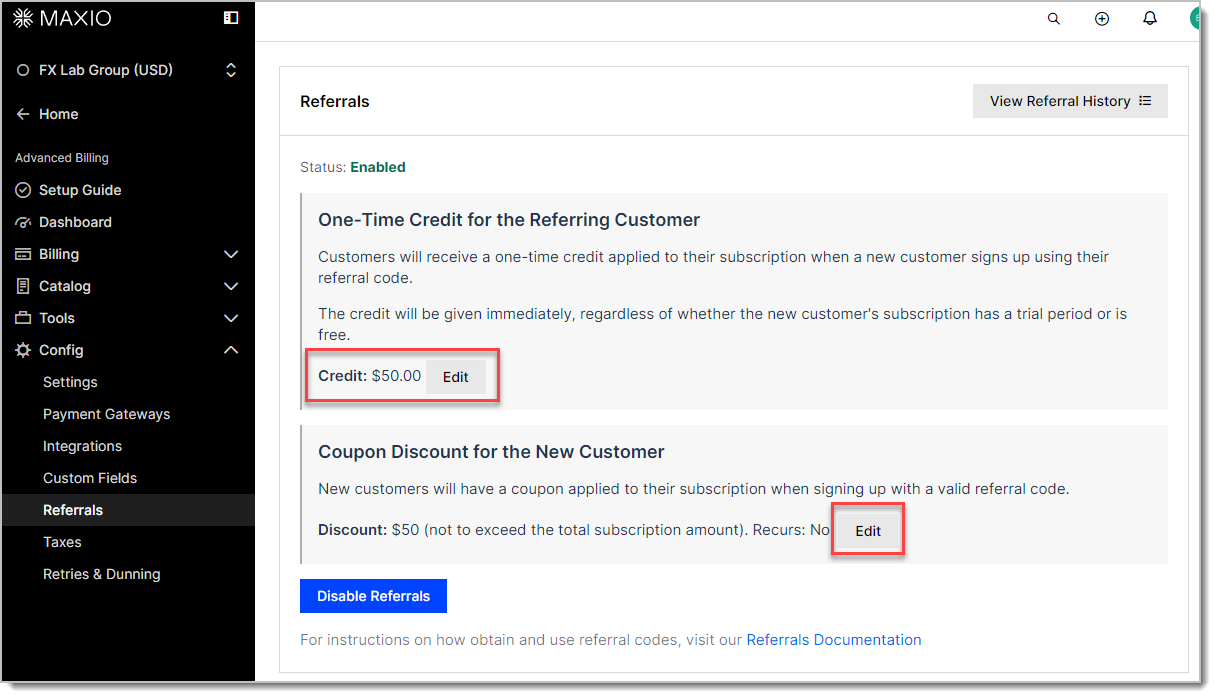
Both settings live on the same screen. Clicking Edit on either the credit or the discount opens that same screen, so you can't configure them separately.
Referral criteria
The referring Subscription must be in the Active state for a referral code to validate. Trialing Subscriptions don't qualify.
WARNING: An invalid referral code, whether passed in the
refparameter or entered in the referral code field, fails validation and prevents the Subscription from being created.
The referring Subscription must also still be active at the moment the credit is applied, not only when the code was validated at signup. If it's no longer active by then, the credit isn't issued.
Configure referral settings
Go to Config > Referrals, then click Edit to open the settings.
One-time credit for the referring Customer
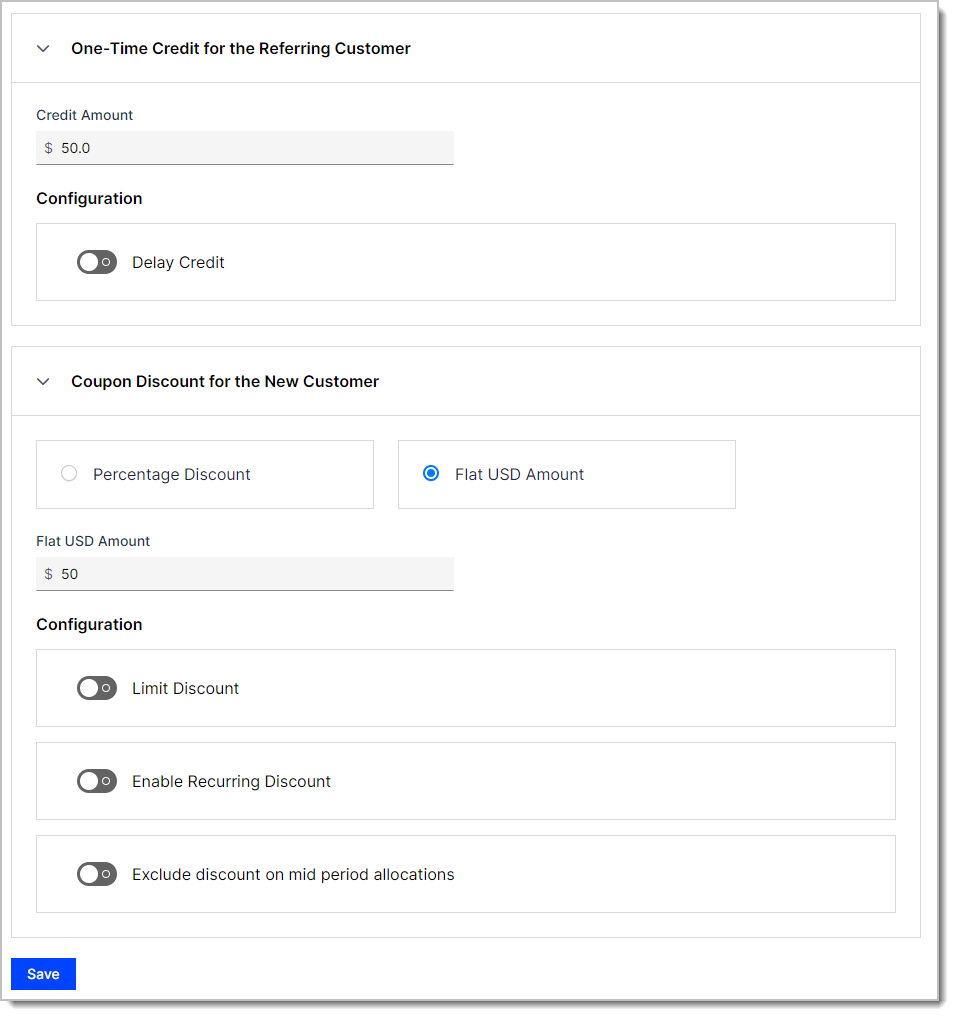
In the One-Time Credit for the Referring Customer section, enter a Credit Amount. The referring Customer receives this as a one-time credit on their Subscription when a new Customer signs up using their referral code.
The credit is applied as an adjustment memoed Referral Discount against the referring Subscription. On sites using invoice-centric billing, Maxio also creates a service credit memoed Referral Credit.
Delay Credit
Delay Credit is a single toggle that controls when the referring Customer is credited:
- Disabled (the default): the credit is applied immediately, even if the new Subscription includes a trial or is free.
- Enabled: the credit waits until the new Subscription is active and has generated revenue.
Delaying the credit means the referred Subscription generates revenue before the referrer is rewarded, which reduces the risk of crediting a referral that never converts.
Even with Delay Credit enabled, the credit can still be issued at signup. If the new Subscription is already active and has generated revenue by the time signup finishes, Maxio applies the credit right away rather than waiting.
Coupon discount for the new Customer
In the Coupon Discount for the New Customer section, choose the discount type:
- Percentage Discount = enter a Percentage
- Flat USD Amount = enter a flat amount
The currency code in the second option follows your site's currency, so it reads Flat USD Amount on a USD site and the equivalent on any other.
This discount works the same way as a standard coupon.
Limit Discount
Limit Discount reveals a Conversion Limit field that caps how many times the referral coupon can be used. If left blank, there's no limit.
The limit applies to each code associated with the coupon, not to the coupon as a whole. A conversion limit of 1 on a coupon with 100 codes means each of those 100 codes can be used exactly once.
Enable Recurring Discount
Enable Recurring Discount controls whether the new Customer's discount applies beyond signup. Leave it disabled to apply the discount only at signup. Enable it to choose one of two options:
- Apply the discount indefinitely applies the discount at signup and at every renewal. This is the default when you enable the toggle.
- Apply the discount initially and for the next: N interval renewals applies the discount at signup and for the number of renewals you select, up to 30.
Exclude discount on mid period allocations
Exclude discount on mid period allocations controls whether the coupon applies to component allocations generated mid-period.
Multi-Currency Pricing Conversion
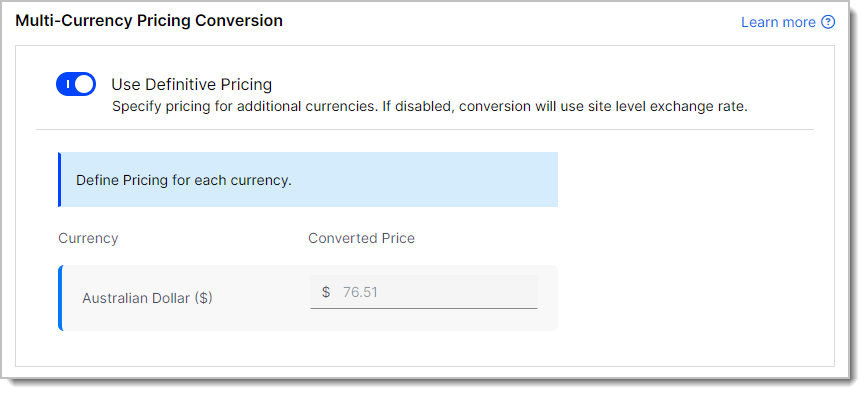
If your site has additional currencies configured, both the referring Customer's credit and an amount-based coupon show a Multi-Currency Pricing Conversion section with a single Use Definitive Pricing toggle.
Enable Use Definitive Pricing to set an explicit converted price per currency, which is useful when you want a rounded amount rather than whatever the conversion produces.
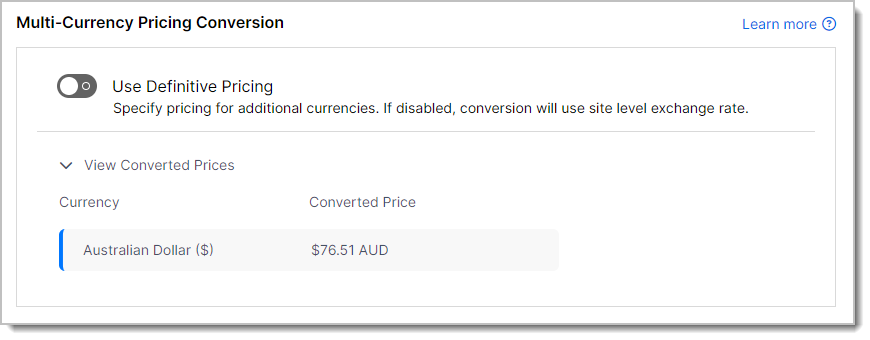
Leave it disabled to convert using the site-level exchange rate, which is the rate set when the currency was added. That's either the Maxio-handled conversion or a specific rate you provided. Expand View Converted Prices to see what those conversions currently are.
Click Save when you're done.
Enable referrals
After saving your settings, go to Config > Referrals and click Enable Referrals. The Status line at the top of the screen reflects the change.
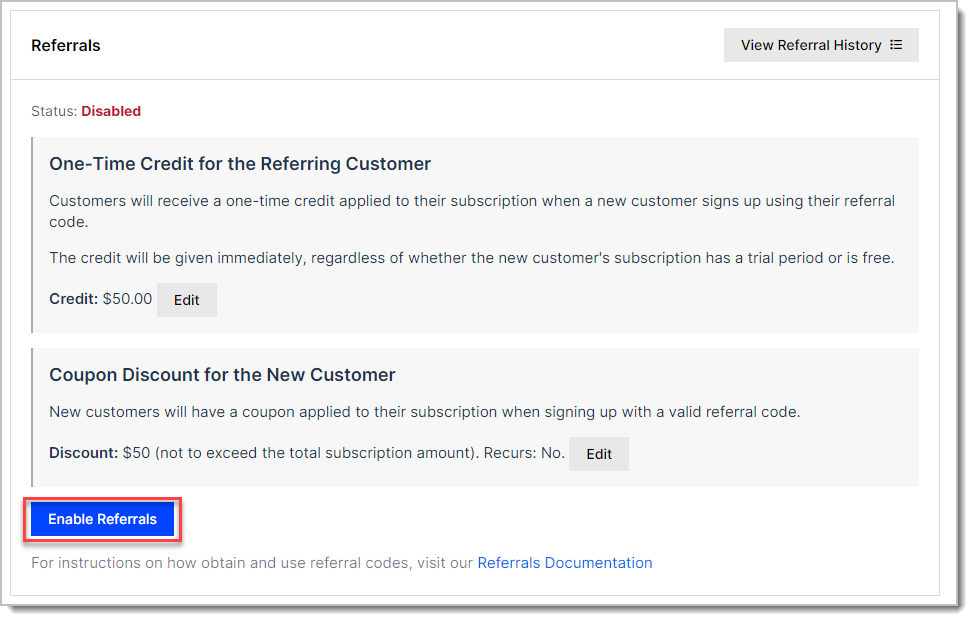
Once referrals are enabled, the same screen offers Disable Referrals instead.
WARNING: Disabling referrals also clears the Display referral field? setting on every Public Signup Page on your site. Re-enabling referrals doesn't restore those settings, so you have to turn the field back on page by page.
To review referrals that have already been made, click View Referral History.
Find a referral code
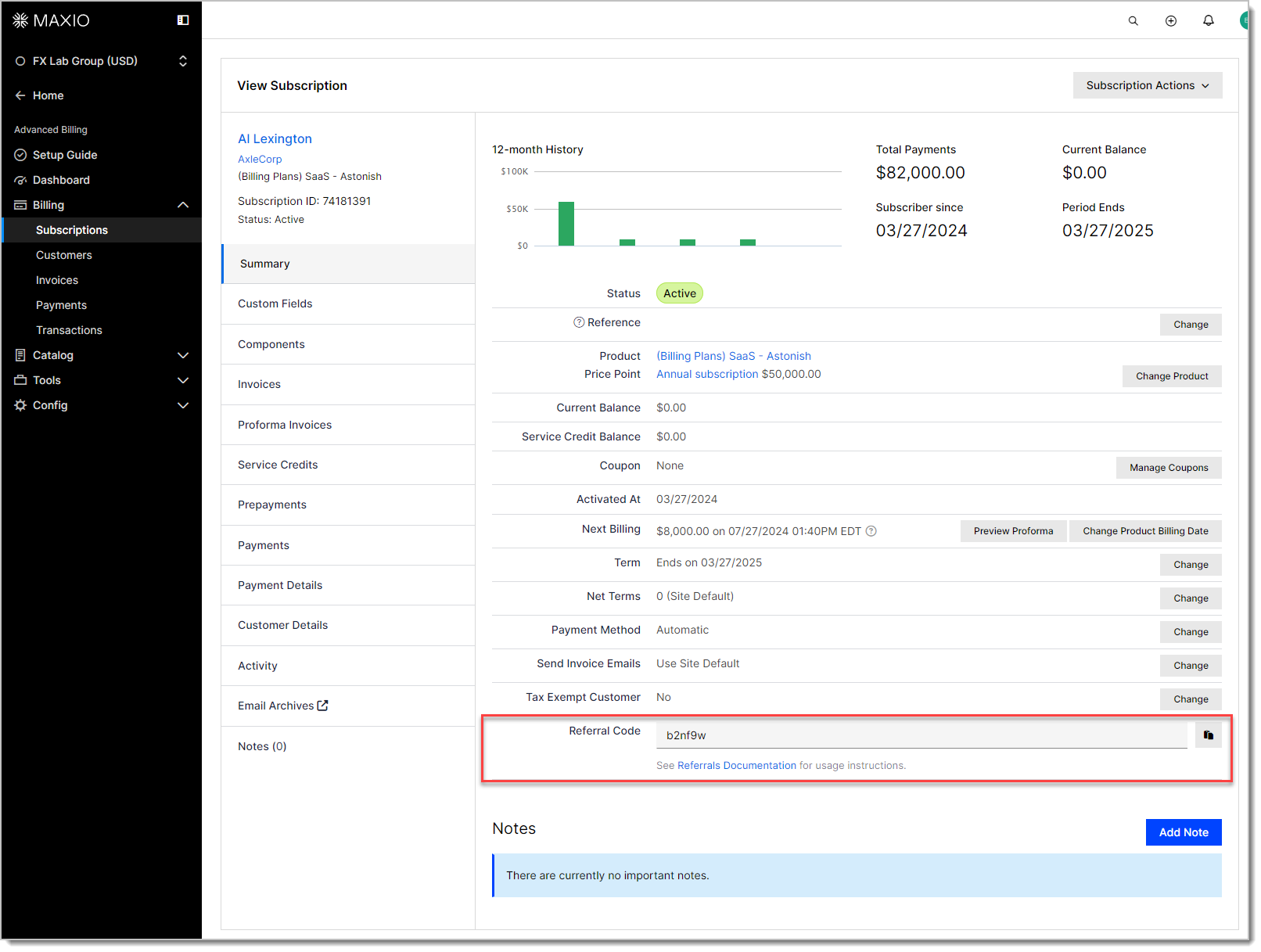
Once referrals are enabled, each Subscription gets a unique referral code. Find it in the Referral Code row on the Summary tab of the View Subscription page, or fetch it from the API.
Use referral codes in email templates
Insert a Subscription's referral code into an email template with the subscription.referral_code field. See Customize Email Templates for how template fields work.
Append the code to a Public Signup Page URL as the ref parameter:
https://<your-site>.billing.maxiopay.com/subscribe/<token>/<product-handle>?ref=<referral-code>
You can also send Customers to your own site first and pass the code to Advanced Billing after they choose a product.
Referral signup flow using the URL parameter
A visitor lands on a Public Signup Page with the referral code in the URL, for example ?ref=35jxzh. The referral code is validated on arrival and the new Customer sees a preview of the discount before completing signup.
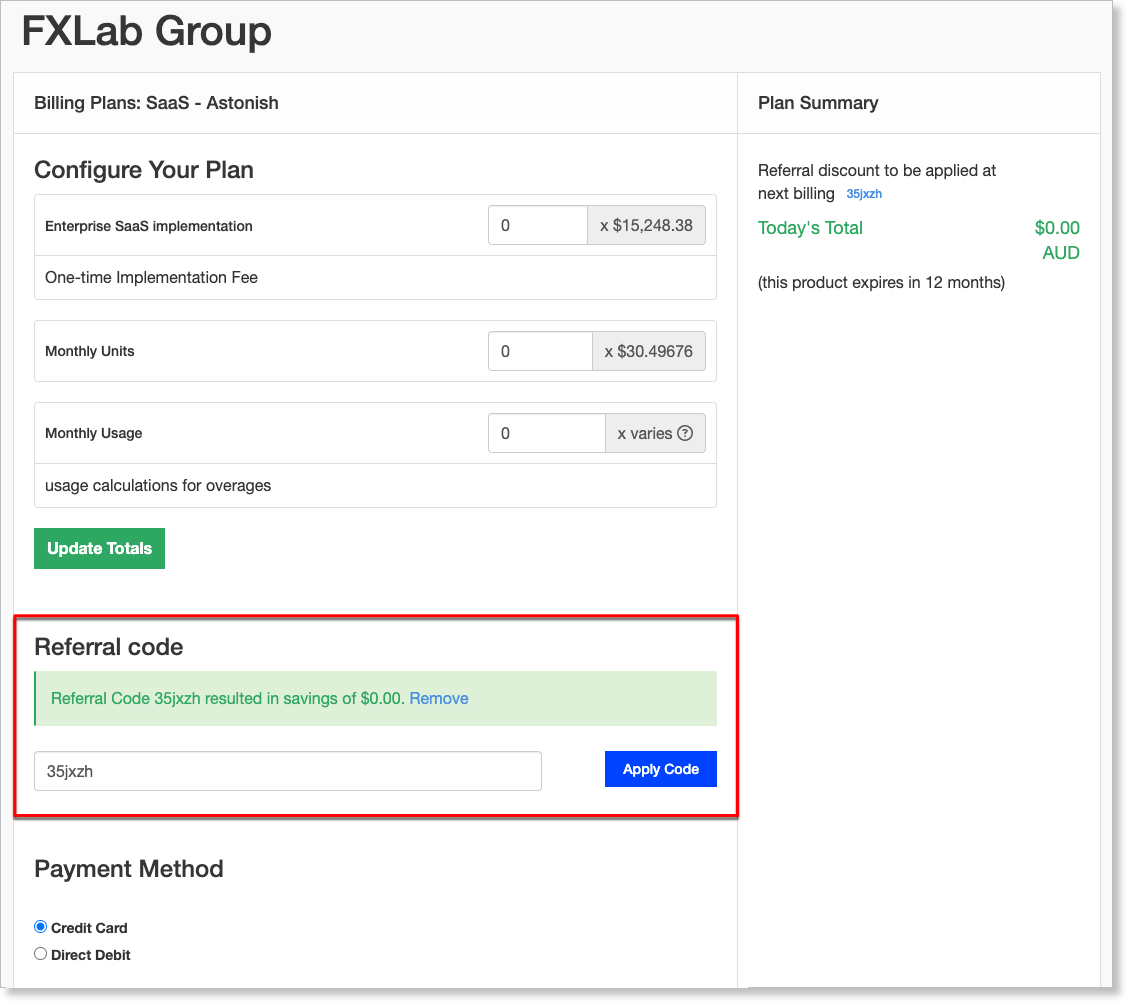
Depending on the product, the preview reads either as a saving applied now or as Referral discount to be applied at next billing, which is what a trialing or delayed-first-charge product shows.
After signup, the discount appears as a Referral discount line on the confirmation page.
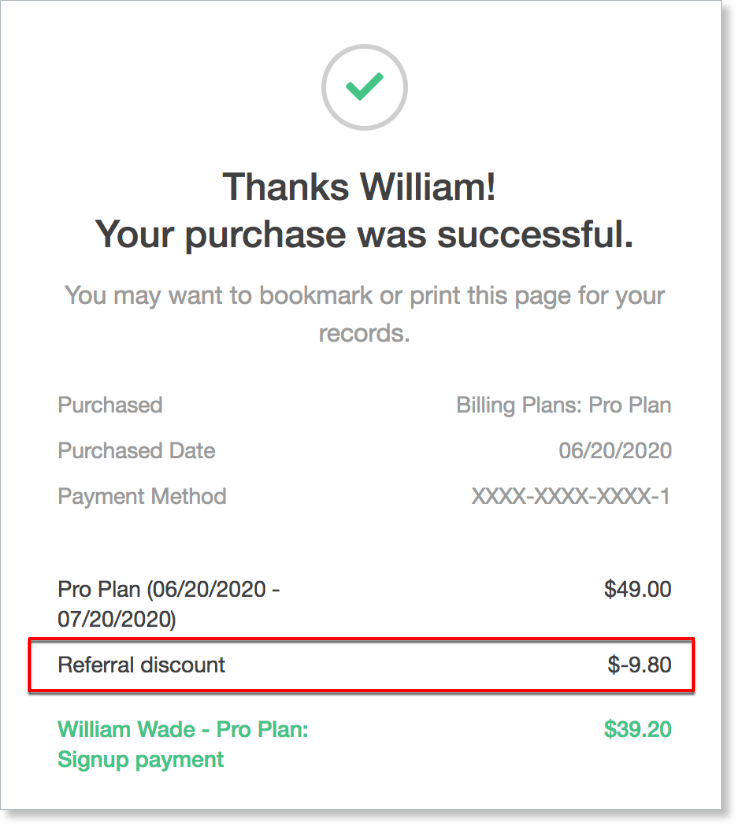
The referring Customer's credit is separate from this discount. If you enabled Delay Credit, that credit appears on the referring Subscription later rather than at signup.
Referral signup flow using the signup form
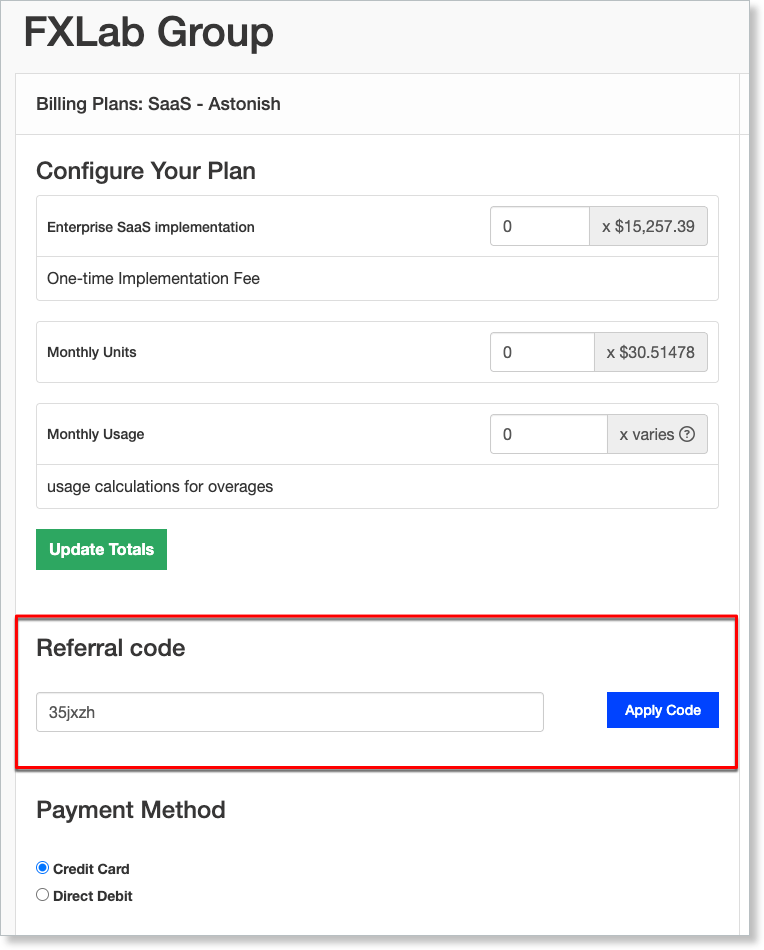
Enable Display referral field? on a Public Signup Page to let visitors enter a referral code themselves. See Individual Page Settings for where that setting lives.
The visitor navigates to the Public Signup Page, enters a referral code, and clicks Apply Code to validate it and see the discount preview. From there, the discount applies exactly as it does in the URL parameter flow.
Important: Only one of referral code or coupon applies to a Subscription. If both are supplied and valid, the referral code takes precedence. When a Public Signup Page displays both coupons and referrals, the two share a single field labeled Coupon or referral code.
Still need help?
Reach out and our support team will take it from here.