
Pre-populate a Public Signup Page via URL Parameters
Applies to: Advanced Billing
Last updated on Sep 19, 2026
When linking to a Public Page, pre-populate certain values by passing them as GET parameters in the URL.
Construct a pre-populated URL
A pre-populated URL is your Public Signup Page URL with a query string of parameter/value pairs appended to it.
To pre-populate a Public Page
- Start with your Public Signup Page URL.
- Add a
?, followed by one or more parameters from Pre-populate customer and billing fields or Pre-populate Products, in the formparameter=value. - Separate multiple parameters with
&. - Percent-encode any special characters in your values; see Encode special characters in your URL below.
- Share the resulting URL with your Customer.
For example:
https://general-goods.chargifypay.com/subscribe/5x8sbq29vgkn/monthly-product?first_name=John&last_name=Doe&email=john.doe@example.com
Pre-populate customer and billing fields
Pass any of the following parameters in your URL to pre-populate the corresponding Customer or Shipping/Contact field.
| Parameter | Description |
|---|---|
first_name | Fills the value for the Customer's "First Name" (fills the value for both Shipping/Contact info and Billing info, unless billing_first_name is provided) |
last_name | Fills the value for the Customer's "Last Name" (fills the value for both Shipping/Contact info and Billing info, unless billing_last_name is provided) |
billing_first_name | Fills the value for the Billing Address's "First Name" field (overrides the value provided by first_name, if any) |
billing_last_name | Fills the value for the Billing Address's "Last Name" field (overrides the value provided by last_name, if any) |
email | Fills the value for the Customer's "Email Address" |
reference | Sets a hidden field to supply a value for the Customer's "Reference" value (the unique identifier you use for the Customer within your own application) |
locale | Sets a hidden field to supply a value for the Customer's "Language Settings"; see Understand Multi-Lingual Invoices for details |
organization | Fills the value for the Customer's "Organization" |
phone | Fills the value for the Customer's "Phone" |
address | Fills the value for the Customer's "Shipping Address 1" |
address_2 | Fills the value for the Customer's "Shipping Address 2" |
city | Fills the value for the Customer's "Shipping City" |
state | Fills the value for the Customer's "Shipping State" |
country | Fills the value for the Customer's "Shipping Country" |
zip | Fills the value for the Customer's "Shipping ZIP Code" |
Customer and shipping fields
The Shipping Country auto-fills based on the Customer's location. Pre-populating a state that doesn't exist in that country doesn't work. Supply the corresponding city too, and we recommend always supplying a country alongside the state and city.
| Parameter | Description |
|---|---|
billing_address | Fills the value for the cardholder's "Billing Address 1" |
billing_address_2 | Fills the value for the cardholder's "Billing Address 2" |
billing_city | Fills the value for the Billing "City" |
billing_state | Fills the value for the cardholder's "Billing State" (if state is supplied, a matching country is required) |
billing_country | Fills the value for the cardholder's "Billing Country" |
billing_zip | Fills the value for the cardholder's "Billing ZIP Code" |
coupon_code | Fills the value for the coupon code to use with the Subscription |
Billing and cardholder fields
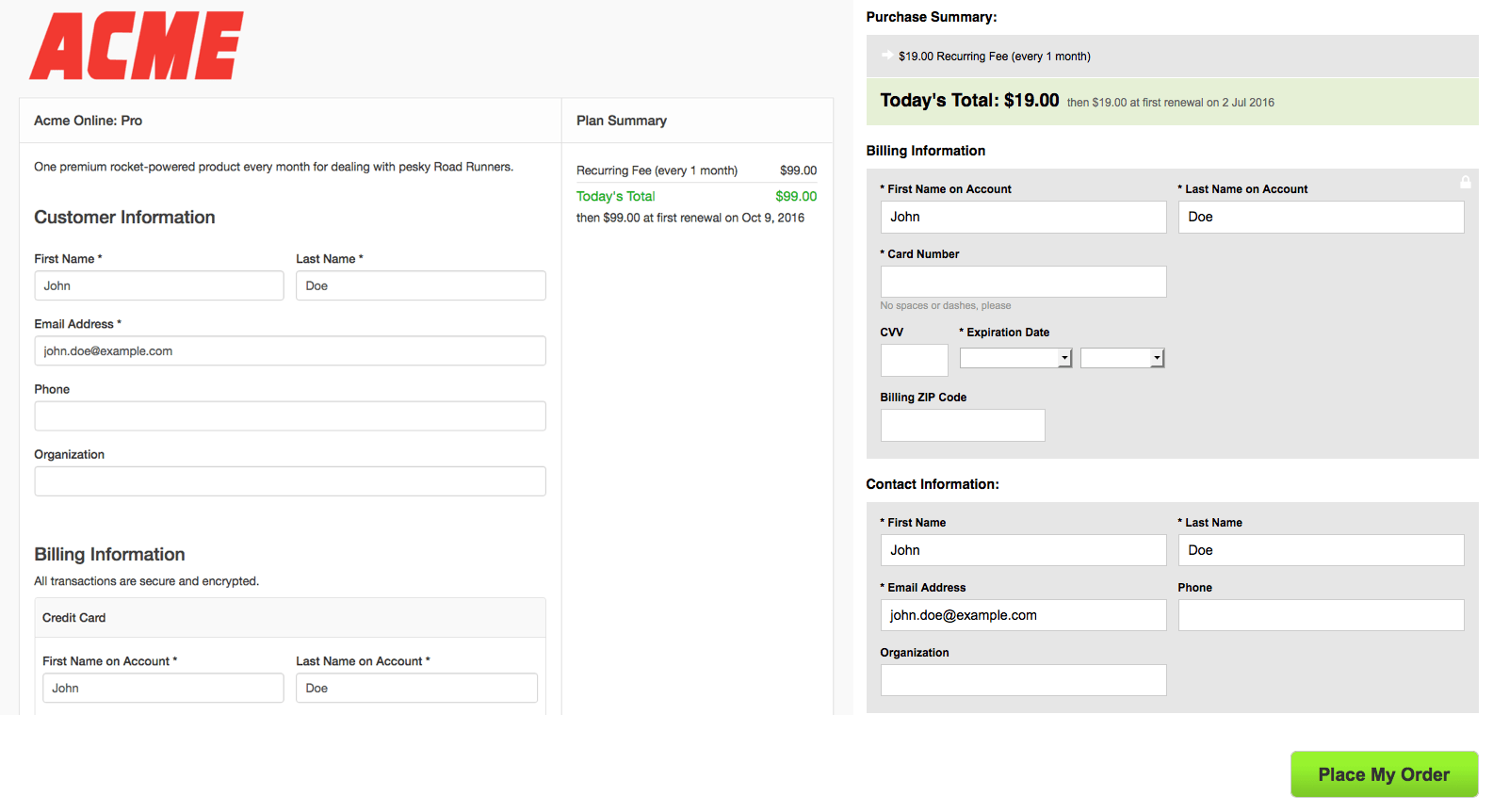
For example, accessing a Public Signup Page URL with the following query string generates the form pre-populated as shown below:
?first_name=John&last_name=Doe&email=john.doe@example.com&reference=1234
Pre-populate a referral code
Include ref in the parameters to specify a referral code. See Understand Referrals for details.
For how these attributes apply to the created Customer and payment profile, see the "Subscription Input Attributes" section of the Subscriptions API documentation.
Encode special characters in your URL
If any value you pass contains a character with special meaning in a URL, percent-encode it. Use the table below as a quick reference for common percent-encoding equivalents.
| Special Character | Encoding |
|---|---|
| ! (exclamation mark) | %21 |
| # (number sign) | %23 |
| $ (dollar sign) | %24 |
| % (percent sign) | %25 |
| & (ampersand) | %26 |
| ' (apostrophe) | %27 |
| ( (left parenthesis) | %28 |
| ) (right parenthesis) | %29 |
| * (asterisk) | %2A |
| + (plus sign) | %2B |
| , (comma) | %2C |
| / (slash) | %2F |
| : (colon) | %3A |
| ; (semicolon) | %3B |
| = (equals sign) | %3D |
| ? (question mark) | %3F |
| @ (at sign) | %40 |
| [ (left bracket) | %5B |
| ] (right bracket) | %5D |
For example, a coupon code of @50%OFF is sent as %4050%25OFF.
Pre-populate products
Pre-populate a Product by passing its numeric Product ID (visible in your Products list) and the desired quantity. The order of the parameters matters for setting the quantity of each Product correctly.
Depending on your site's catalog terminology, your Products list may still display as your Components list.
Pre-populate quantity-based products
Construct your URL like this:
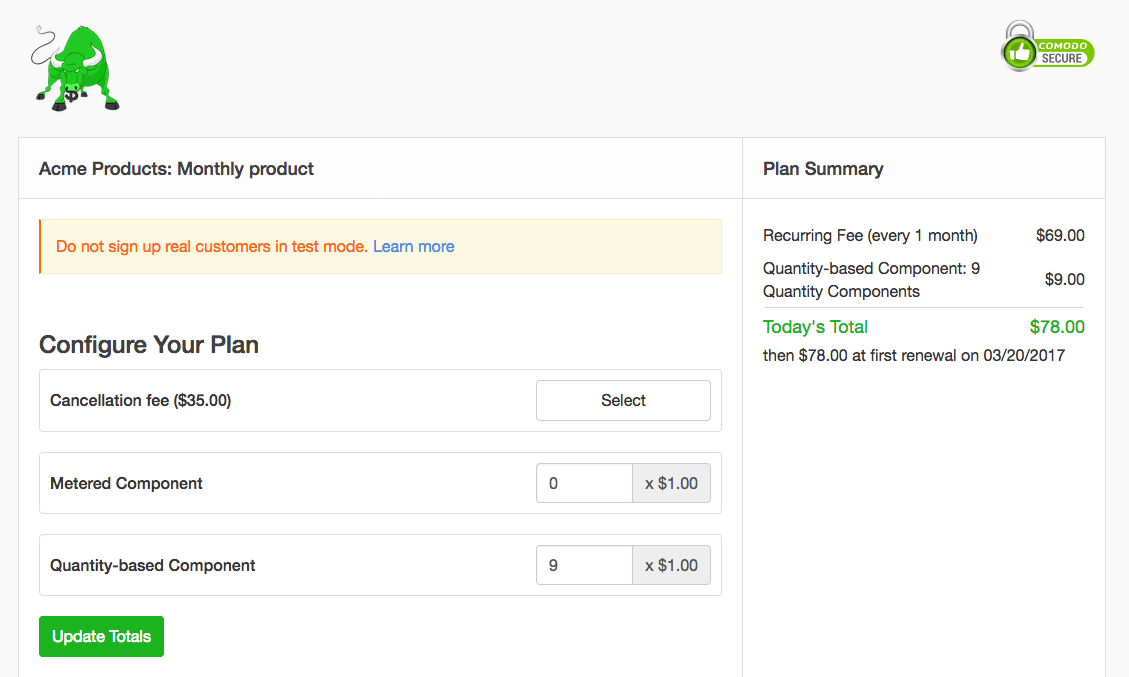
?components[392132][allocated_quantity]=100&components[392135][allocated_quantity]=100
Full example:
https://general-goods.chargifypay.com/subscribe/5x8sbq29vgkn/monthly-product?components[392132][allocated_quantity]=100&components[392135][allocated_quantity]=100
Pre-populate metered products
Construct your URL like this:
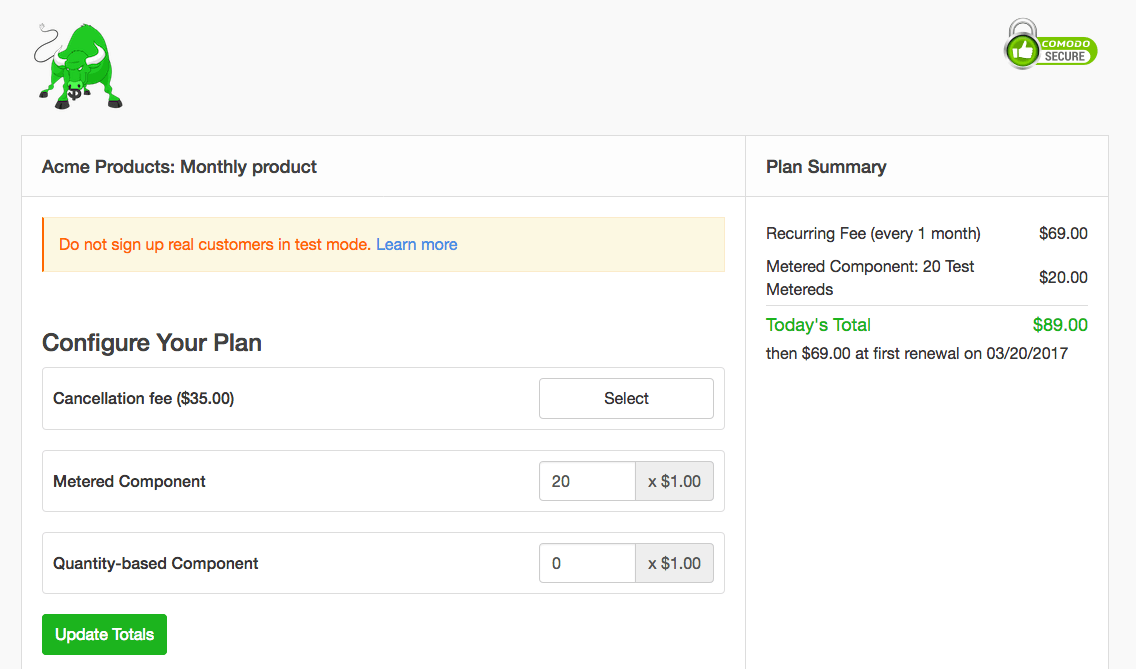
?components[386936][unit_balance]=11000
Full example:
https://general-goods.chargifypay.com/subscribe/5x8sbq29vgkn/monthly-product?components[386936][unit_balance]=11000
Pre-populate on/off products
Construct your URL like this, using 1 for "on" and 0 for "off":
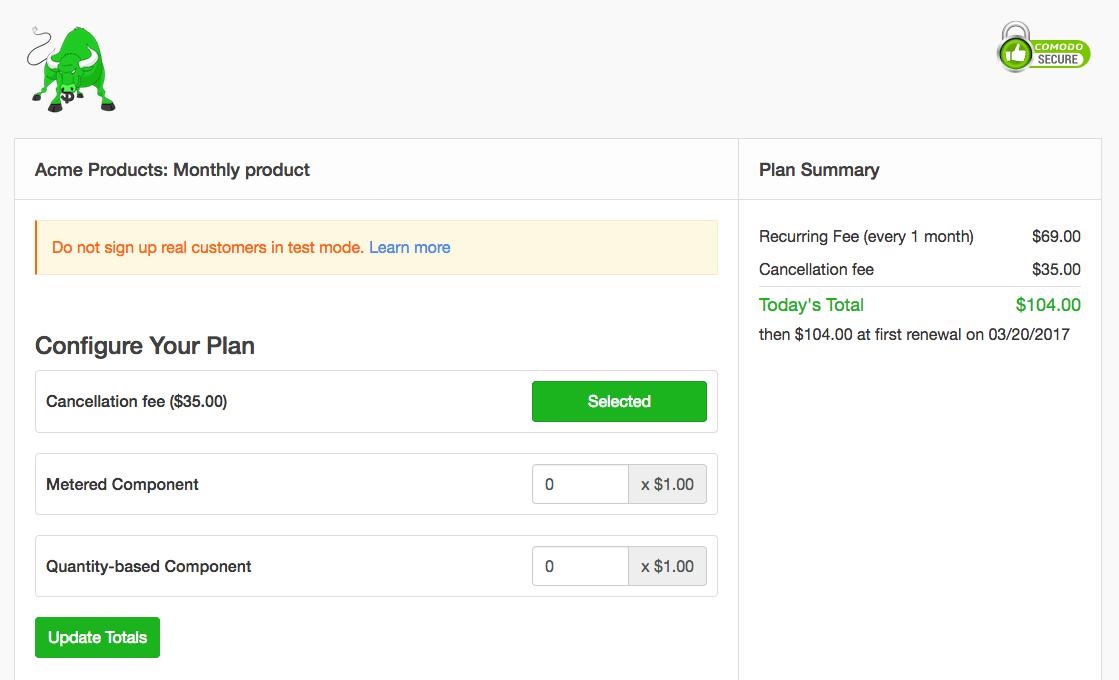
?components[392128][allocated_quantity]=1
Full example:
https://general-goods.chargifypay.com/subscribe/5x8sbq29vgkn/monthly-product?components[392128][allocated_quantity]=1
Use the legacy product syntax
Advanced Billing previously supported a different way of formulating these URLs. Both syntaxes work; the versions above are simpler for most cases.
The legacy syntax:
https://general-goods.chargifypay.com/subscribe/5x8sbq29vgkn/monthly-product?components[][component_id]=375250&components[][allocated_quantity]=9&components[][component_id]=375042&components[][unit_balance]=20&components[][component_id]=375117&components[][allocated_quantity]=1
Delay the first charge
The next_billing_at attribute can't be pre-populated. To delay the first charge, configure a trial period for the Plan, or use Calendar Billing to snap it to a particular day.
Pre-populate custom fields
Custom fields can't be pre-populated using the query parameters above. See Customize a Modern Public Signup Page with JavaScript and CSS for adding your own script to populate a custom field on a Public Signup Page instead.
Related information
See Public Signup Page Settings Reference for every other setting on an individual Public Signup Page.
See Choose Accepted Card Brands for controlling which card brands your Public Pages accept.
Still need help?
Reach out and our support team will take it from here.