
Loading article…
Loading article…
Last updated on Aug 26, 2026
The importing functionality makes data changes based on the CSV file you provide. Therefore, the files must be formatted correctly in order for the import to complete successfully. Take care when editing the file as mistakes can have unintended consequences.
The spreadsheet you create contains the data used to augment the affected objects and corresponding fields during the import. Each row in the CSV represents an object and each column represents a field. For example, if you are performing a customer import, then each row of the CSV represents an individual customer and the columns represent the customers' fields.
The system supports four types of importable field data.
| Field | Description |
|---|---|
| Alphanumeric | A mix of text and/or numbers |
| Number | All number records in your CSV for a single column must use the same format. Do not use currency symbols or separators such as commas and periods. Improper formats:
|
| Date | All date fields must use the same format and match the format selected in your Map. Supported date formats:
|
| Binary | Binary fields can be imported or defined in the map itself. A CSV file accepts True or Yes for a true value, and False or No for a false value. Capitalization does not matter. The import map presents the same values as Yes and No when you select to input a value directly. |
You must have valid data in the CSV for any Maxio required fields when performing an import. You can also generate a CSV template in Maxio by completing the following steps:
Navigate to the page of the object you are importing. For example, open the Customers page if you are importing customers.
Hover over the Download button and select either Export Displayed Columns - Download or Export All Columns - Download. The menu also offers Google Sheets versions of both, which save to a Google Sheet instead of downloading a file.
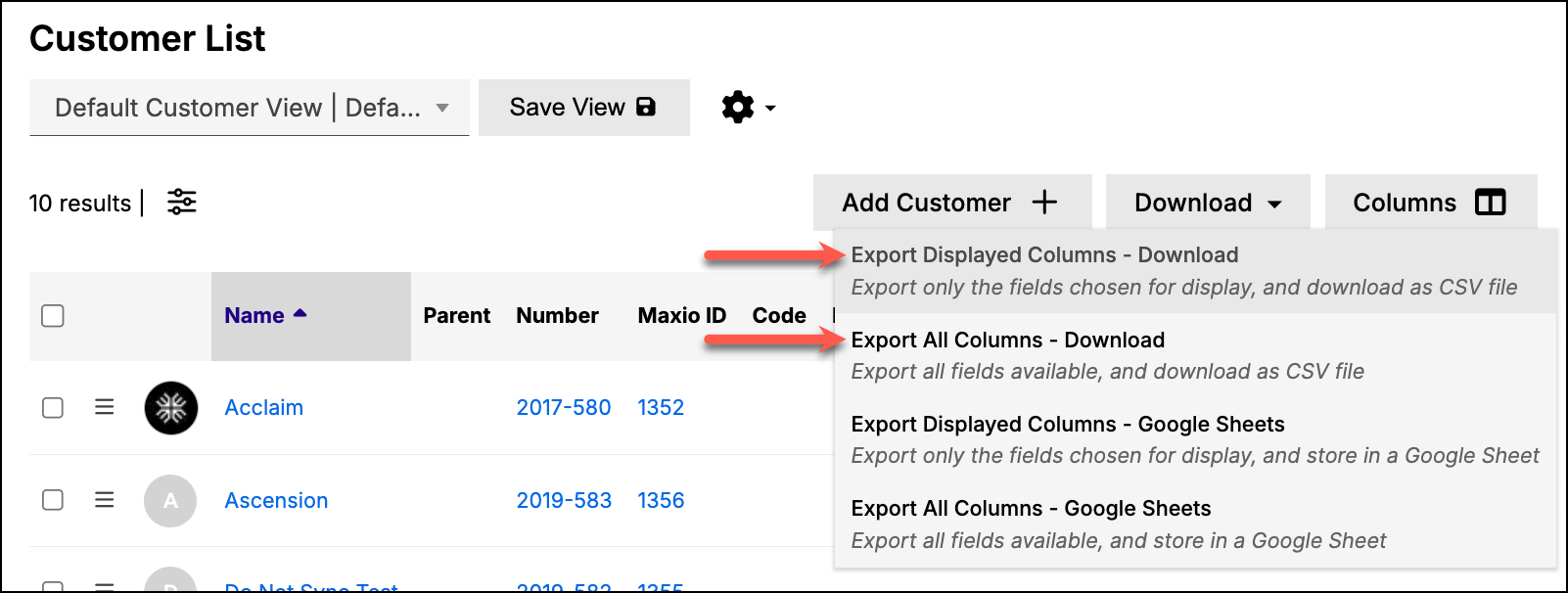
The CSV file then downloads to your computer. Open the file to view the spreadsheet and use it as the basis for a new import file.
The import requires CSV files with the UTF-8 encoding with no BOM. Generating the file correctly requires different steps depending on which spreadsheet software you are using to prepare the data (and on which operating system).
Once the file is in the correct format, it likely requires clean-up to correct any remaining errors. The majority of import issues that users typically experience have to do with improperly formatted CSV files. It is very unlikely that Excel will provide you with a completely correct UTF-8 file due to the various versions of the software running on equally varying versions of Windows and Mac. In order to avoid errors, you need to perform some final clean-up in the file to guarantee it is ready for importing.
You should avoid editing the CSV file further in Excel once you have converted it, so you must perform this clean-up step using a text editor. We recommend Notepad++ on Windows and BBEdit on macOS. You can then check for the following common issues:
Bad Characters: Many text editors contain functionality for removing bad characters. This is important as bad characters may not display in Excel. In the example below, the first row of the import contains a bad character in the Number column. You can see it in the text editor, but not in Excel.
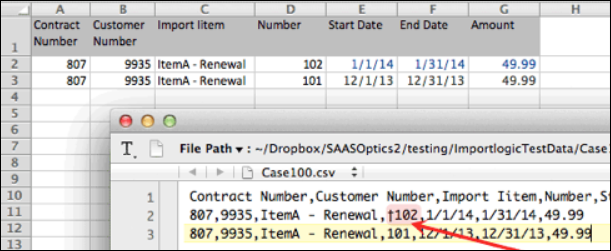
Extra Rows: A text editor should also allow you to identify extra rows and columns more easily as they display as extra commas.
Trailing Spaces: Be aware of trailing spaces as they can create duplicate records.
Column Headers: Each column header must have a unique name. Blank or null headers are also not permitted.
Once the file is ready, you can proceed with executing the import in Maxio.
Still need help?
Reach out and our support team will take it from here.