
Loading article…
Loading article…
Last updated on Aug 28, 2026
The subscriptions import tool will allow you to import new subscriptions into Advanced Billing from a CSV file. The tool does not allow you to update existing subscriptions via this method. The CSV subscription import feature is strictly for creating new subscriptions.
Subscriptions can also be imported using API. See subscriptions API import for more information.
This is an advanced feature that is only recommended for merchants with technical experience in mapping data in CSV format. Limited support will be provided.
If you do not feel comfortable with the procedures laid out below, open a support ticket or contact support@maxio.com.
Certain Advanced Billing features are not compatible with the subscription import tool at this time:
Advanced Billing requires that you use one of the following example files to input data using the subscription import tool.
Advanced Billing does not permit you to import files you have previously exported from the merchant login area, such as the subscriptions tab. In order for an existing subscription export report to be validly used for importing subscriptions, the data must be reformatted and placed in one of the spreadsheets below.
If your customers’ payment details are stored in the secure vault of one of our supported gateways (new and existing Advanced Billing merchants):
If you do not have your customers’ payment details and plan on requesting them later or are subscribing them to a free product (new and existing merchants).
XLSX files will need to be saved as CSV with UTF-8 formatting prior to upload.
Editing CSV files in Excel or Numbers can cause formatting issues. If you wish to edit the files using these programs, use the XLSX files above, and save them as CSV prior to import.
When a subscription is imported that contains a product with a trial period, the trial period will be omitted.
Subscription imports will either create a subscription with a subscription state of Active or Canceled depending on if the conditions for importing a canceled subscription are met.
The activated date of the subscription will be the date that the subscription is imported. Unless you are importing a canceled subscription, you can absolutely set next_billing_at to a time in the future.
API Users: Use the subscription override endpoint to align Advanced Billing data with your existing data.
You must disable all email notifications related to subscription creation if you do not want to alert your customers that you have created the active subscription (signup emails, receipts, statements, and billing portal invitations). For canceled subscriptions, an email will not be sent regardless of these settings.
We recommend that you limit the number of subscriptions in each import to 100.
We recommend that you use the tool when our technical specialist team is available to help with any issues (normally Monday-Thursday, 9a-5p Eastern).
A billing address cannot be provided unless vault tokens or full card numbers are provided as the billing address is stored with the payment profile. If you are not importing vault tokens or full card numbers, be sure your product settings do not require a payment method or billing address at signup. Once the import is complete, you can re-enable the required fields in your product settings so new signups must enter this information.
Authorize.net requires the last four digits of the credit card number to process refunds. Include the last four digits of the credit card number when importing with vault tokens only.
CyberSource requires a billing address to process successful transactions. You will not be able to import subscriptions without a vault token or full card number for this gateway.
When working with credit card data in Excel, long strings of digits are converted into scientific notation. Excel will always convert a long series of digits into scientific notation when you open the source data in Excel (double-clicking the file and opening it in Excel). To get around the scientific notation conversion, you have to import your CSV file into Excel and define the column of digits as text so that Excel will not convert it to scientific notation. In addition, Excel only records numbers up to 15 digits if they are not entered as text. Any additional digits are reset to 0.
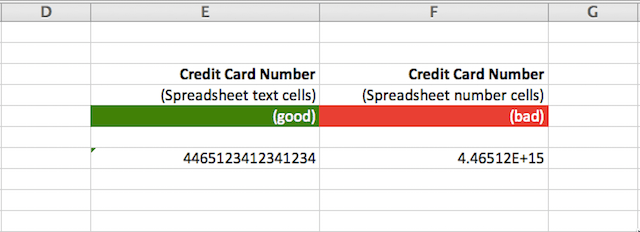
Cross section of good / bad credit card numbers in Excel
We do not recommend importing multiple Subscriptions which use the same vault token.
The following is a list of required fields for subscription creation via the import tool. They must be in CSV format.
Minimum requirements for active subscription creation
product_handle or product_id (Can be found under the Setup tab, beneath the name of each product)customer_first_name (The customer’s first name - will become the default for payment profile first name)customer_last_name (The customer’s last name - will become the default for payment profile last name)customer_emailcustomer_id (You may use customer ID if it exists. In this case, omit all other customer fields)next_billing_at (The first time you will bill your customer - see format)Minimum requirements for canceled subscription creation
product_handle or product_id (Can be found under the Setup tab, beneath the name of each product)customer_first_name (The customer’s first name - will become the default for payment profile first name)customer_last_name (The customer’s last name - will become the default for payment profile last name)customer_emailcustomer_id (You may use customer ID if it exists. In this case, omit all other customer fields)canceled_at (The time that the subscription was canceled - see format)Required if you are importing credit card details
payment_profile_full_numberpayment_profile_cvv (Optional)payment_profile_expiration_monthpayment_profile_expiration_yearpayment_profile_card_type (Optional, see allowed values)Required if you are importing existing vault information
payment_profile_current_vault (see allowed values)payment_profile_vault_token (see format)payment_profile_customer_vault_token (Only used for certain gateways such as Authorize.Net, Square (legacy only), Adyen and GoCardless)payment_profile_last_fourpayment_profile_expiration_monthpayment_profile_expiration_yearpayment_profile_card_type (Optional, see allowed values)Recommended for billing
payment_profile_first_name (otherwise customer_first_name is used)payment_profile_last_name (otherwise customer_last_name is used)payment_profile_billing_addresspayment_profile_billing_address_2payment_profile_billing_citypayment_profile_billing_state (see format)payment_profile_billing_zippayment_profile_billing_country (see format)payment_collection_method (see payment collection method)currency (if multi-currency is enabled; the currencies must already be configured within your site)Recommended if you also ship physical product
customer_addresscustomer_address_2customer_citycustomer_state (see format)customer_zipcustomer_country (see format)customer_phoneComponents (optional)
Detailed information on importing components. However here are examples of what will work:
metered_component_id[123] or metered_component_id[123]price_point_id[1]quantity_component_id[456] or quantity_component_id[456]price_point_id[2]on_off_component_id[789] or on_off_component_id[789]price_point_id[3]Optional
customer_referencecustomer_vat_number (see format and information)coupon_codeprevious_billing_atproduct_price_point_handle or product_price_point_id (If included subscription will be created with that specific product price point instead of the default price for the product)subscription_metafield_idcustomer_metafield_idimport_mrr (true or false, requires future next_billing_at, defaults to false)activated_at (The original date that the subscription was activated)Additional Optional fields for canceled subscriptions
cancellation_message (A message provided by the customer as to why they canceled)reason_code (The churn reason code associated with the cancellation)Customer references must be unique.
The following date formats are equivalent and will work as input to next_billing_at, activated_at, previous_billing_at, and canceled_at:
Aug 06 2030 11:34:00 -0400
Aug 06 2030 11:34 -0400
2030-08-06T11:34:00-04:00
8/6/2030 11:34:00 EDT
8/6/2030 8:34:00 PDT
2030-08-06T15:34:00Z
You may also pass just a date, in which case we will assume the time to be noon: 2030-08-06
If you enter NOW for next_billing_at, your customer will be charged immediately upon import.
Subscriptions that are created at a later date will not charge the initial/setup fee if created using this mechanism. If you have a product with a setup fee, you must use the value of NOW for next_billing_at in order to collect the setup fee.
Additionally, if there is a trial period on the purchased product, the trial period will be omitted. In the case of any missed fees, due to the omitted setup fee, use the feature to Add Charge if you wish to include any additional fees to the subscription.
The optional previous_billing_at attribute is used to help backdate existing subscriptions that are being migrated from another billing management tool. It will set the current_period_starts_at and activated_at fields on the subscription. While activated_at is a display-only field, current_period_starts_at will allow for the correct proration for ‘existing’ subscriptions.
For example, ordinarily, a subscription imported today will have their billing period set to today. By passing a previous_billing_at, it’s possible to backfill the beginning of the period. Let’s say a subscription’s period started on Jan 1 2019 and ends on Jan 1 2020. The date today is July 6 2019. previous_billing_at will set the period start date on the subscription to Jan 1 2019, rather than the default behavior of July 6 2019.
The previous_billing_at date must be before the current time and before the specified next_billing_at. We recommend putting the subscription on a product whose recurring period matches the length of the subscription’s period. See Date format.
Advanced Billing allows you the option of importing invoice-based subscriptions. The payment collection method can be specified for each individual subscription and may consist of one of the following values: “automatic,” “invoice,” or “remittance.” If no method is specified within the CSV file, Advanced Billing will use your site defaults, but no changes need to be made to the site settings in order to import a variety of payment collection methods.
The term “remittance” is the manual invoice billing for the Relationship Invoicing architecture. For the legacy statement architecture, use “invoice.”
The payment_profile_card_type field is optional. If supplied, it must be one of the following. The value bogus is also accepted, for use with the test gateway only.
aleloaliaamerican_expressandabp_pluscabalcarnetcartes_bancairesconfiablecrediteldankortdiners_clubdiscoveredenredeloforbrugsforeningenhipercardjcbmadamaestromaestro_no_luhnmasternaranjaolimpicapasscardroutexsodexosynchronytarjeta-dunionpayvisavrSubscriptions using Paypal or ACH as a payment method can be imported using the API.
Only non-3DS cards can be imported into Stripe through a vault token.
If you are supplying vault tokens during import, you must also include the payment_profile_current_vault field. This field specifies which gateway the token belongs to, and must be one of the supported values listed below.
The table below provides example vault tokens and formatting details for each supported gateway:
Gateway payment_profile_current_vault | vault_token Example | Where to Find It |
|---|---|---|
Maxio Payments maxio_payments | p1_tok_1234567890abcdef1234567|1234567890abcdef1234567890abcdef customer_vault_token: p1_cus_1234567890abcdef1234567 | Importing to Maxio Payments is a process handled internally by our onboarding team. |
Adyen adyenw | 1415816459891180 customer_vault_token: chargify_14 | The vault token is the recurringDetailReference, and the customer vault token is the shopperReference, both returned when creating a recurring contract via the Adyen API. Documentation: Adyen API Explorer Advanced Billing–created profiles will use chargify_{customer_id} as the shopperReference. |
Authorize.Net authorizenet | 123456789 customer_vault_token: 123456789 | The vault token is the customerProfileId, returned when creating a customer profile via the Customer Information Manager (CIM) API. Documentation: Customer Profiles |
Bambora beanstream | A1234FE123f123456F12DF1CDA1234a1 | The vault token is the payment_token, generated when creating a payment profile using the Payment Profile API. Documentation: Payment APIs Overview |
BlueSnap blue_snap | 1111|VISA|21112765 customer_vault_token: 28436055 | The vault_token is the last-4 and card type plus the merchant managed subscription id. The customer_vault_token is the vaultedShopperId, returned when you create or retrieve a vaulted shopper, and used in API calls to charge the stored payment profile. Documentation: Create Vaulted Shopper |
Braintree braintree_blue | 60428388 | Provide the vault_token parameter with the value from Braintree’s “Customer ID” rather than the “Payment Method Token”. Documentation: Braintree Vault Overview |
Chase Paymentech Orbital orbital | 123456789 | The vault token is the safetechToken, returned in the response when tokenization is enabled during a transaction. Documentation: Orbital Gateway JSON Developer Guide |
Checkout.com checkout | src_wmlfc3zyhqzehihu7giusaaawu | The vault token is the id of the payment instrument, returned when creating a payment instrument via the Instruments API. Documentation: Store credentials |
Cybersource cybersource | 1234567890123456789012 | The vault token is the tokenId, returned when creating a token via the Token Management Service (TMS) API. Documentation: Token Vault Management |
Elavon elavon | 1234567890123456 | The vault token is obtained by sending a token request via the Commerce SDK, which returns a token representing the stored payment method. Documentation: Commerce SDK Token |
eWAY Rapid eway eway_rapid_std | 0000010012345678 | The vault token is the TokenCustomerID, returned when creating a token customer using the Rapid API. Documentation: eWay Rapid API Reference |
First Data firstdata | 0123456789012345 | The vault token is generated by creating a token via the Data Vault Tokenisation API, which returns a token representing the stored payment method. Documentation: Data Vault Tokenisation |
GoCardless gocardless | MD000B2S6QED0V customer_vault_token: CU000BDK60TJWA | The vault token is the mandate ID, and the customer vault token is the customer ID, both returned when creating a mandate via the GoCardless API. Documentation: GoCardless API Reference |
Moneris Solutions moneris | wjxVIIFcJAqKhBZ3URASTO8MO | The vault token is the data_key, returned when creating a profile via the Moneris Vault API. Documentation: Moneris Vault API |
NMI nmi | 783765937 | The vault token is the customer_vault_id, returned when creating a customer via the NMI Customer Vault API. Documentation: NMI Customer Vault Docs |
PayPal Complete paypal_complete | jwgvx42 | The vault token is the id returned when creating a payment token via the Payment Method Tokens API. Documentation: Payment Method Tokens API |
Pin Payments pin | cus_cAlS1vLNjRh1fFBk1-Abcf | The vault token is the customer_token, returned when creating a customer via the Customers API. Documentation: Pin Payments API Reference |
Square square | ccof:uIbfJXhXETSP197M3GB customer_vault_token: VDKXEEKPJN48QDG3BGGFAK05P8 | The vault token corresponds to the Square Card ID (ccof_...), and the customer vault token corresponds to the Square Customer ID. Documentation: Square API Reference |
Stripe Connect stripe_connect | cus_1ie1SbGBevCW0A | The vault token is the customer ID, returned when creating a customer via the Stripe API. Note: Stripe 3DS cards cannot be imported through vault token; contact Stripe support for assistance. Documentation: Stripe API Reference |
TrustCommerce trust_commerce | Z1RYBA | The vault token is the custid, returned when creating a customer profile via the TrustCommerce API. Documentation: TrustCommerce API Guide (PDF) |
Worldpay litle | 1111222233334444 | The vault token is the cnpToken, returned when registering a card via the registerTokenRequest in the Vantiv eCommerce XML API. Documentation: Tokenization Feature |
Windcave payment_express | 0000000000518077 | The vault token is the DpsBillingId, returned when creating a tokenized billing record via the Windcave REST API. Documentation: Windcave REST API |
In some cases, if you're importing subscriptions into a site that already uses a legacy gateway (such as “PayPal Website Payments Pro (Legacy)” or “eWAY Rapid 3.1 (Legacy)”), you may use simplified vault identifiers like paypal or eway_rapid. If you're unsure which value to use, contact support for guidance.
Advanced Billing requires that you use the ISO standard country codes when formatting the import file. Countries should be formatted as 2 characters. For more information, see the following Wikipedia article on ISO_3166-1.
Advanced Billing requires that you use the ISO standard state codes when formatting the import file.
At this time we only support importing components via IDs.
In order for the import tool to handle importing components we require the headers to be formatted in a specific way:
kind_ then component_id then the id of the component between []
Altogether it looks something like:
quantity_component_id[123]
Supported kind_ values are:
metered / quantity / on_off
The kind_, along with the component_id, can be found when viewing your list of components:
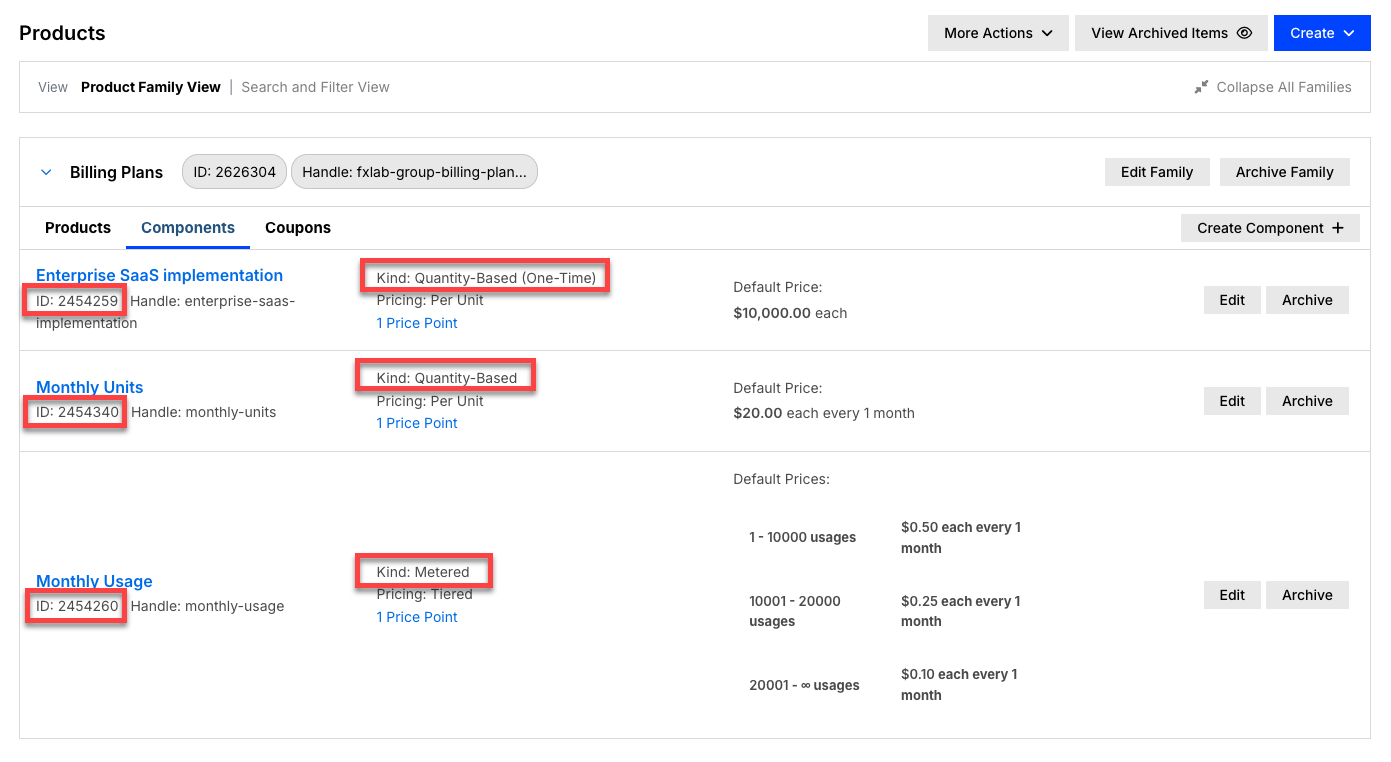
Location of component_id and kind
In addition to allocating to a component you can optionally pass price_point_id[] to allocate to a specific price point. As an example of how to include price point:
quantity_component_id[123]price_point_id[1]
The id for a price point can be found when editing the component itself (Catalog > Products > Component tab > click the Edit button on component)
If price_point_id[] isn’t passed in the header we will utilize the default price point for the component.
Custom Fields need to be imported in a format: resource - customer or subscription, depending on which resource is the custom field attached to, then metafield_id, then [] with the id of the custom field inside the brackets. All together it will look like: subscription_metafield_id[1234] or customer_metafield_id[4567] Supported resources are: subscription and customer.
You can find the ID and the resource type when viewing the list of Custom Fields:
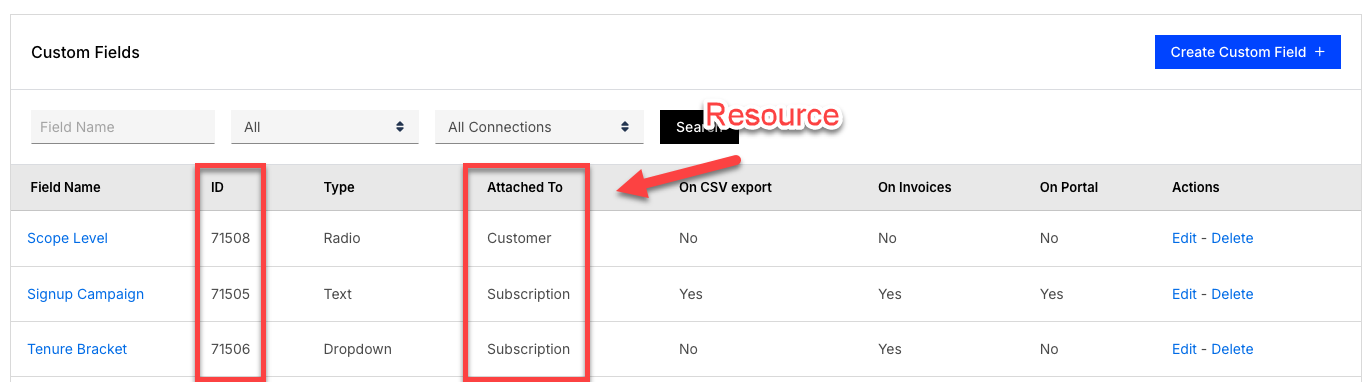
Custom Fields ID and Resource
If the custom field ID or resource is incorrect, the subscription and/or customer will be created without the custom field that had an error.
The following is an example of the fields for each column of the CSV file for a basic import of subscriptions with existing tokens using the Advanced Billing test gateway.
| Field | Example value |
|---|---|
product_handle | basic |
customer_first_name | John |
customer_last_name | Doe |
customer_email | johndoe@example.com |
customer_address | 123 Main Street |
customer_city | Anywhere |
customer_state | NY |
customer_zip | 11111 |
customer_country | US |
customer_organization | John Doe Inc |
payment_profile_first_name | John |
payment_profile_last_name | Doe |
payment_profile_billing_address | 123 Main Street |
payment_profile_billing_city | Anywhere |
payment_profile_billing_state | NY |
payment_profile_billing_zip | 11111 |
payment_profile_billing_country | US |
next_billing_at | NOW |
payment_profile_current_vault | bogus |
payment_profile_vault_token | 1 |
payment_profile_last_four | 2345 |
payment_profile_expiration_month | 11 |
payment_profile_expiration_year | 2030 |
payment_profile_card_type | visa |
metered_component_id[123] | 22 |
subscription_metafield_id[1234] | Blue |
customer_metafield_id[4567] | Orange |
The system will reject all CSV files which are formatted incorrectly. The most common formatting issues are related to illegal characters such as commas or foreign symbols/characters.
Select Import from the subscriptions view.

On the Subscription Import History screen, select New Import.

WARNING: Do not import real customers while your site is in test mode.
Browse your computer for your CSV file, upload it, and click Process CSV.

The CSV can take several minutes to completely process.
The Subscription Import History screen records every import you run, with columns for Uploaded At, Status, Started, Duration, Total, Completed, Successful, Failed, and Duplicates. Return to it after an import to check the outcome of each row.
Sometimes, the CSV file entered is formatted incorrectly, contains invalid headers, or is empty. In these cases, an error is returned when the CSV is initially submitted. The most common error occurs for non-UTF-8 CSV files.
If you are receiving this kind of error, it’s likely that the CSV file was opened, edited, and saved within a spreadsheet program, such as Excel or Numbers. When using these programs, use the “Export” functionality to export a new UTF-8 CSV each time any changes are made. Alternatively, a text editor can be used for smaller updates, as it will maintain the UTF-8 CSV format.
Once the system has determined the file is valid, error messages will be generated if any individual subscriptions fail. For example, the subscription on line one may be created successfully while the subscription on line two fails because its product handle does not exist.
The import job is aborted if 10 successive entries fail to create a subscription. This can happen if the data is not formatted correctly, or if the gateway declines the initial authorization or charge.
When one or more subscriptions fail, you can upload the same CSV file after making corrections. The system will ignore any subscriptions which were imported successfully. There is no need to remove those entries from the CSV file.
Open a support ticket if you require assistance. You can also reach us via email at support@maxio.com.
Still need help?
Reach out and our support team will take it from here.