
Format a CSV File for Import
Applies to: Maxio Core
Last updated on Oct 12, 2026
The importing functionality makes data changes based on the CSV file you provide. Therefore, the files must be formatted correctly in order for the import to complete successfully. Take care when editing the file as mistakes can have unintended consequences.
Preparing the CSV file
The spreadsheet you create contains the data used to augment the affected objects and corresponding fields during the import. Each row in the CSV represents an object and each column represents a field. For example, if you are performing a customer import, then each row of the CSV represents an individual customer and the columns represent the customers' fields.
Field types
The system supports five types of importable field data.
| Field | Description |
|---|---|
| Alphanumeric | A mix of text and/or numbers |
| Number | Plain numbers, with a decimal point if needed, such as 12345 or 12345.00. See How numbers are read for decimal places, commas, and what the import rejects. |
| Date | All date fields must use the same format, and must match the Date Format selected on the import. See How dates are read for the supported formats and what happens when a date does not match. |
A field that accepts one or more email addresses, such as a Customer's Email, CC Email, or Escalation Email. Separate multiple addresses with commas or semicolons; either delimiter is accepted and semicolons are automatically converted to commas on import. Any other delimiter, for example a pipe, is not recognized, and the row is rejected as invalid. A semicolon inside a quoted local part, such as "a;b"@example.com, is preserved rather than treated as a delimiter. | |
| Binary | Binary fields can be imported or defined in the map itself. A CSV file accepts True or Yes for a true value, and False or No for a false value. Capitalization does not matter. The import map presents the same values as Yes and No when you select to input a value directly. |
How numbers are read
Number fields accept plain numbers, with a decimal point if needed, such as 12345 or 12345.00. A column can mix whole numbers and numbers with decimals. Number fields accept up to two decimal places, except FX Rate, which accepts up to six.
Do not include currency symbols, or a period as a thousands separator. A value such as $5,000.00 or €5.000.00 fails that row with the error "Please use a valid decimal amount."
Fields that offer a Calculate Value option, such as MRR and ARR, also accept commas as thousands separators and parentheses for a negative number. For example, 1,000.00 is read as 1000.00 and (1000) is read as -1000. Other number fields do not accept commas, so leave them out.
How dates are read
Every date column in the file is read with the Date Format selected on the import. Choose one of these formats:
- yyyy-mm-dd
- mm-dd-yy
- mm-dd-yyyy
- mm/dd/yy
- mm/dd/yyyy
- dd/mm/yy
- dd/mm/yyyy
A new Map defaults its Date Format to your account's Date Display Format (Admin > Account Settings > Locale, see Configure Account Settings), falling back to yyyy-mm-dd. A saved Map keeps whichever format it was created with.
Check the Date Format before you import. If every day in a month-first file is 12 or lower, selecting a day-first format imports the dates with the day and month swapped.
yyyy-mm-dd (ISO 8601) is always accepted, regardless of which Date Format is selected. It can also carry a time, such as 2026-01-15T10:30:00 or 2026-01-15 00:00:00. Maxio keeps only the date and ignores the time and any offset.
A value that matches neither the selected format nor yyyy-mm-dd fails that row with an error naming the expected format and an example, such as:
Invalid date "13/01/2026": expected mm/dd/yyyy (e.g. 01/15/2026) or yyyy-mm-dd. Change "Date Format" in the import options to match your file.
When using Excel to format dates, the underlying stored data format may differ from what Excel displays to you. If you experience import issues due to dates, open your file in a text editor and review the date records. Be sure to inspect for inconsistencies in date formats between individual rows.
Required fields
You must have valid data in the CSV for any Maxio required fields when performing an import. On an Update import, you can omit a required custom field from the CSV, and the record keeps whatever value it already has. Create and Create and/or Update imports still require it. Rather than building the header row manually, export the object's existing records and use that file as your template, which guarantees the column names match what the importer expects.
To generate a CSV template in Maxio
-
Navigate to the page of the object you are importing. For example, open the Customers page if you are importing customers.
-
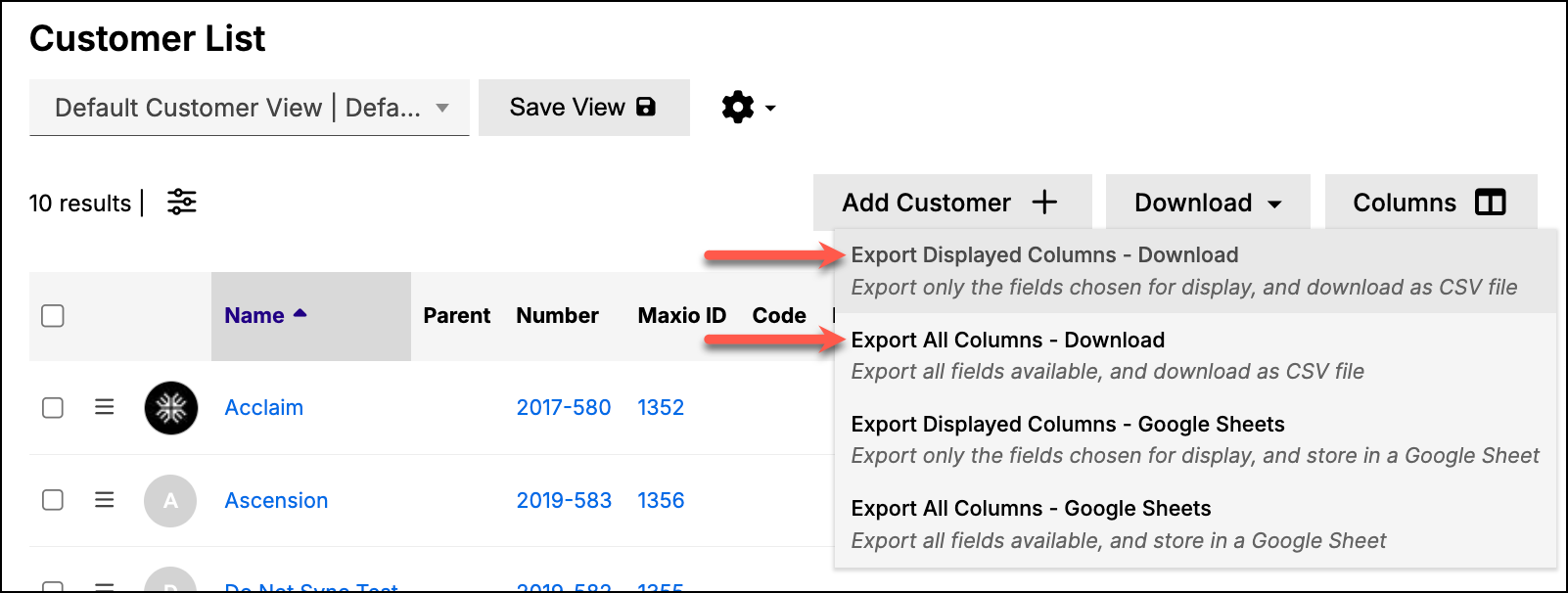
Hover over the Download button and select either Export Displayed Columns - Download or Export All Columns - Download. The menu also offers Google Sheets versions of both, which save to a Google Sheet instead of downloading a file.
-
The CSV file then downloads to your computer. Open the file to view the spreadsheet and use it as the basis for a new import file.
Convert to CSV UTF-8
The import requires CSV files saved with UTF-8 encoding. A byte order mark is fine, since the importer strips it when it reads the file. Generating the file correctly requires different steps depending on which spreadsheet software you are using to prepare the data, and on which operating system.
- Excel for Windows: When saving, select CSV as the file type. Then, click the Tools button in the bottom right and select Web Options. Open the Encoding tab and then select the UTF-8 option.
- Excel for Mac: Select the Windows Comma Separated Values format when saving the file.
- Numbers for Mac: Click File > Export To and then select the CSV option. Expand Advanced Options to confirm the Unicode (UTF-8) option is selected.
CSV file clean-up
Once the file is in the correct format, it likely requires clean-up to correct any remaining errors. The majority of import issues that users experience have to do with improperly formatted CSV files. Excel rarely produces a completely correct UTF-8 file, because of the various versions of the software running on equally varying versions of Windows and Mac. To avoid errors, perform some final clean-up in the file to guarantee it is ready for importing.
You should avoid editing the CSV file further in Excel once you have converted it, so you must perform this clean-up step using a text editor. We recommend Notepad++ on Windows and BBEdit on macOS. You can then check for the following common issues:
-
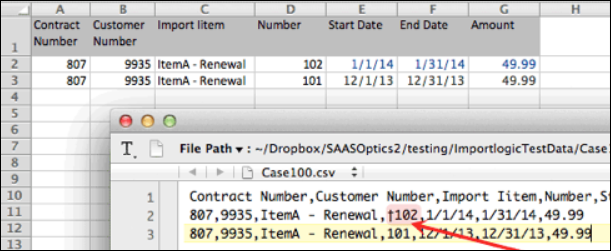
Bad Characters: Many text editors contain functionality for removing bad characters. This is important as bad characters may not display in Excel. In the example below, the first row of the import contains a bad character in the Number column. You can see it in the text editor, but not in Excel.
-
Extra Rows: A text editor should also allow you to identify extra rows and columns more easily as they display as extra commas.
-
Trailing Spaces: Be aware of trailing spaces as they can create duplicate records.
-
Column Headers: Each column header must have a unique name. Blank or null headers are also not permitted.
-
Leftover Errors Column: If you're reusing a CSV that was previously exported as a failed import's results, remove any column named Errors before uploading. Maxio carries that column's values through unchanged into the new run, and old failure text sitting next to the new run's own status can look like the current import failed even when it succeeded. See Run an Import for the warning Maxio shows if it detects this column.
Once the file is ready, you can proceed with executing the import in Maxio.
Still need help?
Reach out and our support team will take it from here.