
Configure Reporting
Applies to: Advanced Billing
Last updated on Sep 19, 2026
Find the reports that answer your business questions, adjust the handful of settings that change how those numbers are calculated, and get your data out of Maxio on whatever schedule suits your team. Most defaults are already sensible, so review each step below and move on wherever nothing needs changing.
Summary
- Feature
- Reporting, Metrics, Insights
- You Need
- Basic understanding of your company's reporting needs; Email addresses for notifications (optional)
- Code
- No
- Difficulty
- ◉◎◎◎◎
1. Review your reports
Every report lives under the Insights section of the left menu, except the Transactions report, which sits under Billing, and Cross-site Analytics, which sits in the account menu.
Reports available in your account
| Name | Example use | To view, go to... |
|---|---|---|
| Accounts Receivable | Tracks your customers' outstanding balances and credit balances. Breaks down outstanding balances into invoiced amounts, payments, and refunds. | Insights > Accounts Receivable |
| Transactions | Pinpoint invoices, payments, credits, and refunds. | Billing > Transactions |
| Finance Report | Monthly totals of your Total Billed, Payments, and Expected Payments; breaks down Total Billed into Sales, Discounts, Taxes, and Credits. | Insights > Finance Report |
| Sales Report | Sales, discounts, taxes, adjustments, and cash broken out by Item over a date range. | Insights > Sales Report |
| Revenue Recognition | Recognized revenue and deferred balances, down to the item level. | Insights > Revenue Recognition |
| MRR | Monthly Recurring Revenue, filterable by New Business, Expansion, Contraction, Churn, and Reactivation. | Insights > MRR |
| Revenue Retention | How effectively dunning recovers revenue from failed payments. | Insights > Revenue Retention |
| Forecasting | View, adjust, and save forecasts based on 3, 6, or 12 month averages, including or excluding usage, and filtering on specific products. Forecast the future by adjusting monthly values of revenue, revenue churn, customer growth, and customer churn. | Insights > Forecasting |
| Cross-site Analytics | An aggregate view of MRR across multiple sites. | Click your name in the top right, then Cross-site Analytics |
| Churn Analytics | Churn trends, read alongside the churn movements in the MRR report. | Insights > Churn Analytics |
| Paid Subscribers | Top level view of paid customer count. | Insights > Paid Subscribers |
| Free Subscribers | Free trial and lead counts, including how many convert to paid. | Insights > Free Subscribers |
2. Configure your reports
Two reports calculate their numbers from a setting you can change. Review the defaults below, and skip ahead if neither needs adjusting.
-
MRR - New Business Timing
By default, New Business MRR is based on the day a Customer signs up. To change that, go to Insights > MRR > Settings > Configure New Business Timing and select a new option.
-
Revenue Recognition - Deferral Settings
To change the deferral behavior of a particular line item, go to Insights > Revenue Recognition > Revenue Deferral Settings.
Optional - Configure reporting notifications
Maxio can email you when your reporting data moves in ways you care about. Configure any of the following that are useful to your team.
-
Revenue Alerts
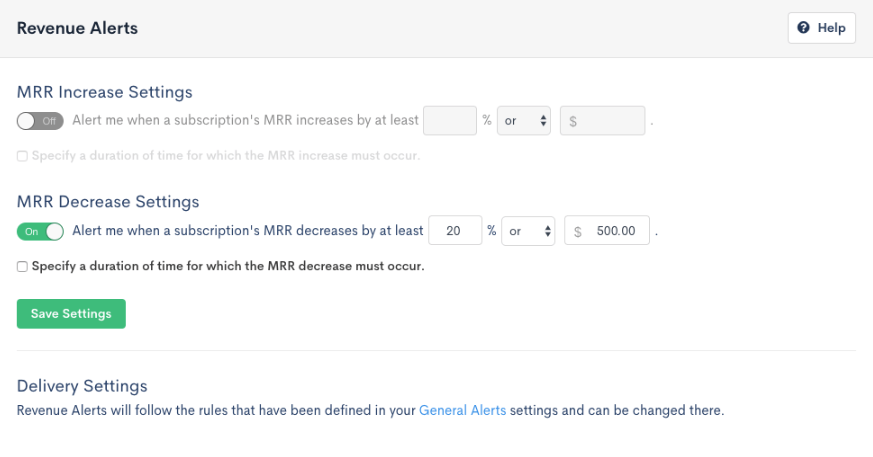
Go to Tools > Revenue Alerts. These alerts are based on MRR increase and decrease. If a large Customer drops their spend with you by more than 50%, for example, an alert tells you while you can still do something about it. To learn how the thresholds are calculated, see Configure Revenue Alerts.
-
Daily Status Email
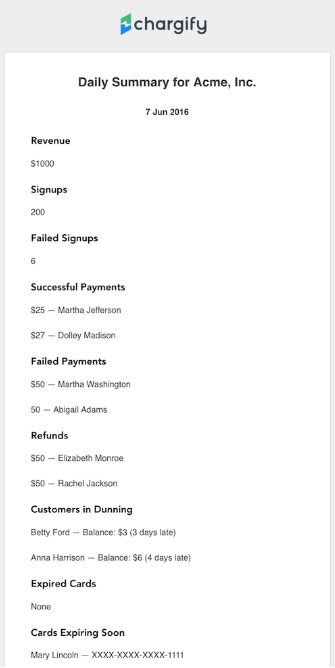
Go to Config > Settings > Status Emails. To learn what each email contains and who receives it, see Configure Status Emails.
-
MRR Report Daily Emails
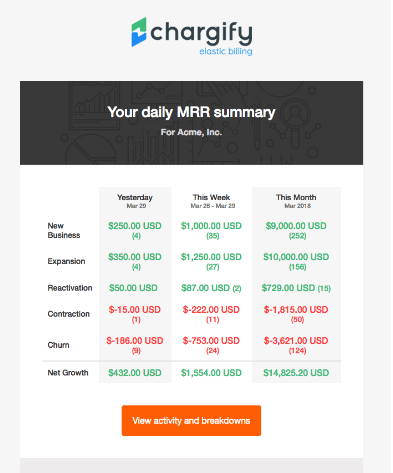
Go to Config > Settings > Status Emails. To set these up, see Daily MRR status emails.
Optional - Configure Business Intelligence
Business Intelligence (BI) gives you dashboards built on your own billing data. If BI is included in your plan but you don't see it in your account, ask Maxio Support to enable it for you.
-
Enable BI
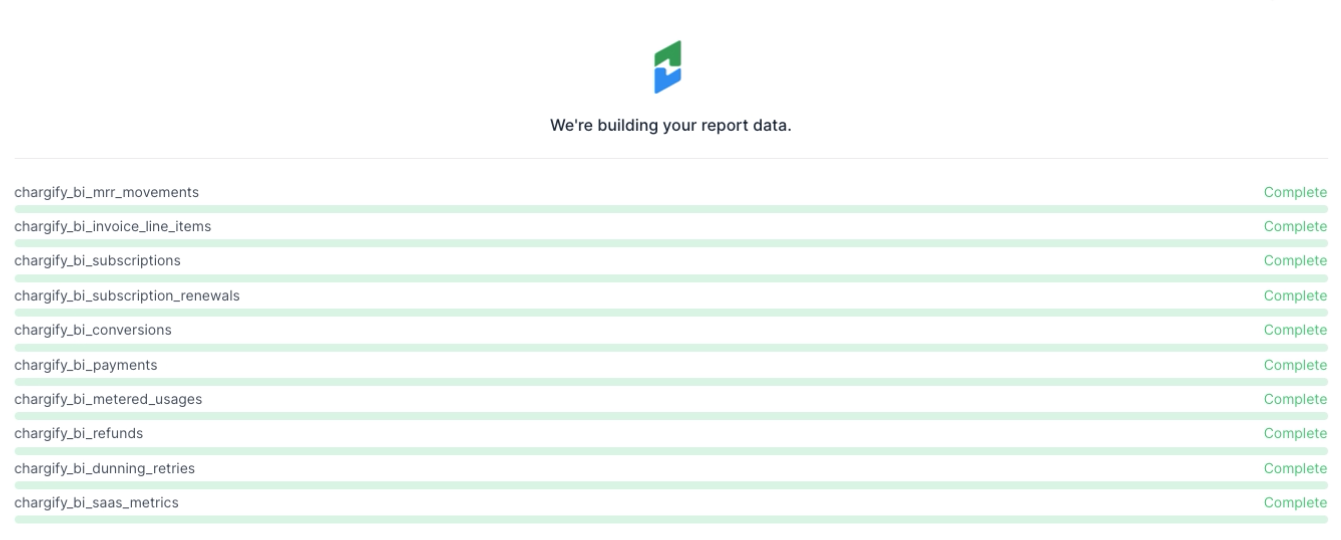
On the left menu, click Business Intelligence, then click Enable Maxio Advanced Billing BI. This adds data for 10 data sources and takes about a minute to complete.
-
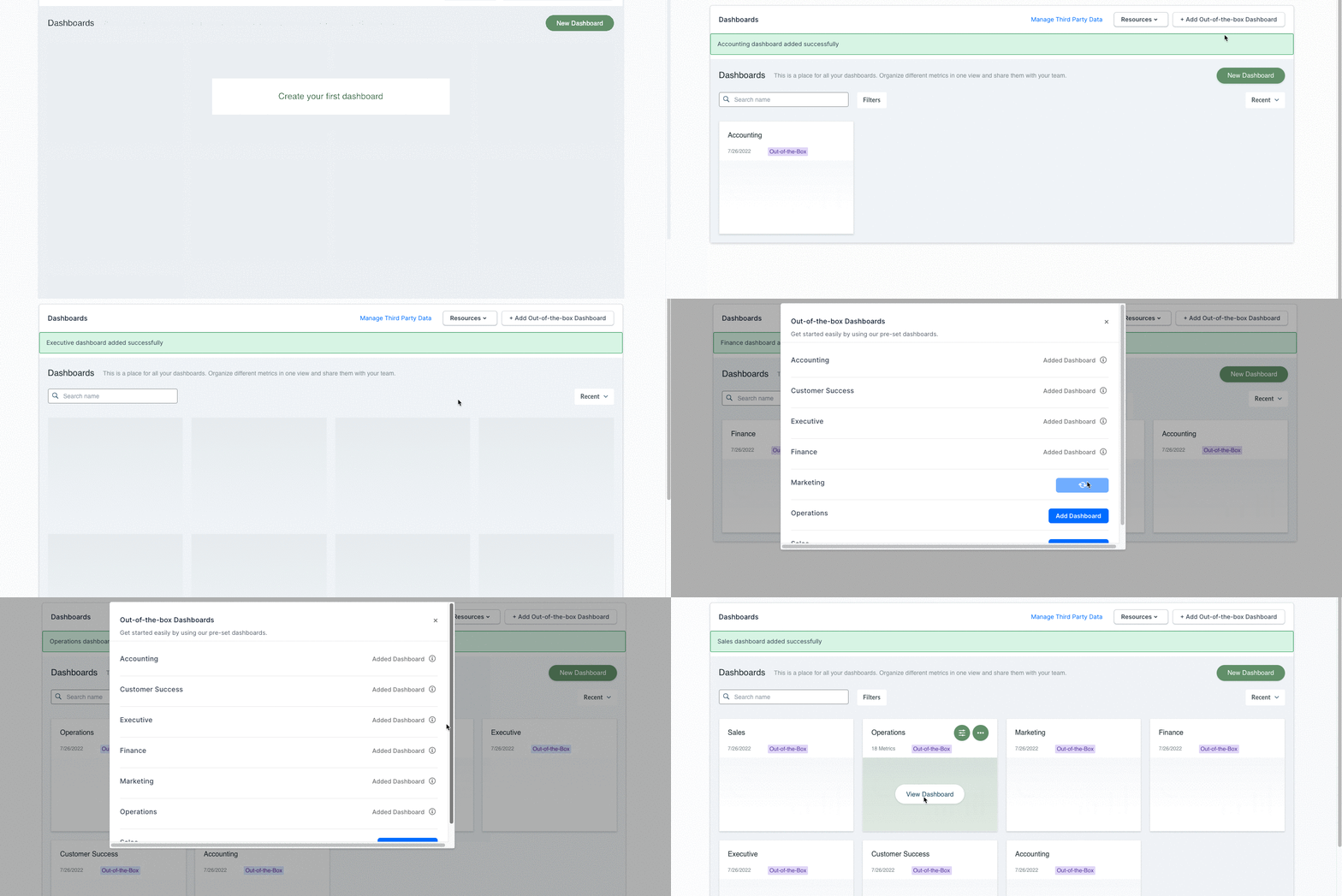
Add the out-of-the-box dashboards
Load each dashboard you want from the dashboard picker, then click into one to see its individual metrics.
Optional - Export data manually CSV/Excel
Every export below produces a file you can open in a spreadsheet. Each one links to the fields that file contains. Exports run in the background, so to find a finished file, see Access and Manage Your Exported Files. Before you parse these files programmatically, see Best Practices for Handling CSV Exports.
Exports containing reporting, metrics, and finance data
| Name | Fields | To export, go to... |
|---|---|---|
| Subscriptions & Customers | ||
| Subscriptions | See fields | Billing > Subscriptions > Export |
| Customers | See fields | Billing > Customers > Export |
| Invoices | ||
| Invoices | See fields | Billing > Invoices > Export Results |
| Invoice Line Items | See fields | Billing > Invoices > Export Invoice Line Items |
| Taxes | ||
| Taxes (Avalara) | See fields | Config > Taxes > View Tax History |
| Taxes (Custom) | See fields | Config > Taxes > View Tax History |
| MRR | ||
| MRR Movements | See fields | Insights > MRR > Export CSV > MRR Movements |
| Total MRR | See fields | Insights > MRR > Export CSV > Total MRR |
| MRR Summary | See fields | Insights > MRR > Export CSV > MRR Summary |
| Transactions | ||
| All | See fields | Billing > Transactions > All > Export |
| Invoices | - | Billing > Transactions > Invoices > Export |
| Payments | - | Billing > Transactions > Payments > Export |
| Credits | - | Billing > Transactions > Credits > Export |
| Refunds | - | Billing > Transactions > Refunds > Export |
| Finance | ||
| Finance Report Summary | See fields | Insights > Finance Report > Finance Report Export > Summary |
| Finance Report (by month) | See fields | Insights > Finance Report > Finance Report Export, then select a month |
| End of Period Balance (by month) | See fields | Insights > Finance Report > End of Period Balance Export, then select a month |
| Accounts Receivable | See fields | Insights > Accounts Receivable > Export |
| Revenue Recognition | ||
| Revenue Report | See fields | Insights > Revenue Recognition > Export CSV > Revenue |
| Balance Report | See fields | Insights > Revenue Recognition > Export CSV > Balance |
| Cross-site Exports | ||
| Cross-site Exports | See fields | Click your name in the top right, then Cross-site Analytics |
| Cross-site MRR/Usage | See fields | Click your name in the top right, then Cross-site Analytics |
Optional - Send data to your data warehouse API For developers
To move data into your own database or data warehouse, use the API endpoints below. Customers who take this approach typically build a scheduled job that:
- Reads the API data at a set interval, such as every night at midnight.
- Updates their database, data warehouse, or other system accordingly.
These endpoints return up to 200 records per request. Set the page and per_page URL parameters to page through the results: instead of requesting /subscriptions.json, request /subscriptions.json?page=1&per_page=200, then continue to page=2, and so on.
To pull whole reports rather than raw records, the Reports API covers the same ground with less paging. See Export Report Data via Maxio API.
| Name | API Endpoint |
|---|---|
| List Subscriptions | GET /subscriptions.json |
| List Customers | GET /customers.json |
| List Invoices | GET /invoices.json |
| List Invoice Events | GET /invoices/events.json |
Still need help?
Reach out and our support team will take it from here.