
Create Signups in Salesforce
Applies to: Advanced Billing
Last updated on Sep 19, 2026
If your sales team works deals in Salesforce, you can create the Subscription there rather than in Advanced Billing. Build a Subscription preview on the Opportunity, then convert it into a real Advanced Billing Subscription either automatically when the Opportunity is closed won, or manually when you review it.
Summary
- Feature
- Salesforce
- You Need
- Complete the Salesforce Installation
- Code
- No
- Difficulty
- ◉◎◎◎◎
Create a new signup in Salesforce
This process creates a Subscription preview in Salesforce that converts to a Subscription, automatically or manually, when the Opportunity is closed won.
1. Create a Salesforce Account, Contact and Opportunity
Before creating a Subscription, create a Salesforce Account, then create a Contact and an Opportunity under that new Account.
For quick testing Create an Account, followed by a Contact and an Opportunity.
For implementation Follow your real workflow. This could be manual Account creation, or automated if you have an existing sales workflow in place, or if you are building a new automated workflow. When that piece of the workflow is ready, continue to step 2.
2. Create a Subscription preview from the Opportunity
On the Opportunity you created in step 1, create the Subscription preview.
-
Click New Subscription Visit the Opportunity under the new Account and click the New Subscription custom button.
-
Configure the Subscription options Choose the configuration options for the Subscription from the Subscription wizard page: invoice type, invoice collection, currency, first billing date, and net terms.
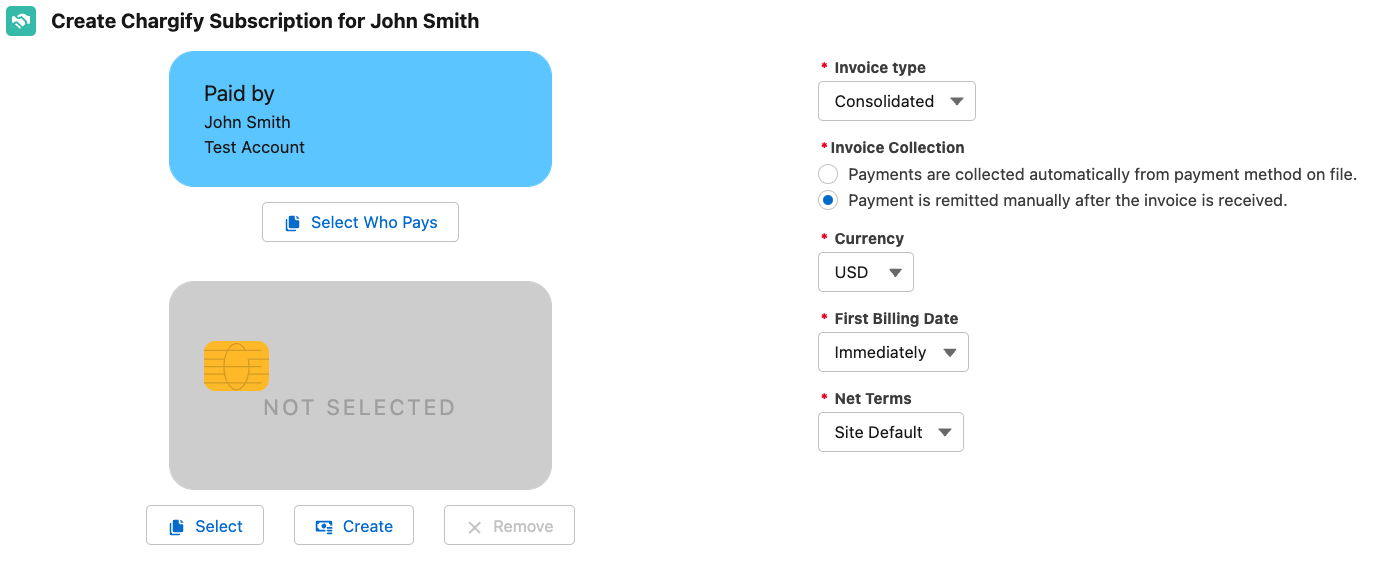
-
Add line items Select an Offer, or select an Advanced Billing Product. If you select an Advanced Billing Product, you can then select components or coupons. You can also select a different price point for an Advanced Billing Product or component.
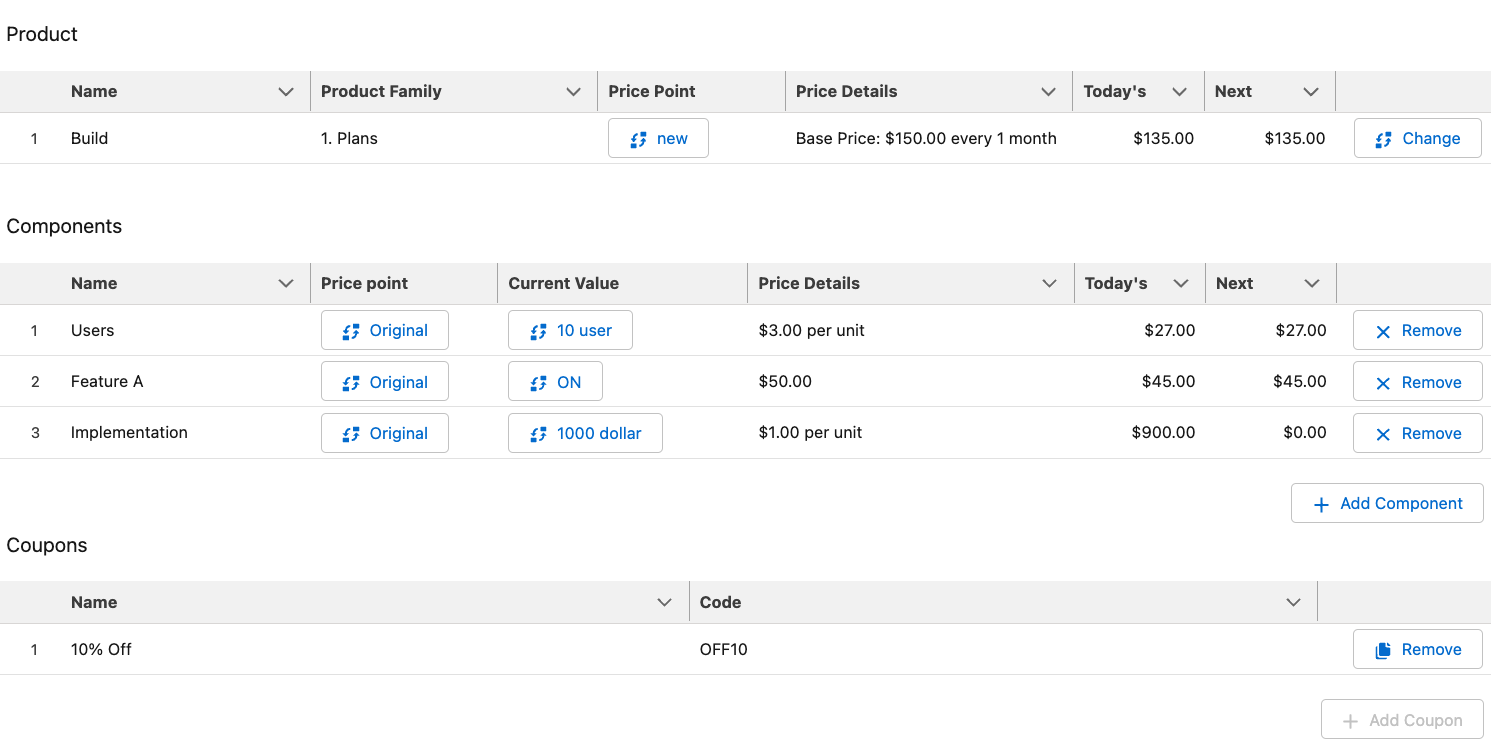
-
Review and click Save as Preview Review the Subscription preview information at the bottom of the wizard page, then click Save as Preview.
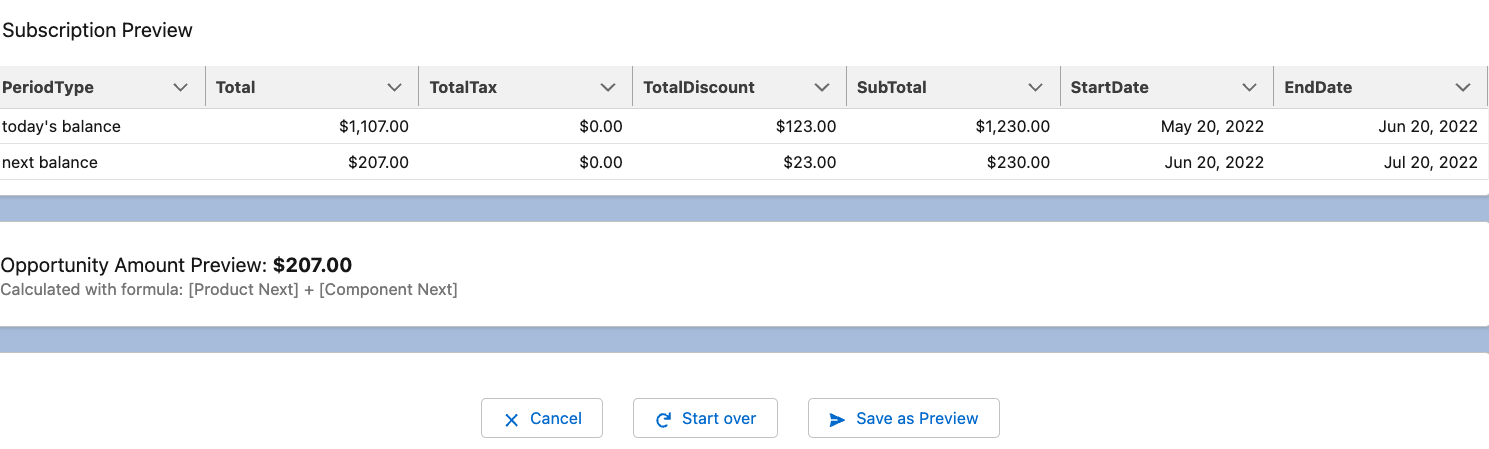
3. Activate the Subscription preview
Once the Subscription preview is saved, one more step remains, and it depends on your Opportunity configuration settings.

If option 1 is checked The integration automatically creates a Subscription when the Opportunity is closed won. You are done.
If option 2 is checked You manually review Subscription previews when an Opportunity is closed won. Visit the Subscription preview and click Activate Subscription, which creates the Subscription in Advanced Billing.
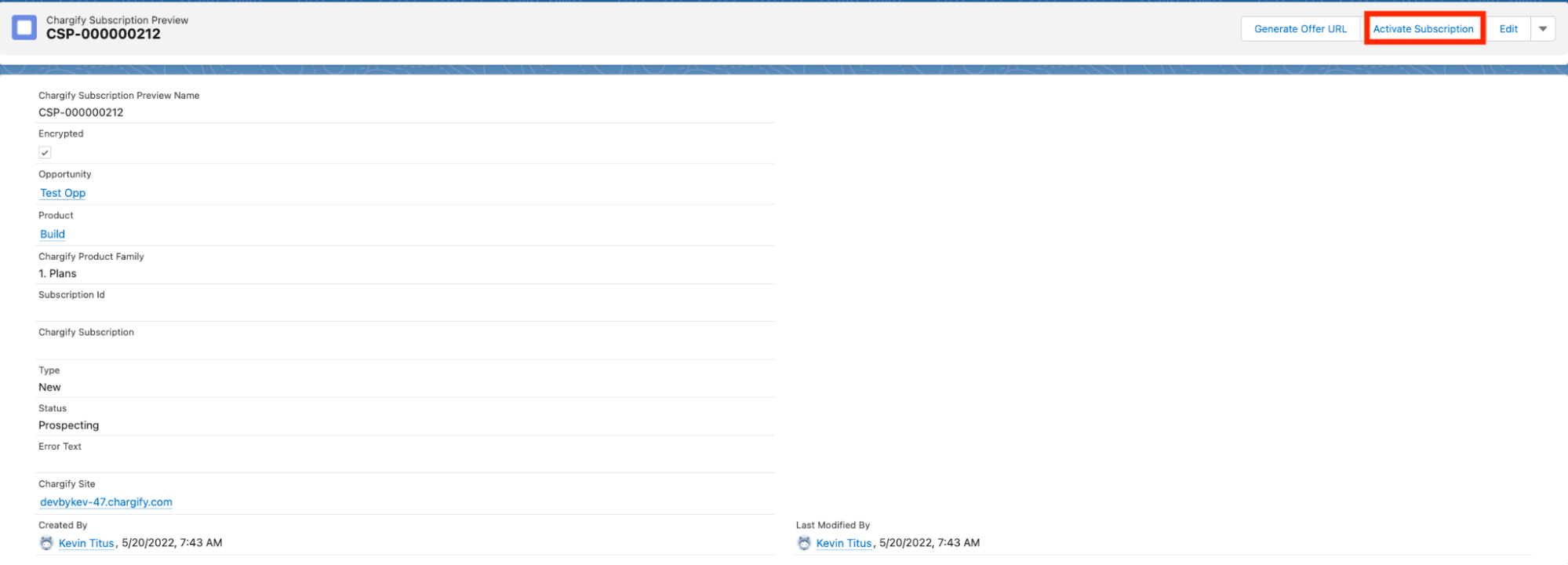
Optional - Generate an Offer URL
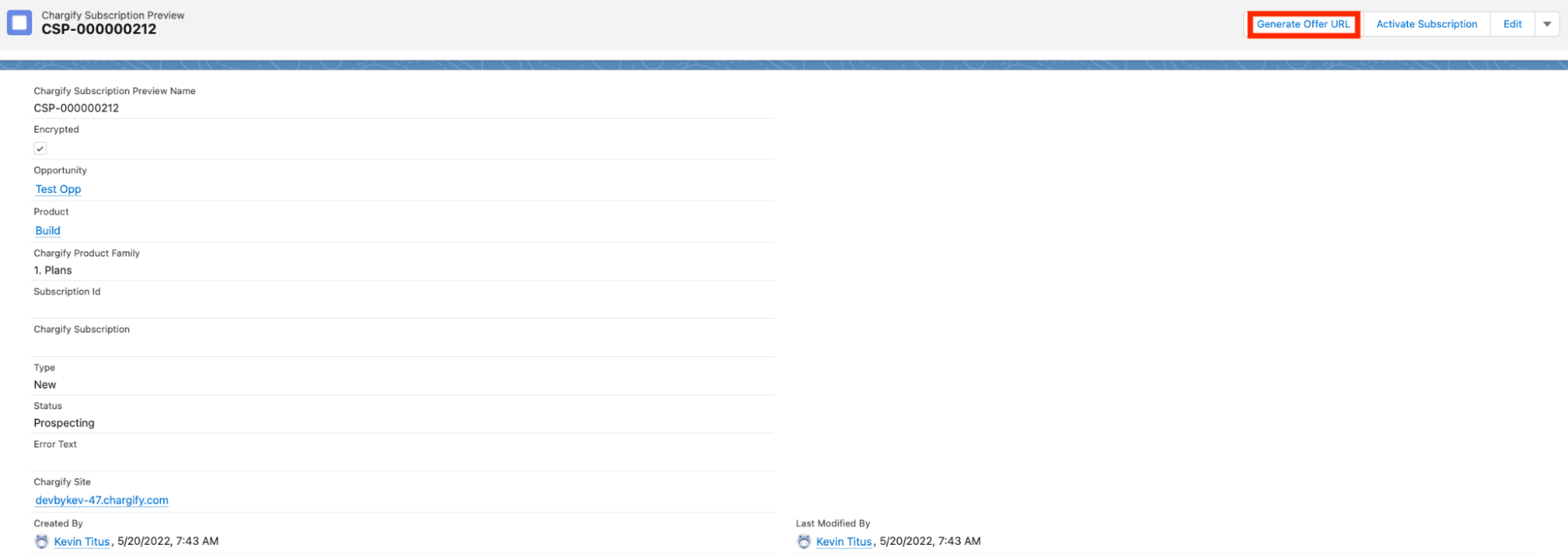
If your integration uses the Custom Offer URL feature, click Generate Offer URL on the Subscription preview page.
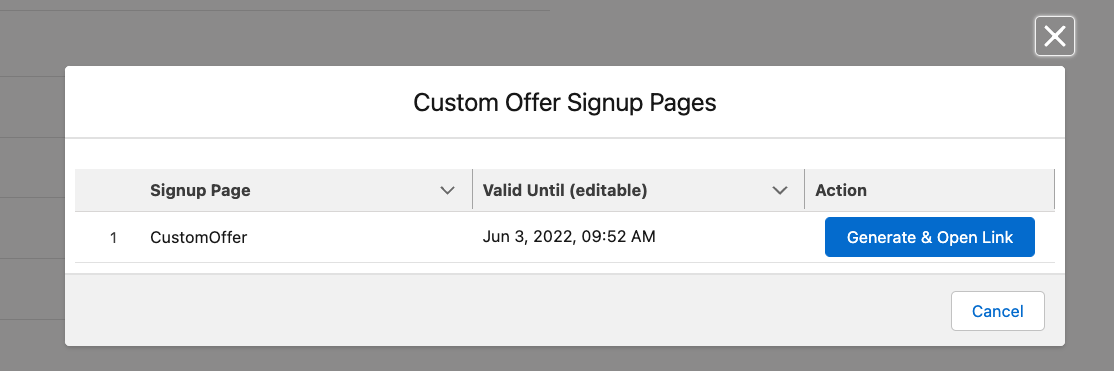
Next, select which custom Offer page template to use.
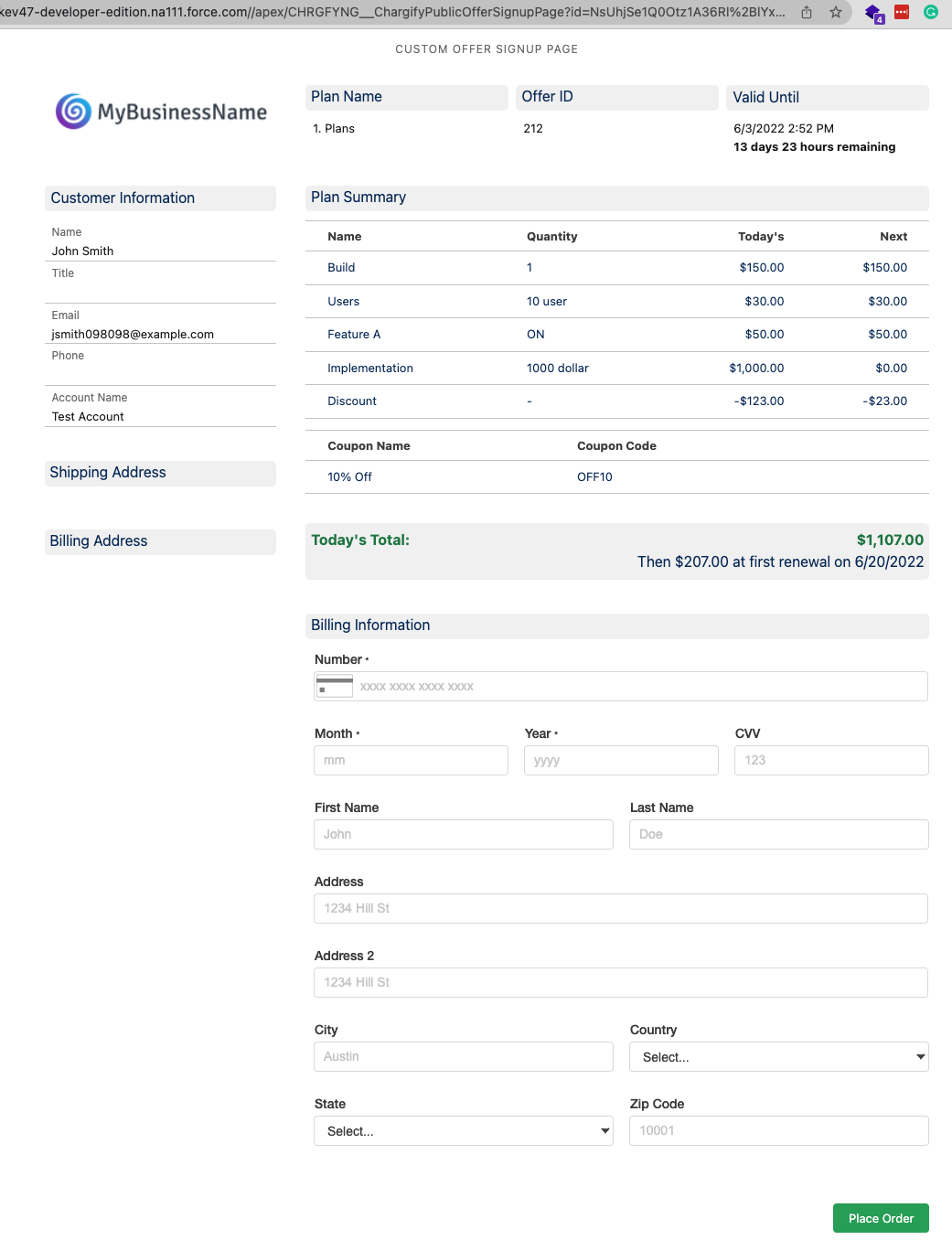
A new tab then opens with the custom Offer page, which you email or share with the prospect. Once the prospect completes the custom Offer page, the Subscription is created in Advanced Billing.
Related information
To compare Salesforce against every other signup method, see the Compare New User Signup Methods help article.
Still need help?
Reach out and our support team will take it from here.