
Configure Custom Pricing for Products
Applies to: Advanced Billing
Last updated on Sep 23, 2026
Set Custom Pricing for Products directly on a Subscription using one of these Product allocation flows:
- Update Quantity
- Toggle On/Off
- Purchase Prepaid Units
- Record Usage
Custom Pricing applies only to the selected Subscription. It doesn't update pricing in the Product Catalog.
If list and sales price tracking is enabled for your account, you can set a list price reference alongside a custom sales price override to automate discount calculations. See Track List and Sales Prices on Subscriptions.
Update the quantity on a product
This flow bills a quantity-based Product at a Custom Price instead of its catalog price point.
To set Custom Pricing while updating a Product's quantity
-
From Advanced Billing, go to Billing > Subscriptions, then select the Subscription.
-
From the View Subscription page, select Products in the left navigation panel.
-
In the All Product Types filter next to Search, select Quantity Based (Recurring) or Quantity Based (One-time).
-
Locate the Product, click its More icon (...), then select Update Quantity.
-
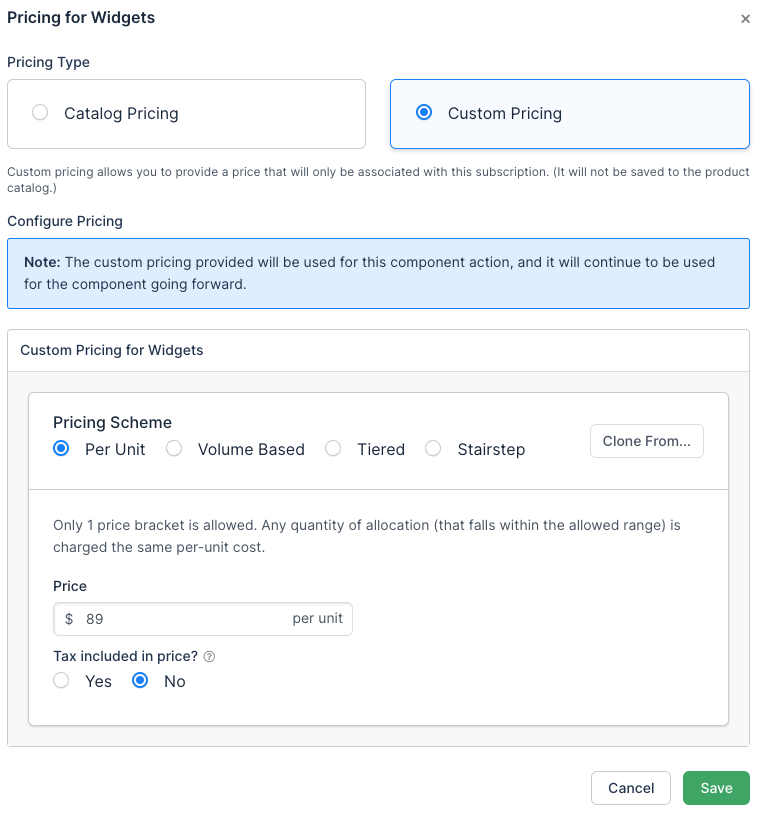
Under Pricing, click Change pricing.
-
Select Custom Pricing.
-
Configure the Pricing Scheme, then click Save.
-
Select how to handle proration when the Product's price increases, when there's a new charge, when an immediate Product payment fails, and when the Product's price decreases. The choices that don't apply to the direction of your quantity change are disabled.
-
Enter a Memo describing the allocation.
-
Click Update.
Toggle a product on or off
This flow bills an On/Off Product at a Custom Price instead of its catalog price point.
To set Custom Pricing while toggling a Product on or off
-
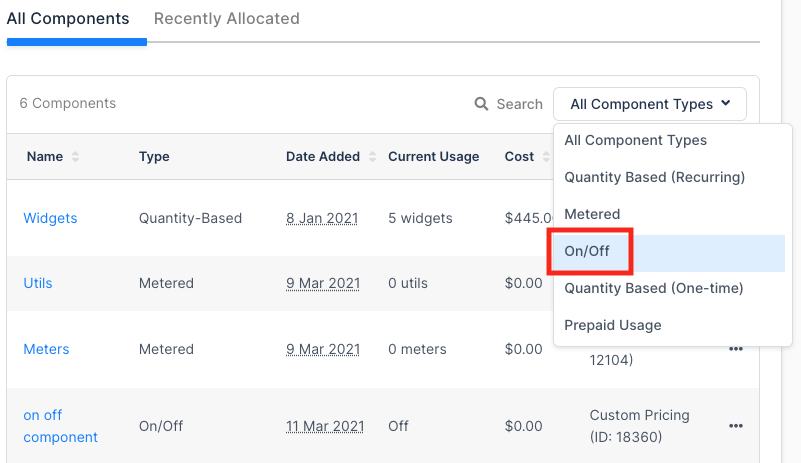
In the All Product Types filter next to Search, select On/Off.
-
Locate the Product, click its More icon (...), then select Toggle On/Off.
-
Under Pricing, click Change pricing.
-
Select Custom Pricing.
-
Configure the Pricing Scheme, then click Save.
-
Select On or Off.
-
Select how to handle proration when the Product's price increases, when there's a new charge, when an immediate Product payment fails, and when the Product's price decreases.
-
Enter a Memo describing the allocation.
-
Click Update.
Purchase prepaid units for a product
This flow bills a Prepaid Usage Product's allocated and overage pricing at a Custom Price instead of its catalog price points.
To set Custom Pricing while purchasing prepaid units
-
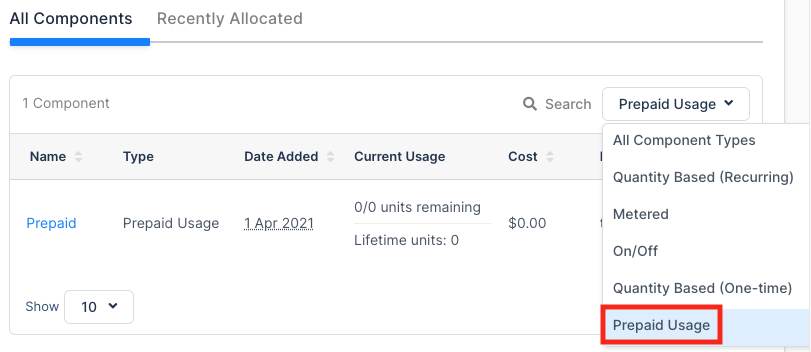
In the All Product Types filter next to Search, select Prepaid Usage.
-
Locate the Product, click its More icon (...), then select Purchase Prepaid Units. This opens a drawer over the Products table.
-
Under Purchase Type, select One-time or Recurring. Recurring is selectable only when the Product's current Price Point renews its prepaid allocation; on any other Price Point the option still appears, but it's disabled.
-
Under Pricing, click Change pricing.
-
Select Custom Pricing.
-
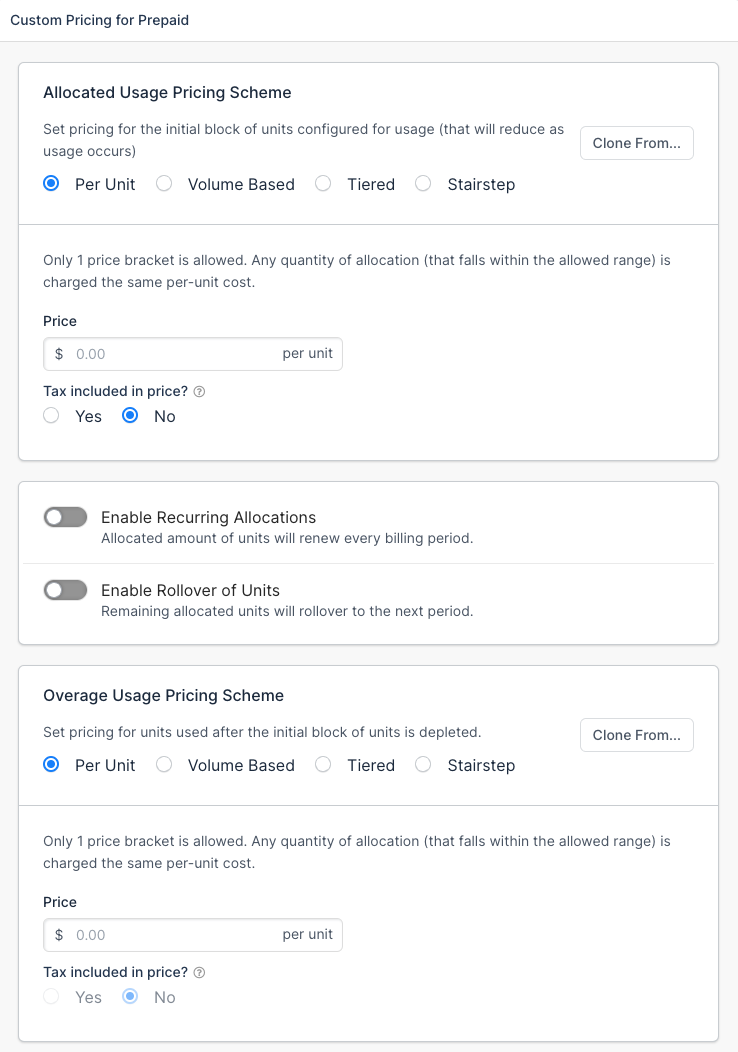
Configure Custom Pricing for the Allocated Usage Pricing Scheme and Overage Usage Pricing Scheme.
-
Click Save.
-
Enter a Memo describing the allocation. On a One-time purchase, also choose how to handle an immediate Product payment failure. A Recurring purchase doesn't offer that choice.
-
Click Purchase. If you're lowering a recurring level instead, this button reads Decrease.
Record usage for a metered product
This flow bills a Metered Product's usage at a Custom Price instead of its catalog price point.
Custom Pricing on a Metered Product's usage is only available if Multifrequency is enabled for your site.
To set Custom Pricing while recording usage
- In the All Product Types filter next to Search, select Metered.
- Locate the Product, click its More icon (...), then select Record Usage.
- Enter the Quantity of usage to record.
- Next to Pricing, click Change pricing.
- Select Custom Pricing.
- Configure the Pricing Scheme, then click Save.
- Enter a Memo describing the usage.
- Click Record.
Related information
For how Custom Pricing behaves once set, see Understand How Custom Pricing Works.
To add a Multifrequency billing interval while configuring Custom Pricing, see Add Multifrequency Billing to a Subscription.
Still need help?
Reach out and our support team will take it from here.