
Understand How Custom Pricing Works
Applies to: Advanced Billing
Last updated on Aug 29, 2026
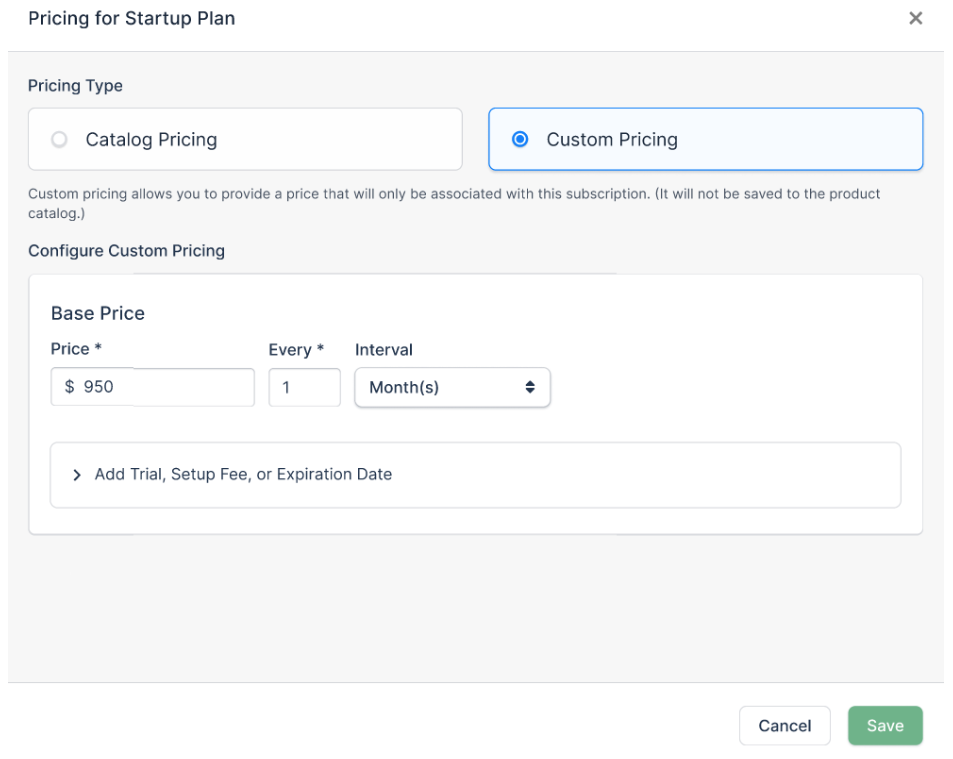
Use Custom Pricing to define a price for a Plan or Product that's specific to one Subscription. You define these prices during a Subscription action, such as updating pricing or quantity, and they do not appear in the Catalog.
Custom Pricing helps you manage sales-negotiated Subscriptions alongside self-service sign-up Subscriptions without expanding your Catalog unnecessarily. It also lets you define prices on demand, without a separate catalog workflow.
Ways to use custom pricing
You can apply Custom Pricing in several ways:
- Through the API
- Through the Salesforce integration
- Through the HubSpot integration. See Set Custom Pricing on a HubSpot Deal for that flow.
- Through a Subscription page
- Through a combination of the above
The rest of this article covers Custom Pricing through the Subscription page. For Custom Pricing through the Salesforce integration, contact your Customer Success Manager.
Custom Pricing for Plans
You can set Custom Pricing for Plans using the following actions:
- Set Custom Pricing on a Subscription
- Change Plan
Custom Pricing for a Plan includes similar configurable attributes as a Plan Price Point, including name, price, interval, trial, setup fee, and expiration. Unlike a Plan Price Point in the Catalog, Custom Pricing supports only one currency, the currency of the Subscription.
Important: Maxio doesn't currently support an Upgrade/Downgrade migration to a Custom Price. You can perform an Upgrade or Downgrade a Subscription to a Price Point instead.
Custom Pricing for Products
You can set Custom Pricing for Products using the following actions:
- Update Price Point
- Configure Custom Pricing for Products
Custom Pricing for a Product includes similar configurable attributes as a Product Price Point, including pricing scheme, unit price, price bracket start and end, and tax inclusive settings. Unlike a Product Price Point in the Catalog, Custom Pricing supports only the Subscription currency.
Related information
When you apply a custom sales price override, you can also set a list price reference to automate discount calculations and surface pricing performance in reports. See Track List and Sales Prices on Subscriptions.
Still need help?
Reach out and our support team will take it from here.