
Loading article…
Loading article…
Last updated on Aug 27, 2026
Match a Subscription's available actions to its current state (Active, Past Due, Canceled, Trial Ended, or Expired), and reactivate it to restore full access.
If your Subscription is in a dead state (Trial Ended, Canceled, Expired), reactivate it to expose further Subscription action options.
See Subscription Actions Overview for the full list of Subscription actions.
When the Subscription is in the Active state, the following options are displayed:
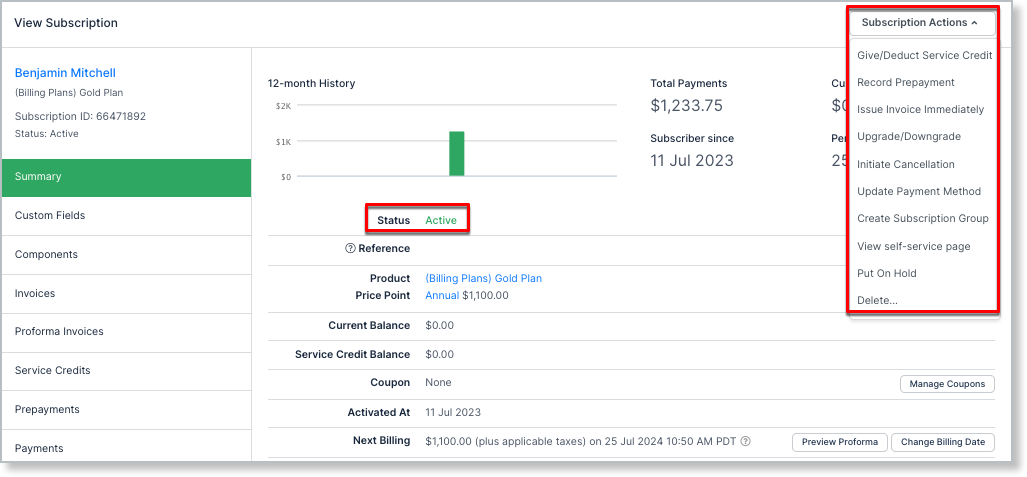
The options available under Actions for Past Due Subscriptions are more limited than for Active Subscriptions.
Put On Hold is missing; you can only suspend a Subscription while it's in the Active state. See Put a Subscription on Hold for how it works.
A new option, Cancel Dunning, is available instead. This takes the Subscription out of dunning by resolving the dunning process and moving the Subscription from Past Due to Active. See Cancel Dunning on Past-Due Subscriptions for special interactions with this feature.
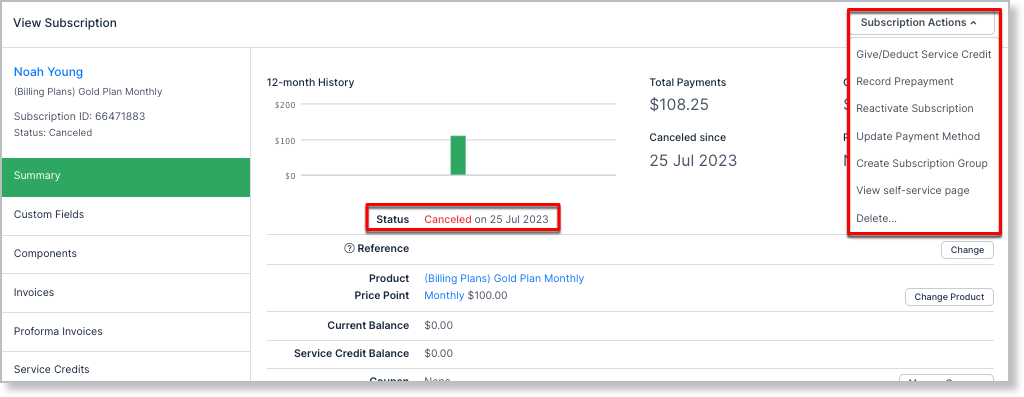
Actions become more limited once a Subscription enters the Canceled state. As with Past Due, Put On Hold is missing; it only becomes available again once the Subscription is Active.
Initiate Cancellation is replaced with Reactivate Subscription, which brings the Subscription out of the Canceled state and back to Active.
Add Charge is also unavailable while a Subscription is in a dead state. To issue a one-time charge for a Subscription, it needs to be in an Active state.
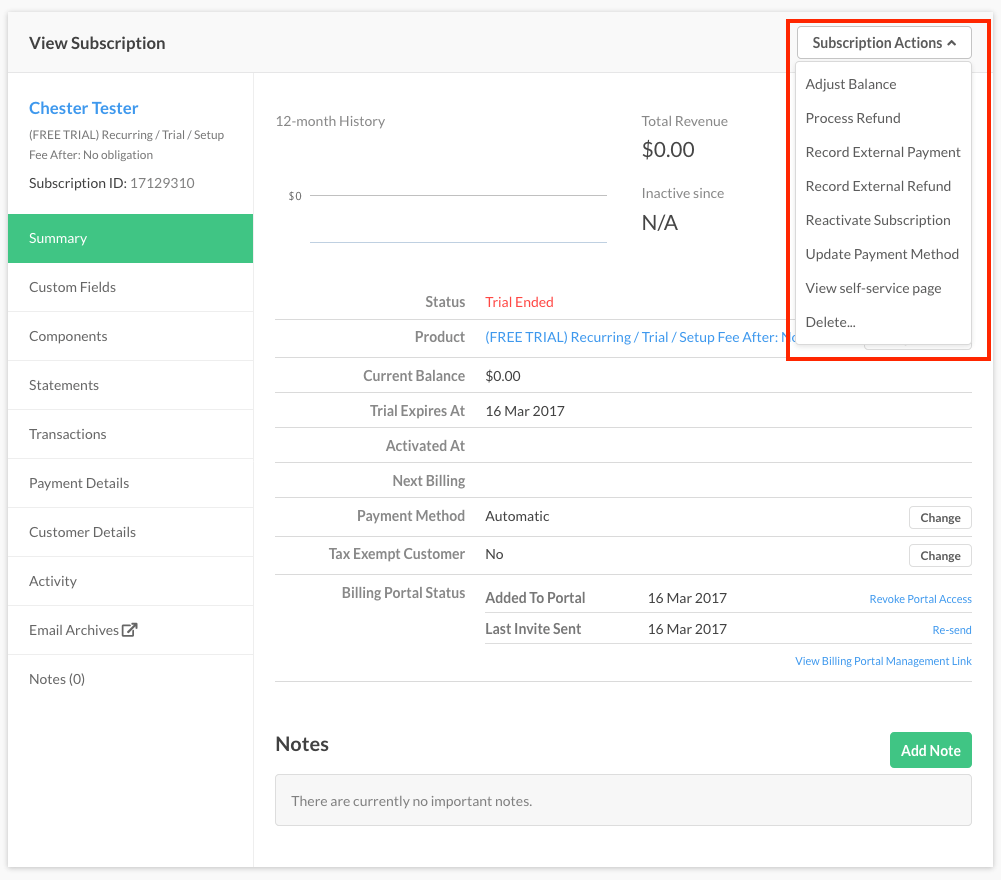
Trial Ended Subscriptions show the same set of actions as Canceled Subscriptions. Reactivate the Subscription to see further options.
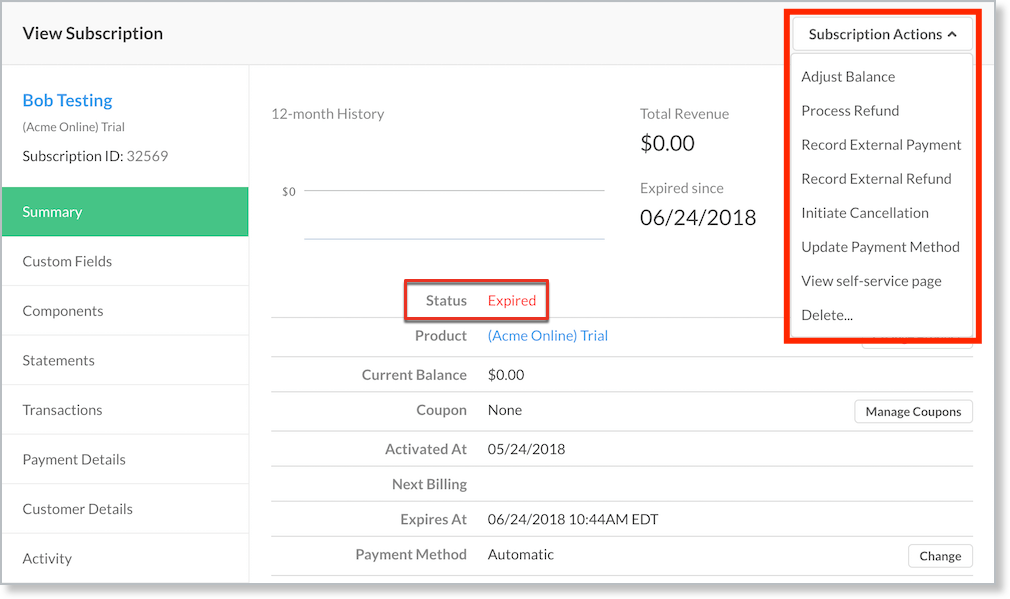
Expired Subscriptions show a slightly different set of options. To expose further options, first cancel the Subscription; once canceled, you can reactivate it.
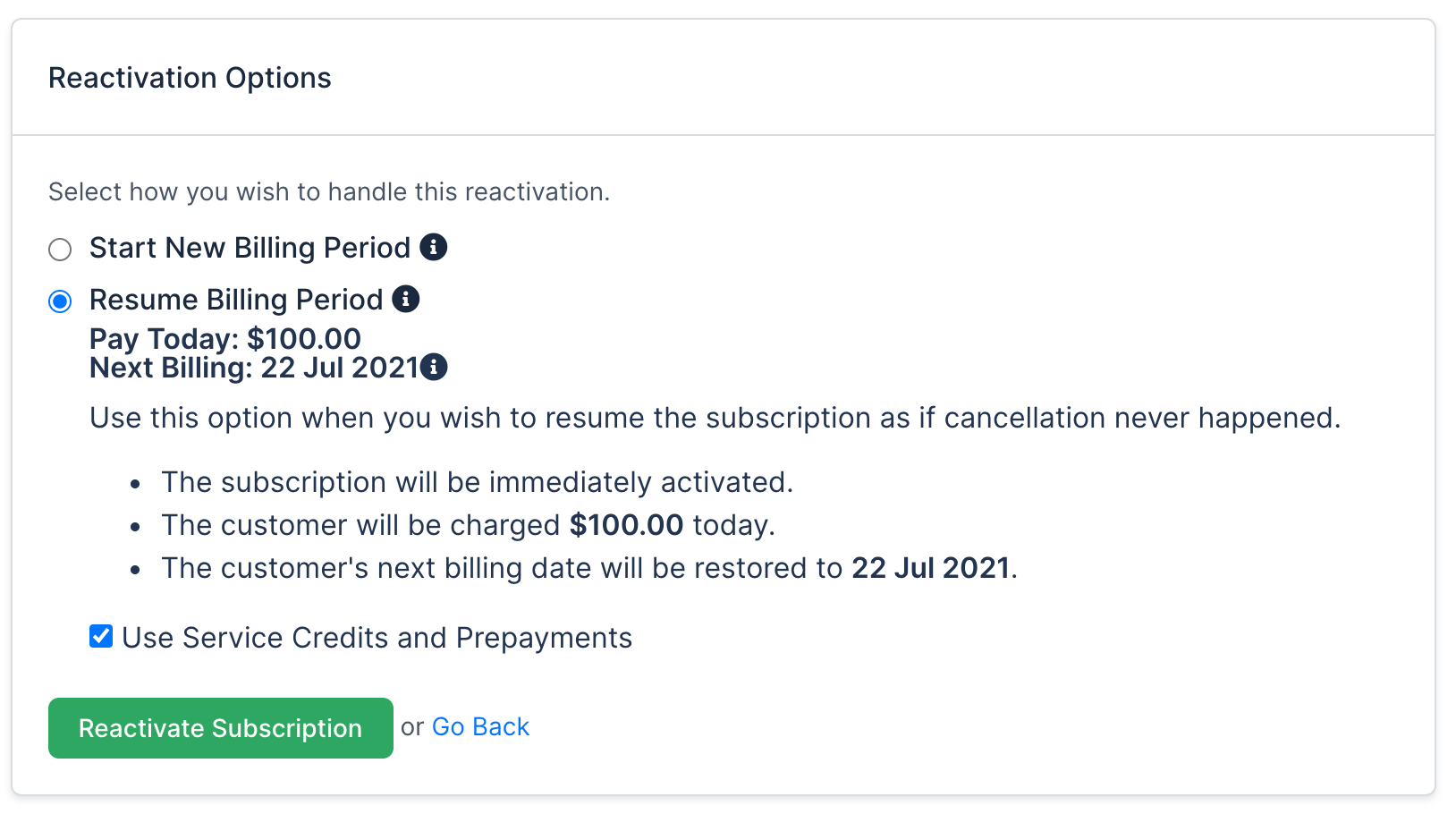
If a Subscription is in a Canceled state, Reactivate Subscription appears in the Subscription Actions dropdown. Selecting it presents options to reactivate the Subscription.
Start New Billing Period - Starts a new period, so a renewal payment is expected. Options to collect previous balances and restart the trial are also presented. Any existing Service Credits or Prepayments are automatically applied to this renewal.
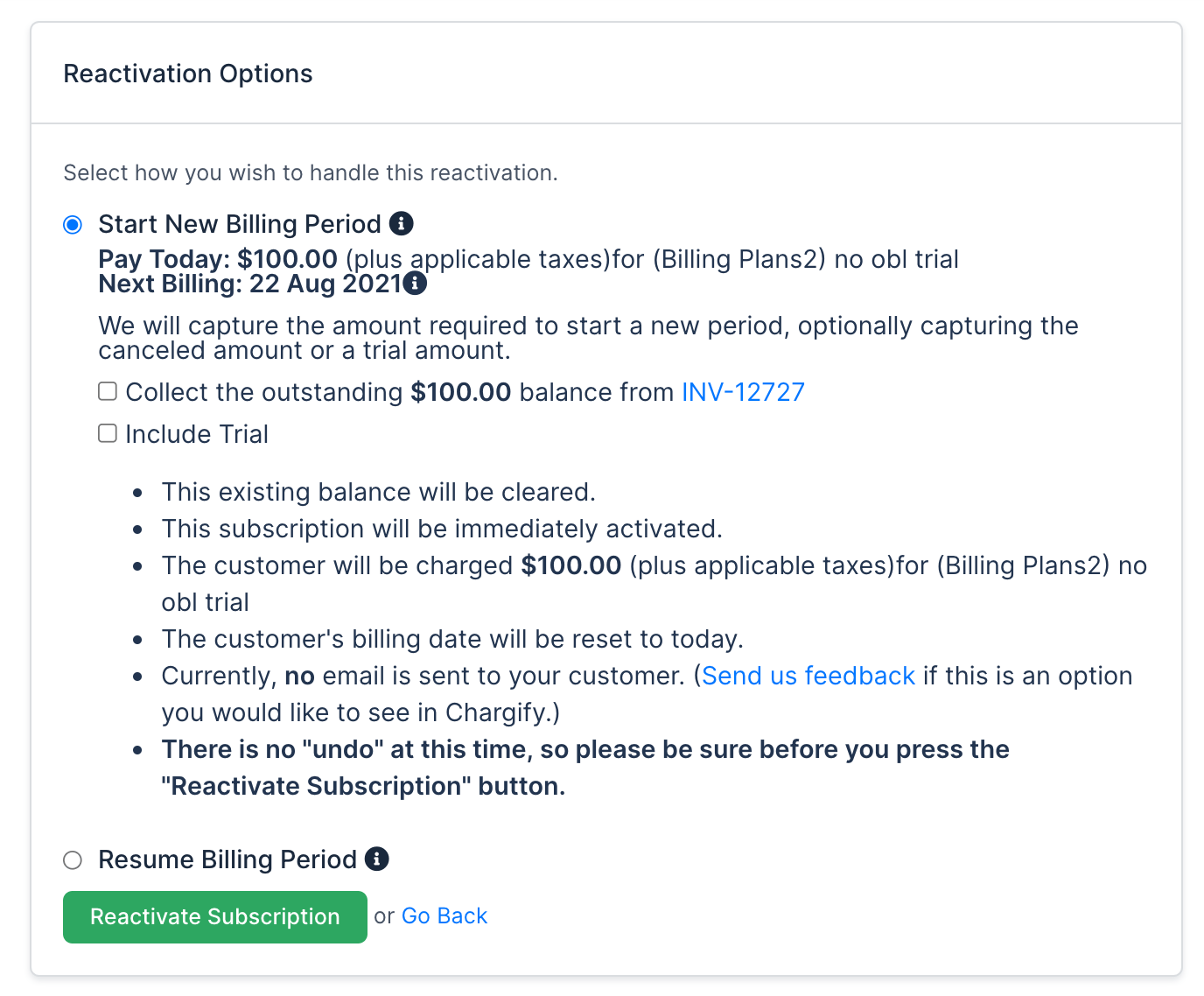
Resume Billing Period - Only appears if the Subscription's current billing period hasn't elapsed. The Subscription's renewal periods remain the same as before cancellation and resume on those dates; any outstanding balance is expected to be paid at this time. If the Subscription has Service Credits or Prepayments, you can also select Use Service Credits and Prepayments to consume them before Advanced Billing attempts the Subscription's payment profile.
For the full list of Subscription states and what each one means, see Understand Subscription States.
For the full reactivating and resuming procedure, see Reactivate or Resume a Subscription.
Still need help?
Reach out and our support team will take it from here.