
Reactivate or Resume a Subscription
Applies to: Advanced Billing
Last updated on Aug 28, 2026
Restart a Canceled Subscription by reactivating it, which starts a new billing period. If you're still within the billing period the Subscription was canceled in, you can resume it instead, continuing that same period as though the cancellation never happened.
How reactivating differs from resuming
Reactivating and resuming both restart a Canceled Subscription from the same Reactivate screen, but they affect the billing period differently:
- Reactivating starts a new billing period and charges the Customer the normal price for a single period.
- Resuming continues the billing period the Subscription was canceled in, as though the cancellation never happened. It's only available if you're still within that same billing period; otherwise, only reactivation is offered.
See Understand Reactivation and Resume Scenarios for how each option behaves with coupons, calendar billing, balances, and trials.
Before you begin
This guidance applies whether you're reactivating or resuming. If a Subscription was originally canceled due to failed transactions, update the credit card before restarting it. Otherwise, restarting the Subscription attempts to charge the same card that already failed.
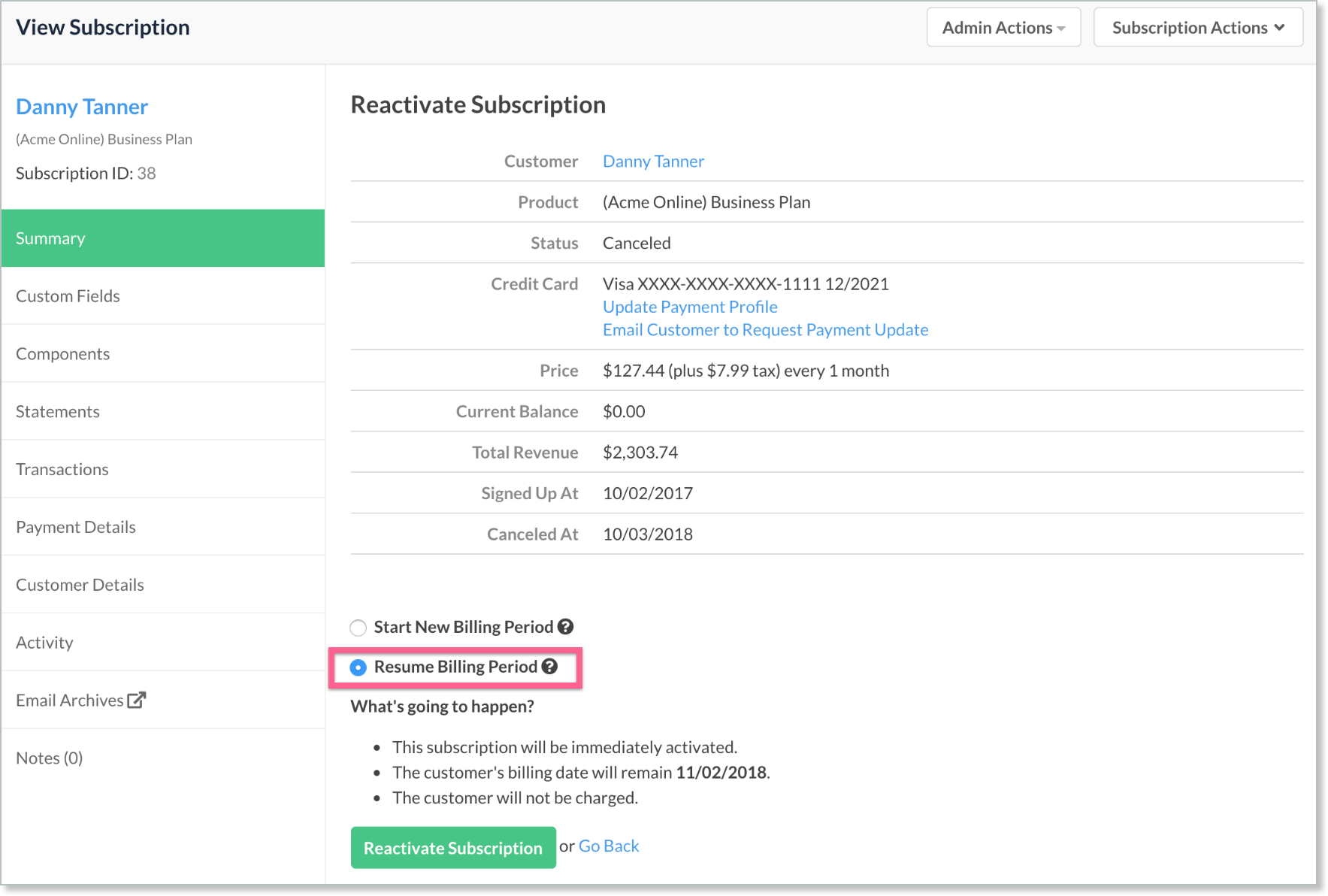
The confirmation screen offers two links in the Credit Card section:
- Update Payment Profile - Lets you manually update the card on the existing Subscription.
- Send "Update Profile Request" email to Customer - Sends an email to the Customer requesting a card update, including a link to a page where they can perform the update. See Understand Self-Service Pages.
Once the card is updated, you still need to initiate the reactivation or resumption. A Canceled Subscription doesn't become Active just because the attached card is updated.
Reactivate a Subscription
Reactivation is available from the Subscription's own Actions menu.
To reactivate a Canceled Subscription
-
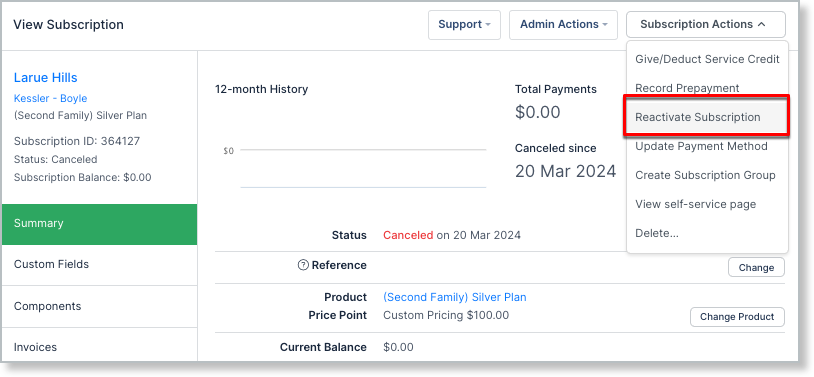
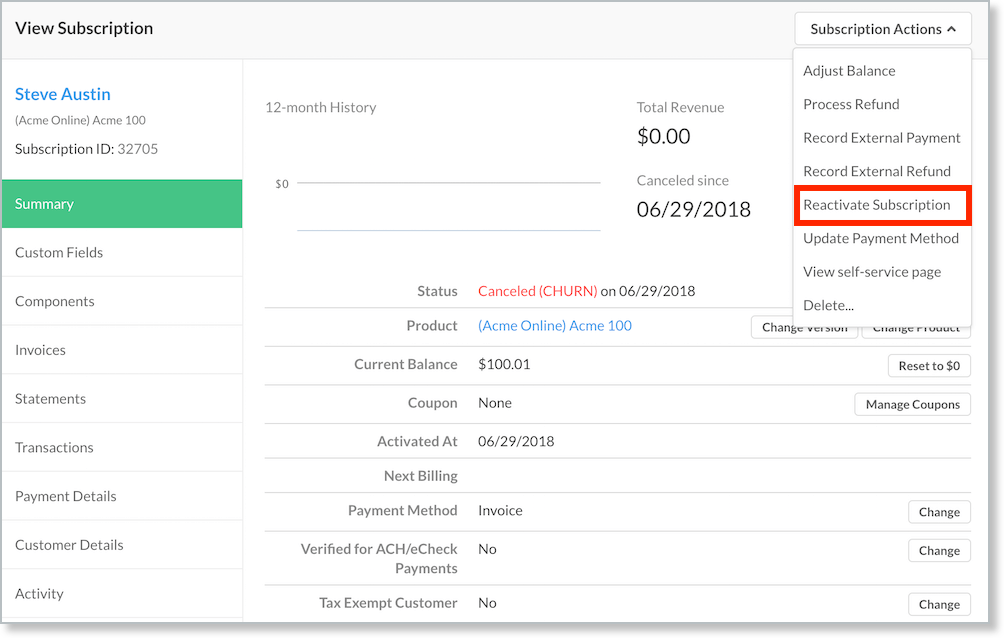
Navigate to the Subscription and select Reactivate from the Actions menu.
-
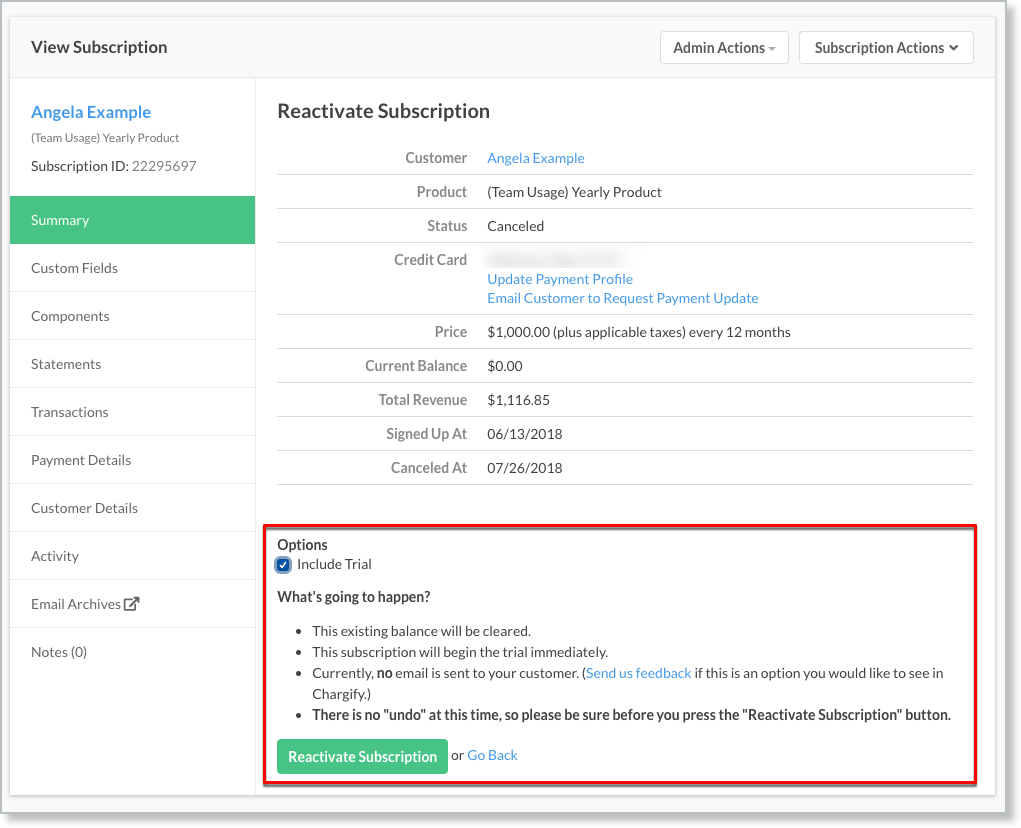
On the Reactivate Subscription screen, under Reactivation Options, select how you want to handle this reactivation.
-
Review the What's going to happen section, which outlines what occurs on this reactivation.
-
Click Reactivate Subscription.
Once a Subscription is successfully reactivated, it's in the Active state and resumes a normal recurring period of incurring charges. See Understand Reactivation and Resume Scenarios for the effects and how coupons, calendar billing, balances, and trials each change the outcome.
Reactivation failures
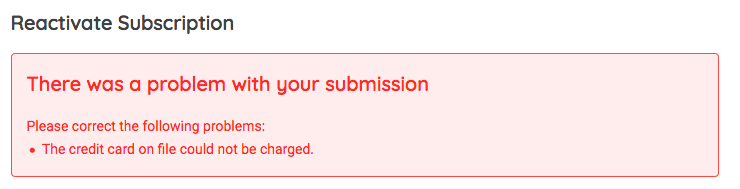
A reactivation can fail within Advanced Billing for two reasons:
-
The card on file declines the charge.
-
There's no card on file for the Subscription.
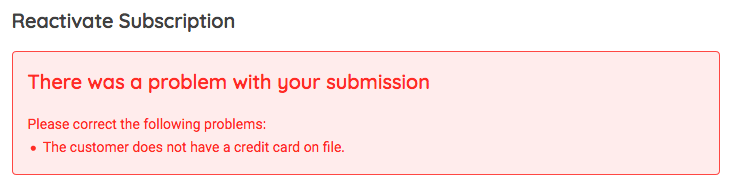
If reactivation fails, you can immediately reach out to your subscriber to have them update their card on file, by selecting Email Customer to Request Payment Update under Payment Details.
Resume a Subscription
Resuming is available from the same Reactivate flow as reactivation, but continues the Subscription's existing billing period instead of starting a new one. It's only available if you're still within the billing period the Subscription was canceled in.
To resume a Subscription
-
Navigate to the Subscription and select Reactivate from the Actions menu.
-
On the confirmation screen, choose to reactivate (start a new billing period) or resume (continue the billing period).
-
Click Reactivate Subscription.
Once a Subscription is successfully resumed, it's in the Active state. See Understand Reactivation and Resume Scenarios for how resuming behaves with an outstanding balance or a Trial Ended Subscription.
Related information
For complete effects and scenario-by-scenario behavior, see Understand Reactivation and Resume Scenarios.
Still need help?
Reach out and our support team will take it from here.