
Create and Manage Coupons
Applies to: Advanced Billing
Last updated on Oct 1, 2026
Use coupons to apply discounts and promotions to Subscriptions across your Product Families, whether as a percentage discount or a fixed amount. Create, edit, and archive coupons from the Catalog.
Creating a coupon
Coupons are created and managed at the Product Family level from the Setup tab.
To create a coupon
- Select Create New Coupon.
- Fill in the coupon's details, discount configuration, and any advanced options (see Understand Coupon Settings for what each setting controls).
- Select Create Coupon.
Once a coupon is created, it is available across all Plans within that Product Family.
Editing coupons
Once a coupon is created, it appears under the Product Family in the Coupons section. To edit a coupon, click the "Edit" button next to it.
If you change the amount or percentage of a coupon, it immediately affects any existing Subscriptions that already have the coupon applied.
If the coupon is set to Apply the discount initially and for the next X renewal periods, changing the number of renewal periods also affects existing Subscriptions that already have the coupon. Maxio compares the number of times each Subscription has received the discount with the coupon's current limit, so raising the number extends the discount on Subscriptions that are still receiving it, and lowering the number can end the discount sooner.
The edit screen shows Coupon Details, Discount Configuration, and Advanced Options as separate cards, each with a read-only summary of its current settings. The Coupon Details card also shows the coupon's Product Family and a button to copy the coupon code to your clipboard.
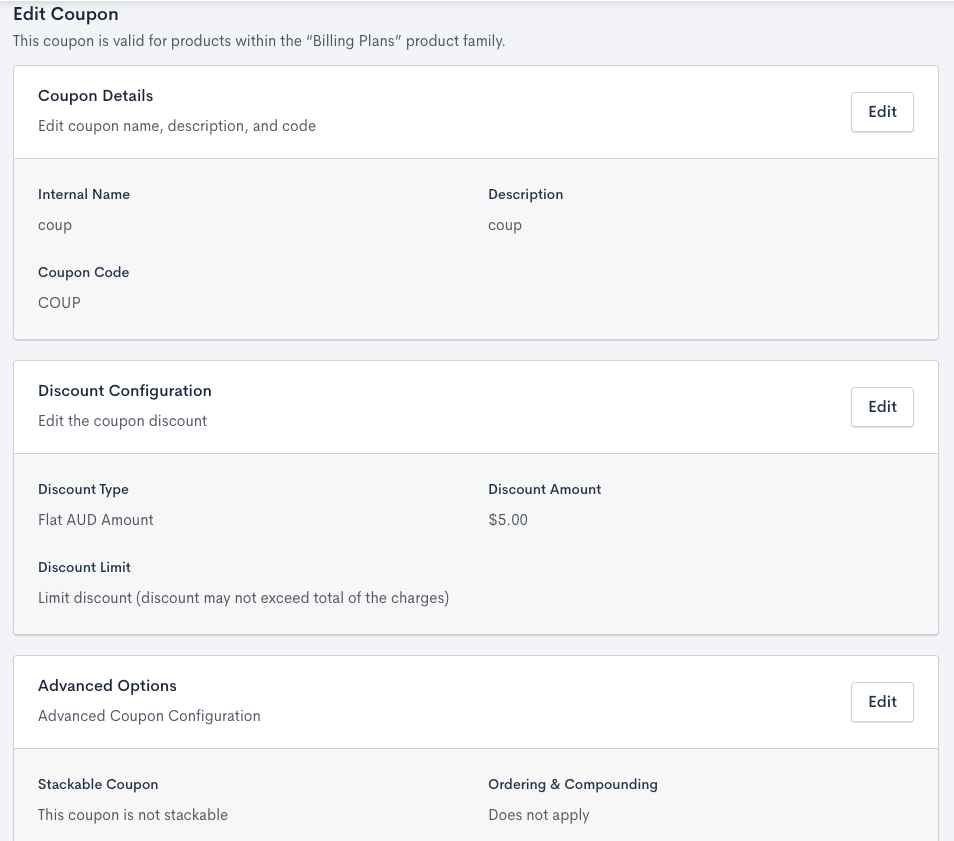
Each section of the Edit Coupon screen has its own Edit button
To edit a coupon's settings
- Select Edit on the card you want to change.
- Update the settings.
- Select the save button at the bottom of the card: Save Details, Save Discount, or Save Advanced Options.
Only one card can be in edit mode at a time, so the Edit buttons on the other cards are disabled until you save or cancel. Select Cancel to leave edit mode without saving. If you have unsaved changes, you are asked to confirm before they are discarded.
Use the Discount Configuration card to enable or edit a recurring discount. If the coupon is a flat amount and your Site has more than one currency, you can also configure pricing for the other currencies there.
Deleting a coupon
Advanced Billing does not support deleting coupons. Instead, you can archive coupons that are no longer in use.
Archiving a coupon
Archiving a coupon retains its record but prevents it from being applied to new Subscriptions.
Archived coupons remain visible for historical reference. While they can’t be used by new Subscribers, existing Subscriptions continue to honor them until all allowed uses are consumed.
To archive a coupon
- Locate the coupon you wish to archive.
- Select Archive.
- On the confirmation screen, select Archive this Coupon to confirm.
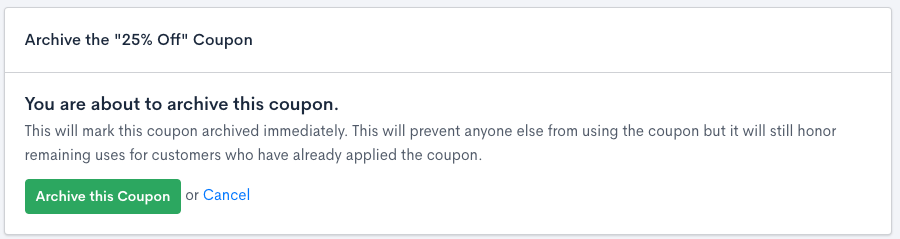
Archive warning screen
Related information
To learn what coupons are and how they work, see Understand Coupons.
Still need help?
Reach out and our support team will take it from here.