
Configure Invoice Email Delivery
Applies to: Advanced Billing
Last updated on Oct 1, 2026
Control how and when your Customers receive Invoices by email, for both automatic and remittance payment types, including rules for $0 Invoices, PDF attachments, and template content. Individual Subscriptions can also override these site-wide defaults. See Invoice emails for individual subscriptions below. You can find these settings by going to Config > Settings > Invoices in Advanced Billing.
Invoice emails for payments
Automatic and remittance payment types each have their own card, with a Send to all subscriptions by default checkbox, an Edit Template button, a rule for $0 Invoices, and an Attach PDFs to Emails option. Clearing the checkbox doesn't hide the other options. They stay visible and editable, so you can configure them even for a payment type you aren't emailing to every Subscription.
For automatic payments
In the Send Email When Invoice Issued for Automatic Payment card, select Send to all subscriptions by default to automatically email an Invoice to every Subscription using automatic payment collection when it's issued.
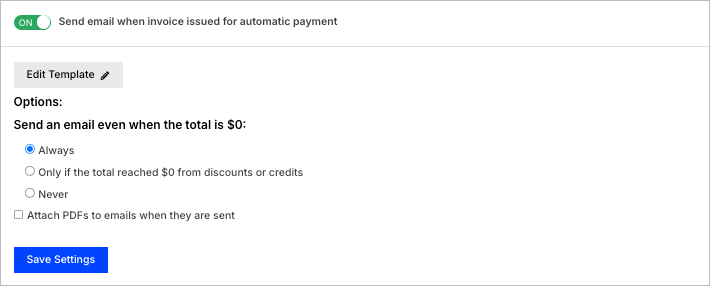
- Selected: Invoices are generated and sent via email to every Subscription using automatic payment collection, subject to the $0 rule below.
- Cleared: Invoices are generated but not sent by default. A Subscription whose own invoice email preference is set to Receive is still emailed, subject to the same $0 rule.
For remittance payments
In the Send Email When Invoice Issued for Remittance Payment card, select Send to all subscriptions by default to send Invoices to every Subscription expected to pay by remittance when the Invoice is issued.
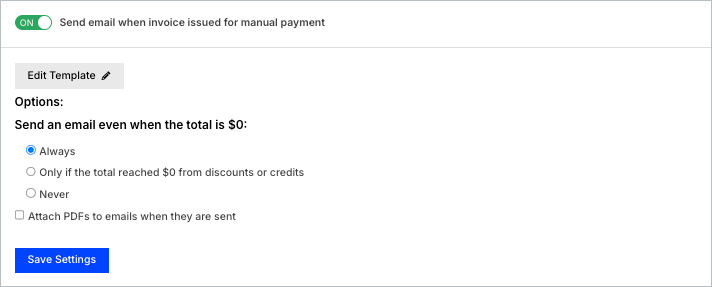
- Selected: Invoices are generated and sent via email to every Subscription on remittance payment, subject to the $0 rule below.
- Cleared: Invoices are generated but not sent by default. A Subscription whose own invoice email preference is set to Receive is still emailed, subject to the same $0 rule.
Customizing email templates
Click Edit Template in a payment type's card to customize the email content sent with that payment type's Invoices. You can insert variables such as Customer name, Subscription details, and Invoice totals. For a complete list of supported variables, see the Email Templates article.
Delivery options for $0 invoices
Each payment type's card has its own When the invoice total is $0 setting. It applies whenever an Invoice is emailed as it's issued, whether because Send to all subscriptions by default is selected or because an individual Subscription's invoice email preference is set to Receive. It doesn't affect an Invoice you send manually after it's issued.
- Always: Send email even if the total is $0.
- Only if the total reached $0 from discounts or credits: Email is sent only when the original subtotal was positive but reduced to $0 due to discounts or credits.
- Never: Do not send emails for $0 Invoices.
Attach PDF copies of invoices
You can choose to attach a PDF version of the Invoice to the outgoing email by selecting the Attach PDFs to Emails option. Each card has its own Attach PDFs to Emails option, including the card for multiple-invoice emails.
Invoice emails for individual subscriptions
Each Subscription's own invoice email preference layers on top of the site-wide settings above. The preference is Use Site Default, Receive, or Never Receive:
- Use Site Default follows the payment type's Send to all subscriptions by default setting and $0 rule unchanged.
- Receive emails this Subscription's Invoices even when Send to all subscriptions by default is cleared, but still follows the payment type's $0 rule.
- Never Receive stops Invoice emails for this Subscription regardless of the site's settings or the Invoice total.
You set the preference in the Invoice Emails field when you create a Subscription. See Create a Subscription for the steps. To change it later, click Change next to Invoice Emails on the Subscription Summary page. See Understanding the Subscription Summary Page for more on that page.
Emails with multiple invoices for a subscription
If multiple Invoices are issued for a Subscription, Advanced Billing groups them into a single email. You can choose to customize the email content as well as include attached PDFs.
Related information
For general Invoice settings, including collection methods and numbering, see Manage Invoices Settings.
Still need help?
Reach out and our support team will take it from here.