
Manage Invoices Settings
Applies to: Advanced Billing
Last updated on Sep 15, 2026
Adjust how Invoices are generated, displayed, delivered, and customized for your Customers, including collection methods, Invoice numbering, layout and metadata, and email and PDF delivery preferences. These settings apply across UI views, downloadable PDFs, and public Invoice landing pages. You can find these settings by going to Config > Settings > Invoices in Advanced Billing.
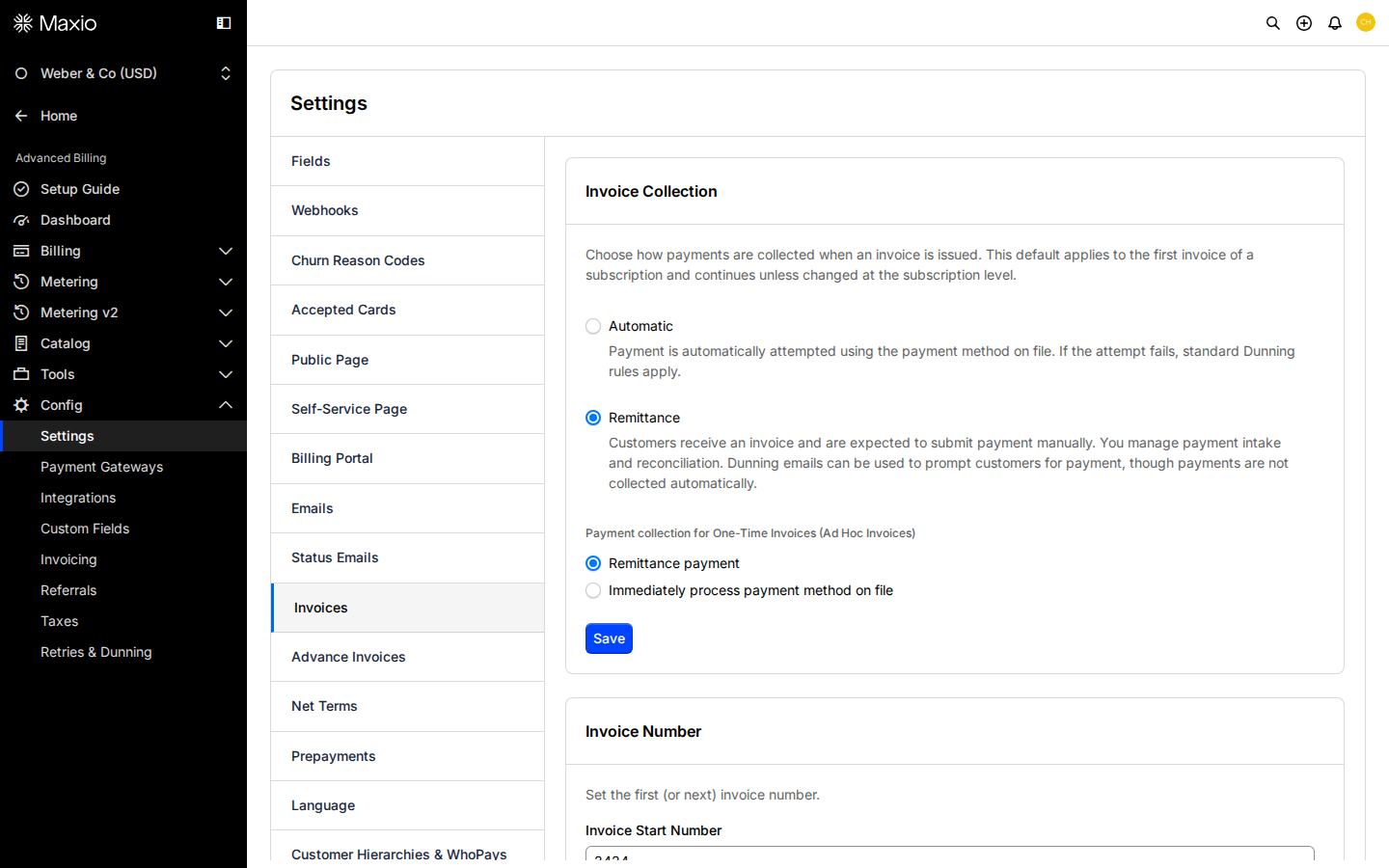
The Understand Invoice Customization and Configure Invoice Email Delivery sections are covered in detail in separate articles.
Choose an invoice collection method
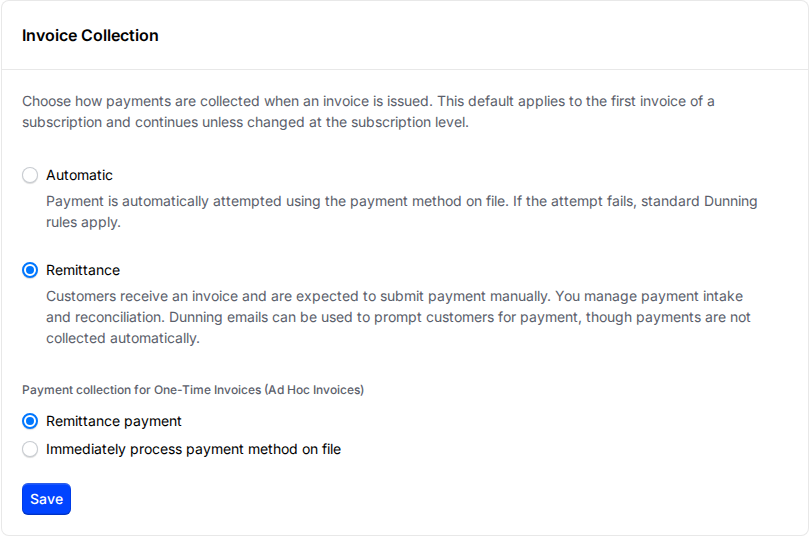
Choose how you collect payment when an Invoice is issued. This setting controls the default collection method for a Subscription's first Invoice.
After the first Invoice is created, you can change the collection method on a particular Subscription. For more information, see Subscription Summary Overview.
Automatic collection
When a new Invoice is issued, Advanced Billing attempts to collect payment automatically from the payment method on file. If the attempt fails, standard Dunning rules apply. See Understanding How Dunning Works for details. The automatic payment method is functionally the same as the automatic option in the legacy statement architecture.
Remittance collection
When a new Invoice is issued, Advanced Billing does not attempt to collect payment automatically, even if a payment method is on file. The remittance payment method is functionally the same as the invoice billing of the legacy statement architecture.
Your Customer receives the Invoice and is expected to review and remit payment manually, and you manage payment intake and reconciliation. Dunning emails can still be used to prompt Customers for payment, though payment isn't collected automatically. Depending on your Dunning strategy, an unpaid remittance Subscription can be automatically canceled, the same as an automatic Subscription.
Payment collection for one-time invoices (ad hoc invoices)
Separately from the default above, choose how payment is collected for one-time (ad hoc) Invoices: Remittance payment, or Immediately process payment method on file.
If you choose to immediately process the payment method on file, also choose what happens when that payment attempt fails:
- Roll back creation of Invoice: the Invoice isn't created.
- Issue Invoice as "Open": the Invoice is created in an Open state. If the Subscription uses automatic collection, Advanced Billing attempts to collect payment again at the Subscription's next renewal.
Invoice start number
Similar to the original setting on the legacy statement architecture, this number specifies the first, or next, Invoice number. This lets you match up the current Invoice numbering in Advanced Billing with an outside or legacy invoicing service. The field enforces a requirement that the starting number can be no less than the highest numbered Invoice within your site; for example, if Invoice #355 is the most recent Invoice, then the starting Invoice number must be at least 356.
Cancellation of invoices in collections
Enable Invoices in Collections so an unpaid Invoice moves to a "Collections" status when Dunning ends, instead of being canceled immediately. Set the Number of days an Invoice stays in "Collections" before it's automatically marked "Canceled." Setting this to 0 cancels the Invoice immediately when Dunning ends, rather than moving it to "Collections" status.
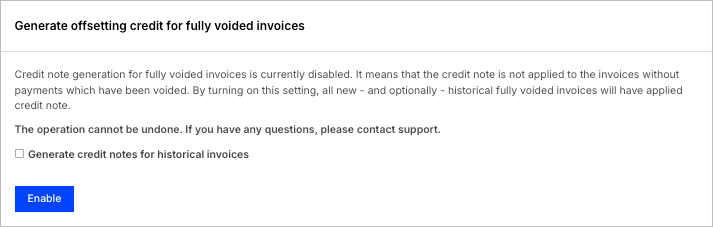
Automatically credit fully voided invoices
Fully voided Invoices don't generate credit notes by default, which can cause them to be excluded from revenue reporting. Enable this setting to automatically generate an offsetting credit note for every fully voided Invoice going forward, so voided Invoices are correctly reflected in the Finance Report. This setting is enabled by default for new sites.
WARNING: This operation cannot be undone. If you have any questions, email support@maxio.com or use this form to submit a request.
Before enabling, you can also check Generate Credit Notes For Historical Invoices to apply offsetting credit notes to your site's existing fully voided Invoices as well. This only affects invoices already voided at the moment you enable the setting. It doesn't apply retroactively if you enable the setting without checking this box first.
Once enabled, this setting can't be turned off. You can also enable Bulk Invoice Voiding to void multiple Invoices at once.
Related information
For details on setting an expiration for a shared Invoice link, see Set the Expiration Time for Public Invoice Links.
To review or change when Invoices with metered usage issue automatically versus enter a Pending state, see Configure Backdated Usage.
If you use Customer Hierarchies and WhoPays for consolidated invoicing, see Configure Child Invoice Numbering and Segment Suffix Enumeration to number child Invoices and enable segment suffix enumeration.
To cap how much, or for how long, a Customer can pay by credit card on a remittance Subscription, see Set a Credit Card Threshold and Set a Credit Card Window.
Still need help?
Reach out and our support team will take it from here.