
Understanding the Subscription Summary Page
Applies to: Advanced Billing
Last updated on Oct 8, 2026
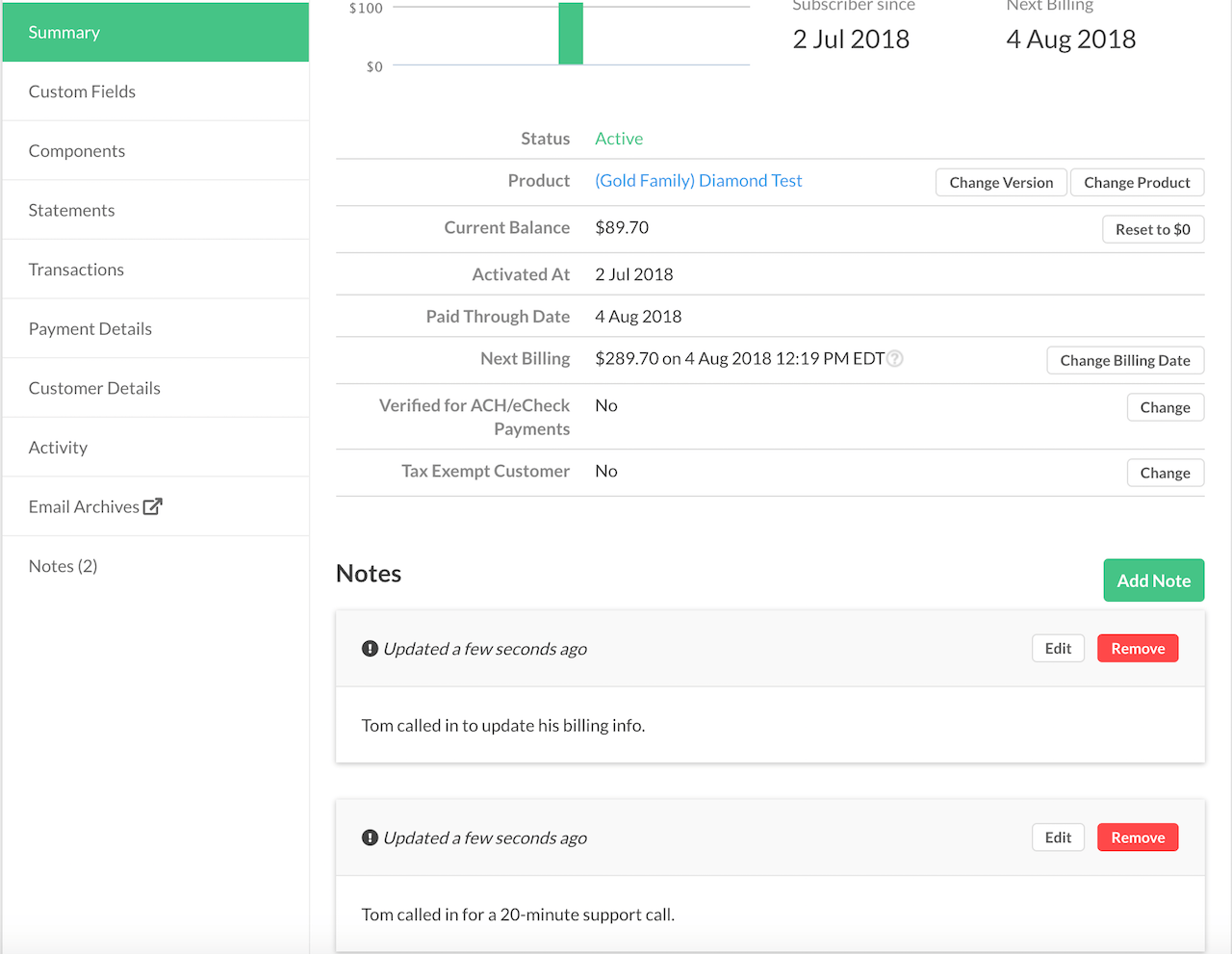
The Subscription Summary tab is the default landing page when you view a Subscription in Advanced Billing. It provides a concise overview of key billing details—such as total payments, current balance, Subscriber Since date, and next billing period—and enables you to manage product changes, billing dates, payment methods, and more. Below is a detailed guide to each field displayed in the Subscription Summary and how to use them effectively.
Please note, some of these fields may not be accessible depending on your plan and settings.
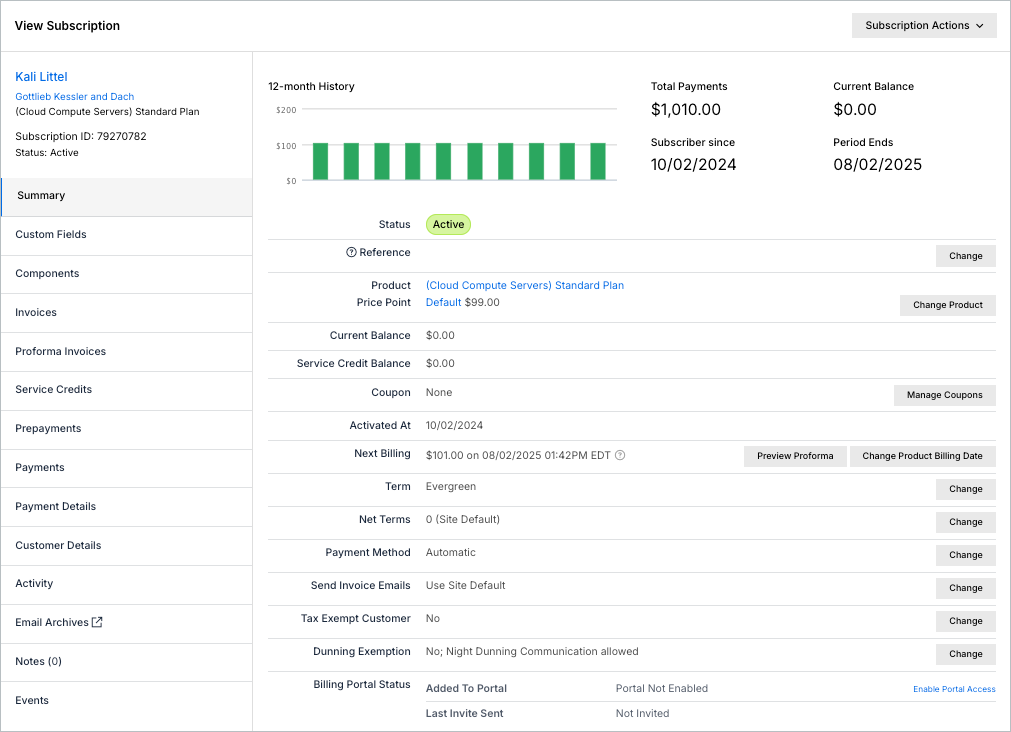
This article covers Advanced Billing’s Subscription Summary function. The Subscription Summary is where you manage customers’ purchases via Advanced Billing. To learn more, see our Subscription Summary Overview help article.
Total Payments
The total payments made toward the Subscription since signup, including paid Invoices, Statements, taxes, one-time charges, and component costs.
Subscriber since
The date the Subscription became active. For an imported or backdated Subscription, this is the Subscription's activation date, not the date the record was created in Advanced Billing. If a Subscription hasn't been activated yet, such as one that is trialing or awaiting signup, this shows the date the record was created instead.
For a canceled Subscription, this stat is labeled Canceled since and shows the date the Subscription was canceled. For an expired Subscription, it is labeled Expired since and shows the expiration date.
If the displayed date falls on a different calendar day in UTC, the UTC date appears beneath it with "(UTC)".
Status
The current state of the Subscription. A Subscription can have many states, but only one at a time.
For more information on Subscription states, see our Understand Subscription States documentation.
Reference field
Subscriptions are uniquely identified by the Advanced Billing-generated Subscription ID.
A user-provided string value ("Reference Field") may also be used—for example, to align with an account or user ID in another system. You can add or edit the Reference value via the admin UI or API in the Create Subscription, Update Subscription, and Find Subscription endpoints.
Referral Code
When referrals are enabled, each Subscription has a unique referral code. You can view it on the Subscription Summary page or fetch it via the API. For more information on referrals, see our Understand Referrals documentation.
Product and price point
This section shows the current product and price point. To change them, click the Change Product button.
On the Change Product page, a list of products and their summaries appears.
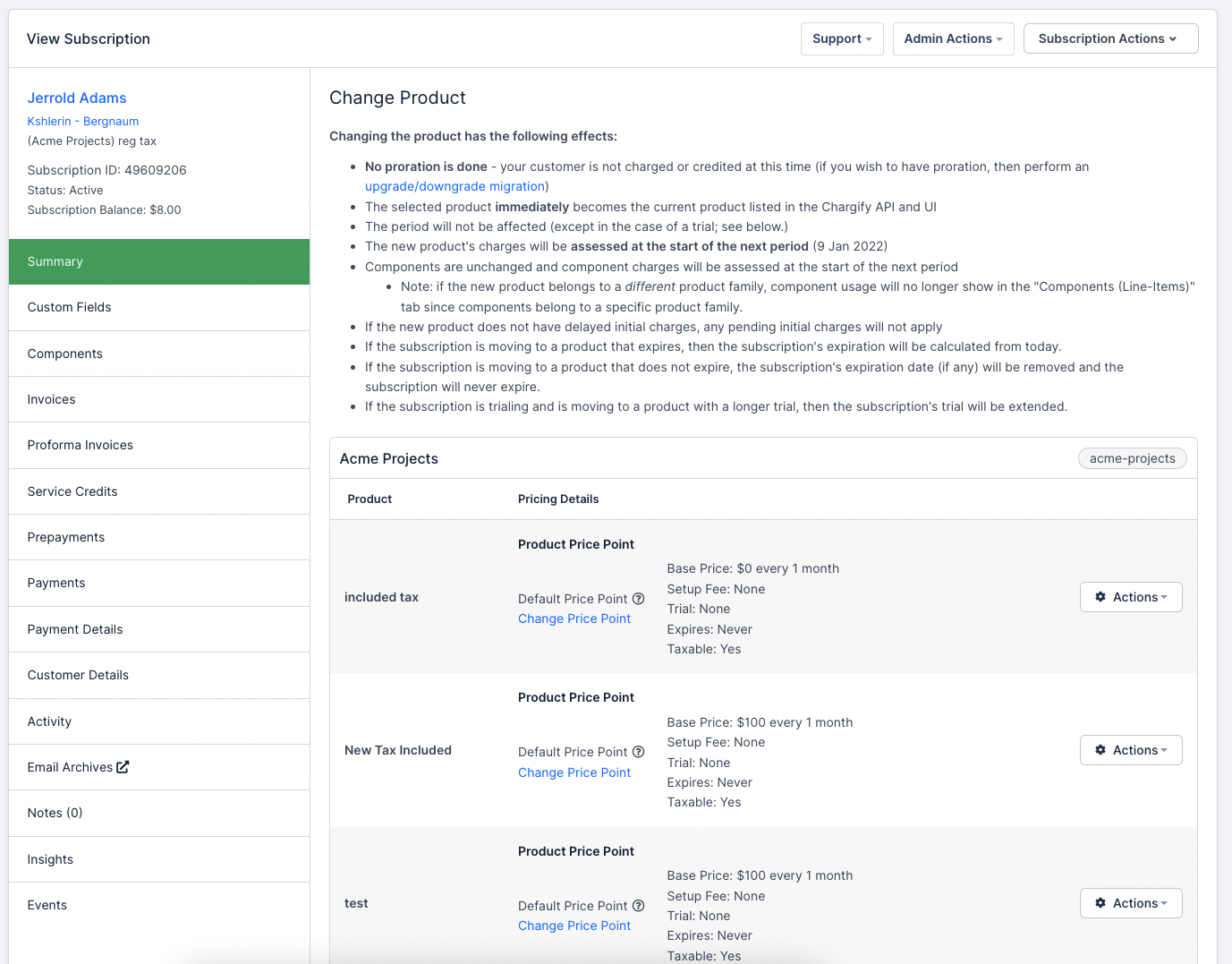
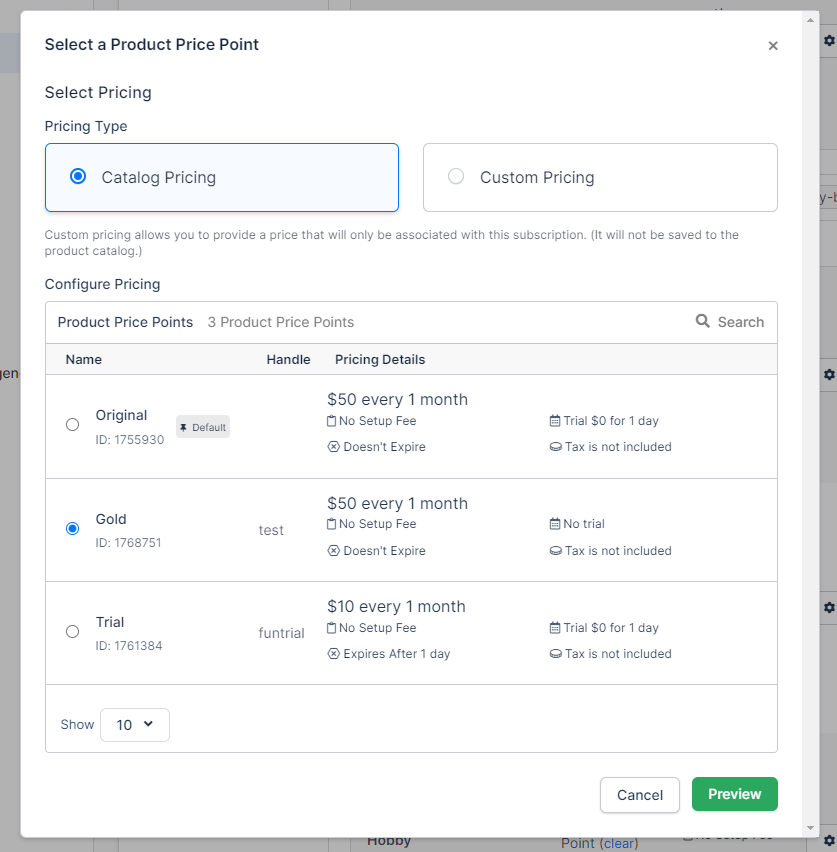
Choose a new price point for that product. If no price point matches your needs, select custom pricing to configure price, billing interval, trial details, setup fee, and expiration/lifetime for this Subscription only.
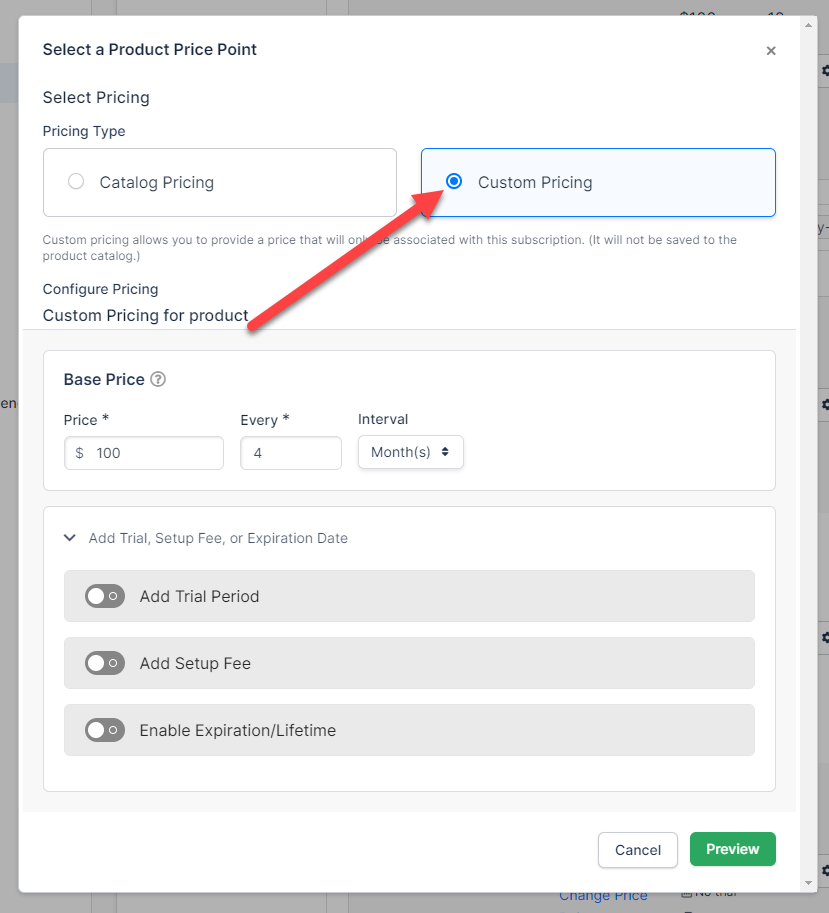
After choosing a price or custom pricing, use the action button to apply the change. The options are described below.
Change product
Selecting this instantly switches the Subscription’s product or price point. No proration is applied. For details, see Product Changes and Migrations.
If you need proration, consider performing an Upgrade or Downgrade—see Actions.
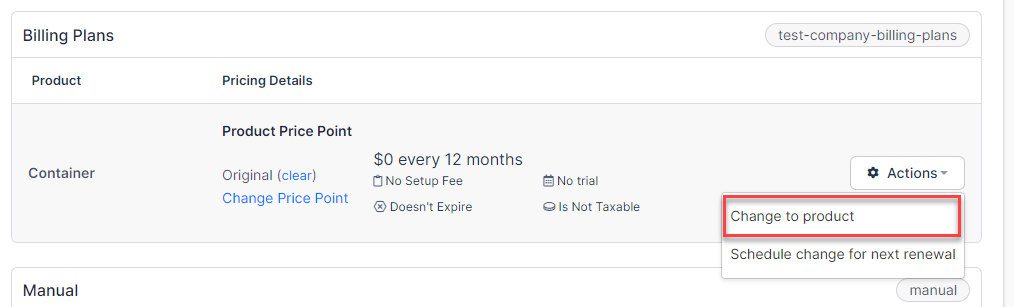
Schedule a change for next renewal
You may configure the Subscription to change product at the end of the current billing cycle (a delayed product change).
When the next billing date arrives, the subscriber is charged at the new price point. Until then, the current product remains active.
Examples:
- Suzie is on the Basic product at $10/month.
- The Plus product is $20/month.
- Her current renewal date is the 31st of the month.
- She schedules a delayed change to Plus.
- On the 31st, the Subscription switches to Plus and she is charged $20.
- Until then, Basic remains the active product.
Cancelling a scheduled product change
To cancel a delayed product change, click Cancel next to the scheduled change name and date.
Current Balance
The current balance reflects the outstanding amount due on the account. It appears at the top of the Summary and under Product and Price Point.
Retry and reactivate
If you adjust a past due or unpaid Subscription’s balance via Actions > Adjust balance, this option reactivates the Subscription if it is not on remittance billing. It also attempts to collect the current balance.
Remittance Subscriptions cannot auto-retry; instead, they become active once all open Invoices are manually paid, unless canceled.
When retrying a past due or unpaid Subscription:
- It retries immediately.
- The customer is charged their current balance.
- If successful, the Subscription becomes active.
- Retry count increments if in dunning.
- This action cannot be undone—be sure before clicking “Retry Subscription.”
Retrying a Subscription in dunning does not alter dunning steps or schedule. It simply replays the current step and webhook with a new timestamp.
Service Credit Balance
The Service Credit Balance reflects available Service Credits. You can add or deduct credits via the Subscription Actions menu.
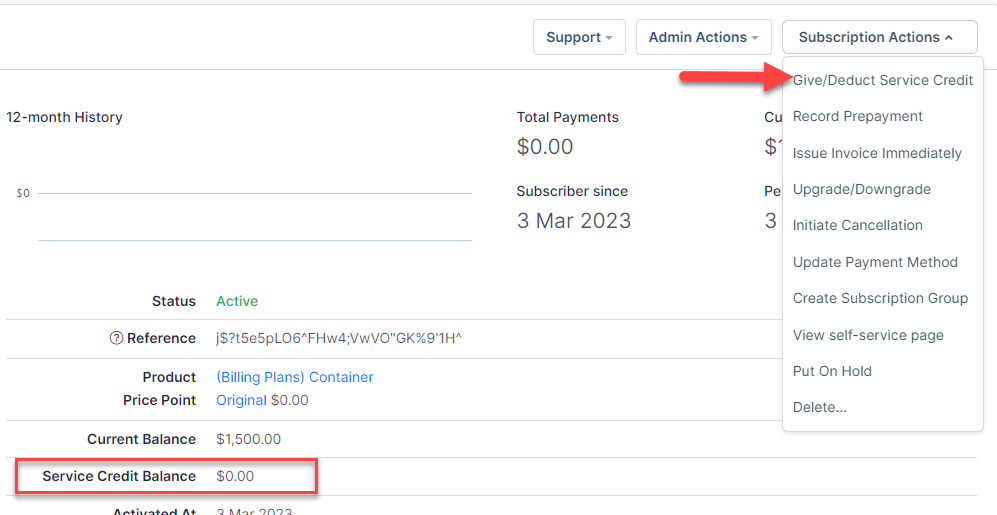
For more on Service Credits, see our Give, Deduct, and Apply Service Credits documentation.
Coupons
Applying coupons is a broad topic; please refer to our Coupons documentation for details.
Activated At
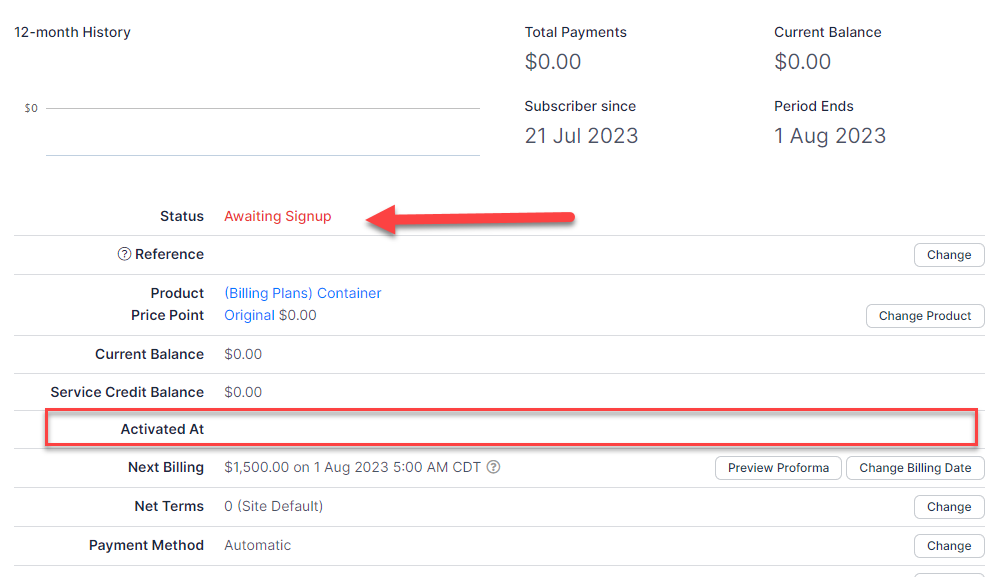
Activated At shows the date the Subscription was first charged. If a Subscription is created for future billing, this remains blank until its signup date, at which point it reflects the activation date.
Next billing amount
This amount reflects only the line items scheduled for the next Invoice—not all products or components associated with the Subscription—especially when items have different billing schedules.
It includes:
- Product and component charges due on the next Invoice.
- Applicable taxes on those charges.
- Coupons and discounts, applied before taxes where applicable.
- Net adjustments (prepayment or Service Credit Balance) applied automatically.
It does not include pending Invoice line items already issued but not yet billed.
Thus, this figure is a net preview of what will be charged at the next billing event, subject to credits, coupons, and timing.
If your Site uses an external tax provider (such as TaxJar, Avalara, Anrok, Numeral, or Sphere) and that provider returns an error or can't be reached when the preview is generated, the next billing amount is followed by (plus applicable taxes) instead of a calculated tax total. This is a signal that tax has not been calculated yet, not that the Subscription is tax-exempt. The amount recalculates with tax included the next time the preview runs successfully.
Next Billing Date
Indicates when payment will be attempted or retried. If the Subscription is past due, this shows the next retry date. The “Period Ends” date indicates when the current billing period ends. If net terms apply and an invoice is due before the renewal, this date reflects the invoice due date.
An Unpaid Subscription shows its real next billing date and amount instead of "N/A" as long as its billing schedule is still current. Charges keep accruing on the normal schedule, and only automatic payment capture is paused. For more on the Unpaid state, see Understand Subscription States.
For an Unpaid Subscription, this field shows "N/A" only when the billing schedule has stalled. That happens when any of these is true:
- The current billing period already ended without being processed.
- No upcoming billing date is scheduled.
- The Subscription has a processing error.
- The site has Multi-Frequency enabled and the Subscription's next billing date has already passed.
Retry or reactivate the Subscription, or adjust its balance, to get it billing again.
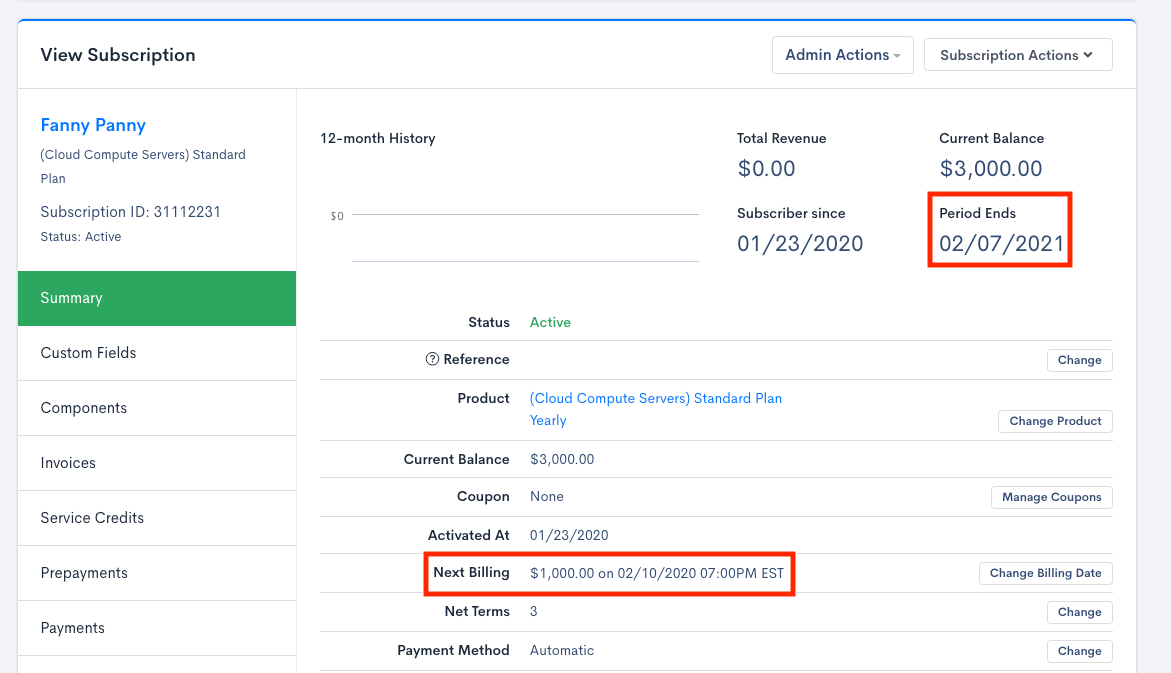
Editing Next Billing Date
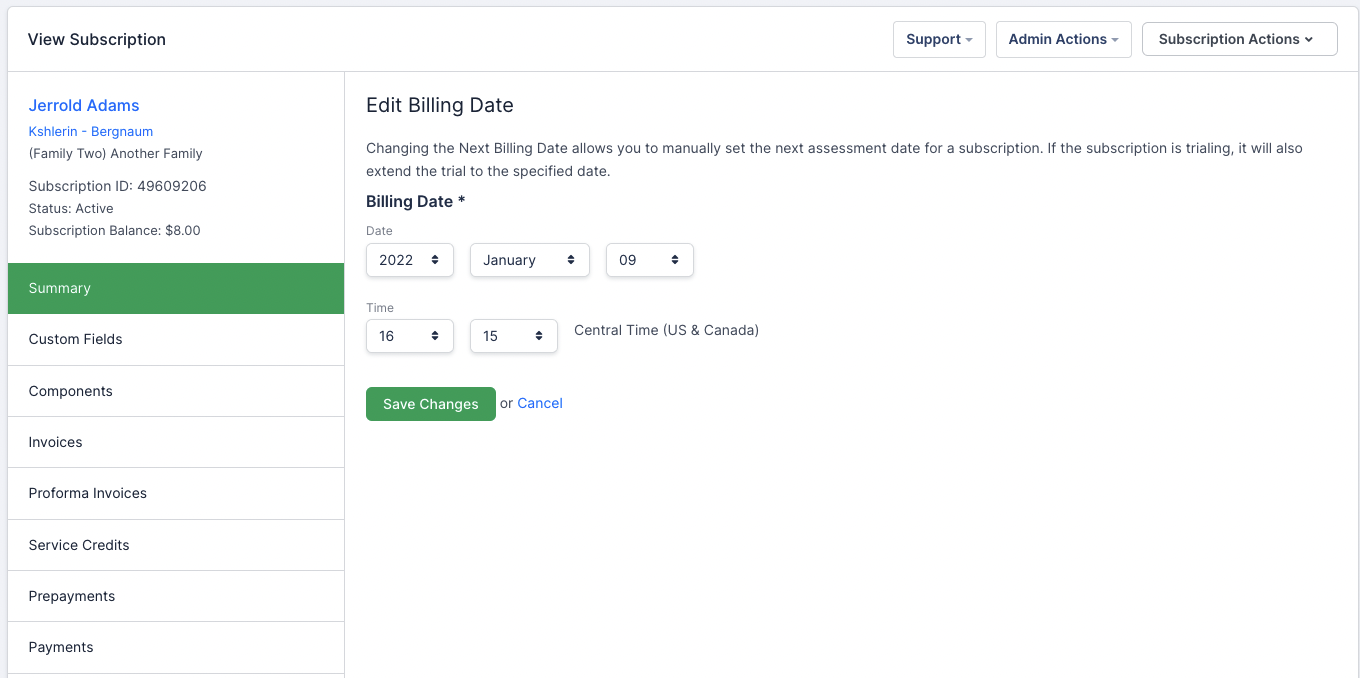
To change the next billing date, select Change Billing Date from the Subscription Summary. Modify any date attributes and save.
Once the “Next Billing” date arrives, a renewal or transaction is typically attempted within 20 minutes. Maxio batches transactions at 0, 20, and 40 minutes past the hour.
Calendar billing
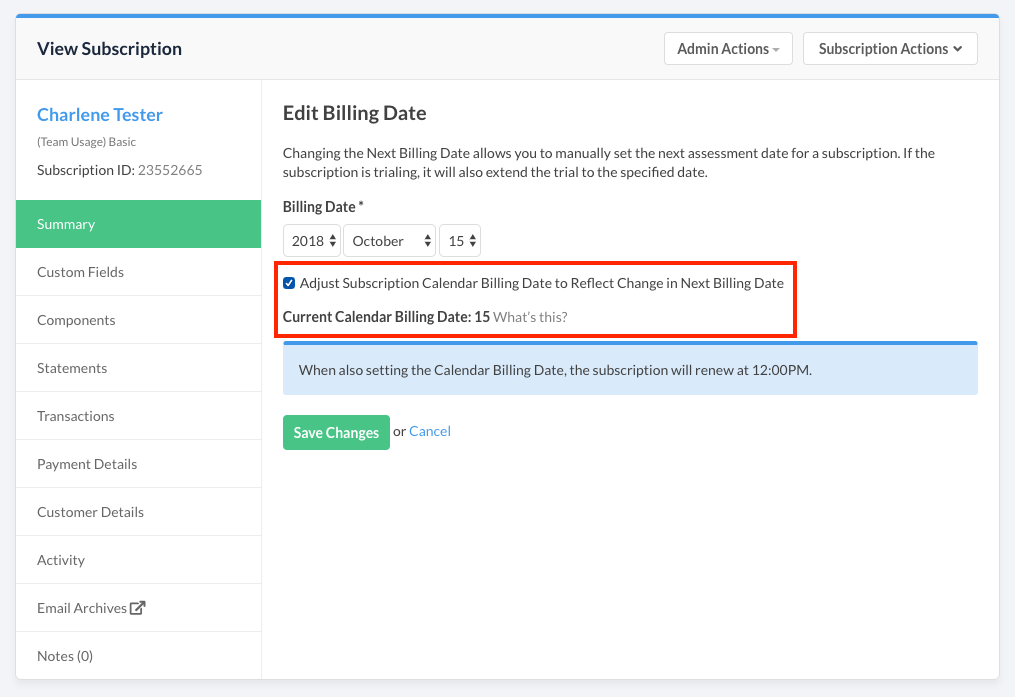
For Subscriptions with a snap day, you can adjust the snap date. Select Adjust Subscription Calendar Billing Date to Reflect Change in Next Billing Date, and the Subscription snaps to the date after the next renewal. Leaving this box unchecked changes the date only for one period, after which the original snap date resumes.
To edit the next snap day, update the snap date separately and then change the next billing date in two steps.
Editing the snap date and billing date
- Select “Adjust subscription calendar billing date” and choose the new snap date of the month.
- Save the snap date.
- Deselect the “adjust subscription calendar billing date” checkbox and select the desired next billing date.
- The new snap date and next billing date now define the updated schedule.
Editing the next billing date for calendar-based Subscriptions may trigger a prorated charge.
Term
If Understand Term Subscriptions are enabled, this section indicates whether the Subscription is Term (with an expiration date) or Evergreen (no expiration, cancelable at any time). Use the Change button to Edit Term:
- Modify the Term date.
- Convert Term to Evergreen.
- Convert Evergreen to Term.
If the selected Term date falls mid-billing period, charges will be prorated for the final period.
Expires At
If a Subscription is for an expiring product and Term Subscriptions is not enabled, Expires At appears. This marks the date the Subscription transitions to Expired. Click Change to modify the expiration date.
Expires At and Term Subscriptions represent the same concept, except Term Subscriptions offer deeper functionality including the ability to Renew Term Subscriptions.
Contract and register
If your Site is connected to Maxio Core, the Subscription Summary shows a Contract / Register row with the Subscription's linked Maxio Core Contract Number, shown as a link to that Contract in Maxio Core, and the Register it belongs to underneath.
Net Terms
Net Terms define how many days after renewal before payment is collected, giving time to review the Invoice. You can set this during Subscription creation or update it later via the Subscription Summary. For more information, see our documentation on Net Terms.
If a Subscription Group exists, child Subscriptions inherit the parent Subscription’s Net Terms. Ungrouping resets a child to the Site Default.
Payment Method
The Subscription’s Payment Method may be Automatic Payment or Manual/Remittance Payment. Use the Payment Method option in the Subscription Summary to change it.
Prepaid Subscriptions cannot switch payment methods, nor can Automatic or Remittance Subscriptions convert to Prepaid. Prepaid is supported via our Relationship Invoicing architecture.
If you cannot edit the Payment Method, check Settings > Invoice Billing to ensure this feature is enabled.
- Automatic billing – The customer is charged automatically at renewal.
- Manual/Remittance billing – An Invoice is generated (and optionally sent) at renewal; payment is recorded manually.
- Prepaid billing – The customer prepays, and usage draws from that balance.
Verified for ACH/eCheck Payments
If using Authorize.Net or the Advanced Billing Test Gateway, Admins must manually approve a Subscriber for ACH (eCheck) payments. Click Change in the Subscription Summary to enable ACH on the customer record. Some gateways (for example, Stripe) use micro-deposits instead of this flag.
See our ACH Payments documentation for more information.
Send statement and invoice emails
You can manually enable or disable Statement and/or Invoice email delivery to customers.
Edit invoice and statement email settings
Use this option to change whether customers receive Statement and/or Invoice emails. By default, this is set to your site's default setting.
Tax Exempt Customer
You may mark a Subscription as tax-exempt via the Subscription Summary. Tax-exempt Subscriptions are not charged tax on taxable Products or components.
Click Change next to Tax Exempt Customer, then set the dropdown under Tax Exempt to “Yes.” For more, see our Tax-Exempt documentation.
Billing Portal section
Billing Portal access
The Summary displays whether the customer’s Billing Portal is enabled or disabled.

Enable Billing Portal access for a disabled customer

Billing Portal options when enabled
Billing Portal management link
Access the customer’s Billing Portal or retrieve the management link to send to the customer. This is also a helpful way to view the portal from the customer’s perspective.
The link is automatically included at the bottom of statements, invoices, and receipts for customers who have been invited to the portal. For security, it is regenerated periodically — at most once every 15 days — and the customer must have already accepted their invitation and logged in, or they are prompted to generate a new login link.
Resend the Billing Portal invitation
If the customer cannot find the portal, use this option to resend the invitation.
Revoke Billing Portal access
To revoke portal access for a Subscription, click Revoke Portal Access. The status will then display Portal Not Enabled.
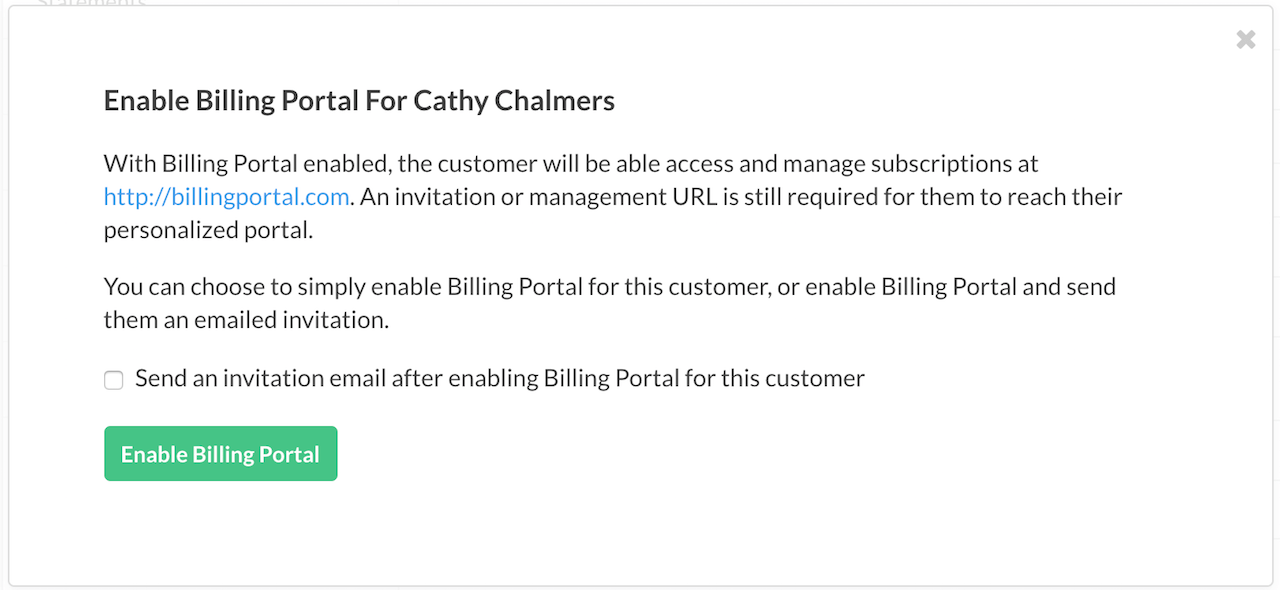
You can re-enable access by selecting “Enable Portal Access,” then choosing to enable only or enable plus send an invitation.
Billing Portal Status
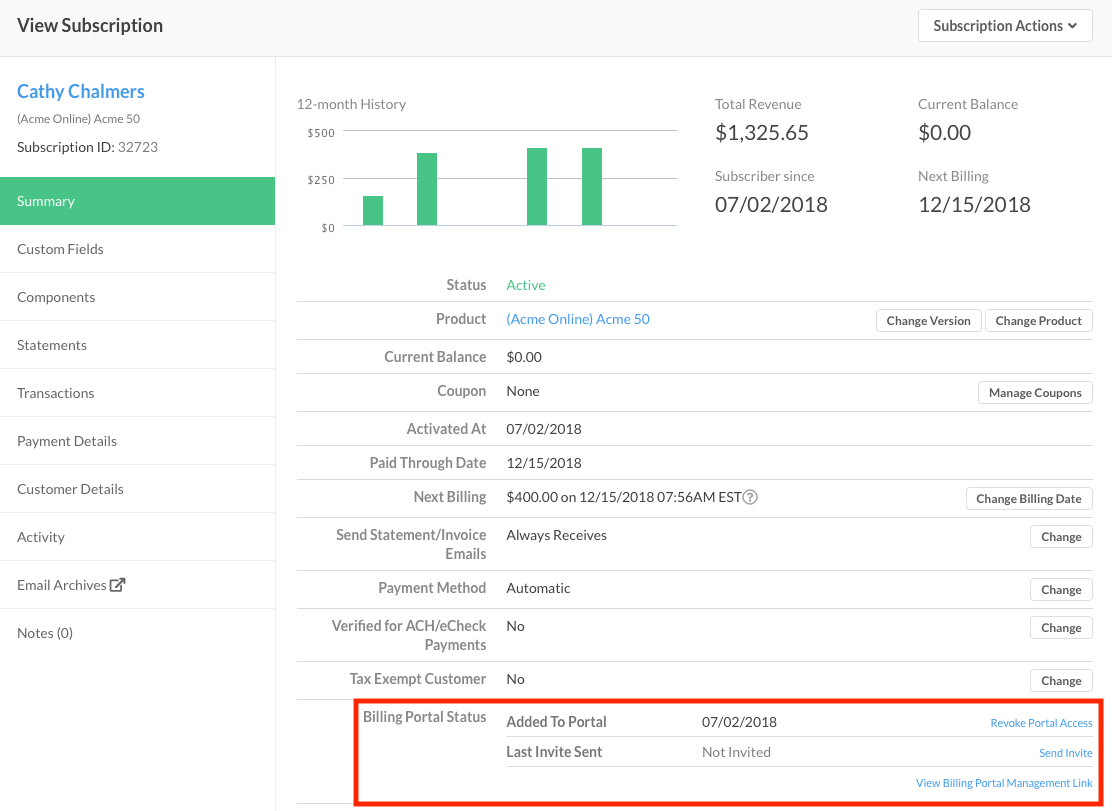
When enabled, the Summary shows:
- Added To Portal: Date the customer first gained portal access.
- Last Invite Sent: Most recent date an invitation was sent.
- Invite Accepted: Date the customer accepted their Billing Portal invitation. It reads Not Accepted if they haven't accepted yet, or if their portal access was revoked.
These dates may differ significantly when invitations are sent manually. See our Billing Portal Invitations documentation for more.
Adding notes
Notes are optional but helpful for tracking activity, calls, or payment plans. The most recent note appears in the Summary. Access all notes via the Notes tab. Flag important notes, which will display with an asterisk.
Still need help?
Reach out and our support team will take it from here.