
Viewing Top Customers
Applies to: Maxio Core
Last updated on Aug 26, 2026
The Top Customer Report provides a list of your Top Customers by MRR, ARR, Revenue, or Invoices for the selected options and timeframes. If multi-currency is enabled in your account, the Top Customers report displays all data in Home values.
Configuration options
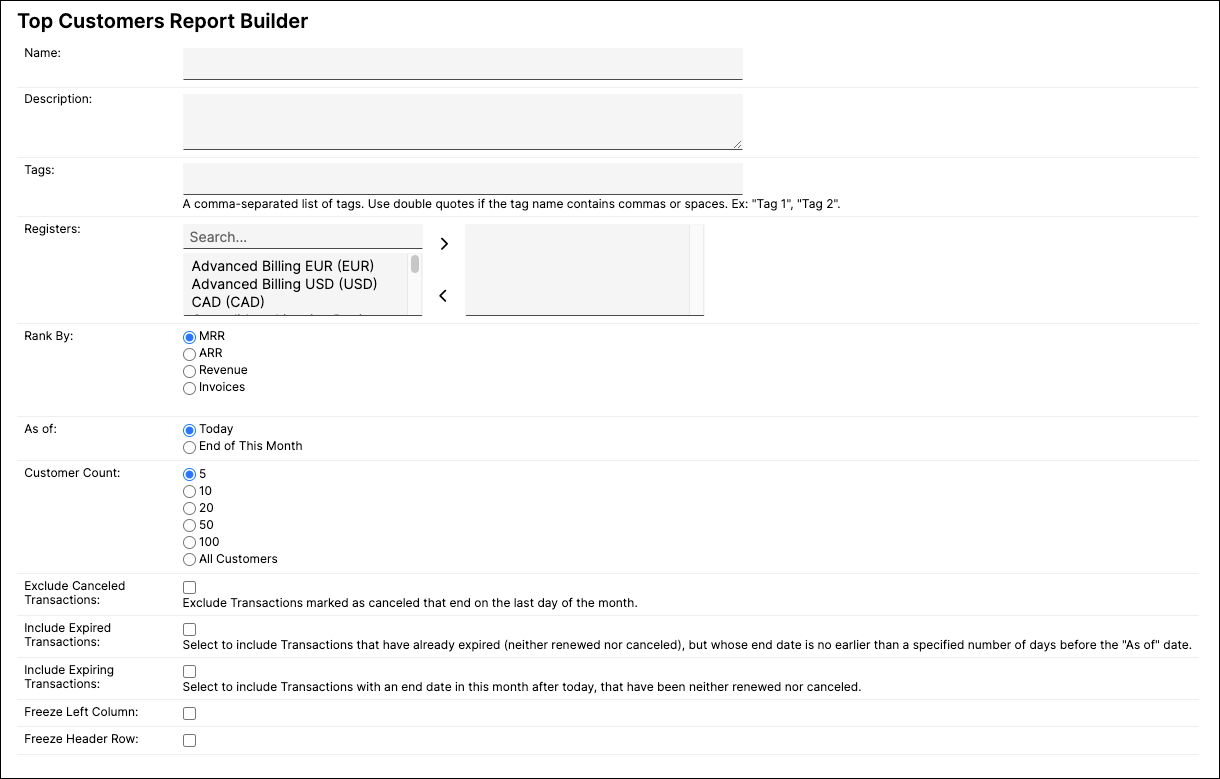
To create a Top Customer Report, expand Reports on the side navigation bar, select Reports Home, click Add Report, and select Top Customers under Analytics Reports. Then configure the following options.
| Setting | Description |
|---|---|
| Registers | Select the Registers (and by extension, which Transactions) to include in your Top Customer calculation. If no Registers are specified, all are included. |
| Rank By | Select the metric used to rank your Customers: MRR, ARR (the default), Revenue, or Invoices. See Settings specific to ranking by MRR or ARR or Settings specific to ranking by Revenue or Invoices below for the settings each option unlocks. |
| Customer Count | Select the number of Customers to include in the rankings: 5 (the default), 10, 20, 50, 100, or All Customers. |
| Roll up by Parent | Combine results for Customers with a parent under their parent. Customers without a parent are reported normally. |
Settings specific to ranking by MRR or ARR
These settings appear when Rank By is set to MRR or ARR. The MRR and ARR refer specifically to the analytic fields and should not be used as a means of ranking Customers by actual Revenue totals. In the Customer view, the MRR/ARR totals as of Month-End are visible in the Analytics Summary section. See also Understanding ARR, MRR, and GRR in Maxio.
- As of - Select the point in time used to calculate MRR/ARR.
- Today (the default) - Rank the Customers by their MRR/ARR as of the date the Report is run. Today is a dynamic variable that resets each day automatically, so any Report with As of: Today selected updates each day to reflect the current MRR/ARR totals. If you include a Top Customers report on your Dashboard homepage, this daily update spares you the need to regularly reconfigure your reporting periods.
- End of This Month - Rank the Customers by their MRR/ARR totals at the end of the current month. Like Today, this value is dynamic and updates automatically from month to month.
- Exclude Canceled Transactions - Exclude Transactions marked as canceled that end on the last day of the month.
- Include Expired Transactions - Include Transactions that have already expired (neither renewed nor canceled), but whose end date is no earlier than a specified number of days before the As of date.
- Include Expiring Transactions - Include Transactions with an end date in this month after today, that have been neither renewed nor canceled.
Settings specific to ranking by revenue or invoices
These settings appear when Rank By is set to Revenue or Invoices.
WARNING: Use extreme caution when selecting Accounts or Items to filter on. Filtering by Account or Item can have significant unintended consequences and can significantly impact reporting integrity. See Impact of Filters on Deferred Revenue and Unbilled AR.
- Filter On - Similar to the settings available in finance reports, these filters allow you to control which Revenue entries or Invoice Line Items are included in the report calculations. If no Accounts or Items are selected, all are included in the report by default.
- (Optional) Accounts - Filter Revenue entries or Invoice Line Items by the Accounts their Items are associated with.
- (Optional) Items - Filter Revenue entries or Invoice Line Items by the Items used by the Revenues' associated Transactions or by the Invoice Line Items.
- For either filter, the calculation is performed at an aggregate level across all Accounts or all Items selected. For example, if the Items ProServices and Enterprise License were selected, the report does not display two distinct Top Customer rankings, one ranked by ProServices totals and one ranked by Enterprise License totals. Instead, the totals are combined and the Customers are ranked by their total Revenues or Invoice Line Item amounts across both Items. To view Top Customer results broken down by individual Accounts or Items, create more than one Top Customer Report.
- Date Range - Specify a date range over which the Revenue entries and Invoice Line Items are totaled to rank the Customers.
Report results
Once you run a Top Customer Report, the results show each ranked Customer along with their contribution to the total.
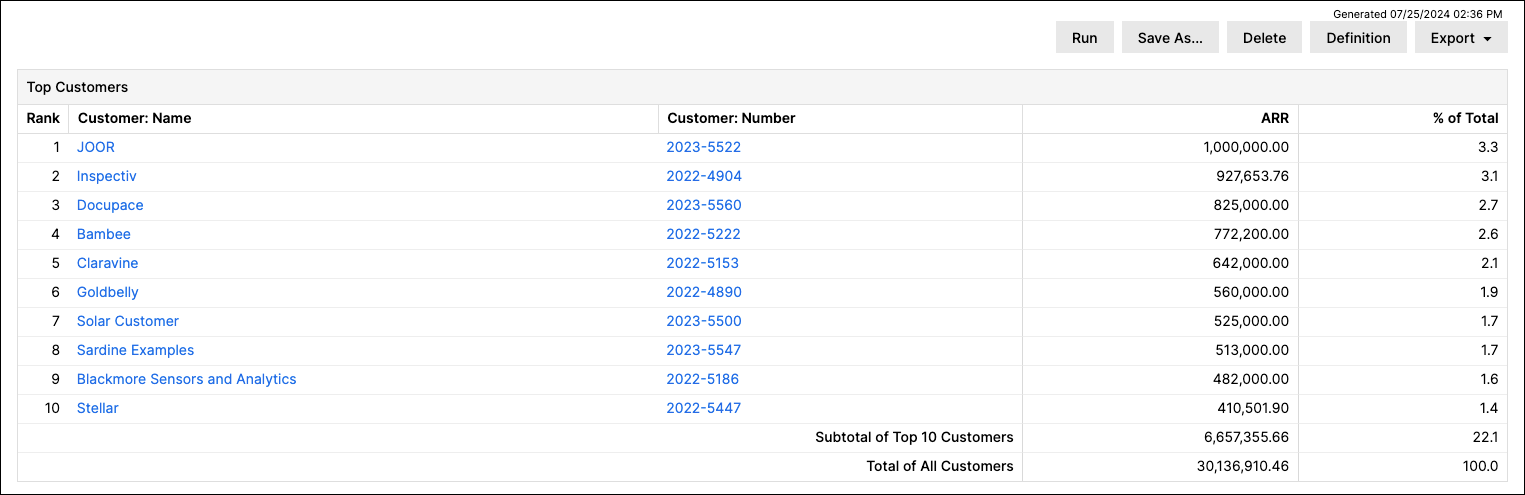
The results table includes the following columns:
- Rank - The Customer's rank in the results, from highest to lowest.
- Customer: Name and Customer: Number - The Customer's name and number. Select either to open that Customer's record. If Roll up by Parent is enabled, these columns show as Parent or Customer: Name and Parent or Customer: Number instead.
- MRR, ARR, Revenue, or Invoices - The ranking metric you selected in Rank By.
- % of Total - The Customer's share of the total amount across all Customers included in the calculation.
The results end with two summary rows: Subtotal of Top N Customers (the combined total for the Customers shown, where N is your selected Customer Count) and Total of All Customers (the combined total across every Customer that meets the report criteria, regardless of Customer Count).
Related information
To learn about report-wide options like naming, tagging, output format, and freezing the left column or header row, see Create and Manage Reports.
Still need help?
Reach out and our support team will take it from here.