
Setup RevOps.io Integration
Applies to: Advanced Billing · Maxio CPQ · Maxio Core
Last updated on Aug 28, 2026
RevOps.io is a revenue operations platform that streamlines quote management, pricing approvals, and e-signatures to help SaaS companies automate their quote-to-cash process. This integration synchronizes RevOps.io, Maxio Core, and Advanced Billing. It can generate, approve, and e-sign quotes in RevOps.io while automatically creating Sales Orders, Subscriptions, and Transactions in Maxio, without manual data re-entry.
How it works
The RevOps.io integration connects your quoting and approval workflows in RevOps.io directly to your Maxio environment. When a deal in RevOps.io reaches the Signed stage, the integration automatically creates or updates the corresponding Sales Order, Customer, and (if applicable) Subscription in Maxio.
During this process, RevOps.io passes essential deal and product information to Maxio, while Maxio enriches the data with CRM context from Salesforce or HubSpot. This ensures accurate, real-time synchronization across your quote, billing, and revenue systems, eliminating manual data entry and maintaining a single source of truth for customer and order data.
Integration setup
Important: This integration is still under active development, and some setup steps may not yet be available for self-service configuration. If you encounter an error or are unable to proceed, don't hesitate to contact our support team at support@maxio.com for help.
This integration supports Maxio Core-only implementations, and Subscriptions through Advanced Billing are not required. If you need Maxio CPQ Sign + Pay functionality, Maxio Core users must convert to the Maxio Platform Billing Portal with assistance from Maxio Implementation.
Here are some of the supported features of this integration:
- Sales Order automation
- Subscription creation (Advanced Billing only)
- Dropbox upload of signed contracts (Optional)
- Payment tokenization for Core and AB billing workflows
From RevOps.io
Connect RevOps.io to Maxio using your Maxio account details.
To set up the RevOps.io integration
-
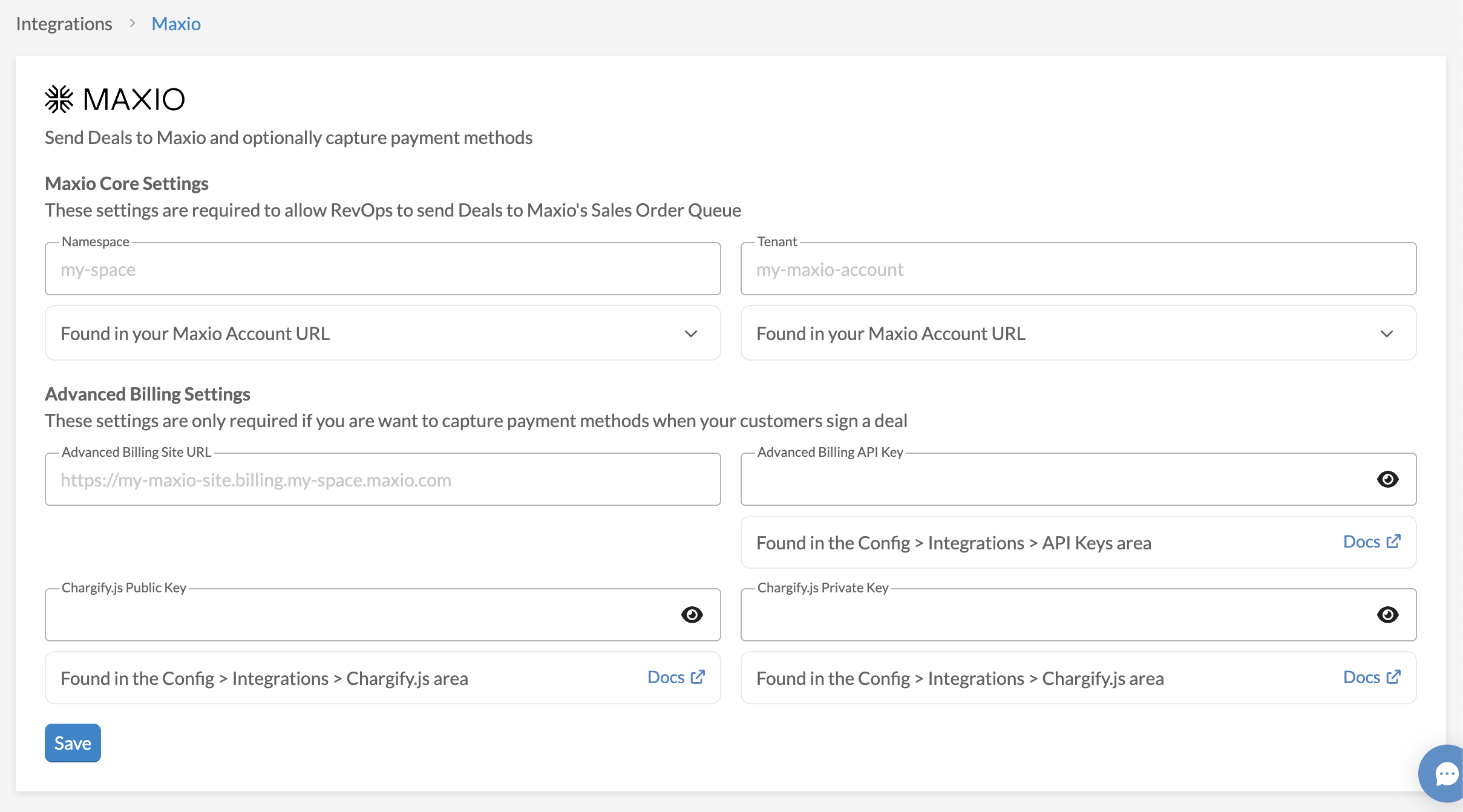
Go to Settings > Integrations > Maxio.
-
Enter the following values:
- Namespace - (Required) Maxio Core subdomain.
- Tenant - (Required) Maxio Core account name (from your Maxio URL).
- Advanced Billing Site URL - (Optional) Only required if you want to capture payment methods when customers sign a deal.
- Advanced Billing API Key - (Optional) Only required if you want to capture payment methods when customers sign a deal.
- Chargify.js Public Key and Chargify.js Private Key - (Optional) Maxio's payment tokenization keys. Chargify.js has been renamed to Maxio.js, though RevOps.io's screen may still show the older field names. Only required if you want to capture payment methods when customers sign a deal.
-
Click Save to confirm the connection.
From Maxio
Complete the connection from Maxio Core using the key you create in RevOps.
To connect Maxio Core to RevOps.io
- Navigate to Config > Integrations > RevOps.
- Maxio enables the integration for your account. Contact our support team if it isn't available yet.
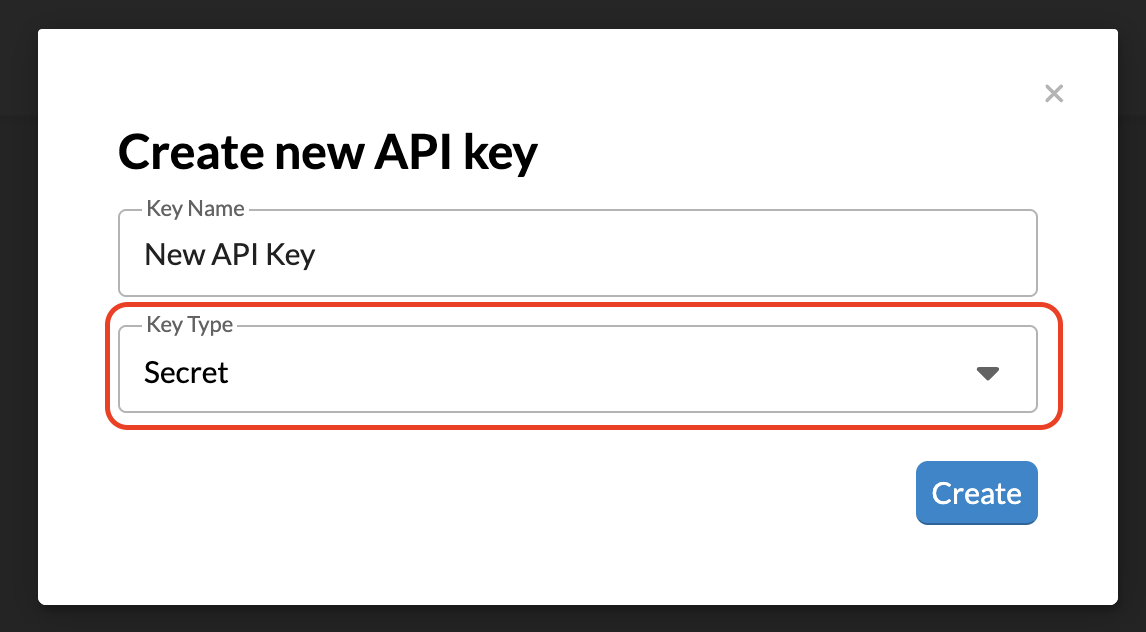
- In RevOps, create a new API key and set Key Type to Secret.
- Enter that key as your Private API Key in Maxio Core.
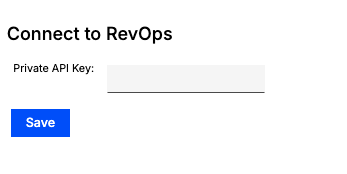
- After a successful connection, your account's RevOps Organization ID appears on the Settings page.
- (Optional) Enable Sales Order Auto-Process to automatically process signed deals from RevOps into Subscriptions and Transactions.
You can disconnect or reconnect the integration at any time. Disconnecting clears credentials and pauses data sync.
From the Advanced Billing Module
An integration with Advanced Billing currently requires assistance from a Maxio team member. Contact your Maxio representative or our support team to see how to enable this integration for your Advanced Billing site.
SKU configuration and product catalog mapping
Configure product codes to align with their respective systems so quoting and downstream sync behavior in CPQ work correctly.
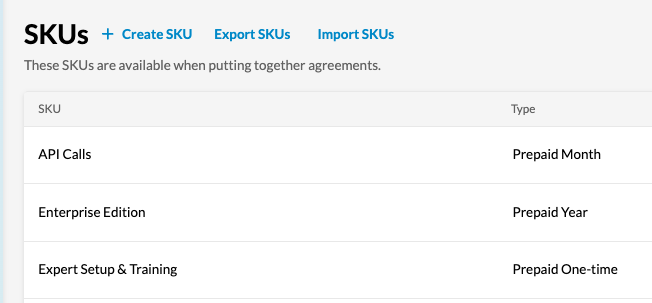
Maxio Core:
For items in Maxio Core, enter the item code with no prefix.
Advanced Billing:
For workflows that rely on Advanced Billing, the first two digits of the product code determine routing logic and system behavior. Use the format:
CP[product_id]for ProductsCC[component_id]for Component
CSV import (Optional):
For a CSV import, export the Maxio product catalog and reformat it to match the RevOps import format.
Syncing and connection health
Once integrated, you can sync deals and Sales Orders automatically or manually.
| Sync Option | Description |
|---|---|
| Sales Order Auto-Process | When enabled, Maxio automatically processes a Sales Order into Subscriptions and Transactions as soon as a RevOps deal reaches the Signed stage. When disabled, the Sales Order is still created, but stays in the Unprocessed Sales Orders queue for manual review. |
| Manual Sync | Available for testing or troubleshooting. Only Signed deals will sync. |
| Sync Now | Immediate sync available through Maxio Core. If InstaSync is enabled, deals appear automatically once signed. |
Signed document handling
Maxio automatically stores signed agreements as attachments. These include the PDF, signature audit trail, and deal metadata. Attachments appear under Customers and Contracts.
Dropbox integration (Optional):
If Dropbox is connected, a copy of the signed document automatically uploads to the configured Dropbox folder when the Sales Order processes.
CRM integration behavior and best practices
The integration supports connected workflows between RevOps, Salesforce, and HubSpot.
When a RevOps deal includes a Salesforce or HubSpot Deal ID and reaches the Signed stage:
- The deal is sent to Maxio.
- Maxio enriches the Sales Order using native CRM integrations, pulling additional attributes.
- The Sales Order processes automatically if auto-processing is enabled.
Field mapping reference
| RevOps CPQ Field | Mapped To in Maxio | Description |
|---|---|---|
| Deal ID (Salesforce or HubSpot) | Sales Order ID | Unique identifier of the quote or deal from CRM |
| Deal Name | Sales Order Name | The name or title of the sales order |
| Subtotal from Quote | Order Total | Total value of the quote before taxes and discounts |
| Customer Legal Name | Customer Name | Official name of the company purchasing the service |
| Contact First Name | Customer First Name | First name of the primary contact |
| Contact Last Name | Customer Last Name | Last name of the primary contact |
| Contact Email (Billing or Lead Contact) | Customer Email | Email address of the main billing or sales contact |
| Business Account ID | CPQ Customer ID | Internal reference for the customer in RevOps |
| Salesforce Account ID | Salesforce CRM Customer ID | CRM-specific identifier for the customer (Salesforce) |
| HubSpot Company ID | HubSpot CRM Customer ID | CRM-specific identifier for the customer (HubSpot) |
| Billing Street | Billing Street Address | Customer's billing street |
| Billing City | Billing City | City listed in billing address |
| Billing State | Billing State | State listed in billing address |
| Billing Postal Code | Billing ZIP Code | ZIP or postal code in billing address |
| Billing Country or Country Code | Billing Country | Country listed in billing address |
| Shipping Street | Shipping Street Address | Customer's shipping street |
| Shipping City | Shipping City | City listed in shipping address |
| Shipping State | Shipping State | State listed in shipping address |
| Shipping Postal Code | Shipping ZIP Code | ZIP or postal code in shipping address |
| Shipping Country or Country Code | Shipping Country | Country listed in shipping address |
| Currency | Subscription Currency | The billing currency for the subscription |
| Payment Token | Payment Method Token | Tokenized representation of the customer's payment info (e.g., credit card) |
| Payment Type (e.g., Credit Card, ACH) | Payment Method Type | The type of payment method used |
| If Payment Info Exists | Collection Method (Automatic or Remittance) | Defines if Maxio should auto-collect or invoice manually |
Related information
Once a Sales Order is created from a signed RevOps deal, see Processing Sales Orders to review and process it in Maxio.
Still need help?
Reach out and our support team will take it from here.