
Use Maxio Projects for Salesforce
Applies to: Maxio Core
Last updated on Aug 24, 2026
Manage project-based work in Salesforce and let Milestone progress drive outcomes in Maxio Platform, like activating a Subscription the moment an implementation or onboarding Milestone completes. This keeps project tracking in the hands of the Salesforce users who own it, while Maxio Platform stays the source of truth for what gets billed.
The Maxio Projects for Salesforce functionality enables you to use the Maxio Projects feature directly from your Salesforce account. This includes the ability to mark individual project milestones complete and modify triggers within the completed milestone just as you would within Maxio. This functionality may only be used with existing projects. You must still create the Project Templates in Maxio and create individual Projects through the Transaction creation screen.
Before you start
Important: Maxio's Projects feature must be enabled for your account before you can use Maxio Projects for Salesforce.
To use the Projects functionality, you must also use the Send Financial Records functionality. Specifically, you must have the Project, Project Milestone, and Project Milestone Trigger types enabled and syncing with your Salesforce account. For further information on enabling these steps, refer to the Configure Send Financial Records for Salesforce article.
This functionality is a more advanced setup than other portions of our Salesforce functionality, and requires your Salesforce Admin to be involved in the process. If you have any questions, contact your Maxio Customer Success Manager or email support@maxio.com.
Set up Maxio Projects for Salesforce
Setting up Maxio Projects for Salesforce involves generating an API key in Maxio Platform, then registering that connection and preparing the Milestone layout on the Salesforce side.
To set up Maxio Projects for Salesforce
-
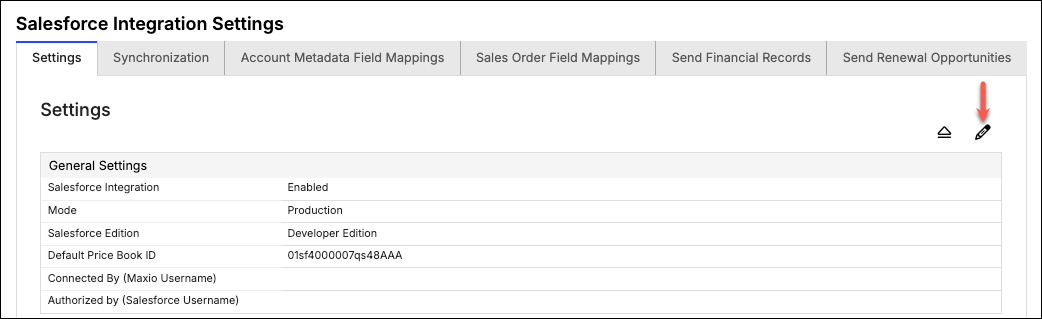
Navigate to the Salesforce Integration Settings and click the Update Settings icon.
-
From the Update Salesforce Integration Settings screen, check the Send API Token box to enable it, and select your Sync Schedule. If you don't see the Send API Token section, contact support@maxio.com to enable it within your account.
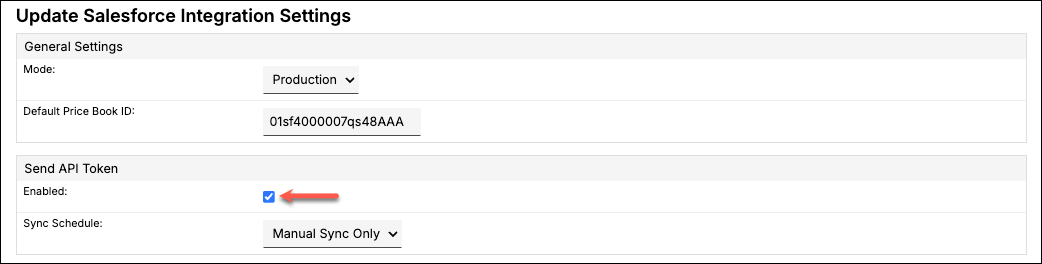
This generates a unique API key that rotates each time this step runs on its Sync Schedule, and sends it to your Salesforce account.
The remainder of this setup requires a Salesforce Admin.
-
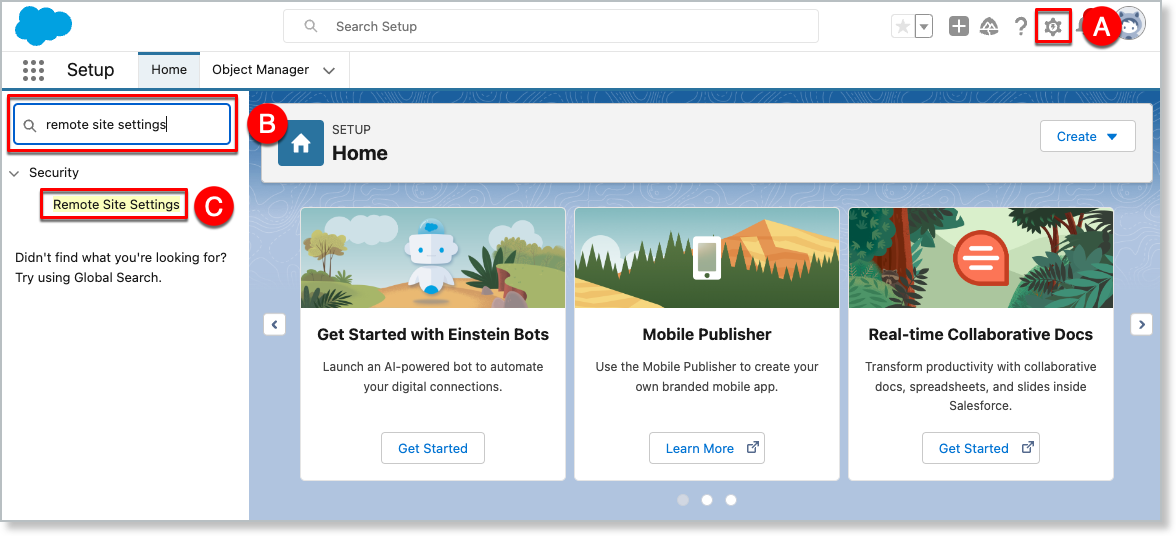
From your Salesforce account, click the Gear icon and select Setup (A). Then, from the Quick Find box (B), search for "remote site settings" and click Remote Site Settings (C).
-
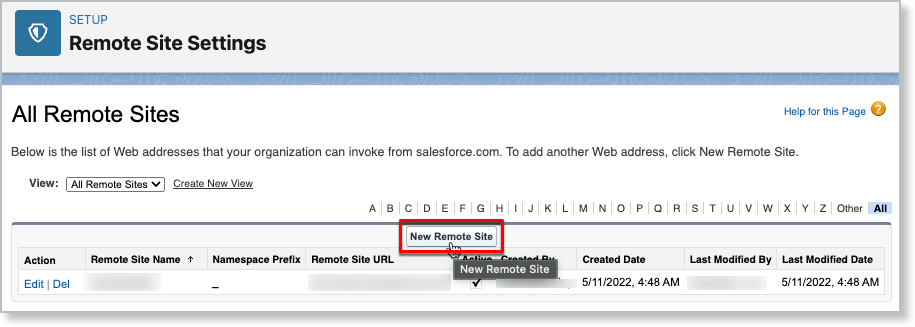
From the All Remote Sites screen, click New Remote Site.
-
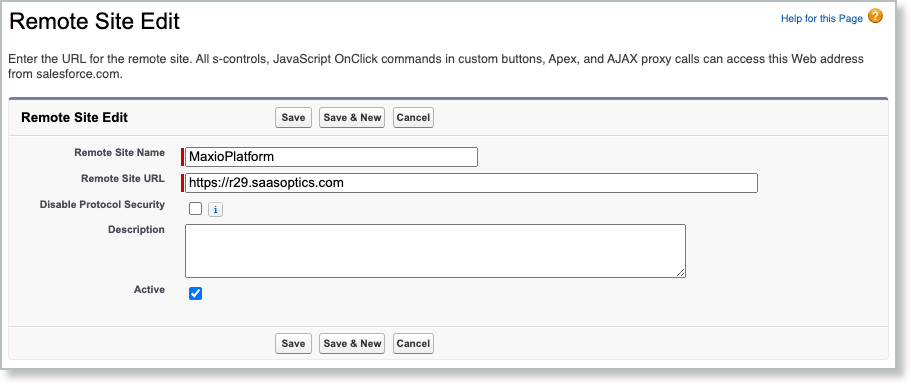
Enter the Remote Site Name (for example, "MaxioPlatform") and the Remote Site URL (your Maxio Platform URL, in the form
https://<servername>.maxio.com).The Remote Site Name can only contain underscores and alphanumeric characters. It must also be unique, begin with a letter, not include spaces, not end with an underscore, and not contain two consecutive underscores.
-
Check the Active box and click Save.
-
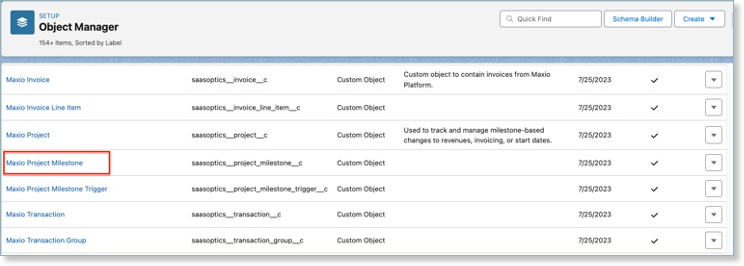
From the top navigation bar, click Object Manager, then look for and select Maxio Project Milestone.
-
On the left navigation panel, select Page Layouts, then click the Maxio Project Milestone Layout.
-
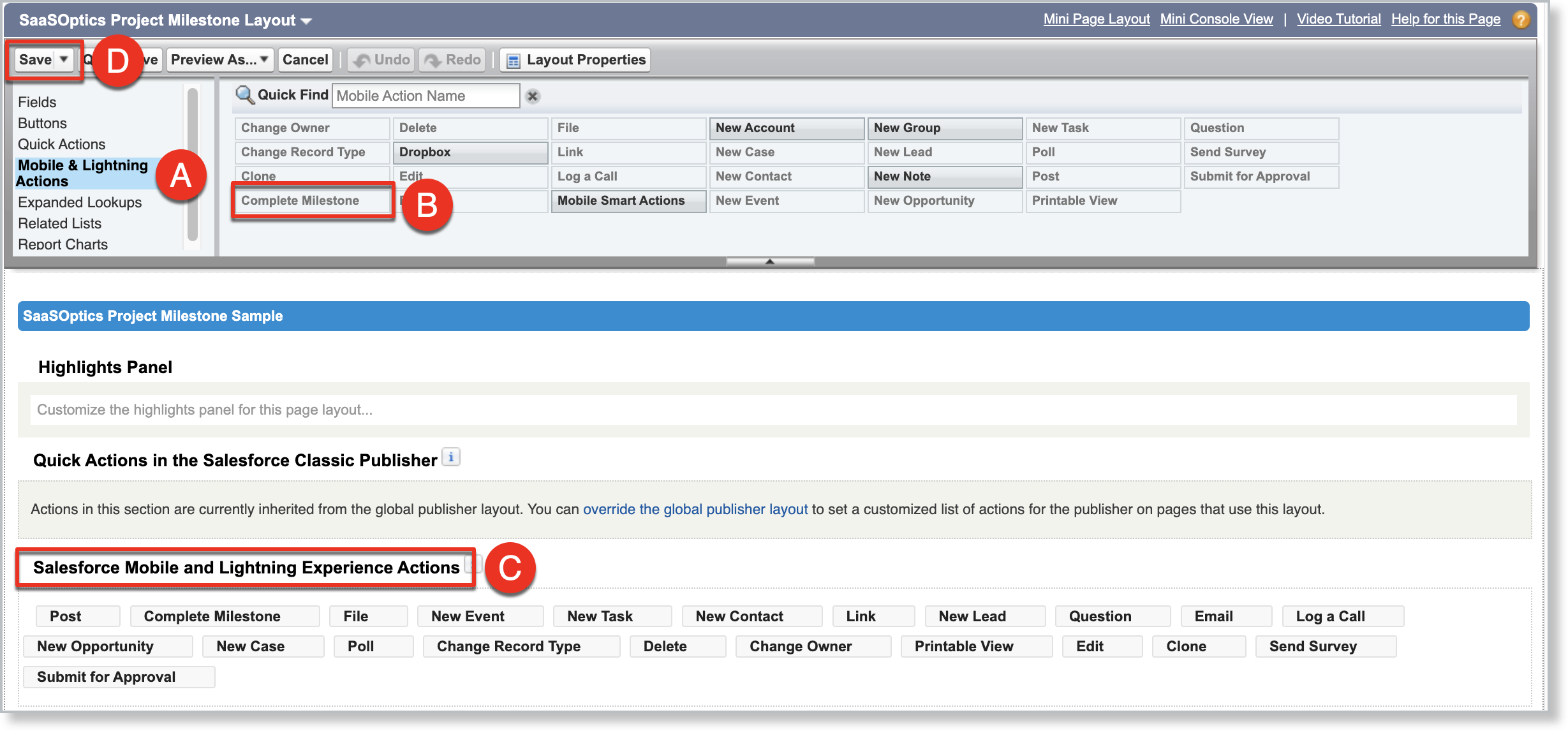
From the palette list, select the Mobile & Lightning Actions category (A, image below).
-
Drag and drop the Complete Milestone action (B in image above) to the Salesforce Mobile and Lightning Experience Actions group (C).
-
Click Save (D in image above) on the updated layout.
Assign this layout to any user who will use the Project Completion function in Salesforce. Maxio Platform users need Read/Write permissions.
Once setup is complete, Maxio Projects for Salesforce can use Send Financial Records to send and update Projects in Salesforce. When you complete a Milestone in Salesforce, the action happens in Maxio Platform through the API instantaneously. Updates from Maxio Platform to Salesforce still require a sync.
Complete a Milestone from Salesforce
Once setup is complete, you can complete a synced Milestone directly from Salesforce instead of switching over to Maxio Platform.
To complete a Milestone from Salesforce
-
From Maxio Platform, create a Project and sync it with your Salesforce account.
-
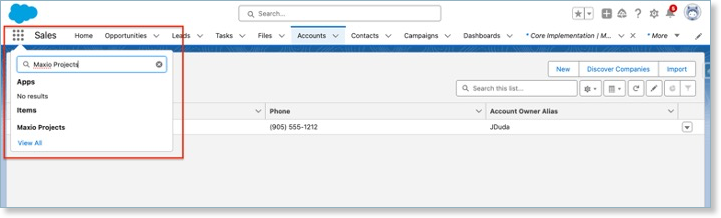
From Salesforce, go to the App Launcher, search for and select Maxio Projects.
-
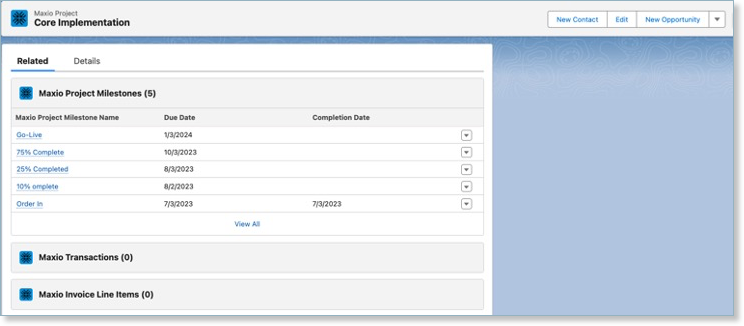
Find and select the Project you want to complete a Milestone for.
-
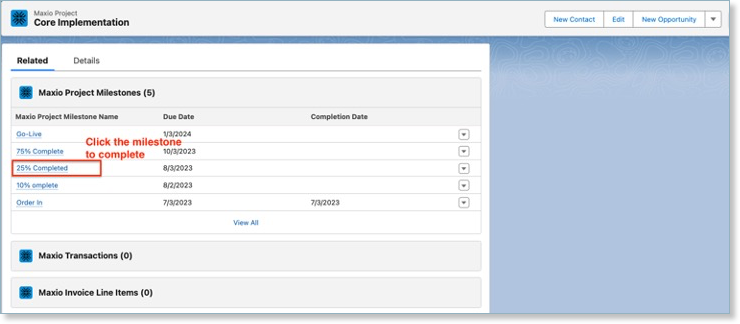
In the Related tab, select the Milestone you want to complete.
Example
-
Click Complete Milestone.
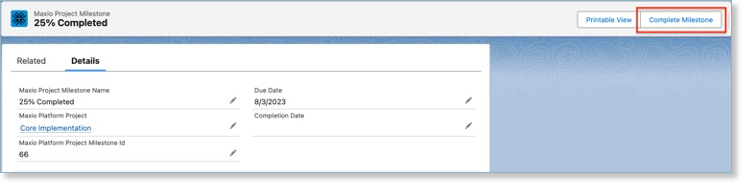
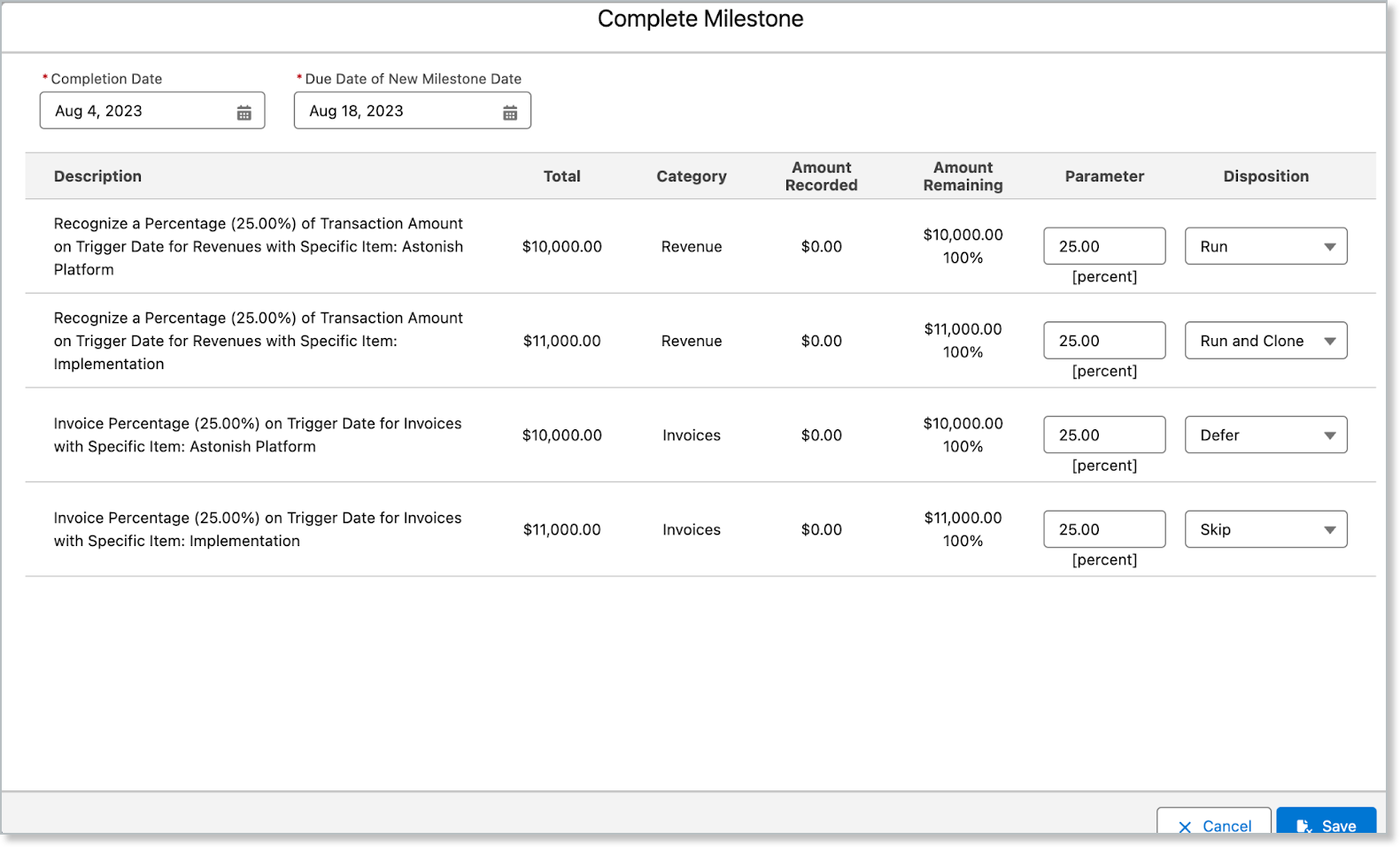
The "Complete Milestone" screen appears.
-
Modify any of the trigger fields, the same as you would directly within Maxio Platform.
-
Click Save.
-
Back in Maxio Platform, open this Project. The Milestone now shows as completed.
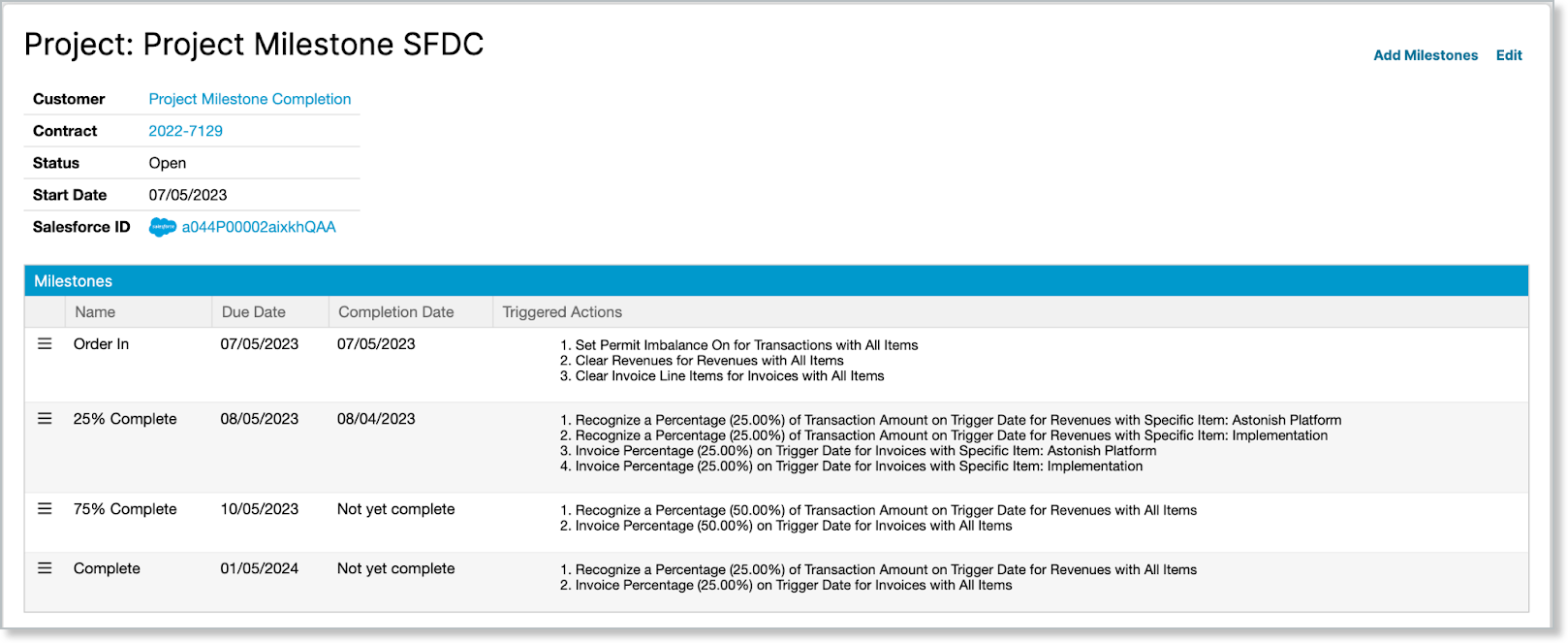
If you clone a Milestone, sync with Salesforce again so the new Milestone appears there too.
Trigger subscription activation from a Milestone
Maxio Projects supports automated Subscription activation based on Milestone completion. This lets you use Project progress, rather than a static date, to activate a Subscription at the right time. Use this when processing Sales Orders that originate in Salesforce through the Maxio Core to Advanced Billing Combined Sales Order workflow.
Many customers sell Subscriptions that should only begin after an implementation, onboarding, or "go-live" Milestone completes. Triggering activation from that Milestone removes the manual step of activating the Subscription yourself.
To set up a Project Trigger
- In Salesforce, open the AB Wizard from the Opportunity.
- Add your recurring subscription line items.
- Add any one-time implementation fees.
- Close-won the Opportunity.
- The Opportunity syncs to Maxio Core, and the Sales Order is ready to process.
- In Maxio Core, process the Sales Order to create the Customer and Contract.
- Process the Sales Order again to create a Subscription with a Project attached.
- Process the Sales Order to create Transactions.
At this point, the Subscription is in an Awaiting Signup Date state, and won't activate until a Project Milestone triggers it.
Complete the triggering Milestone
Complete the Milestone containing the Activate Subscription trigger from either Maxio Platform or Salesforce.
The Milestone's own Completion Date determines when the Subscription activates: a Completion Date of today activates it immediately, and a future Completion Date schedules the activation for that date.
A separate Disposition setting controls whether the trigger's action runs at all. From Salesforce, choose Run, Run and Clone, Defer, or Skip. From Maxio Platform, you can also choose Cancel Subscription, an option not available from Salesforce's side.
Once saved, the activation request goes to Advanced Billing through the API, and the Subscription's state updates accordingly.
View activation status
After a Milestone triggers an activation, the Subscription's status in Maxio Platform updates from Awaiting Signup Date to Active (or shows as scheduled). If you trigger the activation from Salesforce, the update in Maxio Platform happens immediately. Updates from Maxio Platform back to Salesforce still require a sync through Send Financial Records.
Related information
Understand the Salesforce Integration for Maxio Core has an overview of every module this integration includes.
Still need help?
Reach out and our support team will take it from here.