
Before You Connect to QuickBooks Online
Applies to: Maxio Core
Last updated on Oct 9, 2026
The QuickBooks Online Connector enables information to flow between your Maxio Platform account and your QuickBooks account. When the integration is enabled, QuickBooks shares responsibility for managing your financial records and, with this approach of shared management, the actions you take and settings you manage in QuickBooks can have a significant impact on the information that is shared and maintained in Maxio Platform.
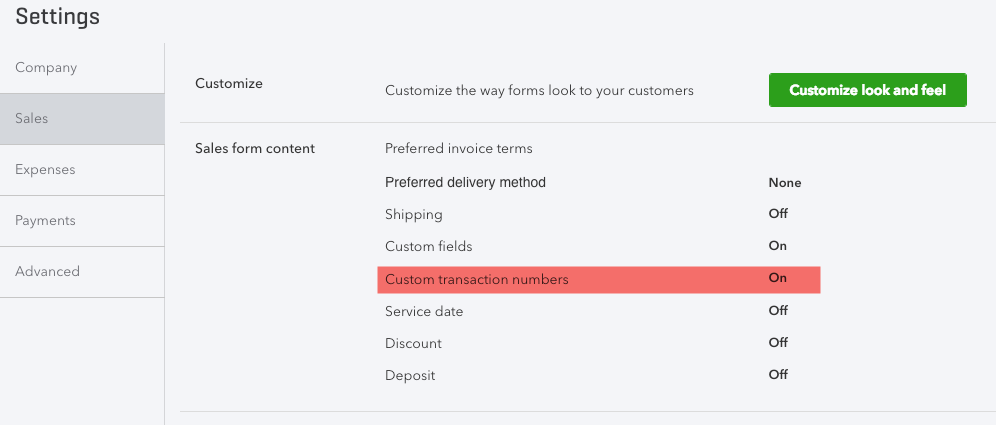
Disable Custom Transaction Numbers
Custom Transaction Numbers are not supported.
Syncing a Maxio Platform account to a QuickBooks Online account with Custom Transaction Numbers enabled will lead to data corruption in Maxio Platform and possible duplicate data in QuickBooks.
You must disable this feature in the QuickBooks Online preferences prior to syncing data with Maxio Platform.
To disable:
Go to Settings > Company Settings > Sales
Then turn off the "Custom transaction numbers" option
Sync at least once every 30 Days
QuickBooks Online transaction logging architecture does not store certain records (e.g. deleted invoices) for more than 30 days. If you wait longer than 30 days between syncs, there is the possibility that all information that would otherwise be in both Maxio Platform and QuickBooks might not be in Maxio Platform. To avoid issues, it is best to select one of the automated sync options that runs the sync automatically for you.
Disable QuickBooks Online Automation
It is highly recommended that you also disable QuickBooks Online Invoice Automation. Since Maxio Platform will handle your Invoice scheduling, you do not want QuickBooks Online building invoices automatically as such as likely to be duplicates of the invoices being managed in Maxio Platform.
QuickBooks Online Closing Date
The QuickBooks Online Closing Date field does not sync to Maxio Platform due to a lack of support in the QuickBooks Online API. You must enter the QuickBooks Close Date manually in Maxio Platform using the QuickBooks Integration Settings.
Syncing Errors
The QuickBooks Online API does not always provide Maxio Platform with detailed error messages, the detail that would make a sync problem self-evident.
When a sync error occurs, you may see plain English descriptions in the Alert or Sync error screens, such as "Invalid business name." The errors may not contain information for you to understand if one or more specific records are causing the problem.
Sync errors are generally going to relate to Invoices or Customers that are set to sync to QuickBooks, but can also be caused by data syncing from QuickBooks to Maxio Platform.
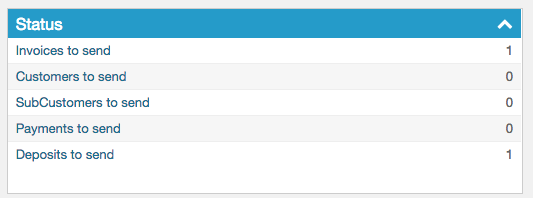
To diagnose issues, it is often helpful to examine the queue of information ready to sync to QuickBooks. From the QuickBooks page, use the links in the Attention Needed or Status tables table to load the records into a list.
If you are unable to decipher an error, contact support@maxio.com.
Information Exchanged Between QuickBooks and Maxio Platform
Data That Is Exchanged
Information Sent from QuickBooks to Maxio Platform:
- Account List - for use in creating Journal Adjustments in Maxio Platform
- Items - Used for the creation of Invoice Line Items in Maxio Platform
- Customers created or modified in QuickBooks
- Invoices, Credit Memos, created or modified in QuickBooks
- Sales Receipts - if Sales Receipts support is enabled in QuickBooks Integration Settings
- Payments recorded in QuickBooks
Information sent from Maxio Platform to QuickBooks:
- Customers created or edited in Maxio Platform
- Invoices created in Maxio Platform
- Credit Memos created in Maxio Platform
- Payments synced from Stripe
Data That Is NOT Exchanged
Information not synced includes, but is not limited to:
- Credit Card information stored in QuickBooks
- There are no credit card data fields in Maxio Platform and you are expressly prohibited from storing credit card information in Maxio Platform other than when using Stripe
- Journal Adjustments
- Bank account information and other financial transactions (deposits, checks, etc.)
- Employee and Payroll information and transactions
- Vendor information
- Expenses and expense payments
- Inventory information
Syncing with QuickBooks Online
The steps outlined below are performed when you sync to send information between QuickBooks Online and Maxio Platform.
When complete, a banner will appear at the top of the sync page. There are three possible outcomes:
- Successful Sync, no Errors
- With a successful sync, you will see a success banner at the top of the page and no warning or error indicators
- Successful Sync, with Errors
- With a successful sync with errors, some of the data has synced but records with issues have not. In this case, the banner will indicate a successful sync but there will be one or more error messages contained in the QuickBooks Sync Issues table, helping you pinpoint and reconcile data errors
- Unsuccessful Sync
- You may see an error such as: **"**An unexpected issue occurred while communicating with QuickBooks Online. Please try again."
- Generally speaking, the inability to sync is caused by an Intuit server problem affecting all applications that connect through the Intuit APIs. In this situation, Maxio Platform is unable to communicate with the QuickBooks Online server at all. Wait a few minutes for Intuit to address the issue and sync again
While the Intuit Server may be experiencing issues with integrated applications, you may be able to login and Use QuickBooks Online without issue as the user interface and the integrated application functions are independent.
You may be able to find more information on the QuickBooks Online site itself or the Intuit Developer Support site.
QuickBooks Online Fields Not Supported in Maxio Platform
The following QuickBooks fields are not supported in Maxio Platform and do not sync from QuickBooks Online to Maxio Platform:
- MI (middle initial)
- Suffix
- Mobile Phone
- Web Site
- Is SubCustomer (unless your workflow is configured to send Contracts as SubCustomers)
- Notes
- Shipping Address (for the Customer, but can be added to an individual Invoice)
- Preferred Delivery Method
- Credit Card Information
- Credit Limit
- Opening Balance
- Print on Check As
- Add Online Payment Link to Invoices
Duplicate Customer Name Handling in QuickBooks Online
QuickBooks Online has a unique process for handling duplicate Customer Names. If you were to enter a Customer into QuickBooks Online and Maxio Platform at the same time using an identical name in each instance and then sync, the Customer synced to QuickBooks from Maxio Platform will be created in QuickBooks Online with a different name, which will read: CustomerName "[duplicate]".
For example:
You key enter "ADR Printing, Inc." as a Customer in both QuickBooks and Maxio Platform, and then sync.
After syncing, you will have two Customers in both systems. In QuickBooks, the names are:
- ADR Printing, Inc.
- ADR Printing, Inc. [duplicate]
The "[duplicate]" entry is the instance created in Maxio Platform and synced to QuickBooks.
When that Customer name arrives in QuickBooks Online during the sync, QuickBooks Online will automatically change it to NAME [duplicate] to avoid violating the duplicate name constraint. So, rather than rejecting the duplicate, the name is changed to avoid duplication.
After the syncing again, the name in Maxio Platform will be changed to ADR Printing, Inc. [duplicate].
QuickBooks Online Custom Fields
QuickBooks Online has three Custom fields that you can set for Invoices. Maxio Platform permits the mapping of the PO Number that appears in Maxio Platform Invoices to one of the three fields.
Maxio Platform includes a function that enables you to "Store the Unique Invoice ID" (that is the QuickBooks ID) in one of these fields. This is a technical patch to address an issue with QuickBooks sync architecture. It is highly recommended that you enable this feature in Maxio Platform and to use one of your three QuickBooks custom fields to store this value.
If you choose to store the unique Invoice ID in one of the custom fields and you copy an Invoice inside QuickBooks, the copied Invoice will also store the same Invoice ID, which will cause Maxio Platform not to get that new Invoice from QuickBooks because it will deduce that it is a duplicate. Either avoid using the copy function in QuickBooks or, if you do use the copy function, be sure to delete the Invoice ID from the appropriate custom field of the newly created Invoice (leaving that field blank) before running a sync.
QuickBooks Jobs Support
Jobs is an optional feature in your Maxio Platform account that, when enabled, will allow Sub-Customers created in QuickBooks Online to be created as Customers in Maxio Platform (rather than as a Contract under the Parent Customer).
The Jobs feature must be enabled in your Maxio Platform account by submitting a support request. Once enabled, it cannot be disabled. When Jobs support is enabled, there are a number of significant behavioral differences in the way information is organized in Maxio Platform.
When Job support is NOT enabled (default):
- Any Customer created in Maxio Platform and synced to QuickBooks Online will become a Customer in QuickBooks
- Any Customer created in QuickBooks Online and synced to Maxio Platform will become a Customer in Maxio Platform. No Parent/Child relationship will be established in Maxio Platform
When Job support is enabled:
- Sub-customers created in QuickBooks Online are NOT created as Customers in Maxio Platform; rather, they are created as a Contract under the Parent Customer. The Contract includes a Billing Profile with address information
- Contracts in Maxio Platform can be optionally identified as a Job, and if so can have a Job Billing Profile that includes a billing address. When a Contract is identified as a Job in Maxio Platform, a sub-Customer will be created in QuickBooks Online with the Parent Customer being the Customer in Maxio Platform to which the contract belongs
QuickBooks supports up to four levels of sub-Jobs, but Maxio Platform only supports one level. A third-level Job in QuickBooks will display as a Contract under the ultimate parent company. All Jobs created in Maxio Platform are created as a first-level Job in QuickBooks.
Very Important:
Do NOT enable and disable Jobs in Maxio Platform after your first sync. Enabling and disabling Jobs after you have synced your data can result in significant changes to your data in Maxio Platform and can result in SIGNIFICANT data corruption.
Prior to attempting this, you must request a sandbox/copy of your production QuickBooks Online account from Intuit. Once received, contact support@maxio.com and request a sandbox/copy of your Maxio Platform account for testing with your QuickBooks Online sandbox.
Our support team will contact you to discuss the implications and impacts prior to provisioning your sandbox Maxio Platform account.
QuickBooks Online Deleted Data
Inactive (Deleted) Customers
In QuickBooks Online, you can make a Customer Inactive. There is no "Delete" button or function, but the Customer Name in QuickBooks Online changes to "ABC (deleted)."
If the Customer has a non-zero balance, QuickBooks Online will not let you make the Customer Inactive without adding an Adjusting Transaction, which is a Credit Memo. The best practices approach is to create your own Credit Memo prior to setting a Customer with an open balance to Inactive. If you don't, QuickBooks Online will create the Credit Memo without providing you the option of selecting Products and will create a single line item Credit Memo with what it decided is the default Product. Once the Credit Memo is created, you must make the Customer Active before you can actually edit/correct the Credit Memo.
Customer Active/Inactive does not affect syncing of data to SO. A Customer that is Inactive will appear in Maxio Platform with a QuickBooks Customer Name of "ABC, Inc. (deleted)."
Inactive Customers and changes to Inactive Customers sync to Maxio Platform, as do any changes to their Invoices.
However, you cannot create an Invoice for an Inactive Customer. Therefore, you should not create Invoices in Maxio Platform for Inactive Customers. If you attempt to sync an Invoice created in Maxio Platform to QuickBooks Online, you will receive a sync error, "Invalid Customer."
(Deleted) Duplicate Customers
In QuickBooks Online, you cannot add two Customers with the same "Display Name As" value unless one is actually deleted. The verification/validation check is disabled for deleted Customers.
If you delete a Customer and then add another into QuickBooks Online with the same Display As Name and attempt to sync, you may get a sync error.
To address this problem, you must undelete the duplicate Customers and change the Display Name As value. Intuit has multiple QuickBooks Online interfaces in production, so the directions may vary for your QuickBooks Online account. Historically though, you can find deleted customers as follows:
In QuickBooks Online, select Reports and then Customer Contact List.
The select the Customize button and select Status Deleted = Deleted
Run the report (and it might be a good idea to save it/memorize it). This report provides a list of Deleted Customers. The first column is "Client." This is the field "Display Name As," which is the one that must be unique. Click on a name to go to the Customer record. Then select the Restore link. You can edit the name as needed. Note that QuickBooks Online might automatically change the Display Name As value when you undelete/restore it.
Deleted Invoices
Unlike other deleted records in QuickBooks Online, deleted Invoices in QuickBooks Online are actually deleted and therefore will not sync to Maxio Platform. If an Invoice has been previously synced to Maxio Platform and then you delete it in QuickBooks Online, the Invoice and Invoice Line Items will be deleted in Maxio Platform but any associated Transactions are not deleted.
Deleted Products
Unlike desktop versions of QuickBooks, QuickBooks Online permits a user to "delete" Products that are used in Invoices. Products are not actually deleted, just set with a Status = Inactive/Deleted (terminology seems to be evolving in QuickBooks Online). When Deleted/Inactive, they are not available for use in the creation of new Invoices in QuickBooks Online.
Deleting a Product does NOT affect the "reportability" of the Invoice in QuickBooks Online, and the Product remains in the Invoice with the word (deleted) in parenthesis.
Changes to the Invoice Line Item (Amount, Quantity, Description) will continue to sync to Maxio Platform after the Product has been deleted in QuickBooks Online.
However, the Item created in Maxio Platform for the QuickBooks Online Product cannot be used in Maxio Platform in an Invoice that wants to sync to QuickBooks.
QuickBooks Online Discount Function
The QuickBooks Online Discount Function is not supported in Maxio Platform**.**
The Discount Function in QuickBooks Online is extremely limited in its functionality and would impact the recording of Income and Deferred Revenue for discounted Invoices with multiple Invoice Line Items.
When the Discount Function is enabled, you are required to select a single account for any discount you give, and when used, the discount applies to the entire Invoice and not the individual Line Item to which the discount belongs. Therefore, you cannot record a discount on an Invoice that includes a Product for which you record Income and another product for which you record Deferred Revenue.
Invoice Line Items in a QuickBooks Invoice with a Discount will appear in Maxio Platform at the full, non-discounted Line Item Amount.
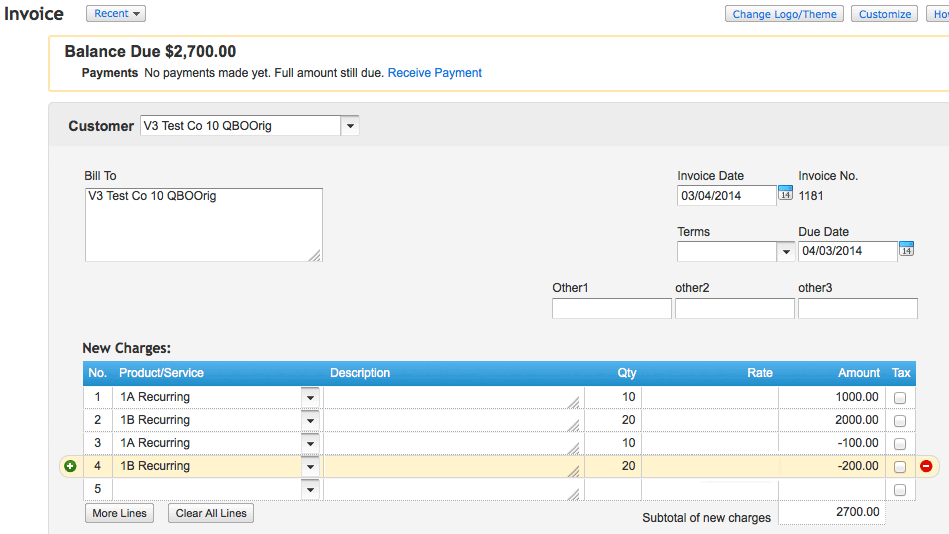
To create a discount in Maxio Platform, add a negative Invoice Line Item for the product(s) you wish to discount. The resulting Invoice in QuickBooks Online will appear as follows:
Still need help?
Reach out and our support team will take it from here.