
Understand QuickBooks Integration Workflow Options
Applies to: Maxio Core
Last updated on Aug 24, 2026
Several workflow patterns are supported when Maxio is connected to QuickBooks. Whichever one you take, document your existing and proposed workflows so your Maxio implementation manager understands the desired outcome and can help configure the system to support it.
Create and manage everything in Maxio (most efficient)
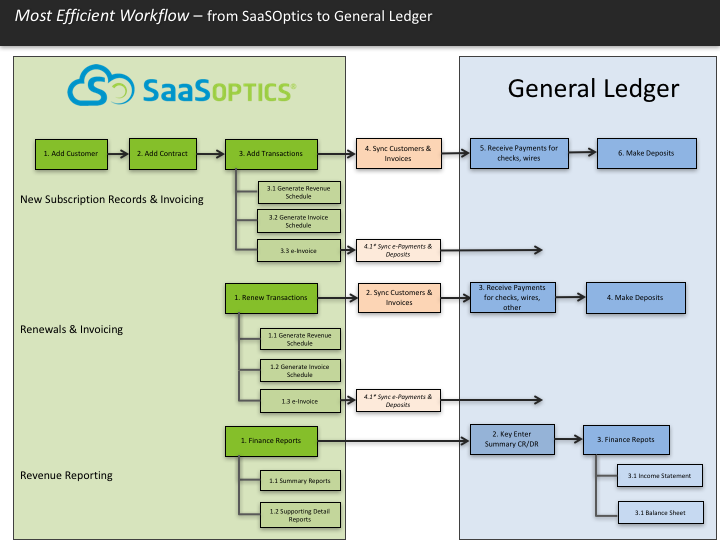
You create Customers, Contracts, Transactions, Revenues, and Invoices in Maxio; Customers and Invoices sync from Maxio to QuickBooks. In practice, this means:
- You create new Customers in Maxio, not QuickBooks.
- You create new Invoices in Maxio, not QuickBooks.
- You email Invoices from Maxio, not QuickBooks.
- You receive payments and electronic deposits in Maxio.
- You enter nothing into spreadsheets. Maxio replaces your contract and deferred revenue spreadsheet ledgers.
Create in Maxio, but manage AR and Invoice distribution in QuickBooks (very efficient)
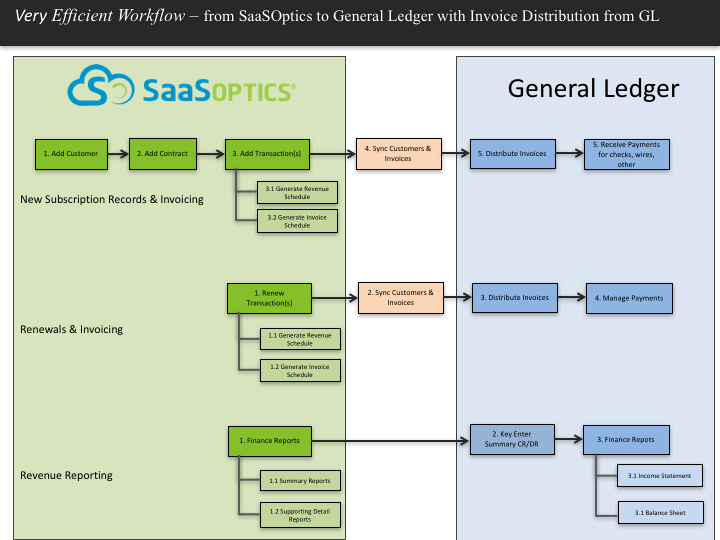
You create Customers, Contracts, Transactions, Revenues, and Invoices in Maxio; Customers and Invoices sync from Maxio to QuickBooks. In practice, this means:
- You create new Customers in Maxio, not QuickBooks.
- You create new Invoices in Maxio, not QuickBooks.
- You email Invoices from QuickBooks.
- You manage AR, payments, and deposits in QuickBooks.
- You enter nothing into spreadsheets. Maxio replaces your contract and deferred revenue spreadsheet ledgers.
Create in QuickBooks, sync into Maxio (least efficient)
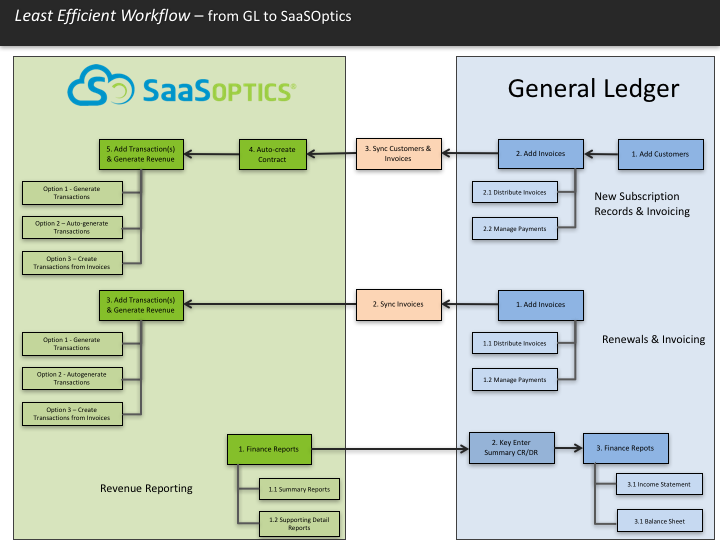
You create Customers and Invoices in QuickBooks; they sync into Maxio. Maxio then generates Transactions and Revenues for the synced Invoices.
Important: Generating Transactions and Revenues from synced Invoice Line Items is typically significantly less efficient than generating Invoices and Revenues from Transactions entered directly into Maxio.
In practice, this means:
- You continue creating new Customers and Invoices in QuickBooks.
- You enter nothing into spreadsheets.
- QuickBooks remains your financial system of record for banking, GL, and AR.
- Maxio replaces your contract and deferred revenue spreadsheet ledgers.
Hybrid
You create new Customers and Invoices in both Maxio and QuickBooks, depending on the situation. Records are exchanged in both directions, and Maxio generates Transactions and Revenues for Invoices created in QuickBooks. This is typically not very efficient, but it can be optimized for certain types of records.
Example: All new subscriptions are keyed into Maxio, and information flows out from there. Periodically, ad hoc or bulk-loaded Invoices, such as for a usage fee, go directly into QuickBooks instead. You sync those Invoices into Maxio and configure settings to automatically generate their Transactions and Revenues.
Related information
For how Maxio and QuickBooks divide responsibility for your data more generally, see Understand the QuickBooks Integration.
Still need help?
Reach out and our support team will take it from here.