
QuickBooks Integration Cheat Sheet
Applies to: Maxio Core
Last updated on Oct 9, 2026
This is a summary of key information & concepts regarding Maxio Platform integration to QuickBooks and QuickBooks Online. This is a summary only. Additional details can be found on page-specific online help.
QuickBooks and Maxio Platform work together as one system to provide complete invoicing, revenue, and subscription management. Understanding where information is stored, entered, and edited is essential.
Data Relationships
In QuickBooks, Customers have Invoices with Invoice Line Items that specify an Item/Product.
In Maxio Platform, Customers have Contracts, Contracts have Transactions, a Transaction has an Item, Transactions have Revenue Schedules, Transactions typically have one or more Invoice Line Items, an Invoice Line Item has an Item, and Invoice Line Items are organized into Invoices. Payment Lines are made against Invoices and many Payment Lines can be included in a single Payment.
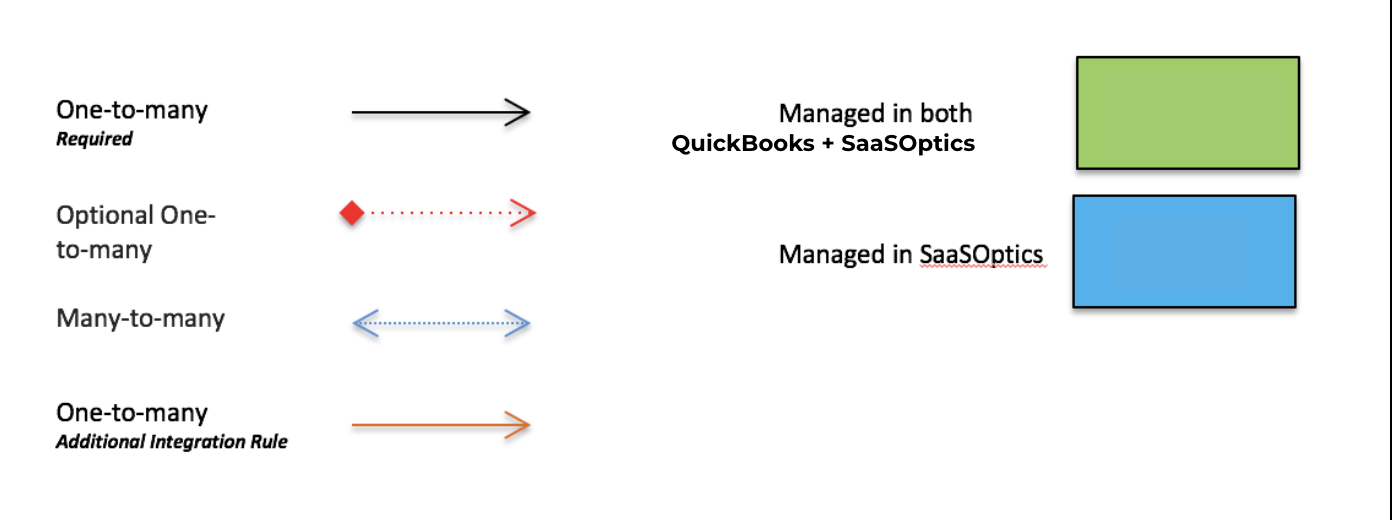
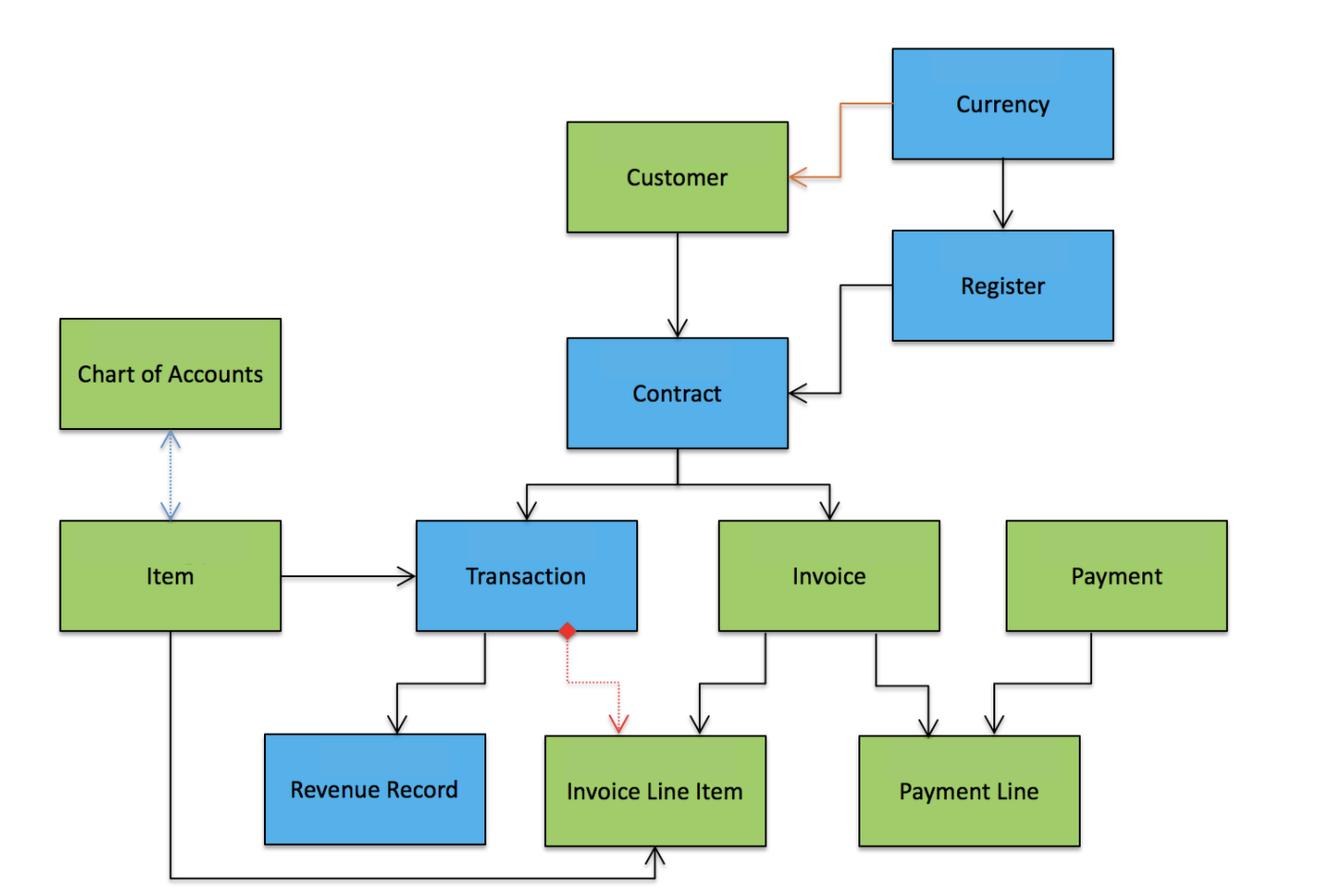
Maxio Platform and QuickBooks share management of much of the information as shown in the model.
Maxio Platform alone manages Contracts, Transactions, and Revenues, and when multicurrency is enabled, Maxio Platform manages FX rates and the generation of local and home financial records (Invoices and Revenues).
The Contract is an important "container," holding Transactions and their Revenues, as well as Invoices and their Invoice Line Items. There is no Contract object in QuickBooks.
The Transaction is effectively a Contract Element and includes a single Item, an Amount, Start and End Dates, as well other information used for analytics reporting and renewal management.
The Transaction has Revenues in the form of a Revenue Schedule with one or more Revenue records. The Transaction can also have one or more Invoice Line Items.
Each Invoice Line Item can, but does not have to be, associated with a single Transaction. The Invoice Line Item has an Item, which should be, but does not have to be, the same Item of the Transaction. Each Invoice Line Item is associated with a single Invoice.
Revenues are associated with Transactions and the Transaction's Item. Revenues are NOT associated with Invoices nor Invoice Line Items.
QuickBooks Online Syncing
After the initial setup, syncing of data between Maxio Platform and QuickBooks Online is performed from within your Maxio Platform account by selecting the Sync option from your QuickBooks page. Sync does not run automatically, rather when you click the sync button.
During each sync, information is exchanged between Maxio Platform and QuickBooks.
QuickBooks Desktop Syncing - the Intuit Web Connector
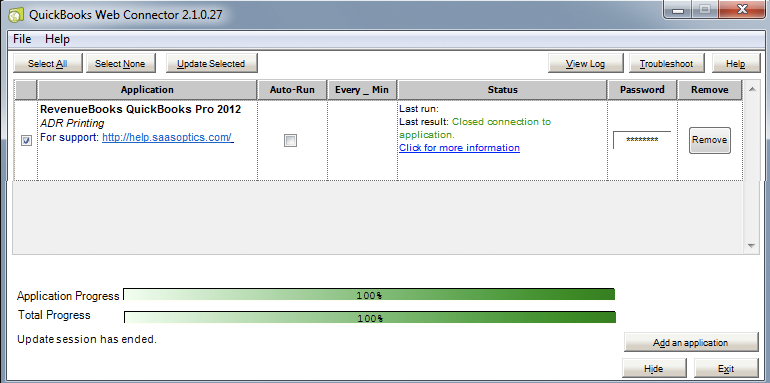
After installing a unique QWC configuration file you download from your Maxio Platform account, syncing of data between QuickBooks Desktop and Maxio Platform is performed from the Intuit Web Connector. The Web Connector is an Inuit software product that installs when you install QuickBooks and enables a Web application, such as Maxio Platform, to communicate with a desktop version of QuickBooks.
During each sync, information is exchanged between Maxio Platform and QuickBooks.
Workflows (How to Enter Information)
From Maxio Platform to QuickBooks
On an ongoing basis, the preferred workflow is to enter new Customer, Contracts and Transactions in Maxio Platform, and to let Maxio Platform generate revenues and invoices needed for billing and revenue recognition. When you sync, Customers and Invoices created in Maxio Platform sync to QuickBooks.
From QuickBooks to Maxio Platform
Generally, entering in Customers and Invoices and syncing them to Maxio Platform is a far less efficient way to enter and manage complete financial records and should be avoided as the preferred workflow. You can create Customers and Invoices in QuickBooks and sync them to Maxio Platform. When you do, Contracts are created automatically in Maxio Platform. To add Revenue, you need to create Transactions in Maxio Platform, which can be done using:
Autogenerate TXs
If Autogenerate Transactions and Revenues is enabled for an Item, a Transaction with Revenues is generated for each Invoice Line Item that uses the Item.
Build TXs
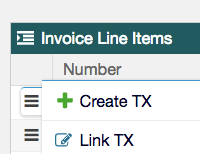
Otherwise, you will need to create Transactions and Revenues for the Invoice Line Items using the Build Transactions function or by navigating to the Invoice Line Item and selecting to create a TX from the menu options.
Key Data Objects
Chart of Accounts
The Chart of Accounts is synced from QuickBooks to Maxio Platform and is typically managed only in QuickBooks.
Items
Maxio Platform gets Items/Products from QuickBooks Desktop or QuickBooks Online. In Maxio Platform, they are called Items. Additional settings are needed by Maxio Platform before an Item can be used to create Transactions or Invoice Line Items. These settings determine whether Invoice Line Items that use an Item are to sync, and they define the default revenue recognition method and billing method for Transactions that use the Item. These configuration settings collectively are called the Maxio Profile. After the first sync, you are likely to have a large list of Items that require a Maxio Profile. Until Maxio Profiles are added for each QuickBooks Item, neither Customer nor Invoice information will sync between the systems.
Invoices
Invoices are typically created in Maxio Platform by combining Invoice Line Items from one or more Transactions within a single Contract. You can also create an Invoice directly in a Contract by adding the Invoice and one or more Invoice Line Items. Once an Invoice is synced to QuickBooks, editing options available in Maxio Platform are limited.
Any change to the amounts, Items, dates, and other fields that impact the economics of the Invoice must be made in QuickBooks and synced back to Maxio Platform.
Edits made in QuickBooks will sync back to Maxio Platform. Invoices and Invoice Line Items that have synced appear in green and include the QuickBooks logo.
Credit Memos
You create a Credit Memo in Maxio Platform by adding Invoice Line Items with negative values, which can be accomplished by creating one or more Transactions with negative amounts. If the total of the line items is negative, Maxio Platform will sync a Credit Memo to QuickBooks. With regard to syncing behavior, Credit Memos behave the same as Invoices.
Any change to the amounts, Items, dates, and other fields that impact the economics of the Credit Memo must be made in QuickBooks and synced back to Maxio Platform.
Closing Dates and Locks
Maxio Platform supports three distinct Closing functions: Maxio Platform Closing Date, QuickBooks Closing Date, and Transaction Lock. Used together, they prevent changes to Transaction, Revenue, and Invoice records.
Still need help?
Reach out and our support team will take it from here.