
QuickBooks Integration Overview
Applies to: Maxio Core
Last updated on Oct 12, 2026
When working only with QuickBooks, the focal point of financial records management is the Invoice - you create them and manage payments against them.
The focus changes when using Maxio Platform!
As a total subscription management system, the focal point of financial records management in Maxio Platform is the Transaction and not the Invoice. Generally speaking, you create and manage Transactions and Invoices are generated as a by-product of the process.
Because of this orientation around Transactions, the Invoice Line Items that make up a complete Invoice may even be created at different times or for different Transactions. Therefore it is essential to understand how Invoices are actually created in Maxio Platform.
It is also important to understand that QuickBooks and Maxio Platform share responsibility for managing Customers and Invoices.
In Maxio Platform, you perform overall subscription management, including adding and renewing subscriptions, building revenue schedules, and building invoicing schedules. You can distribute Invoices to Customer from either system, accept payment in either system and manage AR in either system.
The most important concept to understand is that once an Invoice is in QuickBooks, you cannot modify the Invoice in Maxio Platform.
In Maxio Platform, you can create Invoices in Maxio Platform and Invoices are sent to QuickBooks. You have the ability to set Invoice object information such as the Invoice Date, Payment Terms, Billing address, etc.
Once an Invoice has been synced and a unique QuickBooks ID assigned, it can no longer be edited in Maxio Platform and must be edited in QuickBooks. Invoice Edits made in QuickBooks will sync back to Maxio Platform.
What Syncs
For the Invoice:
Not all QuickBooks Invoice fields can be viewed, edited or synced. However, all editable Invoice fields in Maxio Platform will sync to a QuickBooks field when creating an Invoice. Fields are available based on your version of QuickBooks.
For the Invoice Line Items:
- Item
- Quantity
- Amount
- Line Item Description - if left blank, the default QuickBooks Item description is inserted when synced to QuickBooks. Alternatively, you can add a Line Item Description using the Invoice Line Item Description field when creating and editing Invoices in Maxio Platform
The following rules universally apply to the flow of information to and from Maxio Platform and QuickBooks:
- Customers created or edited in either system sync to the other system.
- Invoices/Credit Memos created in either system sync to the other system.
- An Invoice/Credit Memo contains one or more Invoice Line Items. For Invoices/Credit Memos created in Maxio Platform, only Invoices with Items/Products initially created in QuickBooks will synced to QuickBooks. In other words, you must build your "product catalog" of Items/Products in QuickBooks, sync those to Maxio Platform, and configure them in Maxio Platform.
- An Invoice syncs from Maxio Platform to QuickBooks when it has not yet synced and then the Invoice Date is on or before the date you perform the sync.
- Once synced, changed to most things about the Invoice can only be edited in QuickBooks. Limited editing of Invoices to enable things like address correction for e-Bill are supported.
Invoice Currency
If multi-currency in Maxio Platform is on, the currency and FX rate are sent with the Invoice.
If multi-currency in Maxio Platform is off and on in QuickBooks, then the currency is sent with the Invoice and QuickBooks adds the FX rate and Home value.
Invoice Sales Taxes
If sales taxes are enabled in QuickBooks, the Customer Sales Tax profile information is used by QuickBooks itself to generate sales tax info at both the line item and invoice total at the time the Invoice is actually created in QuickBooks, which is during the sync process. Therefore, other than the Sales Tax information associated with the Customer, you do not create specific Transactions nor add other data to an Invoice in Maxio Platform to handle sales tax.
- Sales Tax Code - factored into the Invoice creation by QuickBooks using the Sales Tax Code setting for the Customer stored in QuickBooks (this only applies if Sales Tax is enabled in QuickBooks)
- Sales Tax Item - factored into the Invoice creation by QuickBooks using the Sales Tax Item setting for the Customer stored in QuickBooks (this only applies if Sales Tax is enabled in QuickBooks)
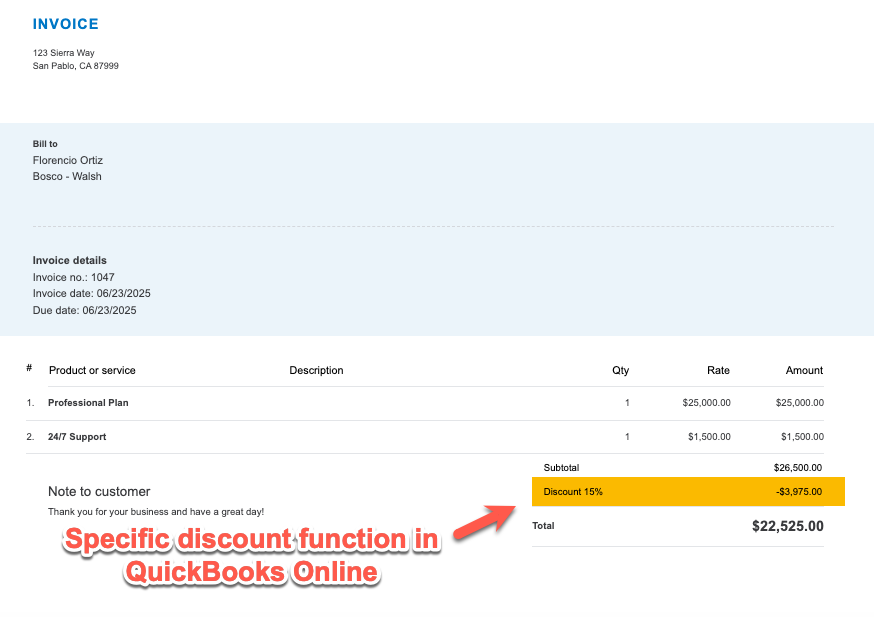
Discounts with QuickBooks Online
The QuickBooks Online Discount function is not presently supported because it does not provide a discount by Product, rather a Discount on the total Invoice. This creates serious issues for revenue reporting. If you desire to record discounts, set up Discount Products in QuickBooks Online.
Discounts with QuickBooks Desktop
If you create an Invoice Line Item in Maxio Platform for a QuickBooks Discount Item, it will be synced only when combined with other Invoice Line Items for the contract such that the total of the Invoice is a positive number.
A Discount Invoice Line Item without additional Invoice Line Items for the same day for the same Customer Contract will result in an error condition in QuickBooks and terminate the syncing process.
A Discount should be entered in Maxio Platform as a negative Transaction Amount to generate the appropriate negative offsetting revenues. Subsequently, any system-generated Invoice Line Items will be negative and display in Maxio Platform as negative values. Within QuickBooks itself, Discounts do not appear as negative values.
Further clarification: When processed by QuickBooks during a sync, a Discount line item is always applied as a discount regardless of whether it is presented to QuickBooks as a positive or negative value. If you enter a Discount in Maxio Platform as a positive value, after syncing your Transaction, Contract, and Customer will be out-of-balance.
QuickBooks Desktop Invoice fields and functions not presently supported in the sync
- Enable online payment checkbox
- Custom fields
- Job Numbers
- Item Groups
- Subtotals
Sync Invoices from Maxio Platform to QuickBooks
The Settings section of the QuickBooks landing page shows the dates that control which Invoices sync.
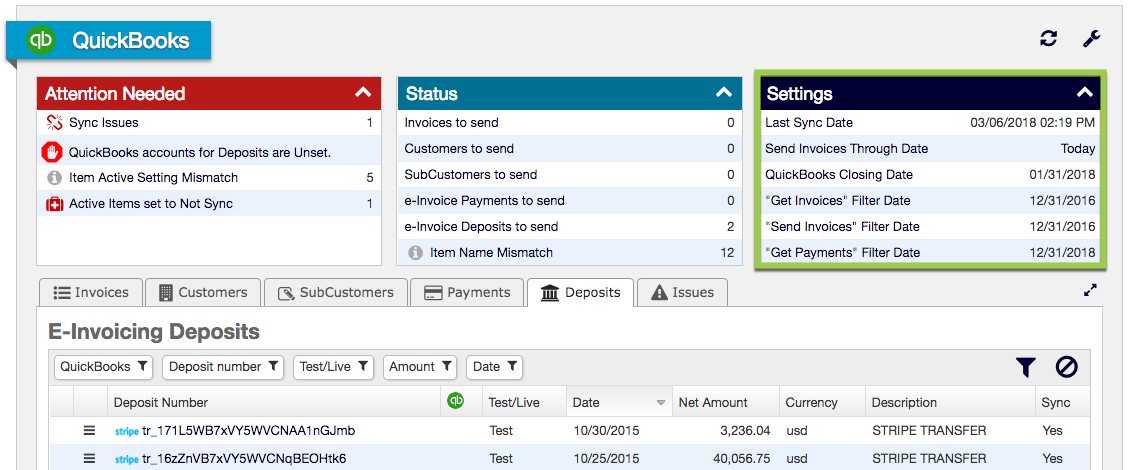
Invoices created in Maxio Platform will sync into QuickBooks, provided the following configuration and data conditions are met.
- The Invoice Date is on or before or before the Send Invoices Through Date, which can be referenced from the Settings section of the QuickBooks Landing page. Typically, this date field is left blank such that the Invoices sync into QuickBooks when the Invoice Date is on or before the date the sync is performed.
- Sync Immediately may be checked for the Invoice. This setting can be updated from the QuickBooks Data tab of the Edit Invoice view.
- The Invoice contains only Invoice Line Items that use Items/Products that were originally created in QuickBooks Desktop. If an Invoice contains even a single Invoice Line Item that uses an Item created in Maxio Platform, that Invoice will not sync into QuickBooks Desktop.
- The Invoice contains only Invoice Line Items that use Items with Sync Invoices set to Yes.
- The Customer Do Not Sync option is not selected.
- The Invoice Do Not Sync option is not selected.
- The Invoice Date is after the "Send Invoices Filter Date" setting established in the QuickBooks integration Settings.
- Syncing the Invoice to QuickBooks would not violate the QuickBooks Closing Date.
Sync Invoices from QuickBooks to Maxio Platform
Invoices created or edited in QuickBooks will sync into Maxio Platform, provided the following configuration and data conditions are met.
- The Invoice Date is after the"Send Invoices Filter Date" in the Integration Settings, the Invoice will sync. Invoices with a Date prior to this are discarded.
- The Invoice's last-modified timestamp in QuickBooks is after the last-synced timestamp stored in Maxio Platform. You can view the QuickBooks timestamp data in Maxio Platform in the View Invoice screen, in the Created in QuickBooks and Modified in QuickBooks fields.
Effect Of the Sync Setting for Items in the Invoice
While an Invoice created in Maxio Platform with a mix of line items that are set to sync or not sync will result in the Invoice itself not syncing, an Invoice created in QuickBooks with a mix of Items that are set to sync and not sync WILL sync to Maxio Platform. However, for any Invoice Line Item with an Item set to not sync, the Invoice Line Item Amount will be set to zero.
See the images below:
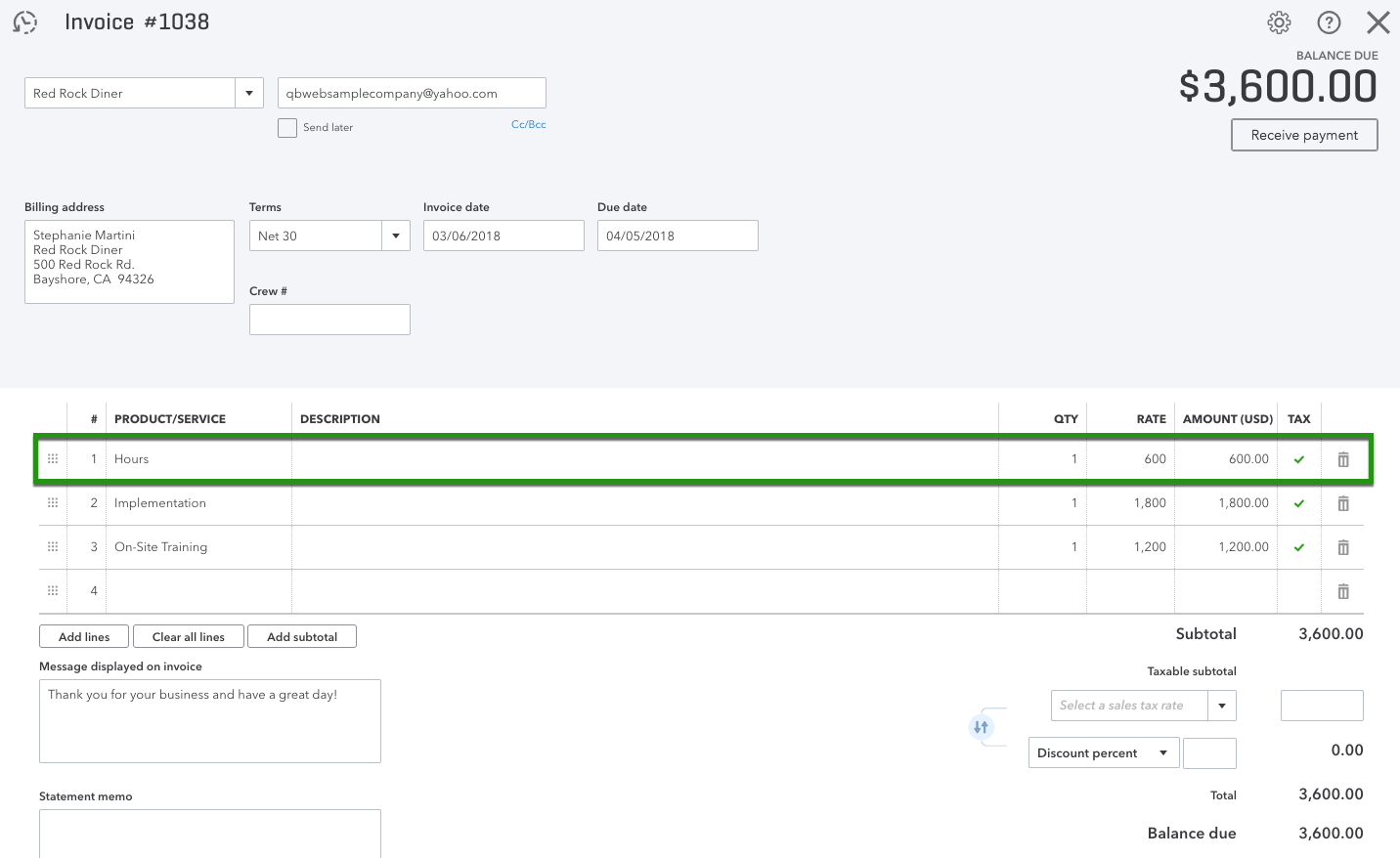
One of the three Line Items uses an Item that is set in Maxio Platform to NOT sync.
The resultant Invoice in Maxio Platform has a zero value for the non-syncing Line Item-- and as Finance Reports in Maxio Platform use the Invoice Line Item totals rather than the Invoice totals from QuickBooks, the non-syncing Line Item will be zero-value in your Finance Reports as well.
Depending upon your QuickBooks Integration Settings, you can either have these non-syncing Line Items removed from view entirely, or appear as zero-value Line Items in Maxio Platform.
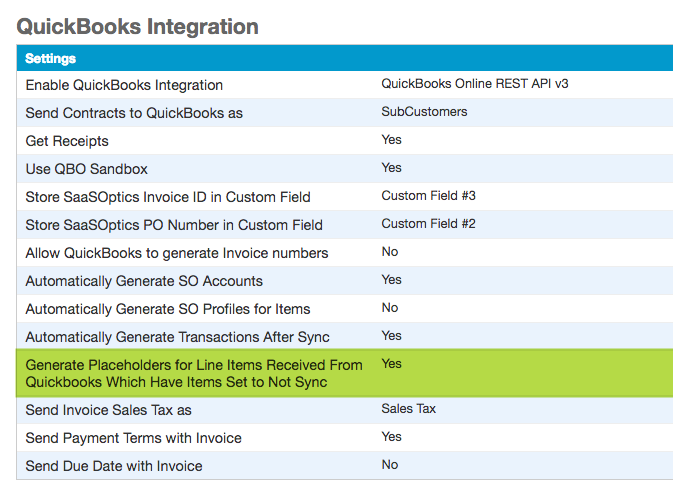
With the limitations imposed by the Item settings and overall account settings define above, Invoice and Invoice Line Items created in QuickBooks will sync to Maxio Platform.
Once in Maxio Platform, Invoices are added to a Customer Contract. If a Contract doesn't exist, one is created automatically during the sync process. If multiple Contracts exists, the Invoices are placed in one of the Contracts. Since you cannot control into which Contract the Invoices are placed in a Customer has multiple Contracts, it is advised not to create Invoices in QuickBooks for Customers with multiple Contracts.
Since revenues are associated with Transactions and not Invoice Line Items, you must create Transactions and Revenues for the Invoice data or your Contract and Customer will be out-of-balance. The following options exist for the creation of Transactions and Revenues:
Create Transaction from an Invoice Line Item
Create a single Transaction from a single Invoice Line Item. Simply navigate to an Invoice Line Item and then select the Create Transaction option from the menu.
Create Transactions
Create a single Transaction for one or more Invoice Line Items. For example, use Create Transactions to create an annual subscription for 12 monthly invoices.
Generate Transactions
Using Item level settings, this batch operation can Generate Transactions (and Revenues) for a large number of Invoice Line Items. Used during an initial implementation when you have synced historical invoice data from QuickBooks. Can also be used frequently for non-recurring Invoice Line Items that have their Invoices created in QuickBooks.
Generate Transactions with Autogenerate Transactions Enabled
With the Autogenerate Transactions setting on, Transactions and Revenues will be created automatically using the Generate Transactions function during the sync process.
Associating and Permit No Association
In addition and in some special situations, you may have existing Transactions in Maxio Platform that contain the revenue for the Invoices you have synced. You can link the Invoice Line Items to the transaction by editing the Invoice Line Items within a Contract and linking each line item to a Transaction.
In special situations, such as when you have a bundled line item, meaning a single invoice line item that is actually composed of a number of unique items for which you need separate Transactions and Revenues for proper revenues accounting, you may wish to set the Permit No Association flag for one or more Invoice Line Items that synced from QuickBooks. You can also set this using the Editing the Invoice Line Items function.
Deleted Invoices & Credit Memos - QuickBooks Desktop Only
Invoices and Credit Memos are deleted in QuickBooks through a specific action/function called Delete. Delete actually deletes the Invoice or Create Memo. Voiding preserves the Invoice or Credit Memo, but zeros out all the values. Voiding is preferred over deleting, but the best practice approach is to issue a credit memo.
For Invoice Line Items that have previously synced to Maxio Platform, deletion in QuickBooks results in one of the following:
If the Invoice/Credit Memo is dated after either Maxio Platform Closing Date or the QuickBooks Closing Date, the Invoice/Credit Memo is automatically deleted in Maxio Platform. A Transaction linked to the deleted Invoice/Credit Memo Line Item is not deleted, however, it will likely become out-of-balance.
If the Invoice/Credit Memo is dated on or before either Maxio Platform Closing Date or the QuickBooks Closing Date, the Invoice/Credit Memo is not deleted and appears in the Invoices Deleted from QuickBooks function within Maxio Platform. From there, you can manually delete Invoice/Credit Memo Line Item.
Invoice Numbers
In Maxio Platform, each Invoice has both a Maxio Platform Invoice Number and a QuickBooks Invoice Number. This is required because in Maxio Platform, the Invoice Number must be unique, and in QuickBooks, an Invoice Number is not required to be unique. Both fields are alphanumeric.
For invoices created in Maxio Platform, the default behavior is for Maxio Platform to generate a unique Maxio Platform Invoice Number and assign it to the QuickBooks Invoice Number as well. The unique number is generated based on your Account Settings.
Maxio Platform also permits you to key in or edit an Invoice Number, and the default behavior is to set the QuickBooks Invoice Number to be the same as the Maxio Platform Invoice Number.
Sequential Invoice Numbering Issue
Maxio Platform generates the Invoice Numbers when the Invoice is created, which is when they are generated in Maxio Platform, not when they actually sync. This can result in a change in the way your Invoice Numbers generally progress or iterate.
For purposes of illustration, you enter a Transaction with a Jan 1 Start Date and Dec 31 End Date, and generate monthly invoices. The Invoice Numbers are created sequentially. Again for illustration, let's assume the Invoice Numbers generated for this Transaction are 1, 2, 3, 4, 5, 6, 7, 8, 9, 10, 11, and 12. Invoice Number 1 is in January and Invoice Number 12 is in December.
Next, you do the same for another customer, that is you add a one-year Transaction with monthly invoicing. The Transaction also has a Jan 1 Start Date and Dec 31 End Date. Invoice Numbers, being sequentially created, are 13, 14, 15 .... through 24. Invoice Number 13 is in January and Invoice Number 24 in December.
For some organizations, the change in the relative number of invoices from "loosely correlating to a point in time" to what is "no correlation" can be disruptive.
To address this issue, you can enable the Allow QuickBooks to Generate Invoice Numbers account-wide setting that changes the default Invoice creation method in Maxio Platform, changing the behavior:
- from attempting to make the QuickBooks and Maxio Platform Invoice Numbers the same
- to leaving the QuickBooks Invoice Number blank when the Invoice is created in Maxio Platform
Then, when the Invoice is actually synced to QuickBooks, QuickBooks assigns the Invoice Number and sends that back to Maxio Platform. In this case, the Maxio Platform Invoice Number and QuickBooks Invoice Numbers will be different.
Invoice Number Notes and Caveats
QuickBooks will only generate the Invoice Number IF the value in the QuickBooks Invoice Number field in Maxio Platform is blank. The integration settings isn't an "override," meaning it does not force the QuickBooks Invoice Number to be blank. It simply does not populate it when Invoices are created in Maxio Platform. If you key in a value to the QuickBooks Invoice Number in Maxio Platform for a specific Invoice and sync the Invoice, the Invoice in QuickBooks will be created with the number you entered into Maxio Platform.
If you have already created an Invoice Schedule into the future based on the default Invoice Number creation behavior, your future Invoices have a Maxio Platform-generated QuickBooks Invoice Number that will be used when the Invoice is sent to QuickBooks. You will need to edit and remove this value for any Invoice with a future date that has not synced if you want QuickBooks to create the Invoice Number.
The QuickBooks Invoice Number generation routine is not a well documented function. If you enter an Invoice in QuickBooks, QuickBooks will remember that as your last entry and counter. The next Invoice you create in QuickBooks will be that number +1. If you select to allow QuickBooks to generate invoice numbers, the next number generated will be the last number you keyed into the Invoice Number field when manually creating an Invoice in QuickBooks. QuickBooks Numbers are alphanumeric.
Modifying Invoices/Credit Memos in QuickBooks
Once an Invoice or Credit Memo has been synced from Maxio Platform to QuickBooks or from QuickBooks to Maxio Platform, the line item within them can no longer be modified or edited in Maxio Platform. You must edit the Invoice or Credit Memo in QuickBooks
The following will occur when editing Invoices and Credit Memos in QuickBooks:
- If you remove a line item from an Invoice or Credit Memo, the Line Item will remain in Maxio Platform, but will have a value of zero
- If you Void an Invoice or Credit Memo, any Line Items will remain in Maxio Platform, but each line item will have a value of zero
QuickBooks Online Invoice Print and Email Queue Settings
The Customer and Invoice To Be Printed (Print Queue) and To Be Emailed (Email Queue) settings in Maxio Platform enable queuing in QuickBooks Online of the Invoices sent to QuickBooks Online. Invoices can be queued to be email, printed, or both.
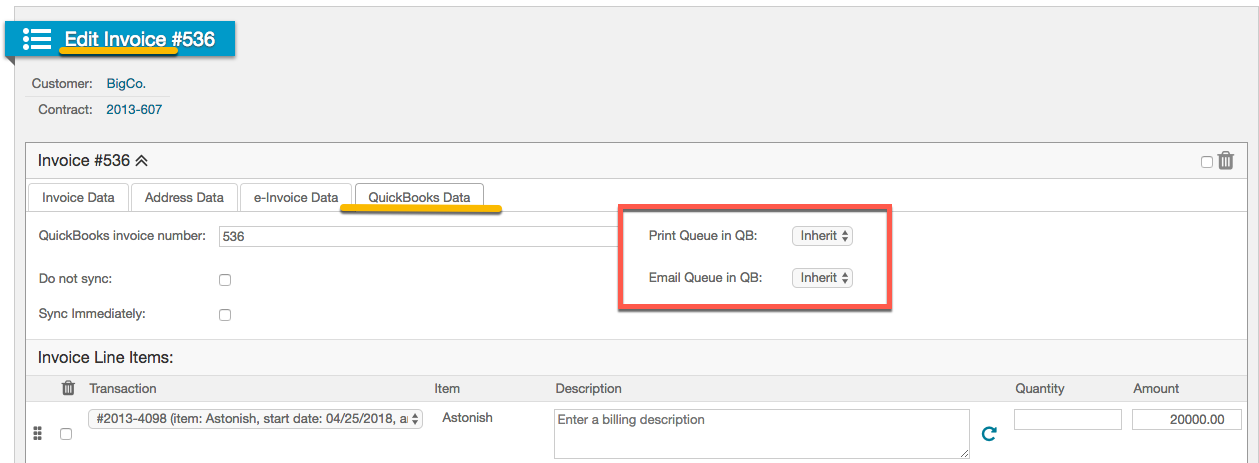
You can make the following selections to determine whether Invoices end up in the Print or Email queues in QuickBooks:
- Inherit - sets the Invoice To Be Emailed property to the Customer's To Be Emailed setting
- Yes - sets the To Be Emailed Invoice property to Yes in QuickBooks
- No - The To Be Emailed Invoice property in QuickBooks is not set even if the To Be Emailed setting of the Customer is Yes
The Maxio Platform Customer record includes two special fields:
- Invoice email preference
- Invoice print preference
The Customer record also includes an email address used when sending Invoices to the Customer via email from within QuickBooks Online.
These fields are set when you create a Customer record in Maxio Platform, and can be edited at any time.
Neither of these settings has an equivalent setting in QuickBooks Online, and therefore neither is an editable Customer record in QuickBooks. (Note, however, that removing the Email address field in QuickBooks Online will result in the Invoice email preference being turned off/unchecked in Maxio Platform.)
If checked, Maxio Platform sends QuickBooks instructions that the Invoice is to be emailed and/or printed. Once in QuickBooks, you must still perform certain actions required to actually email or print these Invoices. Email and printing are not performed automatically based on these selections.
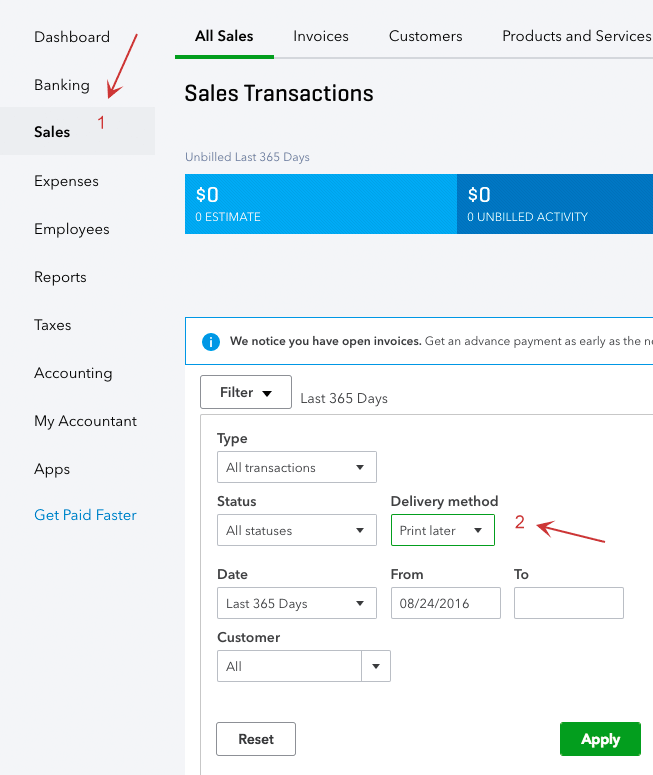
To email or print designated Invoices in QuickBooks Online, select Sales from the side menu bar, then select the All Sales tab. Select the Filter option, and then Delivery Method = Print Later or Send Later (to email).
QuickBooks Desktop Print and Email Settings
Maxio Platform sends with the InvoiceBOTH the Invoice Print Preference and also the Invoice Email Preference associated with the Invoice or the Customer displayed in Maxio Platform.
- If the Customer's Invoice Print Preference is selected in Maxio Platform, the "To be printed" checkbox in the QuickBooks Invoice will be selected
- If the Customer's Invoice email Preference is selected in Maxio Platform, the "To be emailed" checkbox in the QuickBooks Invoice will be selected
QuickBooks Desktop Templates
See Templates for more information.
QuickBooks will calculate the Rate if the Rate column appears in your template. The Quantity will be ignored if the quantity column is not included in your template.
Invoices for Customer Set to Not Sync
When creating or editing a Customer that has not previously synced, you can select this setting to prevent Invoices for the Customer from syncing from Maxio Platform to QuickBooks.
Creating Invoices in Maxio Platform
While you can create Invoices in either system and sync them to the other, there are also significant differences in the workflow and click streams required to build out complete subscription and revenue records. The most efficient way to create complete financial records is to create them in Maxio Platform and sync the resulting Invoices to QuickBooks.
It's best to begin by reviewing how you create an Invoice in QuickBooks, as the process is very different in Maxio Platform.
In QuickBooks, you select to add a single Invoice to a Customer on one screen where you define the Invoice properties such as the date and billing address, AND you select one or more Items/Products, adding a description, quantity, and an amount for each. All this is performed on one screen for one Invoice.
In Maxio Platform, the process is very different. It is different because you are not simply creating an Invoice in Maxio Platform, you are building a complete financial record that includes subscription, revenue, and invoicing information.
The process in Maxio Platform is as follows:
After creating or locating a Customer, you must create or select a Contract. The Contract is an important container of Transaction, Revenue and Invoice information has has no equivalent function in QuickBooks.
Next, you add one or more Transactions. For each Transaction, you create a revenue schedule and an invoicing schedule. The invoicing schedule is comprised of one or more Invoice Line Items.
With regard to invoices, the differences in the process are significant. You don't actually add an Invoice in Maxio Platform. You add Invoice Line Items. The actual Invoice or Invoices are then built for you from the schedule of Invoice Line Items you define when creating the Transaction(s).
Functions such as Processing Orders, Add Transaction, Add Transactions, and the family of Renewal functions all add Transactions and thus can all generate one or more Invoice Line Items. Those Invoice Line Items are combined into Invoices using the following logic and rules.
Rules
The following apply universally:
- Invoice Line Items with different dates are never combined into a single Invoice.
- Invoice Line Items are never added to an Invoice that has already synced to QuickBooks. In other words, you cannot edit an Invoice in Maxio Platform if the Invoice has synced to QuickBooks.
Item Sync/Do Not Sync Setting
Items are set to sync or not sync in the Maxio Profile. If an Item is set to not sync, an Invoice created in QuickBooks that contains that item will still sync to Maxio Platform. However, the Invoice Line Item itself will be set to a zero value in Maxio Platform.
Closing Dates
The QuickBooks Closing Date and Maxio Platform Closing Date can be used to prevent the addition, deletion, or modification of Transactions, Revenues, and Invoices in the Closing Period. The QuickBooks Closing Date affects the ability to sync Invoices to QuickBooks as well as how Invoices can be created in Maxio Platform. The Maxio Platform Closing Date affects how Invoices synced from QuickBooks are treated in Maxio Platform and also how Invoices can be created in Maxio Platform.
Sync Invoices to QuickBooks Only After Date
An account-level setting that can be used to prevent ALL Invoices before a specified date from syncing from Maxio Platform to QuickBooks. This date is typically set during initial implementation to prevent historical information from syncing to Maxio Platform. It can also be used to support a close process.
Sync Invoice from QuickBooks Only After Date
An account-level setting that can be used to prevent ALL Invoices before a specified date from syncing from QuickBooks to Maxio Platform. This date is typically set during initial implementation to prevent historical information from syncing to Maxio Platform. It can also be used to support a close process.
Invoice Do Not Sync
When creating or editing an Invoice that has not previously synced, you can select this to prevent the Invoice from syncing from Maxio Platform to QuickBooks.
Invoice Sync Immediately
When creating or editing an Invoice that has not previously synced, you can select this to force the Invoice to sync from Maxio Platform to QuickBooks during the next sync. The Sync Immediately option is set at the Invoice level and instructs Maxio Platform to sync the Invoice at the next sync even if the date is in the future. This setting does NOT override the other sync settings such as Customer Do Not Sync, Item Do Not Sync, etc. To actually sync immediately, the only condition that would otherwise prevent the Invoice from syncing is the Invoice Date is in the future.
Still need help?
Reach out and our support team will take it from here.