
Sync QuickBooks Multi-currency
Applies to: Maxio Core
Last updated on Sep 8, 2026
Both Maxio and QuickBooks have a Multi-currency feature.
Important: Once Multi-currency is enabled, in either QuickBooks or Maxio, it cannot be disabled.
You can operate in one of two modes:
- Multi-currency enabled in both QuickBooks and Maxio.
- Multi-currency enabled in QuickBooks, but not in Maxio.
We recommend enabling Multi-currency in both QuickBooks and Maxio.
Currency and Register mismatches
If QuickBooks Multi-currency is enabled, you must select a single currency for a Customer, and every Contract for that Customer must be in a Register of that same currency. Maxio warns you if that's not the case, and lets you move the Contracts as needed. If you've been using Maxio for some time and then enable Multi-currency, you may run into this.
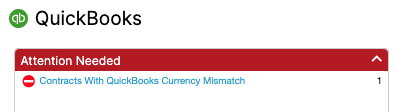
From the main menu, select QuickBooks, then select the Contracts with QuickBooks Currency Mismatch alert in the Attention Needed box.
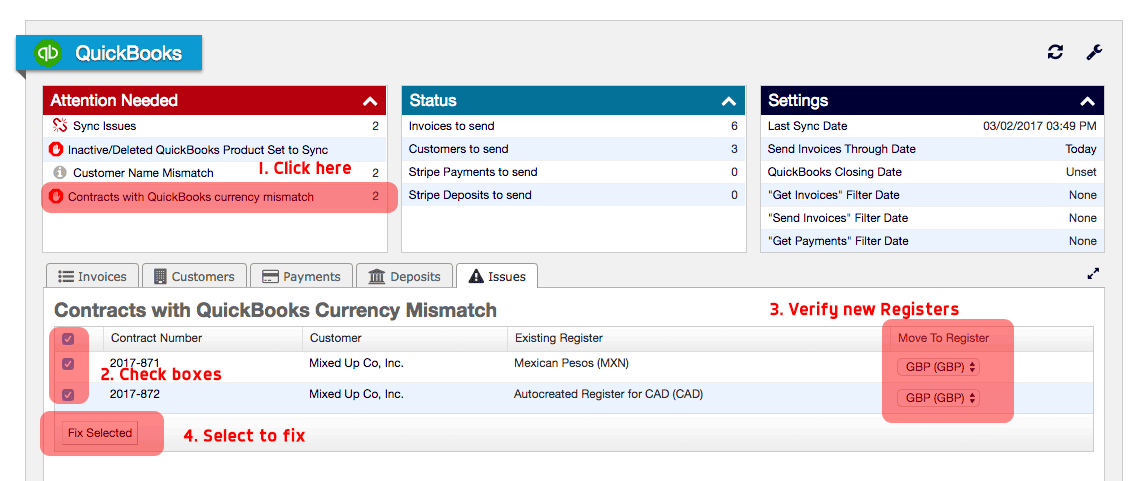
This takes you to a list of currency mismatch issues, where you can move each Contract to a Register with the correct currency.
The Currency field is a dropdown in the QuickBooks Billing Profile section of the Create Customer screen, but it's hidden when Multi-currency is disabled in QuickBooks.
Enable Multi-currency in Maxio through the QuickBooks Setup Wizard
This section covers enabling Multi-currency in Maxio when you already have it enabled in QuickBooks.
Only an Admin user can enable Multi-currency, through the QuickBooks Setup wizard. Click through the wizard until you reach the Multicurrency Settings step, then select Enable multicurrency using <your currency code> (for example, Enable multicurrency using USD). Select Confirm on the pop-up message.
Attention! You have elected to enable multicurrency in your account. Multicurrency changes the way monetary amounts are processed and stored within the application, and affects integrations with other systems. For these reasons, once multicurrency is enabled, you cannot disable it nor can you change your configured home currency.
To irreversibly enable multicurrency and align with your QuickBooks home currency, select Confirm. Otherwise, select Cancel and multicurrency will not be enabled.
Multi-currency Deposits
When syncing Deposits to QuickBooks, the Payment and Deposit currencies don't need to match on the Maxio side; Maxio doesn't validate this. But QuickBooks itself requires them to match, so a mismatch still surfaces as a sync error there:
"Can only send Deposits with lines whose Gross Amount equals the associated Payment's amount."
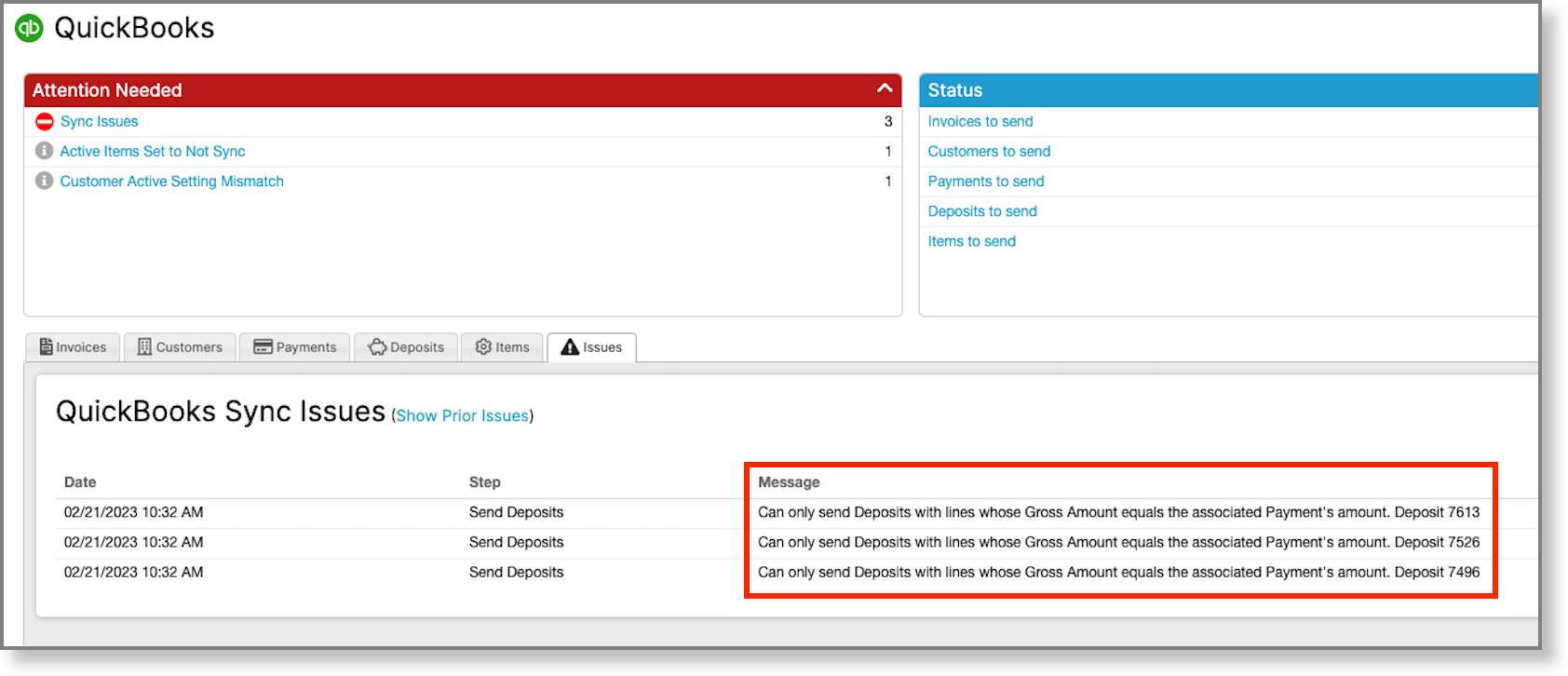
Since QuickBooks won't allow a mismatch between a Deposit's and its Payment's amounts, and those amounts aren't directly comparable across different currencies, syncing fails. Handle these Deposits manually in QuickBooks, then mark them Do Not Sync in Maxio to clear the error there.
Related information
For an overview of how Maxio and QuickBooks share data, see Understand the QuickBooks Integration.
For how Deposits sync in general, see Sync QuickBooks Payments and Deposits.
Still need help?
Reach out and our support team will take it from here.